
1. Introduction
The Perixx PERIBOARD-326 is a compact, wired USB keyboard featuring low-profile keys and adjustable white backlighting. Designed for efficiency and comfort, this keyboard is suitable for various computing environments, offering a reliable and quiet typing experience. This manual provides detailed instructions for setting up, operating, maintaining, and troubleshooting your PERIBOARD-326 keyboard.

Overview of the Perixx PERIBOARD-326 mini backlit USB keyboard, highlighting its compact design and wired USB connection.
2. Package Contents
Please verify that all items are present in your package:
- Perixx PERIBOARD-326 Wired Mini Backlit USB Keyboard
- User Manual

Contents of the PERIBOARD-326 package, including the keyboard, user manual, and product box.
3. System Requirements
The Perixx PERIBOARD-326 keyboard is compatible with the following operating systems:
- Windows 7
- Windows 8
- Windows 10 and above
- PC with an available USB port
4. Setup Instructions
The PERIBOARD-326 is designed for simple plug-and-play functionality.
- Connect the USB Cable: Locate an available USB port on your computer. Insert the USB-A connector of the keyboard's cable into the USB port. The keyboard features a 1.5-meter (4'9 ft) long USB cable for convenient connection.
- Automatic Driver Installation: Your operating system will automatically detect the keyboard and install the necessary drivers. This process typically takes a few seconds.
- Begin Typing: Once the drivers are installed, the keyboard is ready for immediate use.

The PERIBOARD-326 keyboard positioned on a desk, illustrating its slim and elegant design. The image also highlights the 1.5-meter USB cable for connectivity.
5. Operating the Keyboard
The PERIBOARD-326 offers a comfortable and efficient typing experience with its low-profile keys and compact design.
5.1 Typing Experience
- Low-Profile Keys: The keys are designed for comfortable and quiet typing, suitable for extended use.
- Compact Design: The mini layout without a dedicated number pad saves desk space and reduces the distance to your mouse.

A user's hands are shown typing on the PERIBOARD-326, emphasizing the comfortable typing experience and the quiet operation of the keys.
5.2 Adjustable Feet
The keyboard is equipped with adjustable feet on the underside. These can be extended to tilt the keyboard to a more ergonomic angle, enhancing typing comfort.

The side profile of the PERIBOARD-326 keyboard, illustrating the adjustable feet that allow for ergonomic positioning.
6. Function Keys and Backlight Control
The PERIBOARD-326 features integrated FN hotkeys for quick access to multimedia functions and backlight control.
6.1 Backlight Control
The keyboard's white backlighting can be adjusted to suit your preference and environment. Use the following key combination:
- Press Fn + F8 to cycle through 4 levels of brightness (100%, 75%, 50%, 25%) and turn the backlight off (0%).

The PERIBOARD-326 keyboard illuminated with white backlighting, demonstrating its visibility in low-light conditions and the availability of 4 adjustable brightness levels.
6.2 Integrated FN Hotkeys
Combine the Fn key with the designated F-keys for additional functionality:
- Fn + F9: Play/Pause media
- Fn + F10: Stop media
- Fn + F11: Previous track
- Fn + F12: Next track
- Fn + PrtSc: Print Screen
- Fn + Scroll Lock: Scroll Lock
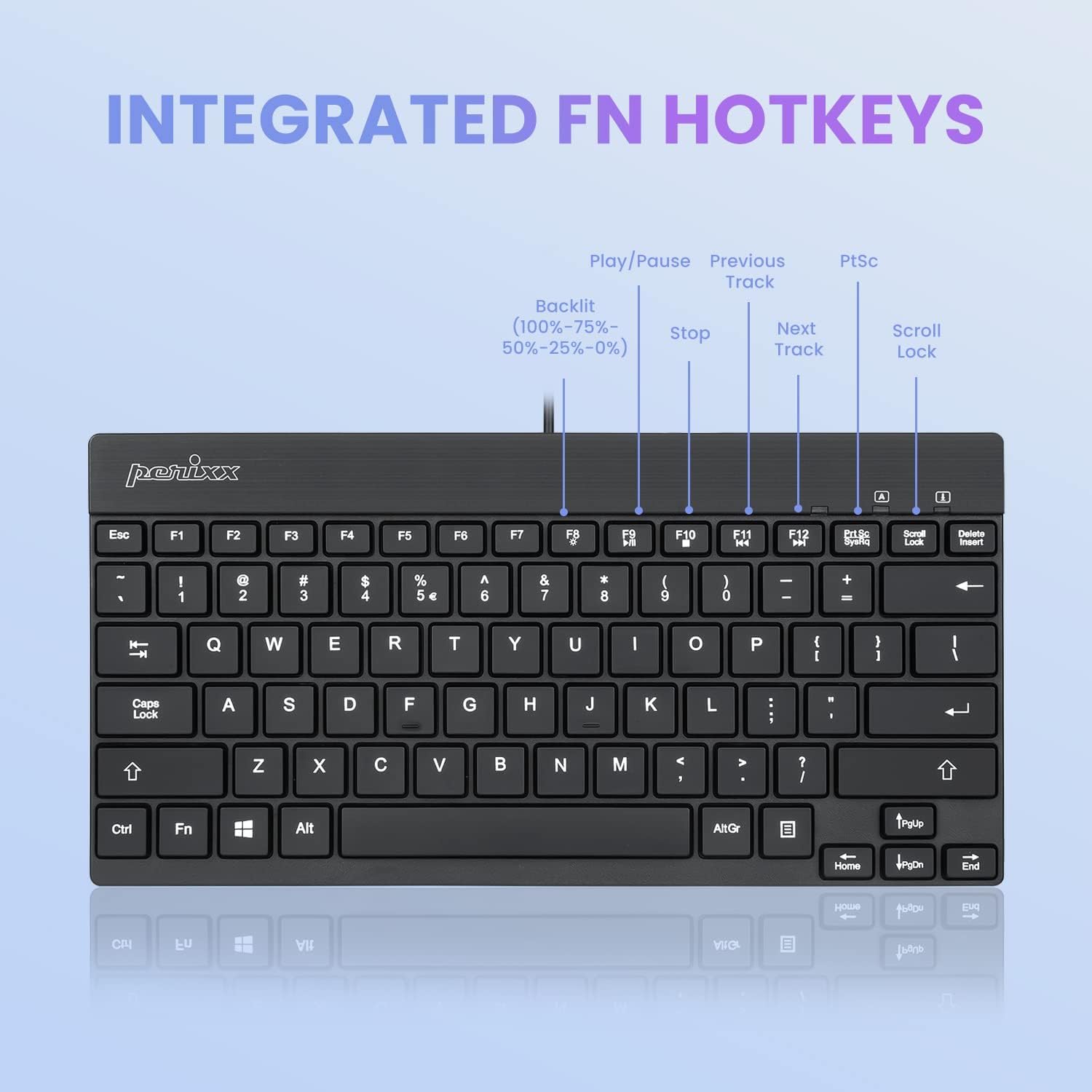
Detailed view of the PERIBOARD-326 keyboard layout, specifically highlighting the integrated FN hotkeys for multimedia control and backlight brightness adjustment (100%-75%-50%-25%-0%).
7. Maintenance
To ensure the longevity and optimal performance of your PERIBOARD-326 keyboard, follow these maintenance guidelines:
- Cleaning: Use a soft, lint-free cloth slightly dampened with water or a mild cleaning solution to wipe the surface of the keyboard. Avoid harsh chemicals, abrasive cleaners, or excessive moisture.
- Dust Removal: Use compressed air to remove dust and debris from between the keys.
- Storage: When not in use for extended periods, store the keyboard in a clean, dry environment away from direct sunlight and extreme temperatures.
- Avoid Spills: Keep liquids away from the keyboard to prevent damage to internal components. In case of a spill, immediately disconnect the keyboard from your computer and allow it to dry completely before reconnecting.
8. Troubleshooting
If you encounter issues with your PERIBOARD-326 keyboard, please refer to the following common solutions:
- Keyboard Not Responding:
- Ensure the USB cable is securely plugged into a working USB port on your computer.
- Try connecting the keyboard to a different USB port.
- Restart your computer.
- Test the keyboard on another computer to determine if the issue is with the keyboard or the computer.
- Backlight Not Working:
- Press Fn + F8 repeatedly to cycle through brightness levels and ensure the backlight is not turned off.
- Ensure the keyboard is properly connected to your computer.
- Keys Not Functioning Correctly:
- Check for any physical obstructions or debris under the affected keys.
- Ensure your operating system drivers are up to date.
9. Specifications
| Product Dimensions | 10.87 x 5.43 x 0.55 inches (27.61 x 13.79 x 1.4 cm) |
| Item Weight | 13.4 ounces (0.38 kg) |
| Connectivity Technology | USB Wired |
| Keyboard Description | Compact |
| Special Feature | Backlit (White) |
| Keyboard Backlighting Color Support | Single Color (White) |
| Compatible Devices | PC |
| Manufacturer | Perixx |
| Model Number | 11607 |
10. Warranty and Support
Perixx products are designed and manufactured with quality in mind. For information regarding warranty coverage and customer support, please refer to the official Perixx website or contact their customer service directly. Perixx is committed to providing friendly customer support for their products.
For further assistance, you may visit the Perixx Store on Amazon or their official website.


