
1. Introduction
The GIGABYTE W480 Vision D is an ATX motherboard designed to support Intel Xeon W processors and 10th Generation Intel Core series processors, utilizing the LGA 1200 socket and Intel W480 chipset. This motherboard is engineered for reliability and performance, featuring ECC memory support, multiple graphics card capabilities, and advanced connectivity options such as Thunderbolt 3, Intel 2.5GbE + GbE Dual LAN, and Intel Wi-Fi 6 802.11ax with Bluetooth 5.0. It also includes triple M.2 slots with PCIe Gen3 x4 interface and thermal guards for efficient storage solutions.
This manual provides detailed instructions for the installation, operation, maintenance, and troubleshooting of your GIGABYTE W480 Vision D motherboard. Please read this manual thoroughly before beginning the installation process to ensure proper setup and optimal performance.

Figure 1.1: GIGABYTE W480 Vision D Motherboard and its retail packaging. The image displays the motherboard with its distinctive white heatsinks and I/O cover, alongside its white and gold-accented box.
2. Setup and Installation
This section guides you through the physical installation of the motherboard and its components into your computer chassis.
2.1. Preparing the Chassis
- Ensure your chassis is compatible with ATX form factor motherboards.
- Install the I/O shield provided with the motherboard into the chassis's rear opening.
- Install the necessary standoffs in your chassis for the ATX motherboard.
2.2. Processor (CPU) Installation
The W480 Vision D motherboard uses an LGA 1200 socket. Handle the CPU and socket with care to avoid damaging the pins.
- Locate the LGA 1200 socket on the motherboard.
- Gently push down the load lever and pull it away from the socket to open the CPU socket cover.
- Align the CPU with the socket, ensuring the golden triangle on the CPU matches the triangle on the socket. Carefully place the CPU into the socket without forcing it.
- Close the CPU socket cover and push the load lever back into its locked position.
- Apply thermal paste to the CPU and install the CPU cooler according to its manufacturer's instructions.
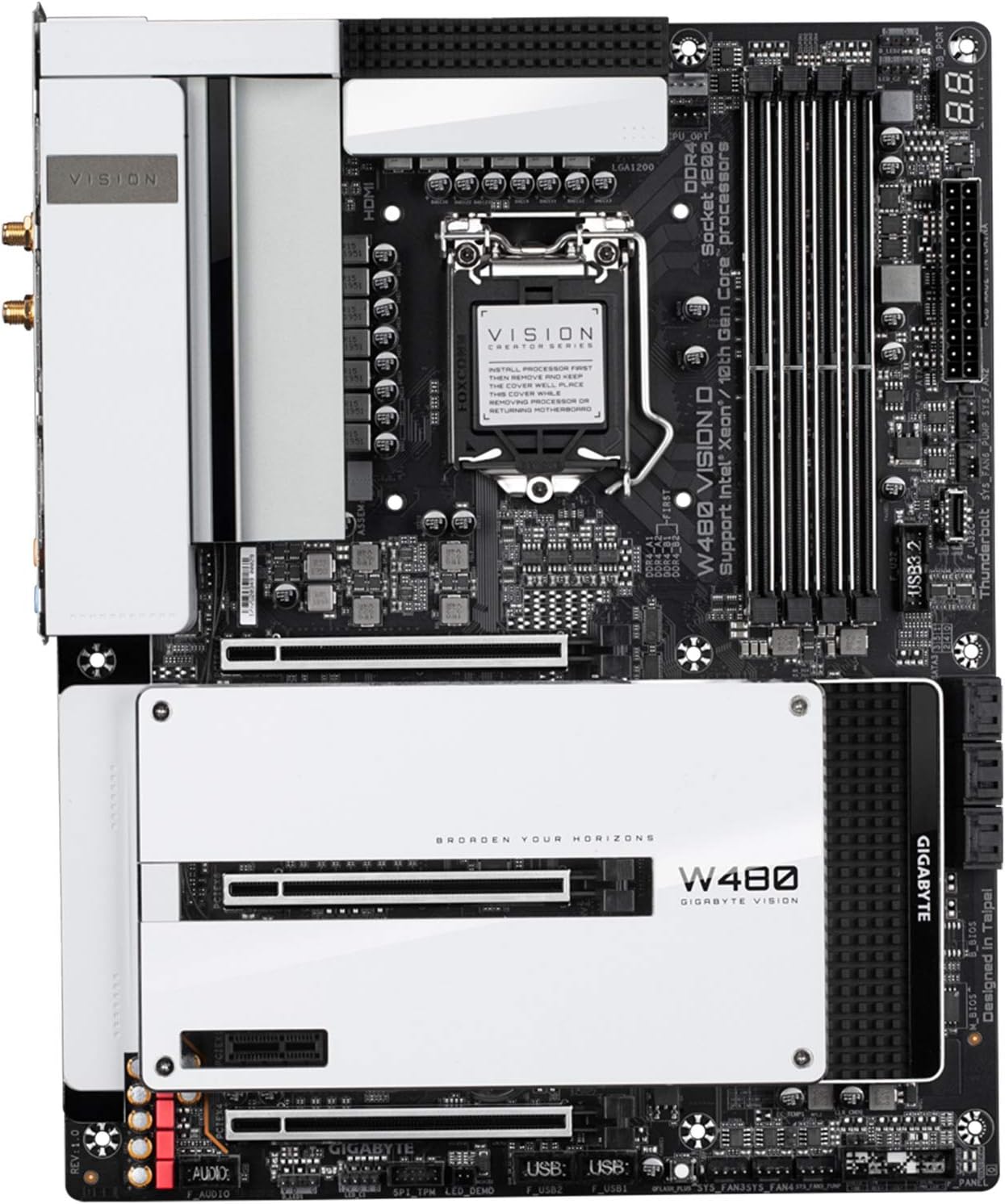
Figure 2.1: Top-down view of the GIGABYTE W480 Vision D motherboard, highlighting the LGA 1200 CPU socket, DDR4 memory slots, and M.2 slots with their thermal guards.
2.3. Memory (RAM) Installation
This motherboard supports DDR4 ECC memory. Refer to your CPU and memory specifications for compatible speeds and configurations.
- Open the clips at both ends of the DIMM slots.
- Align the memory module with the slot, ensuring the notch on the module matches the key in the slot.
- Insert the module firmly into the slot until the clips snap into place.
2.4. Storage Device Installation (M.2 SSDs and SATA Drives)
The motherboard features triple M.2 slots with PCIe Gen3 x4 interface and SATA 6Gb/s ports.
2.4.1. M.2 SSD Installation
- Unscrew and remove the M.2 thermal guard from the desired M.2 slot.
- Insert the M.2 SSD into the slot at a 30-degree angle.
- Gently push down the M.2 SSD and secure it with the provided screw.
- Reattach the M.2 thermal guard.
2.4.2. SATA Drive Installation
- Connect one end of a SATA data cable to a SATA 6Gb/s port on the motherboard.
- Connect the other end of the SATA data cable to your SATA hard drive or SSD.
- Connect a SATA power cable from your power supply to the drive.
2.5. Graphics Card Installation
This motherboard supports multiple graphics cards. Install your primary graphics card into the top PCIe x16 slot.
- Open the latch on the desired PCIe x16 slot.
- Align your graphics card with the slot and press it firmly until it clicks into place and the latch closes.
- Secure the graphics card to the chassis with a screw.
- Connect any necessary PCIe power cables from your power supply to the graphics card.
2.6. Power Connections
- Connect the 24-pin ATX main power connector from your power supply to the motherboard.
- Connect the 8-pin (or 4+4-pin) ATX 12V CPU power connector(s) to the motherboard.
2.7. Front Panel and Peripheral Connections
Connect the various cables from your chassis front panel (power button, reset button, USB ports, audio jacks) to the corresponding headers on the motherboard. Refer to the motherboard layout diagram for exact header locations.
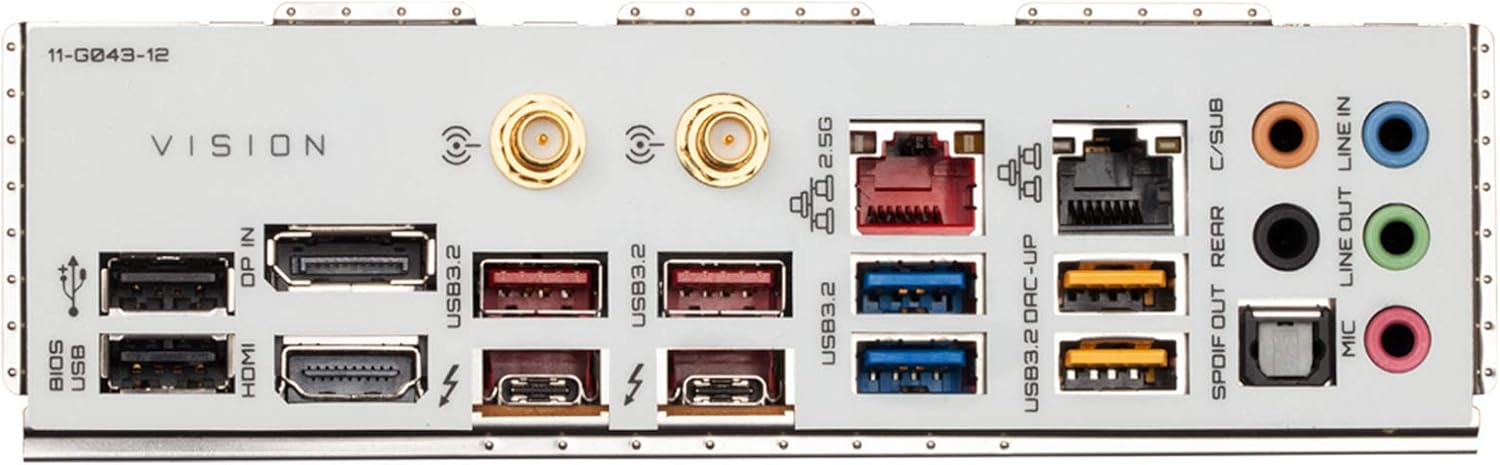
Figure 2.2: Detailed view of the rear I/O panel of the GIGABYTE W480 Vision D motherboard, showing various ports including USB 3.2, Thunderbolt 3 (USB-C), Intel 2.5GbE and GbE LAN, Wi-Fi antenna connectors, and audio jacks.
3. Operating Instructions
After completing the hardware installation, you can proceed with system setup.
3.1. Initial Boot and BIOS/UEFI Setup
- Connect your monitor, keyboard, and mouse.
- Power on your system. During the boot process, repeatedly press the DEL key to enter the BIOS/UEFI setup utility.
- In the BIOS/UEFI, you can configure boot order, system time, enable/disable integrated peripherals, and adjust performance settings. Save changes before exiting.
3.2. Operating System Installation
Insert your operating system installation media (USB drive or DVD) and follow the on-screen instructions to install your preferred operating system.
3.3. Driver Installation
After installing the operating system, install the necessary drivers for the motherboard's components. These typically include chipset drivers, LAN drivers, Wi-Fi/Bluetooth drivers, audio drivers, and any specific drivers for Thunderbolt 3. Drivers can usually be found on the GIGABYTE official website for your specific motherboard model.
4. Maintenance
Regular maintenance helps ensure the longevity and stable operation of your motherboard and system.
4.1. Cleaning
- Periodically clean dust from inside your computer chassis, especially around fans, heatsinks, and ventilation areas.
- Use compressed air to remove dust from components. Ensure the system is powered off and unplugged before cleaning.
4.2. BIOS Updates (Q-Flash Plus)
GIGABYTE's Q-Flash Plus feature allows you to update the BIOS without installing the CPU, memory, or graphics card. This can be useful for compatibility with newer CPUs or for resolving system issues.
- Download the latest BIOS file from the GIGABYTE website for your W480 Vision D motherboard.
- Rename the downloaded BIOS file to GIGABYTE.bin and save it to the root directory of a USB flash drive (FAT32 format).
- With the system powered off, plug the USB flash drive into the designated Q-Flash Plus USB port on the rear I/O panel.
- Press the Q-Flash Plus button. The QFLED will flash, indicating the BIOS update process has started.
- Wait for the QFLED to stop flashing, which indicates the BIOS update is complete.
5. Troubleshooting
This section provides general guidance for common issues. For more specific problems, refer to the GIGABYTE support website or contact technical support.
5.1. No Power / System Does Not Turn On
- Ensure all power cables (24-pin ATX, 8-pin CPU) are securely connected to the motherboard and power supply.
- Verify the power supply switch is in the "ON" position and the power cable is connected to a working outlet.
- Check front panel power button connections to the motherboard.
5.2. No Display Output
- Ensure your monitor is connected to the graphics card (or integrated graphics port if applicable) and is powered on.
- Reseat the graphics card in its PCIe slot.
- Reseat memory modules. Try booting with only one memory module installed.
- Check if the CPU is properly seated.
5.3. System Instability / Crashes
- Ensure all drivers are up to date.
- Check for proper cooling of the CPU and other components.
- Run memory diagnostic tools to check for faulty RAM.
- Verify power supply stability and wattage.
6. Specifications
Below are the key technical specifications for the GIGABYTE W480 Vision D motherboard.
| Feature | Specification |
|---|---|
| Brand | GIGABYTE |
| Model Number | W480 VISION D |
| CPU Socket | LGA 1200 |
| Compatible Processors | Intel Xeon W, 10th Gen Intel Core series |
| Chipset | Intel W480 |
| RAM Memory Technology | DDR4 (ECC Memory Support) |
| Memory Clock Speed | 2133 MHz (and higher, depending on CPU/RAM) |
| Max Memory Storage Capacity | 64 GB |
| Storage Interfaces | Triple M.2 (PCIe Gen3 x4), SATA 6Gb/s |
| LAN | Intel 2.5GbE + GbE Dual LAN |
| Wireless Connectivity | Intel Wi-Fi 6 802.11ax, Bluetooth 5.0 |
| USB Ports | USB 3.2 Gen 2, Thunderbolt 3 (USB-C) |
| Dimensions (LxWxH) | 13.58 x 11.57 x 3.14 inches (ATX Form Factor) |
| Item Weight | 4.94 pounds |
7. Warranty and Support
For warranty information and technical support, please refer to the official GIGABYTE website or contact your point of purchase.
It is important to note that product warranties can be region-specific. If the product was purchased from a region different from your current location, the warranty and RMA (Return Merchandise Authorization) process may be handled by the original country of sale. Please verify warranty terms with GIGABYTE or your retailer.
Official GIGABYTE Support: https://www.gigabyte.com/Support


