
1. Introduction
Thank you for choosing the SADES Cpower Gaming Headset SA-716. This manual provides essential information for setting up, operating, and maintaining your headset to ensure an optimal gaming and audio experience. Please read this manual thoroughly before using the product.

Image 1.1: SADES Cpower Gaming Headset SA-716. This image displays the black over-ear headset with a flexible microphone and blue SADES logo on the earcups.
2. Package Contents
Please check the package contents upon unboxing. If any items are missing or damaged, contact your retailer.
- SADES Cpower Gaming Headset SA-716
- 3.5mm Audio Cable (integrated)
- PC Adapter Cable (3.5mm 1-to-2 splitter for separate audio/mic jacks)
- User Manual (this document)

Image 2.1: Headset with included cables. This image shows the SADES Cpower headset along with its integrated 3.5mm cable and the separate PC adapter cable (P2 splitter) for connecting to computers with distinct audio and microphone ports.
3. Product Overview
Familiarize yourself with the components and controls of your SADES Cpower headset.
3.1 Headset Components
- Adjustable Headband: For comfortable fit.
- Over-Ear Earcups: Soft memory foam earmuffs for comfort and passive noise isolation.
- Flexible Microphone: Positionable for clear voice capture.
- Integrated 3.5mm Cable: For audio and microphone connection.
- Inline Volume Control: Adjust audio output level.
- Microphone Mute Switch: Quickly mute or unmute the microphone.

Image 3.1: Headset features. This image highlights the adjustable headband with 9 levels for a customized fit and the inline volume control wheel located on the earcup.
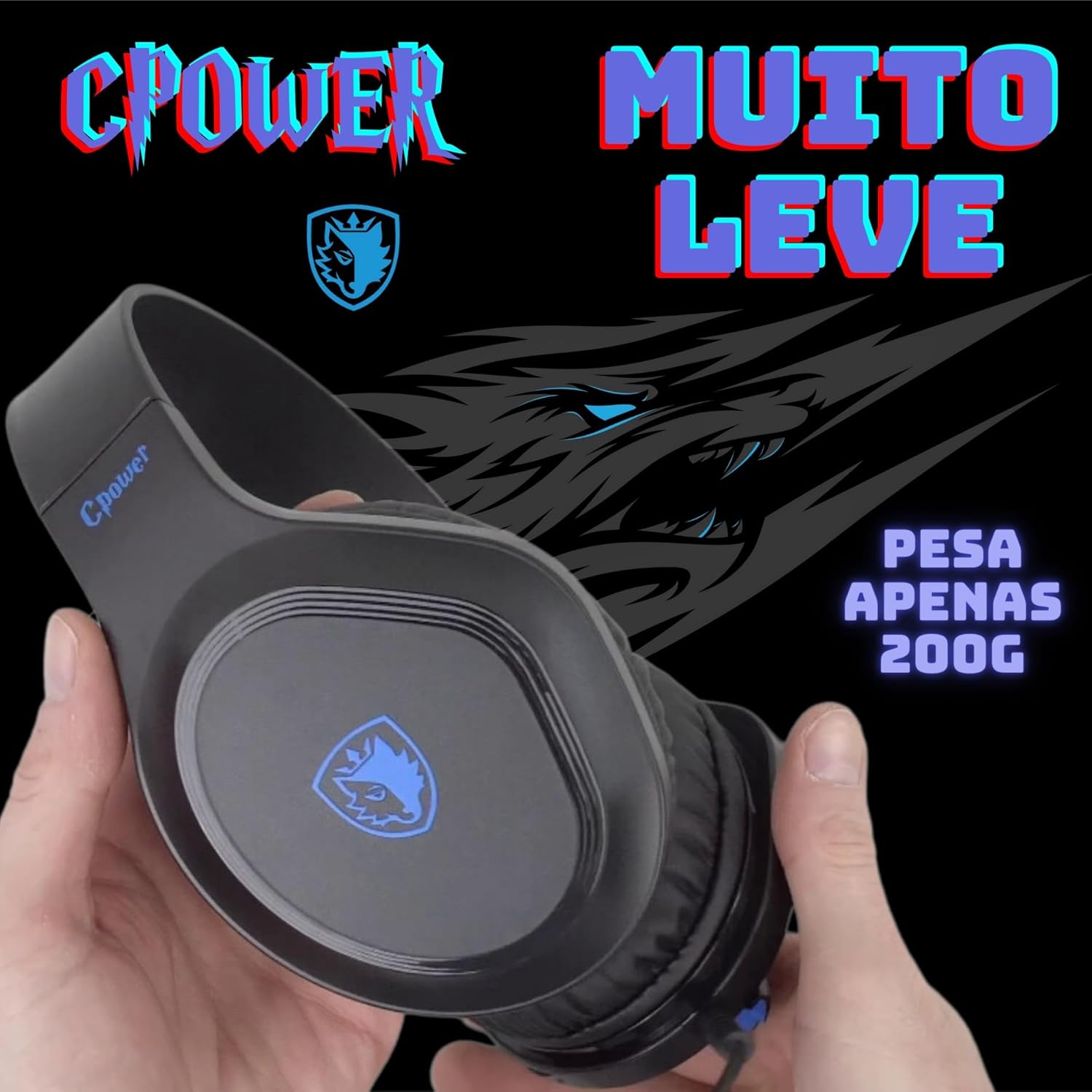
Image 3.2: Lightweight design. The headset is shown being held, emphasizing its light weight of approximately 200g for extended comfort during use.
4. Setup and Connection
Follow these steps to connect your SADES Cpower headset to your device.
4.1 Connecting to Devices with a Single 3.5mm Jack (TRRS)
This includes most game controllers (PS4, Xbox One, PS5, Xbox Series X/S), Nintendo Switch, laptops with a combined audio/mic port, and mobile phones/tablets.
- Locate the 3.5mm audio jack on your device.
- Plug the integrated 3.5mm cable from your headset directly into the device's 3.5mm jack.
- Adjust audio settings on your device if necessary to ensure the headset is recognized for both audio output and microphone input.
4.2 Connecting to PCs/Laptops with Separate Audio and Microphone Jacks (TRS)
For desktop computers or older laptops with dedicated green (audio out) and pink (microphone in) 3.5mm ports, use the included PC adapter cable.
- Plug the integrated 3.5mm cable from your headset into the female end of the PC adapter cable.
- Plug the green-colored male jack of the adapter into your PC's audio output port (usually green).
- Plug the pink-colored male jack of the adapter into your PC's microphone input port (usually pink).
- Ensure your PC's sound settings are configured to use the headset as the default playback and recording device.
5. Operating Instructions
5.1 Adjusting Fit
For optimal comfort and sound quality, adjust the headband to fit your head. The headband features 9 adjustable levels.
- Place the headset on your head.
- Gently slide the earcups up or down until they rest comfortably over your ears and the headband sits securely on your head.
5.2 Volume Control
Use the inline volume control wheel located on the left earcup to adjust the audio output level.
- Rotate the wheel upwards to increase volume.
- Rotate the wheel downwards to decrease volume.
5.3 Microphone Usage
The flexible microphone can be positioned for clear communication. It also features a mute function.
- Positioning: Bend the flexible microphone arm to position the microphone approximately 2-3 cm from your mouth for optimal voice pickup.
- Mute/Unmute: To mute the microphone, lift the microphone arm upwards until you hear a 'click' or feel it lock into the upright position. To unmute, lower the microphone arm back down.
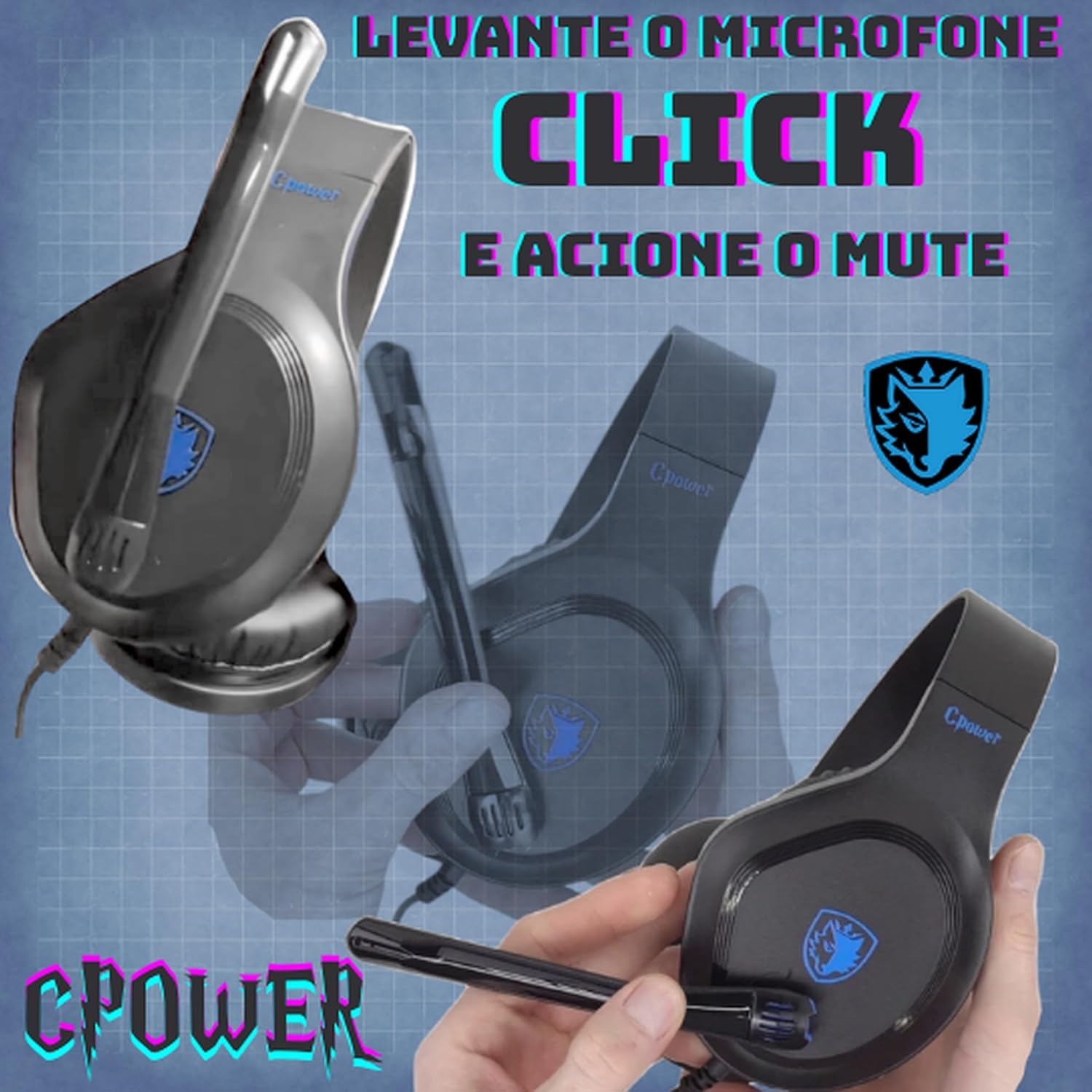
Image 5.1: Microphone mute function. This image illustrates how to lift the flexible microphone arm to activate the mute function, indicated by a 'click'.
6. Compatibility
The SADES Cpower Gaming Headset SA-716 is designed for broad compatibility with various gaming platforms and devices:
- PlayStation 4 (PS4), PlayStation 5 (PS5)
- Xbox One, Xbox Series X/S
- Nintendo Switch, New 3DS/XL
- PC, Laptops (Windows/Mac)
- Mobile Phones, Tablets

Image 6.1: High compatibility. This image visually demonstrates the headset's compatibility with multiple platforms including PlayStation consoles, Xbox consoles, Nintendo Switch, PCs/laptops, and mobile devices.
7. Maintenance and Care
Proper care will extend the life of your headset.
- Cleaning: Use a soft, dry cloth to clean the headset. Do not use harsh chemicals or abrasive materials.
- Storage: Store the headset in a cool, dry place away from direct sunlight and extreme temperatures.
- Cable Care: Avoid sharply bending or twisting the cable. Do not pull on the cable to disconnect the headset.
- Avoid Moisture: Keep the headset away from water and high humidity.
8. Troubleshooting
If you encounter issues with your headset, refer to the following common solutions:
| Problem | Possible Solution |
|---|---|
| No sound from headset |
|
| Microphone not working |
|
| Sound quality is poor or distorted |
|
9. Specifications
| Feature | Detail |
|---|---|
| Model Name | SA-716 |
| Connectivity Technology | Wired (3.5 mm Jack) |
| Headphones Form Factor | Over Ear |
| Noise Control | Active Noise Cancellation (for microphone) |
| Product Dimensions | 21 x 18.5 x 9.8 cm |
| Item Weight | 200 g |
| Manufacturer | Sades |
| Included Components | User Manual |
10. Warranty and Support
SADES products are manufactured to high-quality standards. For warranty information and technical support, please refer to the warranty card included with your purchase or visit the official SADES website. Keep your proof of purchase for warranty claims.
For further assistance, please contact SADES customer support through their official channels.


