
HUION KAMVAS Pro 24
Contents
HUION KAMVAS Pro 24 2.5K QHD Drawing Tablet User Manual
Model: GT-240
1. Introduction
The HUION KAMVAS Pro 24 is a 23.8-inch 2.5K QHD drawing tablet designed for digital artists. It features a full-laminated anti-glare glass screen, a battery-free stylus with 8192 pressure levels, 20 customizable express keys, and dual touch bars to enhance your creative workflow. This manual provides essential information for setting up, operating, and maintaining your device.
2. Package Contents
Please verify that all items are present in the package:
- Pen Display
- Digital Pen
- Adjustable Stand ST100
- HDMI Cable
- USB Cable
- Power Adapter
- AC Cable
- Pen Holder PH05
- Pen Nib x 10
- Nib Clip
- Glove
- Cleaning Cloth
- Quick Start Guide

3. Setup
3.1 Connection Requirements
The KAMVAS Pro 24 is not a standalone device and requires connection to a computer (desktop or laptop) to function. Ensure your computer has available HDMI and USB ports. If not, an adapter may be required (e.g., DVI to HDMI, Thunderbolt to HDMI). USB to HDMI adapters are generally not recommended for optimal performance.
Ensure all cables (USB, HDMI, and power adapter) are fully and securely plugged into the tablet and your computer.

3.2 Driver Installation
Drivers are regularly updated. Always download the latest driver from the official HUION website (www.huion.com).
- For Windows Users: Before installation, ensure no other brand drivers are present on your computer and close all drawing programs. Run the installer as an administrator.
- For Mac Users (Mojave 10.14, Catalina 10.15, or later): Install the newest driver. After installation, add "HuionTablet" and "TabletDriverAgent" to your system's whitelist for proper functionality.
3.3 Display Settings
To prevent display offset issues, configure your display settings:
- Set the optimal resolution to 2560 x 1440 (2.5K QHD).
- Set the display scaling to 100%. (Right-click on desktop > Display settings > Scale and layout > Change the size of text, apps, and other items to 100%).

4. Operating the KAMVAS Pro 24
4.1 PenTech3.0 Battery-Free Stylus (PW517)
The included PW517 stylus utilizes Huion PenTech3.0 technology, offering a natural and highly sensitive drawing experience. It features:
- 8192 Pressure Levels: Provides precise control over line thickness and opacity.
- 60 Degrees of Tilt Function: Allows for shading and varied brush strokes.
- 266 PPS Report Rate: Ensures immediate response to pen movements.
- Battery-Free Design: No need for charging.

4.2 Express Keys and Dual Touch Bars
The KAMVAS Pro 24 is equipped with 20 customizable express keys and dual touch bars located on both sides of the display. These can be programmed to simplify your workflow:
- Express Keys: Assign frequently used functions, shortcuts, or commands.
- Touch Bars: Use for actions like canvas zooming, brush size adjustment, or page scrolling.
Refer to the driver software for detailed customization options.

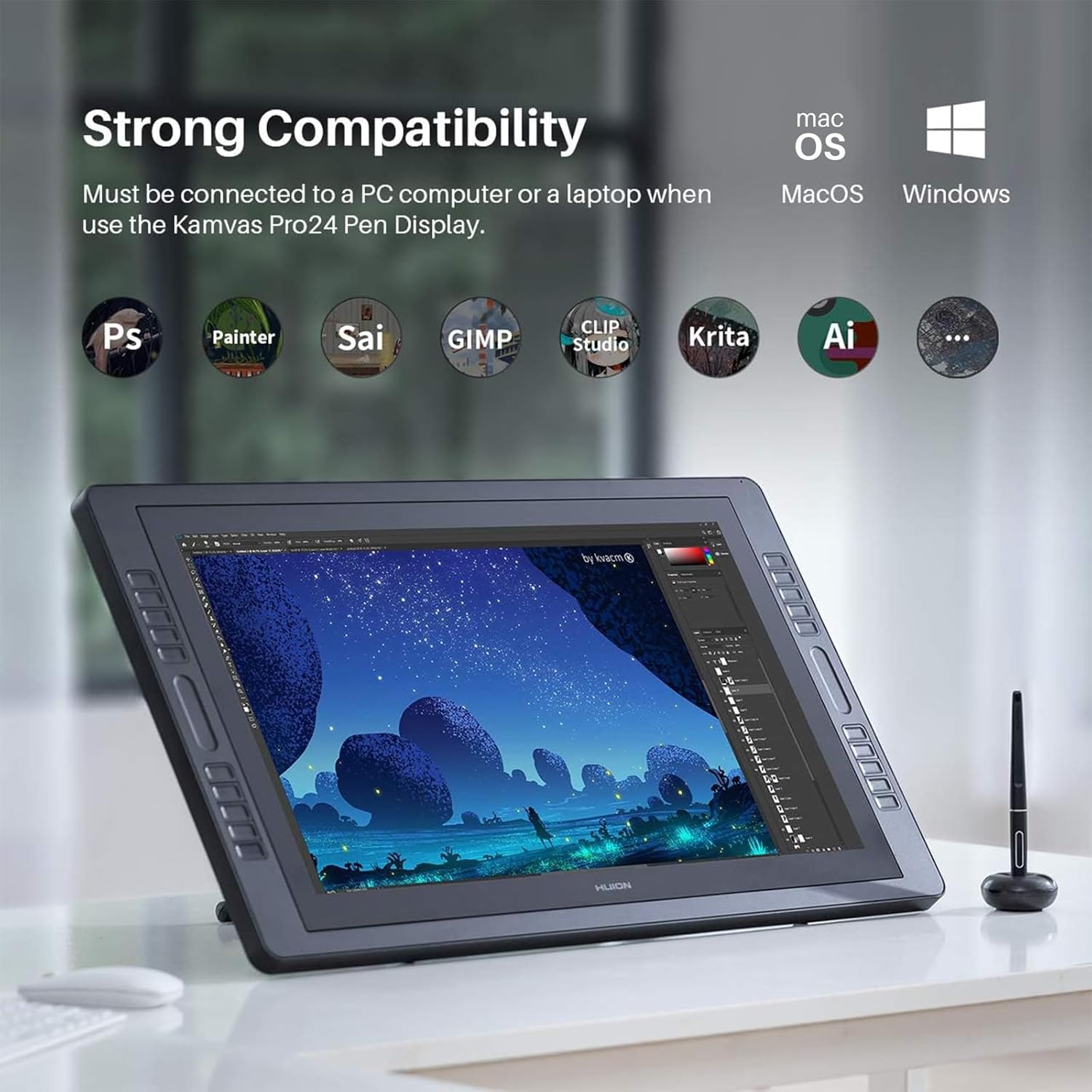
4.3 Compatibility
The KAMVAS Pro 24 is compatible with:
- Windows 7 or later
- macOS 10.12 or later
- Android 6.0 or later
It supports various creative software, including but not limited to Illustrator, Photoshop, Painter, SAI, Krita, and Medibang.
5. Maintenance
- Use the provided cleaning cloth to gently wipe the screen. Avoid harsh chemicals.
- Store the stylus in its holder when not in use to prevent damage.
- Keep the device away from extreme temperatures and direct sunlight.
- Regularly check for and install updated drivers from the official HUION website.
6. Troubleshooting
6.1 Common Issues and Solutions
- No Signal/Display Issues:
- Ensure HDMI and USB cables are fully plugged into both the tablet and the computer.
- Verify the power adapter is connected and receiving power.
- Check your computer's display settings to ensure the tablet is recognized as an extended or duplicated display.
- Confirm your computer has the necessary HDMI and USB ports, or appropriate adapters are used (avoid USB to HDMI adapters if possible).
- Pen Not Responding/Offset:
- Ensure the latest driver is installed from the official HUION website.
- For Windows, ensure no other tablet drivers are installed and run the driver as administrator.
- For Mac, add "HuionTablet" and "TabletDriverAgent" to the whitelist in your system settings.
- Set the display resolution to 2560 x 1440 and display scaling to 100% to prevent offset.
- Recalibrate the pen in the Huion driver settings.
- Express Keys/Touch Bars Not Working:
- Check the driver software to ensure the keys are properly assigned and enabled.
- Restart the tablet and computer.
If problems persist, refer to the Quick Start Guide or contact HUION support for further assistance.
7. Specifications
| Product Dimensions | 15.39 x 25.94 x 0.04 inches |
| Item Weight | 13.2 pounds |
| Model Number | GT-240 |
| Connectivity Technology | DP, HDMI, VGA |
| Pressure Sensitivity | 8192 Levels |
| Operating System Compatibility | Android 6.0 or later, macOS 10.12 or later, Windows 7 or later |
| Special Features | 60° Tilt Support, Anti-Glare Glass, Dual-Touch Bar, Full Lamination, Programmable Press Key |
8. Warranty and Support
For warranty information and technical support, please visit the official HUION website or contact their customer service. Details can typically be found in the Quick Start Guide included with your product or on the HUION support page.
Important Note: If you are experiencing compatibility issues with macOS, particularly regarding external USB devices, please contact HUION for immediate assistance. They are committed to resolving such matters promptly.
9. Official Product Videos
HUION Kamvas Pro 24 Drawing Monitor Overview
Video: An official overview of the HUION Kamvas Pro 24 Drawing Monitor, showcasing its features and design. This video is provided by the seller, Andu US.
Ask a question about this manual
Ask about setup, troubleshooting, compatibility, parts, safety, or missing instructions. Manuals+ will review the question and use this page’s manual context to help answer it.