
1. Introduction
This manual provides essential information and instructions for the installation and maintenance of the A-MIND LCD Display Touch Screen Replacement for Huawei Ascend G7 series smartphones. This replacement screen is compatible with Huawei Ascend G7 models L01, L03, TL00, UL00, and UL20. It is designed to replace faulty, cracked, broken, or non-functional screens, addressing issues such as dead pixels, touch response problems, and display anomalies.
The package includes one LCD Display with Touch Screen Assembly Replacement, an opening tools kit, and adhesive tape.
2. Safety Information and Important Notices
- Professional Installation Recommended: Screen replacement requires technical expertise. If you are not experienced in repairing electronic equipment, it is strongly recommended to seek assistance from a professional repair store. Attempting self-replacement without proper knowledge may lead to damage to the screen or your device, which may not be covered under warranty.
- Disconnect Battery Before Installation: Before beginning the installation process, always ensure the device's battery is disconnected. This prevents potential short circuits and damage to the device or the new screen. Reconnect the battery only after the new screen is properly connected.
- Test Before Final Adhesion: Prior to permanently installing the new screen with adhesive, connect it to the device and perform thorough testing. Verify that the display functions correctly, touch response is accurate, and there are no dead pixels or display issues. Do not apply adhesive until you confirm the screen works perfectly. Once adhesive is applied, returns or refunds for functional issues may not be accepted.
- Handle with Care: The screen assembly is made of glass and is fragile. Exercise extreme caution when unpacking the product and during installation to prevent damage from drops or excessive force.
- Static Electricity: Be aware of static electricity. Use an anti-static wrist strap or take other precautions to prevent electrostatic discharge (ESD) damage to sensitive electronic components.
3. Package Contents
Please verify that all items listed below are present in your package:
- 1x A-MIND LCD Display with Touch Screen Assembly Replacement (Black no Frame)
- 1x Strong Suction Cup
- 1x Triangle Opening Tools (Set)
- 1x Card Pin
- 1x Plastic Spudger
- 1x Adhesive Tape
4. Installation Guide
This section outlines the general steps for replacing your device's screen. For detailed visual instructions, it is highly recommended to search for specific installation videos for "Huawei Ascend G7 screen replacement" on video-sharing platforms like YouTube. These videos can provide step-by-step guidance that complements this written manual.
General Installation Steps:
- Power Off Device: Ensure your Huawei Ascend G7 is completely powered off before starting.
- Disconnect Battery: Open the device and carefully disconnect the battery connector to prevent any electrical damage during the repair.
- Remove Old Screen: Using the provided tools (suction cup, spudger, opening tools), carefully separate the old, damaged screen from the device frame. Apply gentle heat if necessary to loosen adhesive.
- Clean Frame: Thoroughly clean any remaining adhesive or glass fragments from the device frame. A clean surface is crucial for proper adhesion of the new screen.
- Connect New Screen (Test Phase): Carefully connect the flex cables of the new A-MIND screen to the corresponding connectors on the device's motherboard. Do not apply adhesive yet.
- Test Functionality: Reconnect the battery and power on the device. Test all functions of the new screen:
- Display quality (brightness, colors, no dead pixels)
- Touch sensitivity and accuracy across the entire screen
- Front camera and sensor functionality (if integrated with screen assembly)
- Final Installation: If the screen passes all tests, power off the device and disconnect the battery again. Carefully apply the provided adhesive tape around the frame. Align the new screen precisely and press it firmly into place.
- Secure and Reassemble: Reconnect the battery, reassemble any removed components, and secure the device.

Image 4.1: Front and back view of the A-MIND LCD Display Touch Screen Replacement for Huawei Ascend G7. This image shows the display surface and the reverse side with the flex cable connections.

Image 4.2: Detailed view of the flex cable connection point on the A-MIND replacement screen. Ensure this cable is securely connected to the device's motherboard.
5. Operating Instructions
Once installed, the A-MIND LCD Display Touch Screen Replacement functions identically to the original screen of your Huawei Ascend G7. Operate your device as usual, utilizing the touch interface for navigation and interaction.
- Touch Functionality: The screen supports multi-touch gestures for smooth navigation and interaction with applications.
- Display Quality: The TFT material display provides clear visuals and appropriate color reproduction for your device.
6. Maintenance
Proper care can extend the lifespan and maintain the performance of your new screen.
- Cleaning: Use a soft, lint-free cloth, slightly dampened with water or a screen-specific cleaning solution, to gently wipe the screen. Avoid harsh chemicals, abrasive materials, or excessive moisture.
- Protection: Consider using a screen protector and a protective case for your device to guard against scratches, impacts, and accidental damage.
- Avoid Extreme Conditions: Do not expose the device to extreme temperatures, direct sunlight for prolonged periods, or high humidity, as these can affect screen performance and longevity.
- Handle with Care: Avoid dropping the device or placing heavy objects on the screen.
7. Troubleshooting
If you encounter issues after installing the new screen, consider the following troubleshooting steps:
- Screen Not Turning On / Black Screen:
- Ensure the battery was disconnected during installation and reconnected properly.
- Check all flex cable connections to the motherboard. Disconnect and reconnect them firmly.
- Verify the device itself powers on (e.g., vibrates, makes sounds).
- Touch Not Responding / Inaccurate Touch:
- Ensure the touch digitizer flex cable is securely connected.
- Restart the device.
- If the issue persists, it might indicate a faulty screen or an installation error.
- Display Issues (Lines, Dead Pixels, Wrong Colors):
- These often indicate a faulty screen or damage during installation.
- Recheck the display flex cable connection.
- Screen Detaching from Frame:
- Ensure the frame was thoroughly cleaned before applying new adhesive.
- Apply even pressure during installation to ensure proper adhesion.
- Allow sufficient time for the adhesive to cure.
If troubleshooting steps do not resolve the issue, it is advisable to consult a professional repair technician or contact A-MIND customer support for further assistance.
8. Specifications
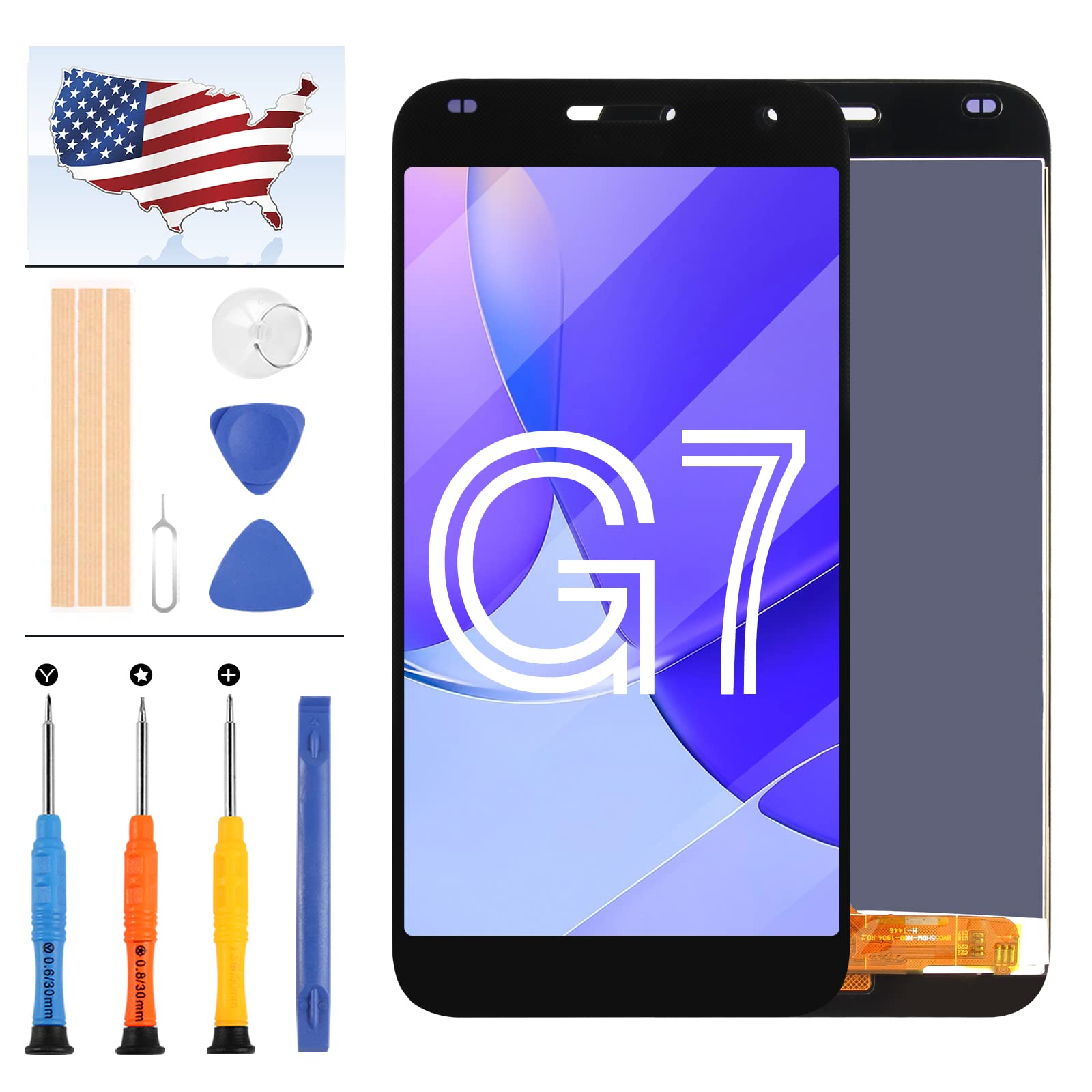
Image 8.1: Key specifications of the A-MIND LCD Display Touch Screen Replacement.
| Feature | Detail |
|---|---|
| Compatible Models | Huawei Ascend G7 L01, L03, TL00, UL00, UL20 |
| Material | TFT |
| Screen Size | 5.5 inches |
| Resolution | 720x1280 pixels |
| Pixel Density | 267 ppi |
| Color | Black (no Frame) |
| Manufacturer | A-MIND |
9. Warranty Information
A-MIND provides a 6-month warranty for this LCD Display Touch Screen Replacement. This warranty covers manufacturing defects and functional issues that arise under normal use.
The warranty does not cover:
- Damage caused by improper installation.
- Man-made damage (e.g., drops, impacts, scratches, liquid damage).
- Physical damage to the screen or flex cables.
- Damage resulting from unauthorized repairs or modifications.
- Screens that have been permanently adhered to the device before testing.
If the screen cannot work normally due to a covered defect, and without any man-made or physical damage, we can arrange for an exchange.
10. Customer Support
Should you encounter any problems with your order or require assistance with the product, please do not hesitate to contact our customer service team. We are committed to providing support and will respond to your inquiries within 24 hours.
For warranty claims or technical support, please have your purchase details readily available when contacting us.