
meross MSL120
meross Smart LED Light Bulb MSL120 User Manual
Model: MSL120
1. Introduction
This manual provides instructions for the installation, operation, and maintenance of your meross Smart LED Light Bulb, Model MSL120. This smart bulb offers multicolor lighting, dimming capabilities, and compatibility with various smart home platforms including Apple HomeKit, Siri, Alexa, Google Home, and SmartThings. It operates on a 2.4GHz Wi-Fi network and does not require a separate hub.
2. Safety Information
Please read and follow all safety instructions to prevent injury or damage.
- Indoor Use Only: This device is designed for indoor use in dry locations.
- Electrical Safety: Ensure the power is turned off at the switch before installing or removing the bulb.
- Compatibility: Use only in light fixtures rated for E26 base bulbs and within the specified voltage range (120 Volts).
- Heat: Smart bulbs can generate heat. Ensure adequate ventilation around the bulb. Do not install in fully enclosed fixtures that restrict airflow.
- Cleaning: Clean the bulb with a soft, dry cloth. Do not use liquid cleaners.
3. Package Contents
The meross Smart LED Light Bulb package typically includes:
- meross Smart LED Light Bulb (MSL120) - 2 units
- User Manual
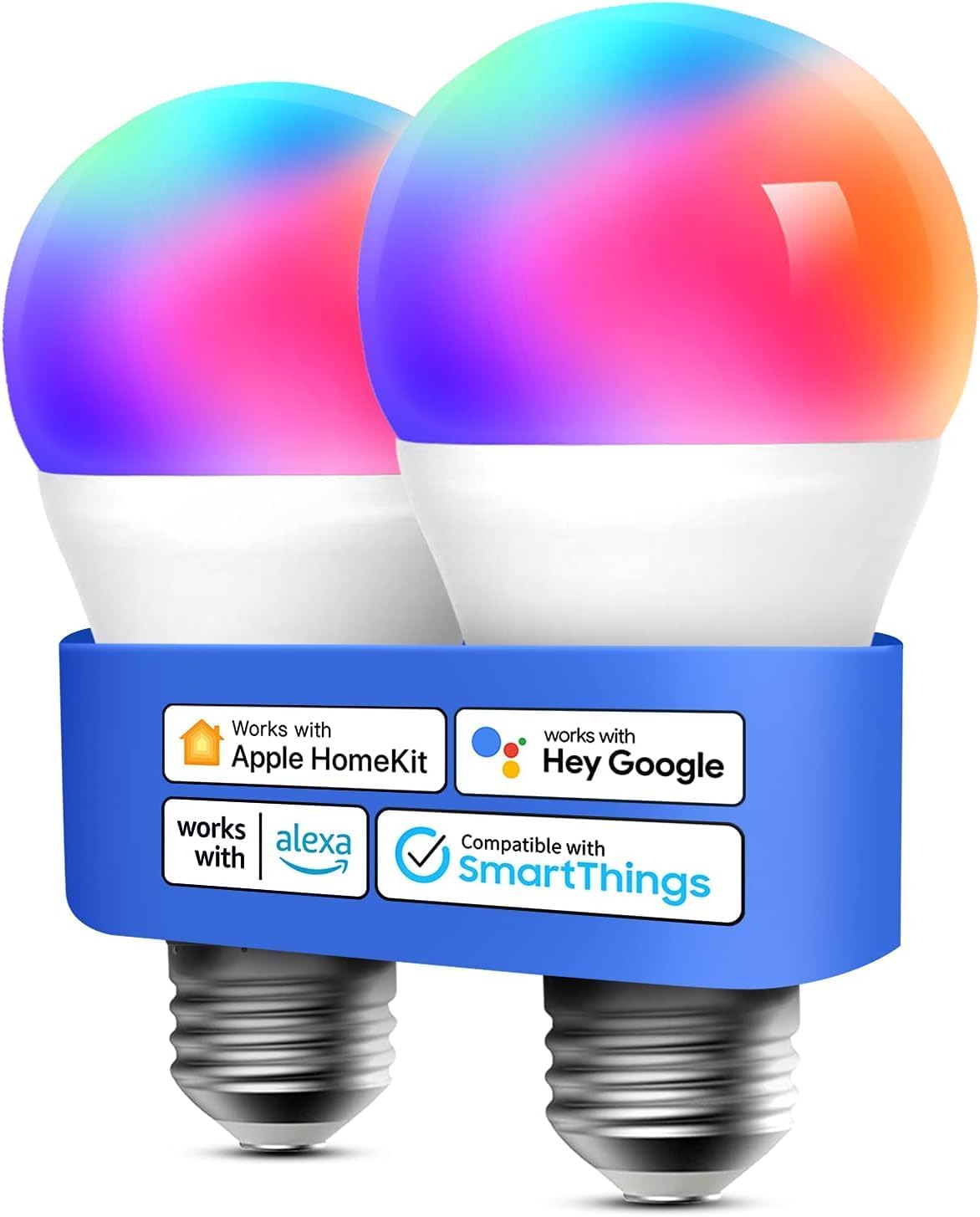
Image: Two meross Smart LED Light Bulbs, highlighting their E26 base and compatibility with major smart home platforms.
4. Product Overview
The meross MSL120 is a versatile smart LED bulb designed to enhance your home lighting experience. Key features include:
- Bulb Type: E26 base, A-shape.
- Light Output: 810 Lumens, equivalent to a 60W incandescent bulb.
- Power Consumption: 9 Watts.
- Color Temperature: Adjustable white light from 2700K (warm white) to 6500K (cool white).
- Color Options: Full RGBWW spectrum with 16 million colors.
- Dimming: 1% to 100% dimmable range.
- Connectivity: Wi-Fi (2.4GHz only), no hub required.
- Smart Home Integration: Compatible with Apple HomeKit, Siri, Alexa, Google Assistant, and SmartThings.
- Material: Aluminum and Plastic construction.

Image: Internal diagram illustrating the separated antenna design for enhanced Wi-Fi connection stability.
5. Setup Instructions
Follow these steps to set up your meross Smart LED Light Bulb:
- Install the Bulb: Screw the meross smart bulb into a standard E26 light socket. Ensure the power to the fixture is off before installation.
- Power On: Turn on the light switch to power the bulb. The bulb should blink, indicating it is in pairing mode. If it does not blink, turn the light off and on three times to reset it.
- Download Meross App: Download the Meross app from the Apple App Store or Google Play Store. Create a new account or log in to an existing one.
- Add Device: In the Meross app, tap the '+' icon to add a new device. Select the Smart Light Bulb from the list.
- Connect to Wi-Fi: Follow the in-app instructions to connect the bulb to your 2.4GHz Wi-Fi network. Ensure your phone is also connected to the same 2.4GHz network during setup.
- HomeKit Integration (Optional): For Apple HomeKit users, scan the QR code located on the bulb or its packaging when prompted by the Meross app or Apple Home app.
- Other Smart Assistants (Optional): Link your Meross account to Alexa, Google Assistant, or SmartThings through their respective apps to enable voice control and advanced features.

Image: A visual representation of the meross smart bulb connecting to a home Wi-Fi network.
6. Operating Instructions
Once set up, you can control your meross Smart LED Light Bulb using the Meross app, Apple Home app, or voice commands.
6.1. Voice Control
Use your preferred voice assistant to control the bulb hands-free.
- Siri: "Hey Siri, turn on the bedroom light." / "Hey Siri, set the living room light to green."
- Alexa: "Alexa, turn off the kitchen light." / "Alexa, dim the light to 50%."
- Google Assistant: "Hey Google, change the room light to purple." / "Hey Google, make the light warmer."

Image: Example of voice control in action, showing commands like "Hey Siri, turn on the room light."
6.2. App Remote Control
Control your bulbs from anywhere using the Meross app or Apple Home app.
- Turn On/Off: Toggle the power for individual bulbs or groups.
- Brightness Adjustment: Adjust brightness from 1% to 100%.
- Color Selection: Choose from 16 million colors or adjust white temperature between 2700K and 6500K.
- Scene Creation: Create custom scenes for different moods or activities.

Image: Remote control via the Meross app, showing a user managing lights in different rooms of a house.

Image: Smartphone app interface demonstrating the selection of 16 million colors and brightness adjustment for the smart bulb.

Image: Visual comparison of adjustable color temperatures from 2700K to 6500K.

Image: Comparison highlighting the RGBWW capabilities of meross bulbs for true color temperature and vibrant RGB colors.
6.3. Schedules and Timers
Automate your lighting with custom schedules and timers.
- Set specific times for bulbs to turn on or off.
- Utilize sunrise/sunset modes to adjust lighting automatically with natural light cycles.
- Schedules can operate even if internet connectivity is temporarily lost.

Image: Examples of scene and schedule settings, including sunrise and sunset automation.
6.4. Local Control
The meross smart bulbs feature superfast local control, ensuring minimal delay in response when you are within your home network, even if internet access is interrupted.

Image: Comparison illustrating the speed of meross local control versus other smart bulb systems.
7. Maintenance
To ensure optimal performance and longevity of your meross Smart LED Light Bulb:
- Cleaning: Disconnect power before cleaning. Wipe the bulb with a soft, dry cloth. Do not use abrasive cleaners or solvents.
- Firmware Updates: Regularly check the Meross app for available firmware updates to ensure your bulb has the latest features and security enhancements.
- Storage: If storing the bulb, keep it in a cool, dry place away from direct sunlight and extreme temperatures.
8. Troubleshooting
If you encounter issues with your meross Smart LED Light Bulb, refer to the following common problems and solutions:
8.1. Bulb Not Connecting or Frequently Offline
- Wi-Fi Network: Ensure your Wi-Fi network is 2.4GHz. Meross bulbs do not support 5GHz Wi-Fi.
- Signal Strength: Check the Wi-Fi signal strength at the bulb's location. Move the bulb closer to your router or consider a Wi-Fi extender if the signal is weak.
- Router Settings: Ensure your router is not blocking new device connections. Temporarily disable any MAC filtering or firewall settings if necessary during setup.
- Reset Bulb: Turn the light switch off and on three times in quick succession. The bulb should blink, indicating it's in pairing mode. Attempt to re-add it through the Meross app.
- Router Reboot: Reboot your Wi-Fi router and try connecting the bulb again.
8.2. Difficulty with HomeKit Integration
- QR Code: Ensure you are scanning the correct HomeKit QR code, usually found on the bulb itself or its packaging.
- Network Issues: Verify your iOS device is connected to the same 2.4GHz Wi-Fi network as the bulb during setup.
- Restart: Restart your iOS device and attempt the HomeKit pairing process again.
- Meross App First: Sometimes, completing the setup in the Meross app first can resolve HomeKit integration issues.
8.3. Scenes or Automations Not Working Correctly
- App Sync: Ensure the Meross app and any integrated smart home apps (HomeKit, Alexa, Google Home) are synchronized and updated.
- Re-program Scene: Delete and re-create the problematic scene or automation.
- Internet Connection: While schedules can work offline, some complex automations or cloud-based scenes may require an active internet connection.
9. Specifications
| Brand | meross |
| Model Number | MSL120 |
| Light Type | LED |
| Bulb Base | E26 |
| Wattage | 9 Watts |
| Incandescent Equivalent | 60 Watts |
| Brightness | 810 Lumens |
| Color Temperature | 2700K-6500K |
| Light Color | Multicolor (RGBWW) |
| Dimmable | Yes (1%-100%) |
| Voltage | 120 Volts |
| Connectivity | Wi-Fi (2.4GHz) |
| Compatibility | Apple HomeKit, Siri, Alexa, Google Home, SmartThings |
| Indoor/Outdoor Usage | Indoor |
| Material | Aluminum, Plastic |
| Product Dimensions | 2.4"W x 4.5"H |
| Item Weight | 3.84 ounces |
10. Warranty and Support
For warranty information and technical support, please refer to the official meross website or contact meross customer service directly. Details are typically available on the product packaging or within the Meross app.
Manufacturer: Meross
Seller: Meross Simple Life-US
Related documentsMSL120


Ask a question about this manual
Ask about setup, troubleshooting, compatibility, parts, safety, or missing instructions. Manuals+ will review the question and use this page’s manual context to help answer it.