

1. Introduction
The Vgate vLinker BM is a professional-grade OBD2 Bluetooth diagnostic scan tool designed to transform your Android device or Windows PC into a powerful vehicle diagnostic system. It is specifically optimized for applications like BimmerCode and BimmerLink, offering enhanced communication speed and stability for advanced vehicle coding and diagnostics.
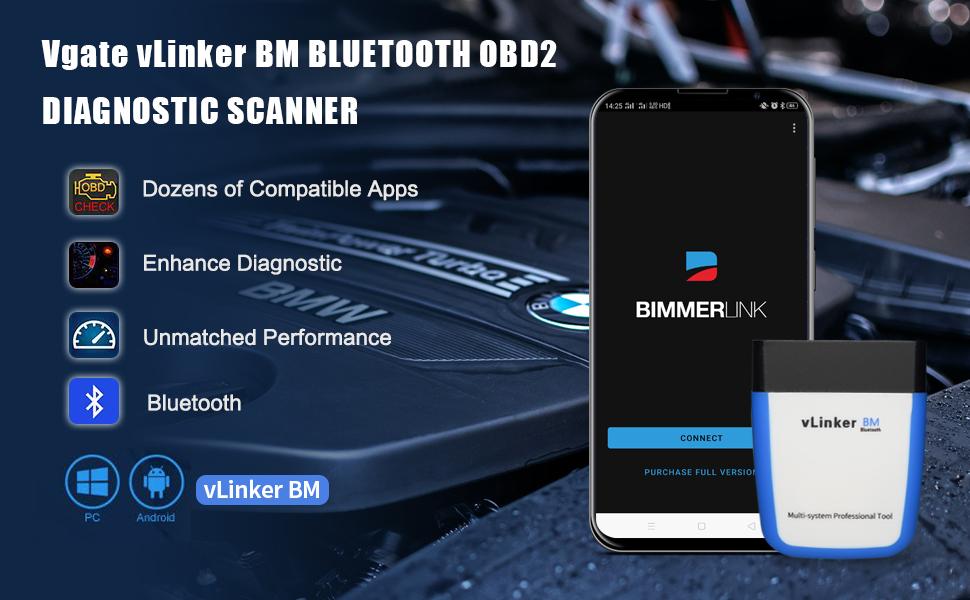
Image: A visual representation of the Vgate vLinker BM Bluetooth OBD2 Diagnostic Scanner connected to a smartphone running the BimmerLink application, highlighting its diagnostic capabilities.
2. Key Features
- Advanced Diagnostic Capability: Transforms your Android device or Windows PC into a professional-grade diagnostic scan tool.
- BimmerCode Optimization: Provides 100% coverage for vehicles supported by BimmerCode and is an upgraded version of iCar Pro Bluetooth, specifically designed for large data transmission required by coding applications.
- Secure Communication: Supports TP transmission protocol to ensure wireless communication security.
- Enhanced Speed: Offers 6 times faster communication speed than iCar Pro, with a USART data buffer up to 2K bytes and a baud rate increased to 230.4Kbps.
- Long Frame Support: Capable of handling OBD request bytes up to 1024 bytes, meeting the needs for special long frame communication.
- Comprehensive Protection: Equipped with over-voltage, over-current, over-temperature, and battery drain protection mechanisms.
- Low Power Consumption: Features an operating current of 51 mA and automatically enters a sleep state with a low sleep current of 3mA, preventing battery drain when left plugged in.

Image: A collage illustrating key features such as being an upgrade to iCar Pro, ELM327/ELM329 compatibility, support for multiple BMW models (G, F, R, I, E series), faster data buffer, and long frame communication, alongside screenshots of diagnostic apps.
Image: An icon representing the Battery Saver feature, overlaid on a car dashboard, indicating the device's low power consumption.
3. Compatibility
3.1. Device Compatibility
- Android Devices: Fully compatible with Android smartphones and tablets.
- Windows PCs: Compatible with Windows operating systems.
- Note: iOS devices are not supported by this specific model (vLinker BM BT3.0).

Image: A diagram showing the Vgate vLinker BM device connecting to an Android phone and a Windows laptop, with checkmarks indicating compatibility and a clear statement that it does not work with iOS devices.
3.2. Vehicle Compatibility
- Works on most vehicles sold from 1996 and newer that support the OBD2 protocol.
- Specifically designed to support various BMW models, including G series, F series, R series, I series, and E series, when used with compatible applications.

Image: A row of modern cars, illustrating the device's compatibility with most OBD2 protocol vehicles from 1996 onwards, with an emphasis on BMW model support within the app.
Image: An icon indicating wider car compatibility, featuring a line of diverse vehicles.
3.3. App Compatibility
- Recommended for use with BimmerCode and BimmerLink applications.
- Compatible with dozens of other OBD diagnostic applications. Users are advised to check the specific OBD app's official website for updates and to confirm compatibility.

Image: Screenshots of the BimmerCode and BimmerLink app listings, indicating their recommendation for use with the Vgate vLinker BM and support for G series BMWs.
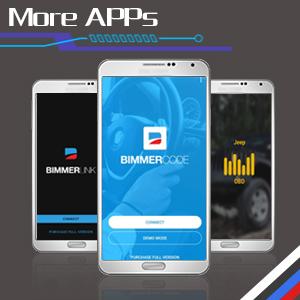
Image: An icon showing multiple smartphones displaying various diagnostic apps, signifying broader app compatibility.
4. Setup Guide
Follow these steps to set up your Vgate vLinker BM and connect it to your device:
- Download the Application: Download a compatible diagnostic application (e.g., BimmerCode or BimmerLink) from your Android device's app store or for your Windows PC.
- Plug in the Device: Locate your vehicle's OBD2 port, typically found under the dashboard on the driver's side, and firmly plug in the Vgate vLinker BM device.
- Start the Car: Turn on your vehicle's ignition or start the engine.
- Turn on Bluetooth: On your Android device or Windows PC, navigate to your settings and ensure Bluetooth is enabled.
- Connect to vLinker BM: In your device's Bluetooth settings, search for available devices and select "vLinker BM" to pair.
- Open App and Connect: Launch the diagnostic application you downloaded and follow the in-app instructions to establish a connection with the vLinker BM device.
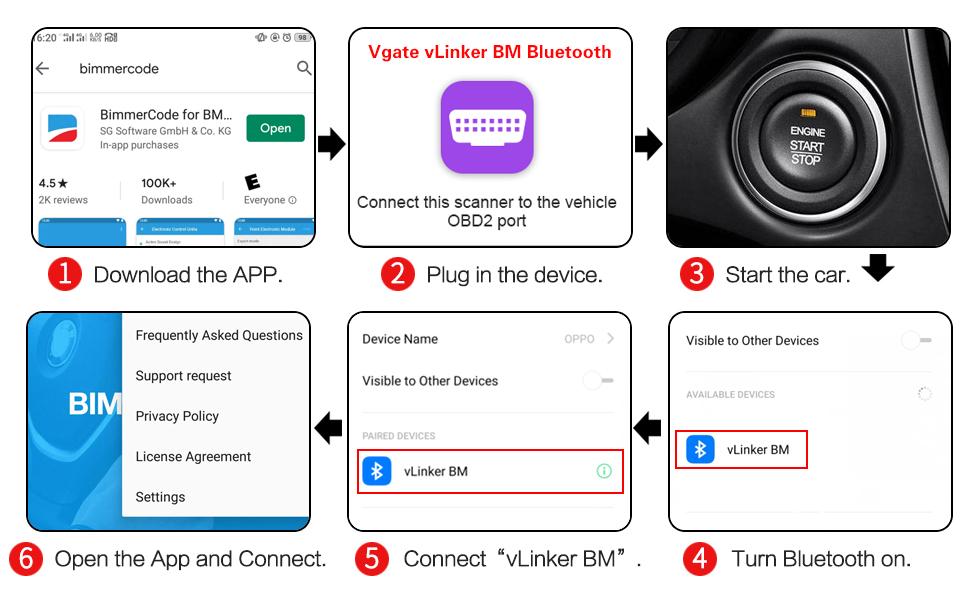
Image: A visual step-by-step guide demonstrating the setup process, from downloading the app to connecting the device and starting the car.

Image: A diagram illustrating the four main steps for connecting the Vgate vLinker BM via Bluetooth to a smartphone app: DLC port connection, Bluetooth name connection, wireless Bluetooth stability, and app integration.
5. Operating Instructions
Once the Vgate vLinker BM is successfully connected to your device and diagnostic application, it acts as a communication bridge to your vehicle's On-Board Diagnostics (OBD2) system.
To operate the device, utilize the features and functions provided within your chosen diagnostic application. This may include:
- Reading and clearing Diagnostic Trouble Codes (DTCs).
- Viewing live sensor data (e.g., engine RPM, coolant temperature, fuel system status).
- Performing vehicle-specific coding or adaptations (with compatible apps like BimmerCode).
- Accessing various control modules within the vehicle.
Always refer to the specific instructions, user interface, and guidelines provided by the diagnostic application you are using for detailed operational procedures and to understand the full capabilities for your vehicle.

Image: A series of detailed screenshots from the BimmerCode and BimmerLink applications, illustrating various menus and options available for vehicle diagnostics and coding.

Image: A man sitting in a car, using the Vgate vLinker BM device connected to his smartphone, demonstrating typical in-car usage.
6. Maintenance
6.1. Firmware Update
To ensure optimal performance and access to the latest features, it is recommended to keep your Vgate vLinker BM firmware updated. Follow these steps:
- Download Updater App: Scan the QR code below or visit https://qr19.cn/DcOBgV to download the "VgateFwUpdater" application.
- Open App and Connect: Launch the VgateFwUpdater app and click "Auto connect" to find your vLinker BM device.
- Initiate Download: Once connected, click the "Download" button to start the firmware update process.
- Wait for Completion: Allow the update to complete. During the upgrade, all indicator lights on the device will remain on. Upon successful completion, the green light will stay on.
Important Notes:
- Ensure a stable power supply and internet connection during the firmware update to prevent interruption.
- Only genuine Vgate products can be upgraded. Pirated products are not supported for firmware updates.
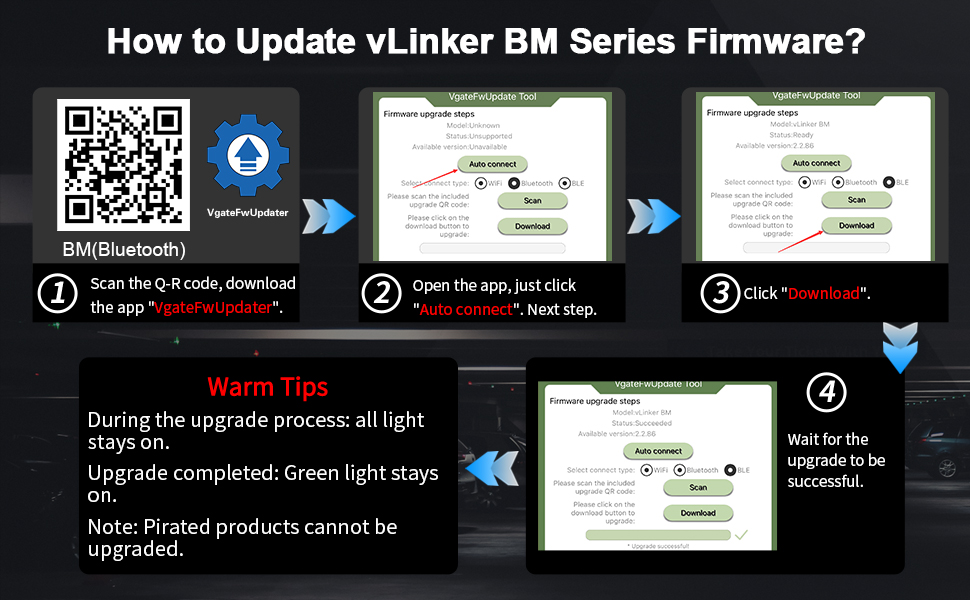
Image: A visual guide detailing the firmware update process for the vLinker BM series, showing the QR code for the updater app and the steps within the application.
7. Troubleshooting
7.1. Common Issues & Solutions
- Device not connecting: Ensure the device is securely plugged into the OBD2 port and the vehicle's ignition is on. Verify Bluetooth is enabled on your device and you have selected "vLinker BM" from the available devices.
- App not recognizing device: Confirm that the diagnostic app you are using is compatible with the vLinker BM. Some apps may require specific settings or a paid version to connect. Check the app's official website for compatibility and troubleshooting guides.
- Slow communication speed: The vLinker BM is designed for high speed. If you experience slow data transfer, ensure your app settings are optimized and there are no other Bluetooth devices interfering.
- Battery drain concerns: The vLinker BM features low power consumption (3mA in sleep mode). If you notice unusual battery drain, ensure the device enters sleep mode when the vehicle is off.
- Firmware update failure: Ensure a stable internet connection and power supply during the update. Only genuine Vgate products can be updated.
7.2. Frequently Asked Questions (FAQ)
- Q: Can Vgate vLinker BM Bluetooth support G series in BimmerCode APP?
- A: Yes. Vgate vLinker BM Bluetooth not only supports G series, but also F series, R series, I series and E series. It is also supported in the BimmerLink APP.
- Q: Vgate vLinker BM, as an upgraded version of Vgate iCar Pro, has the communication speed improved?
- A: Yes. Vgate vLinker BM is 6 times faster than iCar Pro. It features a USART data buffer up to 2K bytes and a baud rate increased to 230.4Kbps. The OBD request byte capacity is up to 1024 bytes, which can meet the needs of some special long frame communication.
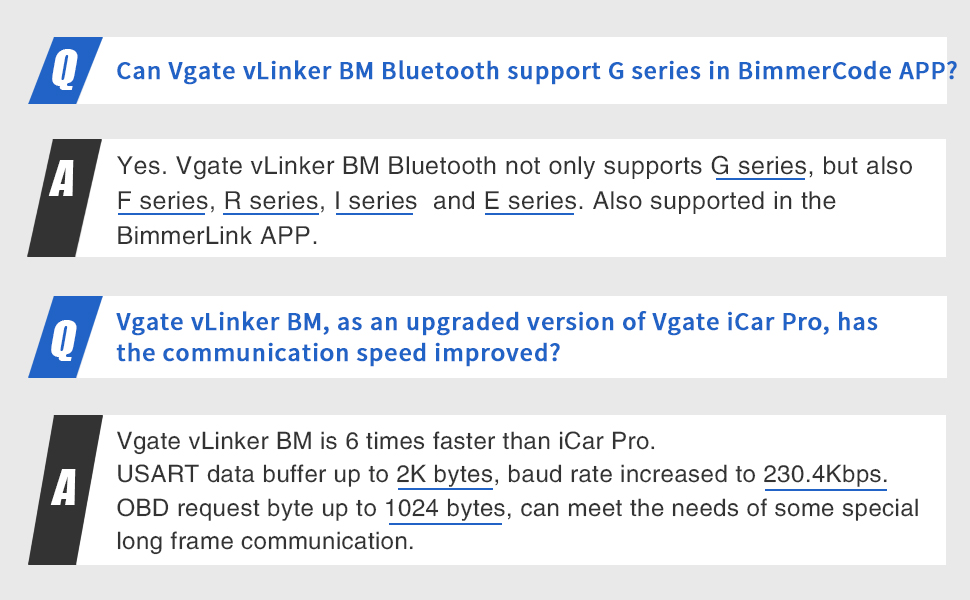
Image: A visual representation of frequently asked questions and their answers regarding the Vgate vLinker BM's compatibility with BMW G series and its improved communication speed compared to iCar Pro.
8. Technical Specifications
| Attribute | Value |
|---|---|
| Model Number | vLinker BM BT3.0 |
| Manufacturer Part Number | vLinker BM BT3.0 |
| Brand | Vgate |
| Item Weight | 2.99 ounces |
| Power Source | Battery Powered (via OBD2 port) |
| Operating System Compatibility | Android, Windows |
| ASIN | B08BRF2SMM |
| UPC | 824918866325 |
| Date First Available | August 9, 2020 |
| Operating Current | 51 mA |
| Sleep Current | 3 mA |
| USART Data Buffer | Up to 2K bytes |
| Baud Rate | Up to 230.4Kbps |
| OBD Request Byte | Up to 1024 bytes |
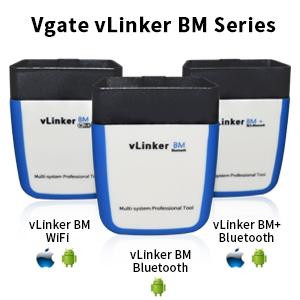
Image: A comparison image displaying different models within the Vgate vLinker BM series, including vLinker BM WiFi, vLinker BM Bluetooth, and vLinker BM+ Bluetooth, along with their respective operating system compatibilities.
9. Warranty & Support
For product support, technical assistance, or warranty inquiries, please refer to the official Vgate website or contact their customer service directly through the contact information provided with your purchase.
A PDF version of the user manual is also available for download for your convenience:


