1. Introduction and Overview
The Raymarine Axiom+ 12 Display (Model E70638) is a performance-tuned multifunction display designed for marine navigation. It features a powerful quad-core processor for industry-leading responsiveness, enabling seamless chart redraws and augmented reality navigation. The high-resolution IPS display offers enhanced visibility in various lighting conditions, making it a reliable tool for diverse marine environments.
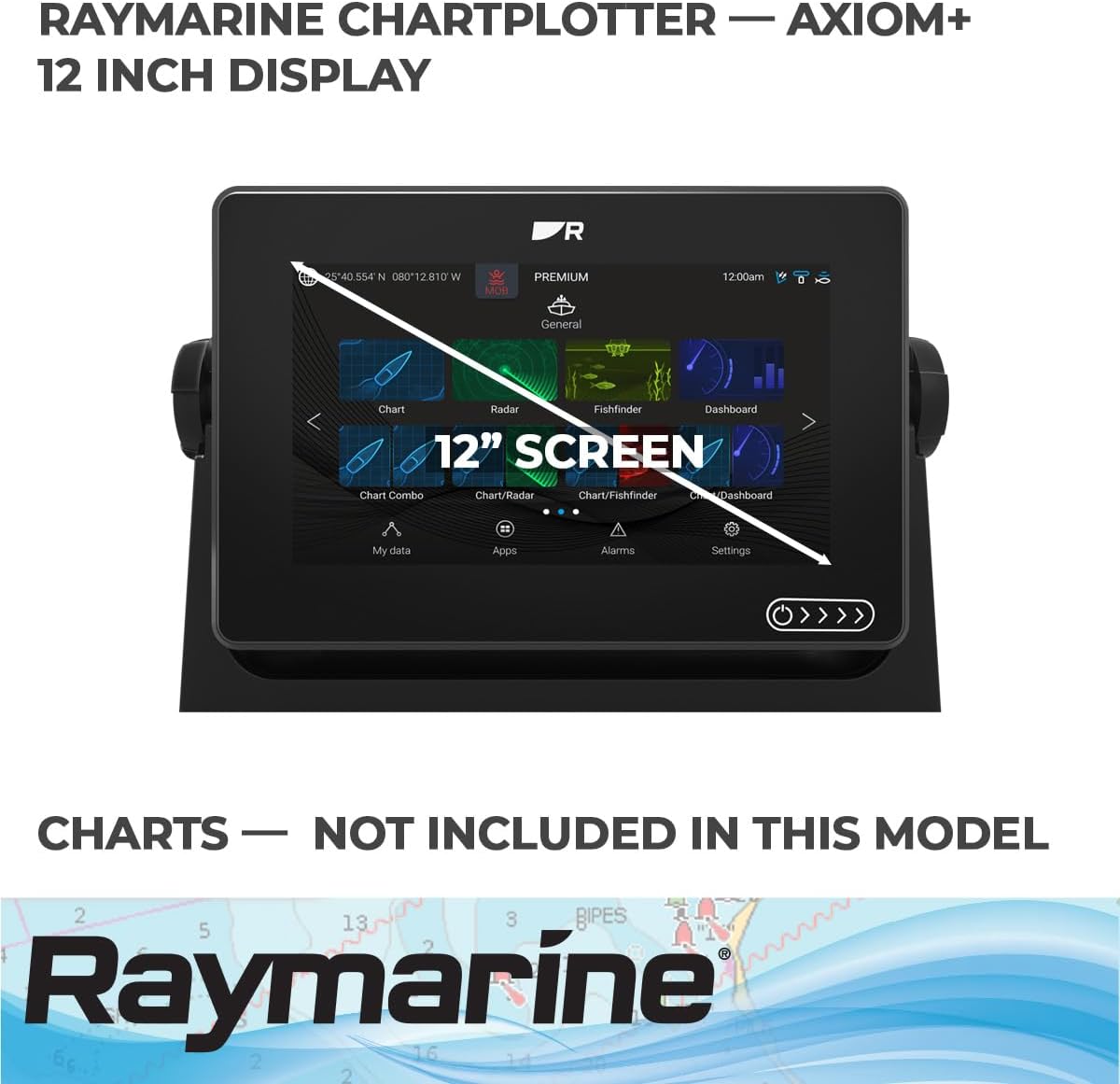
Figure 1: Raymarine Axiom+ 12 Display main interface.
2. Key Features
- Performance-Tuned Quad-Core Processor: Ensures rapid responsiveness and speed for demanding marine applications.
- High-Resolution IPS Display: Delivers 25 percent more brightness and wider viewing angles, with day/night color palettes for optimal visibility.
- LightHouse 3 OS: The intuitive and powerful operating system for easy navigation and control.
- ClearCruise Augmented Reality: Enhances navigation decisions by overlaying real-world objects with navigation data.
- HydroTough Nano-Coated Screen: Impact-resistant glass screen repels water, oil, and smudges, ensuring clear viewing and accurate touch controls.
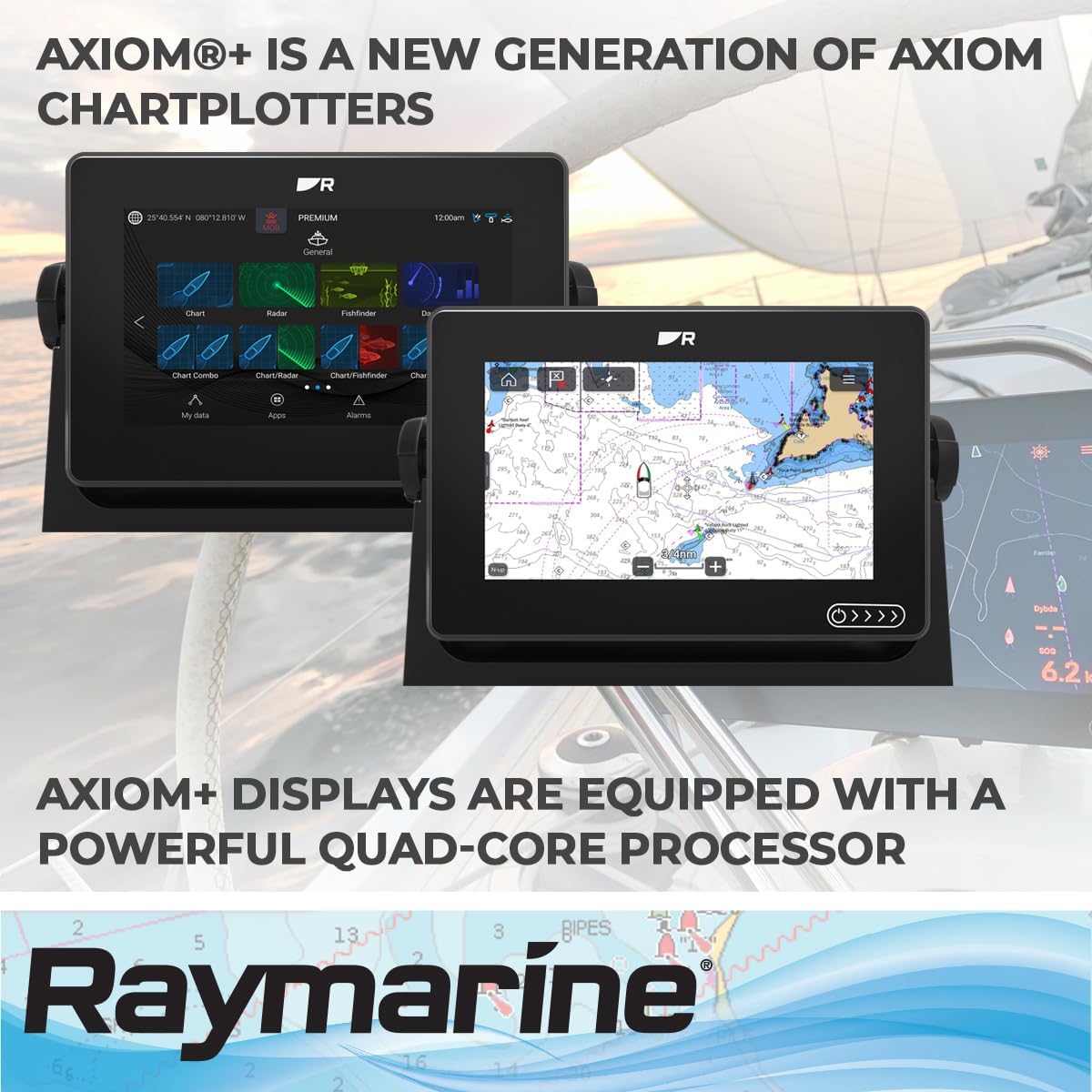
Figure 2: Multiple Axiom+ displays in use, highlighting the powerful quad-core processor.
3. What's in the Box
Upon opening the package, verify that all components are present:
- Raymarine Axiom+ 12 Display Unit
- Sun Cover
- Flush Mount Template
- Mounting Hardware (screws, brackets for surface and trunnion mounting)
- NMEA 2000 T-connector
- 2-meter NMEA 2000 Drop Cable
- Power Cable
- 12-pin Transducer Adapter Plug
- Documentation (Quick Start Guide, Warranty Information)
- Top and Bottom Trim Bezels
4. Setup
4.1 Unpacking and Inspection
Carefully remove the display and all accessories from the packaging. Inspect all items for any signs of damage. Retain the original packaging for future transport or storage.
4.2 Mounting
The Axiom+ 12 supports both surface and trunnion mounting. Use the provided flush mount template for precise panel cutouts if opting for flush mounting. Ensure the mounting location provides adequate ventilation and is free from excessive heat or moisture.
4.3 Power Connection
Connect the supplied power cable to the designated power port on the rear of the display. Ensure a secure connection to a stable 12V DC power source on your vessel.
4.4 Transducer Connection
Connect your compatible transducer to the sonar port. If using an older transducer, utilize the provided 12-pin adapter plug as needed. Refer to the transducer's specific instructions for proper installation and wiring.
4.5 Network Connections
For integrating with other marine electronics, connect Ethernet and NMEA2000 cables to their respective ports. The NMEA 2000 T-connector and drop cable are included for network setup.
4.6 Initial Power-On and Configuration
Once all connections are secure, power on the display. Follow the on-screen prompts for initial setup, including language selection, time zone, and basic chart preferences.
5. Operating Instructions
5.1 Touchscreen Interface
The Axiom+ 12 features a responsive touchscreen. Use gestures such as tap, swipe, pinch-to-zoom, and drag to navigate menus, charts, and applications.
5.2 LightHouse 3 OS Navigation
The LightHouse 3 operating system provides a user-friendly interface. Access various applications like Chart, Radar, Fishfinder, and Dashboard from the home screen. Customize your dashboard with preferred widgets and data displays.
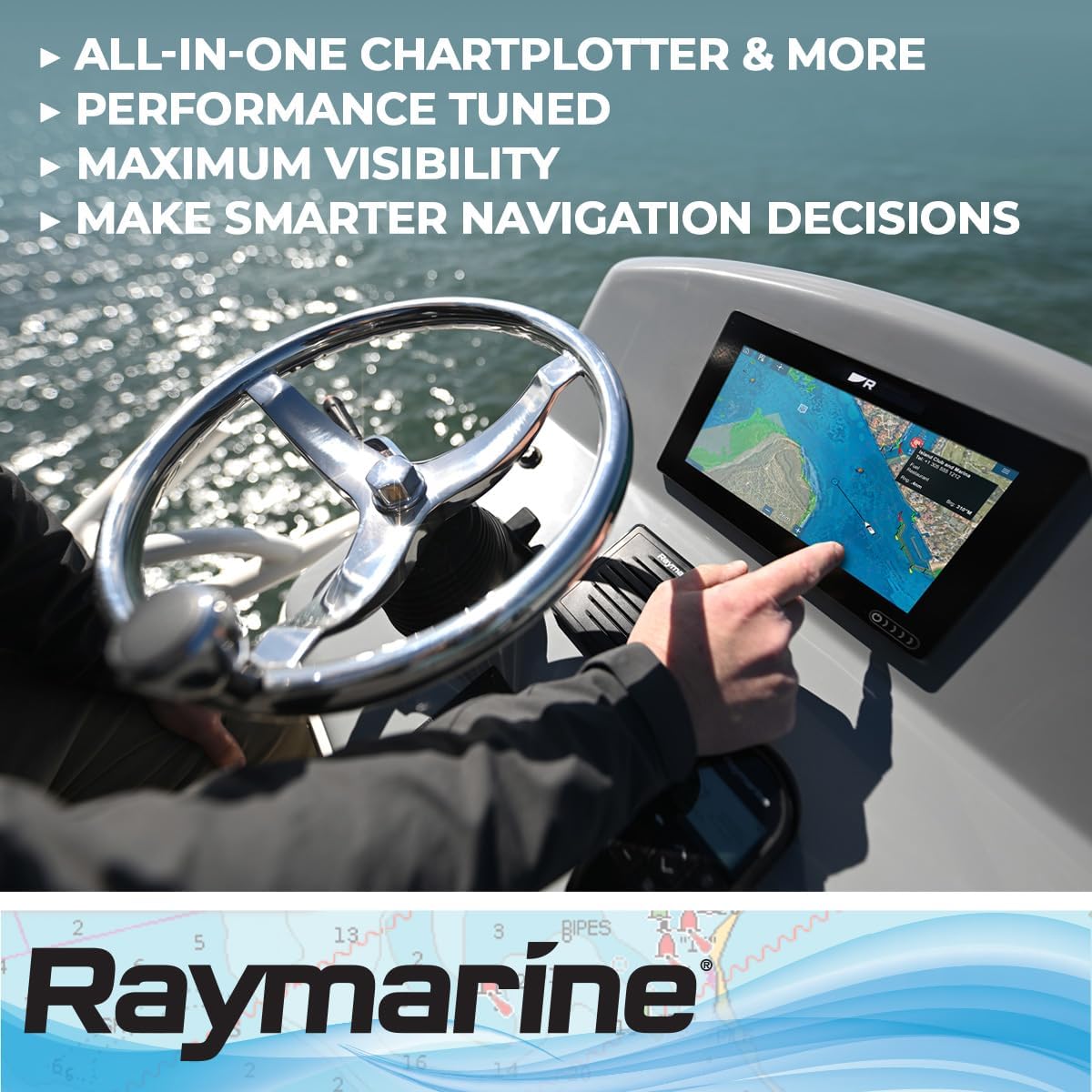
Figure 3: Interacting with the Axiom+ display for navigation.
5.3 Chartplotter Functions
Utilize the Chart application for detailed navigation. View nautical charts, set waypoints, create routes, and monitor your vessel's position and course. The system supports various map types, including Nautical charts.
5.4 Sonar Functions
Access the Fishfinder application to view sonar data. The built-in sonar capabilities provide traditional, ultra-high definition ClearVu, and SideVu scanning sonar. Adjust sonar settings for optimal performance based on water depth and conditions.
6. Maintenance
6.1 Cleaning the Display
The HydroTough screen is designed to repel water and smudges. For cleaning, gently wipe the screen with a soft, lint-free cloth. For stubborn marks, use a mild glass cleaner applied to the cloth, not directly to the screen.

Figure 4: HydroTough screen displaying sonar data.
6.2 Software Updates
Regularly check the Raymarine website for software updates to ensure optimal performance and access to new features. Updates can typically be downloaded to a microSD card and installed via the unit's USB port.
6.3 Port Inspection
Periodically inspect all rear ports (Power, Sonar, Network, USB, HDMI, CVBS In) for corrosion or damage. Ensure all caps are securely fastened when not in use to maintain waterproofing.
6.4 Sun Cover Usage
Always use the provided sun cover when the display is not in use to protect it from prolonged exposure to UV rays and harsh weather conditions.
7. Troubleshooting
If you encounter issues with your Axiom+ 12 Display, consider the following basic troubleshooting steps:
- No Power: Check all power cable connections and the vessel's fuse or circuit breaker. Ensure the power source is active.
- Display Not Responding: Perform a soft reset by holding the power button for 10 seconds. If the issue persists, check for software updates.
- No Sonar Data: Verify the transducer is correctly connected and submerged. Check sonar settings within the Fishfinder application.
- GPS Signal Loss: Ensure the GPS antenna has a clear view of the sky. Check system settings for GPS status.
- Chart Display Issues: Verify that chart cards are properly inserted and recognized. Ensure charts are up-to-date.
For more detailed troubleshooting, refer to the comprehensive user manual available for download on the official Raymarine support website.
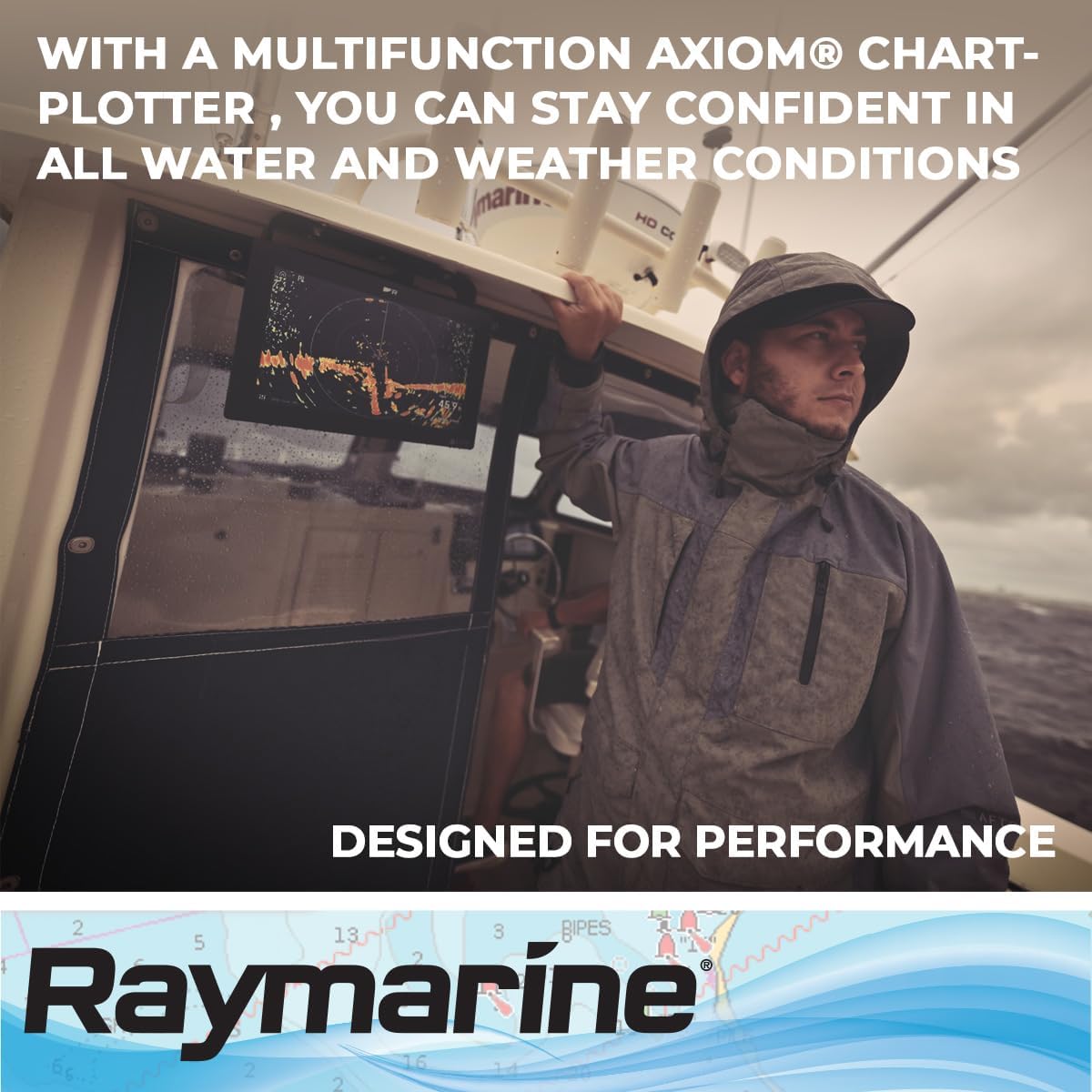
Figure 5: Axiom+ display designed for performance in all water and weather conditions.
8. Specifications
| Product Dimensions | 12.36 x 3.03 x 8.54 inches |
| Item Weight | 7.04 pounds |
| Item Model Number | E70638 |
| Connectivity Technologies | Ethernet, NMEA2000 |
| Special Features | Touchscreen |
| Other Display Features | Wireless |
| Human Interface Input | Touchscreen |
| Color | As Shown |
| Manufacturer | Raymarine |
| Screen Size | 12 Inches |
| Map Type | Nautical |
| Memory Storage Capacity | 16 GB |
9. Warranty and Support
The Raymarine Axiom+ 12 Display comes with a manufacturer's warranty. For specific warranty terms and conditions, please refer to the warranty documentation included in your product packaging or visit the official Raymarine website. When contacting support or making a warranty claim, ensure you have your product's serial number readily available. A serial number decal is provided in the box for easy reference.
For technical assistance, product registration, and access to the latest software updates and full manuals, please visit the Raymarine support website.


