
1. Introduction
The Knewkey Rymek Mechanical Keyboard combines a classic typewriter aesthetic with modern functionality. It features an 83-key English QWERTY layout, offering both wireless Bluetooth and wired USB connectivity. Designed for versatility, it supports simultaneous pairing with up to three devices and is compatible with Windows, Mac, iOS, and Android operating systems. The keyboard includes a vibrant RGB backlight, a tactile switch type for a satisfying typing experience, and a built-in rechargeable battery.
2. Setup
2.1 Package Contents
- Knewkey Rymek Mechanical Keyboard
- USB Cable (for charging and wired connection)
- User Manual (this document)
2.2 Charging the Keyboard
The keyboard features a built-in 2000mAh rechargeable battery, providing up to 50 hours of use on a single full charge. To charge:
- Locate the Micro-USB port on the keyboard.
- Connect the included USB cable to the keyboard's Micro-USB port and to a USB 3.0 port on your computer or a compatible USB power adapter.
- The charging indicator light will flash when the battery is low, remain steadily lit during charging, and turn off once charging is complete.
Note: For stable communication during charging, it is recommended to connect the USB cable to a PC's USB 3.0 port.

Image: The Micro-USB port on the keyboard, with a charging cable connected.
2.3 Connecting to Devices
The Rymek keyboard supports both wireless Bluetooth and wired USB connections, and can pair with up to three devices simultaneously.
2.3.1 Switching Connection Modes
To switch between wired and wireless modes, use the handlebar located on the left side of the keyboard:
- Pull the handlebar forward to switch the connection mode.
- When switching modes, the keyboard backlight will flash three times to indicate the change.

Image: The handlebar on the left side of the keyboard, used for switching connection modes.
2.3.2 Bluetooth Pairing
The keyboard can be paired with up to three Bluetooth devices. Follow these steps:
- Ensure the keyboard is in wireless mode using the handlebar.
- Press and hold the Fn key along with one of the Bluetooth keys (F1, F2, or F3) for 3-5 seconds until the corresponding indicator light above the key starts flashing rapidly. This indicates pairing mode.
- On your device (computer, tablet, smartphone), go to Bluetooth settings and search for available devices.
- Select "Knewkey Rymek" from the list of devices.
- Once connected, the indicator light on the keyboard will stop flashing and remain steadily lit.
- Repeat for up to two additional devices using Fn+F2 and Fn+F3.

Image: The Knewkey Rymek keyboard displaying Bluetooth pairing indicators for three devices (1, 2, 3).
2.3.3 Wired USB Connection
To use the keyboard in wired mode:
- Ensure the keyboard is in wired mode using the handlebar.
- Connect the included USB cable to the keyboard's Micro-USB port and to a USB port on your computer.
- The keyboard will be automatically recognized and ready for use.
2.4 Compatibility
The Knewkey Rymek keyboard is compatible with a wide range of operating systems, including:
- Windows
- Mac OS
- Android
- iOS

Image: Icons representing Windows, Mac OS, Android, and iOS, indicating broad compatibility.
3. Operating Instructions
3.1 Backlight Control
The Rymek keyboard features an RGB backlight with various modes and adjustable brightness.
- Switching Backlight Modes: Press Fn + Del to cycle through 7 dynamic backlight modes.
- Adjusting Brightness: Press Fn + Up Arrow to increase brightness and Fn + Down Arrow to decrease brightness.
- Monochromatic Backlight: The default monochromatic backlight color is sky blue.
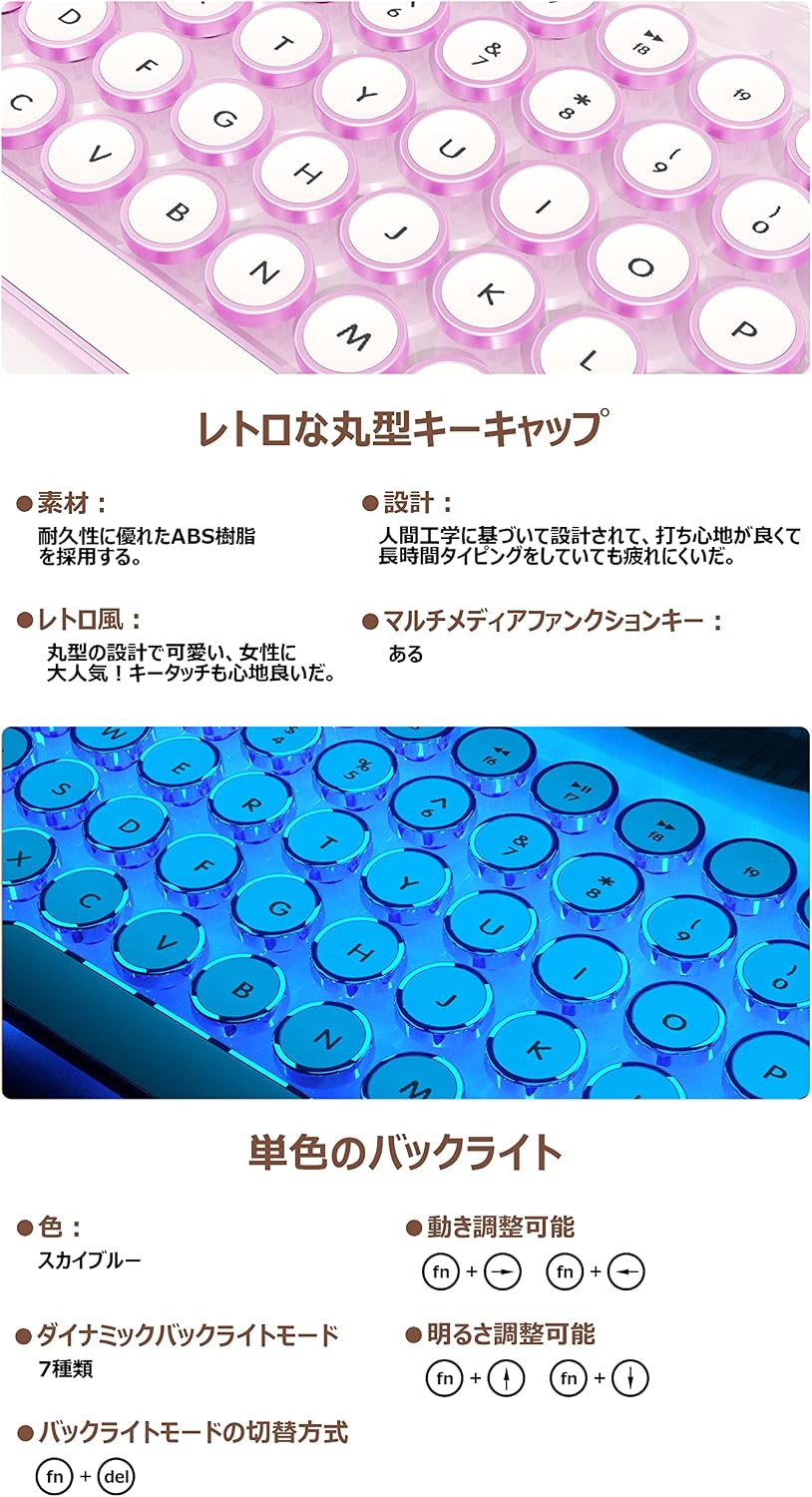
Image: A close-up of the keyboard keys illuminated with a blue backlight, demonstrating the monochromatic backlight feature.
3.2 Volume Control
The volume knob on the right side of the keyboard allows for easy audio adjustment.
- Turn the knob forward (clockwise) to decrease the volume.
- Turn the knob backward (counter-clockwise) to increase the volume.
- Press the knob inward once to activate silent mode (mute/unmute).

Image: The volume knob on the right side of the keyboard, used for audio control.
3.3 Win Lock Function
To prevent accidental interruptions during gaming or focused work, use the Win Lock function:
- Press Fn + Win key to enable or disable the Win Lock function.
- When enabled, the Windows key will be deactivated.
3.4 Removable Stand
The keyboard includes a high-quality aluminum alloy stand designed to hold smartphones or tablets. This stand is removable, allowing you to use the keyboard with or without it. It can support devices up to approximately 300g, similar to the weight of an iPad mini.

Image: The keyboard with a tablet and a smartphone placed in its integrated removable stand.
4. Maintenance
4.1 Cleaning
To maintain the keyboard's appearance and functionality:
- Use a soft, lint-free cloth to wipe the surface of the keyboard.
- For deeper cleaning, use compressed air to remove dust and debris from between the keys.
- Avoid using harsh chemicals or abrasive materials, as these can damage the keyboard's finish.
4.2 Battery Care
To prolong battery life:
- Avoid completely draining the battery frequently.
- Charge the keyboard regularly, especially if it will be stored for an extended period.
- Store the keyboard in a cool, dry place.
5. Troubleshooting
5.1 Keyboard Not Connecting via Bluetooth
- Ensure the keyboard is in wireless mode (check handlebar position).
- Verify that the keyboard's battery is charged.
- Make sure Bluetooth is enabled on your device.
- Try re-pairing the keyboard: Press and hold Fn + F1/F2/F3 until the indicator flashes, then re-select the keyboard in your device's Bluetooth settings.
- If connected to an iPad or similar device, try disconnecting and reconnecting the keyboard from the device's Bluetooth settings.
- Ensure the keyboard is not already connected to another device.
5.2 Keyboard Not Responding in Wired Mode
- Ensure the keyboard is in wired mode (check handlebar position).
- Verify that the USB cable is securely connected to both the keyboard and your computer.
- Try using a different USB port on your computer.
- Test with a different USB cable if available.
5.3 Backlight Not Working or Dim
- Ensure the keyboard battery is sufficiently charged.
- Adjust brightness using Fn + Up Arrow.
- Cycle through backlight modes using Fn + Del.
5.4 Keys Not Registering
- Check if the keyboard is properly connected (wired or wireless).
- Ensure the battery is charged if in wireless mode.
- Restart the keyboard by turning it off and on.
- If specific keys are not working, inspect for any physical obstructions or debris.
6. Specifications
| Brand | Knewkey (Rymek) |
| Model | Rymek |
| Connectivity Technology | Bluetooth, Micro USB, USB |
| Keyboard Description | Mechanical, Gaming |
| Color | White |
| Supported Backlight Color | RGB |
| Included Components | USB Cable |
| Switch Type | Tactile |
| Keyboard Layout | QWERTY (English) |
| Hand Orientation | Ambidextrous |
| Number of Keys | 83 |
| Battery Capacity | 2000mAh |
| Battery Life | Up to 50 hours (single full charge) |
7. Warranty Information
Specific warranty information for the Knewkey Rymek Mechanical Keyboard is not provided in the available product data. Please refer to the product packaging or contact the retailer/manufacturer for details regarding warranty coverage.
8. Customer Support
Specific customer support contact information is not provided in the available product data. For assistance, please refer to the contact details provided on the product packaging, the manufacturer's official website, or contact the retailer from whom you purchased the product.