
1. Introduction
This manual provides detailed instructions for the installation, operation, and maintenance of your Everest DF-804W Smart Wi-Fi Security Camera. This 2.0 MP HD camera features a 3.6mm lens, Wi-Fi connectivity, and supports TF card storage for reliable outdoor security monitoring. Please read this manual carefully before using the product to ensure proper setup and functionality.
2. Package Contents
Upon opening the package, please verify that all the following items are included:
- Everest DF-804W Smart Wi-Fi Security Camera
- Power Adapter
- Mounting Screws and Wall Plugs
- User Manual (this document)
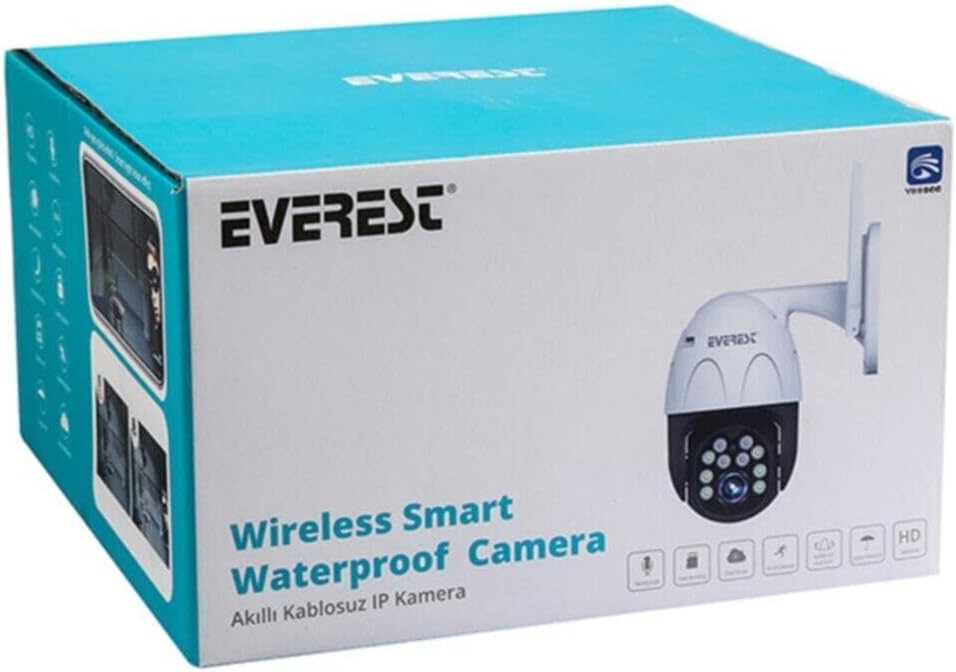
Figure 2.1: The product packaging for the Everest DF-804W camera. This box contains the camera unit, power adapter, mounting hardware, and the user manual.
3. Setup
3.1 Physical Installation
- Choose a Location: Select an outdoor location that provides the desired viewing angle and is within range of your Wi-Fi network. Ensure the camera is protected from direct heavy rain if possible, although it is designed for outdoor use.
- Mounting: Use the provided screws and wall plugs to securely mount the camera to a wall or ceiling. Mark the drill holes using the camera's base as a template.
- Power Connection: Connect the power adapter to the camera's power input port and then plug it into a standard electrical outlet. The camera will power on and initiate its startup sequence.
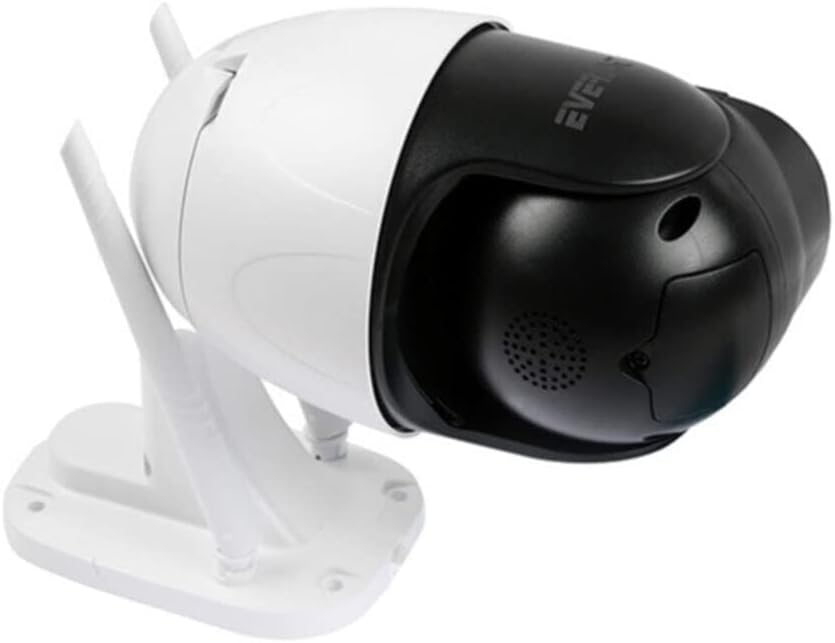
Figure 3.1: Side view of the Everest DF-804W camera, showing its adjustable bracket and dual Wi-Fi antennas. This view is helpful for understanding mounting options and antenna positioning.

Figure 3.2: Back view of the Everest DF-804W camera, displaying the product label with serial number and QR code, along with the power input and reset button (if present under a cover). This area is crucial for initial setup and troubleshooting.
3.2 App Installation and Account Creation
- Download the Yoosee App: Search for "Yoosee" in your mobile device's app store (Google Play Store for Android or Apple App Store for iOS) and download the official application.
- Register an Account: Open the Yoosee app and follow the on-screen instructions to register a new user account. You may need to provide an email address or phone number for verification.
- Log In: After successful registration, log in to your newly created Yoosee account.
3.3 Network Connection (Wi-Fi Pairing)
- Add Device: In the Yoosee app, tap the "+" icon or "Add Device" option to begin adding your camera.
- Select Connection Method: Choose "Wi-Fi Connection" or "Add via Wi-Fi" (exact wording may vary).
- Enter Wi-Fi Details: Input your 2.4GHz Wi-Fi network name (SSID) and password. Ensure your mobile device is connected to the same 2.4GHz Wi-Fi network. Note: This camera may not support 5GHz Wi-Fi networks.
- Scan QR Code or AP Hotspot: The app will guide you through either scanning a QR code generated by the app with the camera's lens, or connecting to the camera's temporary Wi-Fi hotspot (AP mode) for initial setup. Follow the specific instructions provided by the app.
- Wait for Connection: The camera will attempt to connect to your Wi-Fi network. A voice prompt or indicator light change on the camera will confirm a successful connection.
- Name Your Camera: Once connected, you can assign a name to your camera (e.g., "Front Door," "Backyard") for easy identification.
4. Operating Instructions
4.1 Live View
From the Yoosee app's main screen, tap on your camera's name to access the live video feed. You can view real-time footage, take screenshots, and manually record video.
4.2 Recording and Playback
- TF Card Recording: Insert a compatible TF (microSD) card (up to 128GB, not included) into the camera's TF card slot. The camera will automatically begin recording based on your settings (e.g., continuous, motion-triggered).
- Access Playback: In the live view interface, locate the "Playback" or "History" option. Select the date and time to review recorded footage stored on the TF card.
4.3 Motion Detection and Alerts
Configure motion detection settings within the Yoosee app:
- Enable Motion Detection: Turn on the motion detection feature.
- Adjust Sensitivity: Set the motion detection sensitivity level to minimize false alarms.
- Set Alert Schedule: Define specific times when you want to receive motion alerts.
- Receive Notifications: The app will send push notifications to your mobile device when motion is detected.
4.4 Two-Way Audio
If your camera supports two-way audio, you can use the microphone and speaker icons in the live view interface to listen to the camera's surroundings and speak through the camera.
5. Maintenance
5.1 Cleaning
Regularly clean the camera lens with a soft, dry cloth to ensure clear image quality. Do not use harsh chemicals or abrasive materials.
5.2 Firmware Updates
Check the Yoosee app periodically for available firmware updates. Keeping your camera's firmware up-to-date ensures optimal performance, security, and access to new features.
5.3 TF Card Management
If the TF card becomes full, the camera will typically overwrite the oldest footage. You can format the TF card via the app settings to clear all recorded data.
6. Troubleshooting
- Camera Not Powering On: Ensure the power adapter is securely connected to both the camera and a working electrical outlet.
- Cannot Connect to Wi-Fi:
- Verify your Wi-Fi network is 2.4GHz.
- Check that the Wi-Fi password is entered correctly.
- Ensure the camera is within range of your Wi-Fi router.
- Try resetting the camera (refer to Figure 3.2 for potential reset button location, often under a cover or near the TF card slot) and attempting the connection process again.
- Poor Image Quality: Clean the camera lens. Ensure there are no obstructions in front of the lens. Check your internet connection speed.
- No Recording to TF Card: Ensure a TF card is inserted correctly and is not full or corrupted. Format the TF card via the app.
- No Motion Detection Alerts: Verify motion detection is enabled and sensitivity is set appropriately in the app. Check app notification settings on your phone.
7. Specifications
| Feature | Description |
|---|---|
| Model | DF-804W |
| Brand | Everest |
| Video Recording Resolution | 1080p |
| Megapixels | 2.0 MP |
| Lens | 3.6mm |
| Wireless Communication | Wi-Fi (2.4GHz) |
| Connectivity Technology | Wireless |
| Form Factor | Bullet/PTZ (Outdoor) |
| Special Features | HD Resolution |
| Recommended Use | Outdoor Security |
| Storage | TF Card (MicroSD) support |
8. Warranty and Support
For warranty information and technical support, please refer to the warranty card included with your product or visit the official Everest website. You may also contact your retailer for assistance.