
ORICO DS500U3
ORICO DS500U3 5-Bay 3.5-inch USB3.0 HDD Enclosure User Manual
Model: DS500U3 | Brand: ORICO
1. Introduction
This manual provides detailed instructions for the installation, operation, and maintenance of your ORICO DS500U3 5-Bay 3.5-inch USB3.0 HDD Enclosure. Please read this manual thoroughly before use to ensure proper functionality and to maximize the lifespan of your device and data.
2. Package Contents
Verify that all items are present in the package:
- ORICO DS500U3 5-Bay 3.5-inch HDD Enclosure
- USB 3.0 Data Cable
- 12V/6.5A Power Adapter
- User Manual (this document)
3. Product Overview
The ORICO DS500U3 is a high-capacity external hard drive enclosure designed for 3.5-inch SATA HDDs. It features a magnetic adsorption design for tool-free installation, high-speed USB 3.0 connectivity with UASP support, and efficient cooling to protect your data.

Figure 3.1: Rear Panel Details
Key features include rear ventilation holes for airflow, a power button, a high-speed USB 3.0 data port, and a DC power input port.

Figure 3.2: LED Indicator Status
LED indicators provide real-time status: solid blue for standby/sleep, flashing blue for data read/write activity, and flashing red for hard drive abnormalities or faults.
4. Setup
4.1 Hard Drive Installation
The ORICO DS500U3 features a magnetic top cover for easy, tool-free hard drive installation.
- Gently lift the magnetic top cover to access the drive bays.
- Slide your 3.5-inch SATA hard drive(s) into the available bays. Ensure the SATA connectors align properly. For 2.5-inch HDDs, a hard drive bay adapter (not included) is recommended for stability.
- Replace the magnetic top cover, ensuring it snaps securely into place.

Figure 4.1: Hard Drive Installation Steps
Installation is simple: 1. Lift the magnetic top cover. 2. Insert the 3.5-inch hard drive into an available bay. 3. Replace the magnetic top cover securely.
4.2 Connecting to a Computer
- Connect the 12V/6.5A power adapter to the DC power input port on the enclosure and then plug it into a power outlet.
- Connect one end of the provided USB 3.0 data cable to the USB 3.0 port on the enclosure.
- Connect the other end of the USB 3.0 data cable to an available USB 3.0 port on your computer.
- Press the power button on the enclosure to turn it on. The LED indicators will illuminate.
The ORICO DS500U3 is plug-and-play compatible with Windows, Mac OS, and Linux systems, requiring no additional drivers.

Figure 4.2: System Compatibility
Enjoy plug-and-play functionality with no additional drivers required. The enclosure is compatible with Windows, Mac OS, and Linux operating systems.
5. Operating Instructions
5.1 Data Transfer
Once connected and powered on, your computer should recognize the installed hard drives. You can then access them like any other external storage device to transfer files. The enclosure supports USB 3.0 to SATA 3.0 communication protocol, offering transfer speeds up to 5Gbps. With UASP support, transfer speeds can be up to 20% faster than standard USB 3.0.
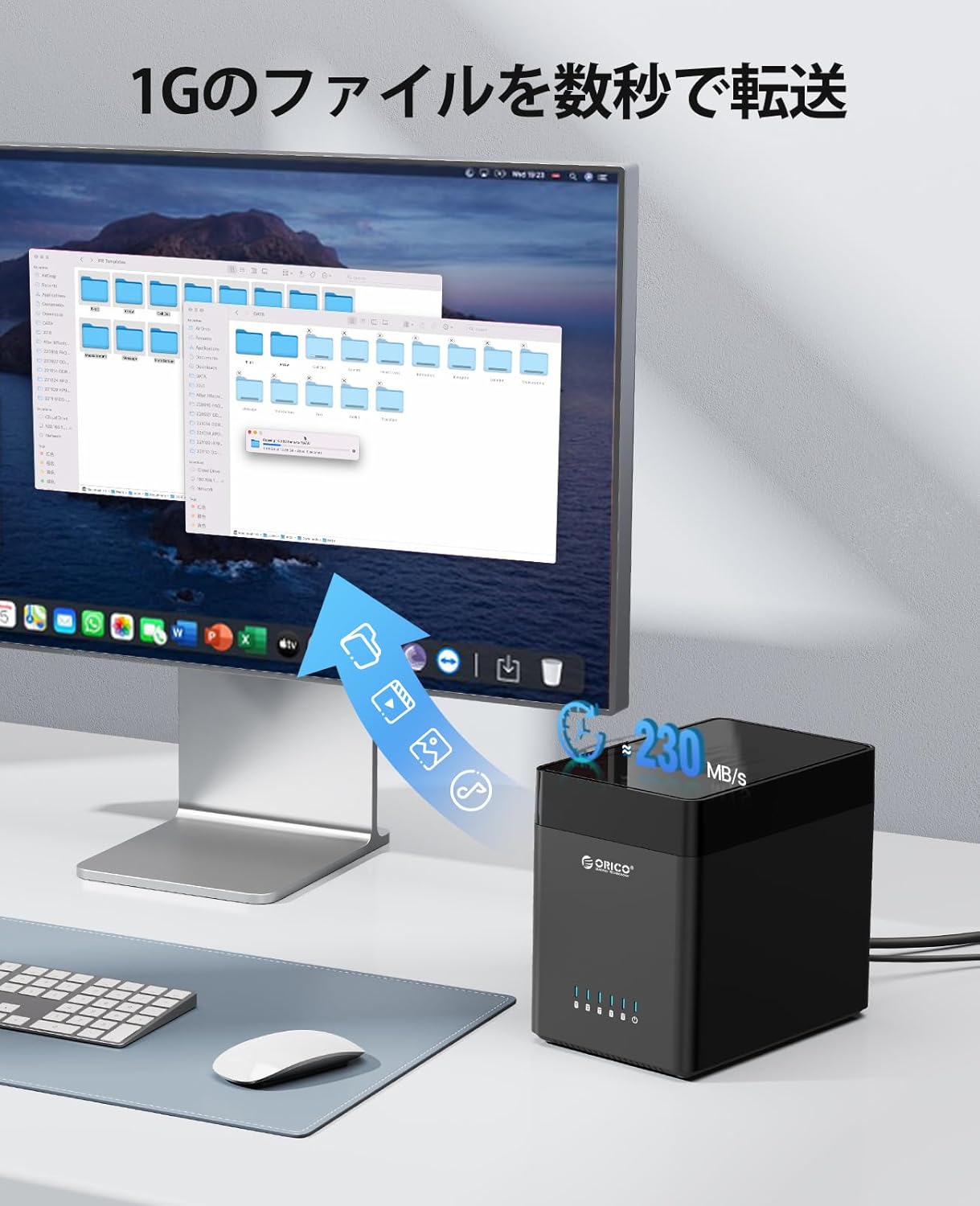
Figure 5.1: High-Speed Data Transfer
Experience rapid data transfer speeds of up to 230MB/s, allowing you to move large files quickly and efficiently between your computer and the enclosure.
5.2 Automatic Sleep Mode
The ORICO DS500U3 features an automatic sleep mode to conserve power and extend the lifespan of your hard drives. If there is no data activity for 10 minutes, the enclosure will automatically enter sleep mode. The LED indicators will show a solid blue light. Data access will resume automatically when activity is detected.

Figure 5.2: Automatic Sleep Mode
The automatic sleep mode activates after 10 minutes of inactivity, conserving power and extending the lifespan of your hard drives.
6. Maintenance
6.1 Cooling System
The enclosure is equipped with a built-in 120mm silent fan and convection ventilation holes to ensure optimal heat dissipation. This design helps maintain stable operating temperatures for your hard drives, reducing the risk of damage and improving overall reliability.

Figure 6.1: Efficient Cooling System
An integrated 120mm silent fan and convection ventilation holes ensure optimal heat dissipation, maintaining stable operating temperatures for your hard drives and extending their lifespan.
6.2 Cleaning and Care
- Ensure the device is powered off and disconnected from the computer and power outlet before cleaning.
- Use a soft, dry cloth to wipe the exterior of the enclosure.
- Do not use liquid cleaners or aerosols, as they may damage the device.
- Keep the ventilation holes clear of dust and obstructions to maintain proper airflow.
7. Troubleshooting
7.1 Hard Drive Not Recognized
- Check Connections: Ensure the USB data cable and power adapter are securely connected to both the enclosure and your computer/power outlet.
- Power On: Verify that the enclosure is powered on and the LED indicators are active.
- Hard Drive Status: Check the LED indicators for any flashing red lights, which indicate a hard drive abnormality or fault. Try re-seating the hard drive or testing it in another bay/enclosure if possible.
- Disk Management (Windows): Open Disk Management (right-click 'This PC' -> 'Manage' -> 'Disk Management') to see if the drive appears. It might need to be initialized, partitioned, or formatted.
- Disk Utility (Mac OS): Open Disk Utility to check if the drive is detected and can be mounted or formatted.
- Power Supply: Ensure the 12V/6.5A power adapter is functioning correctly and providing sufficient power.
7.2 Slow Data Transfer Speeds
- USB 3.0 Port: Ensure the enclosure is connected to a USB 3.0 port on your computer. Connecting to a USB 2.0 port will result in slower speeds.
- Cable Quality: Use the provided high-quality USB 3.0 cable.
- Hard Drive Performance: The actual transfer speed is limited by the slowest component, typically the hard drive itself. Older or slower HDDs will not achieve maximum USB 3.0 speeds.
- UASP Support: Ensure your operating system and computer's USB controller support UASP for optimized performance.
7.3 Enclosure Enters Sleep Mode Too Quickly/Slowly
- The automatic sleep mode is set to 10 minutes of inactivity. This setting is fixed and cannot be adjusted by the user.
- If the enclosure enters sleep mode unexpectedly during active use, check for intermittent data connection issues or ensure the hard drives are not experiencing errors.
8. Specifications
| Feature | Specification |
|---|---|
| Model | DS500U3 |
| Brand | ORICO |
| Compatible Drives | 3.5-inch SATA HDDs |
| Number of Bays | 5 |
| Max Capacity per Bay | 18TB |
| Total Max Capacity | 90TB |
| Interface | USB 3.0 (5Gbps) |
| Protocol | SATA 3.0, UASP |
| Compatible Systems | Windows, Mac OS, Linux |
| Material | ABS (Acrylonitrile Butadiene Styrene) |
| Cooling | 120mm Silent Fan, Convection Vents |
| Power Adapter | 12V/6.5A (100~240V) |
| Product Dimensions | 14 x 22 x 19.7 cm |
| Product Weight | 2.08 kg |
9. Warranty and Support
9.1 Warranty Information
ORICO provides a 12-month warranty period for this product from the date of purchase. This warranty covers manufacturing defects and malfunctions under normal use. It does not cover damage caused by misuse, accidents, unauthorized modifications, or natural disasters.
9.2 Customer Support
If you encounter any issues or have questions regarding your ORICO DS500U3, please contact ORICO customer support through the retailer where you purchased the product or visit the official ORICO website for support resources and contact information.
Related documentsDS500U3


Ask a question about this manual
Ask about setup, troubleshooting, compatibility, parts, safety, or missing instructions. Manuals+ will review the question and use this page’s manual context to help answer it.