Introduction
Thank you for choosing the E-YOOSO K600 Retro Mechanical Gaming Keyboard. This manual provides detailed instructions for setting up, operating, maintaining, and troubleshooting your new keyboard. The K600 features 104 keys, a rainbow LED backlight, and durable Outemu Black mechanical switches, designed for a responsive and satisfying typing experience.
Package Contents
- E-YOOSO K600 Mechanical Gaming Keyboard
- User Manual
Setup
- Unpack the Keyboard: Carefully remove the keyboard from its packaging.
- Connect to Computer: Plug the USB cable of the keyboard into an available USB port on your computer.
- Driver Installation: The keyboard is plug-and-play. Your operating system (Windows 10, 8, 7, XP, VISTA, or Mac OS X) will automatically detect and install the necessary drivers.
- Placement: Position the keyboard comfortably on your desk.

Image: The E-YOOSO K600 keyboard, showcasing its wired USB connection and retro typewriter style.
Operating Instructions
Basic Operation
The E-YOOSO K600 is a standard 104-key layout keyboard. Simply begin typing after connecting it to your computer. The keyboard features N-Key Rollover and anti-ghosting technology, ensuring that all key presses are registered accurately, even during rapid, simultaneous inputs.

Image: A user's hands typing on the E-YOOSO K600 keyboard, illustrating the full 104-key anti-ghosting feature for accurate command input.
LED Backlight Control
The K600 keyboard features a preset 9-mode LED backlight. Use the following key combinations to control the lighting effects:
- FN + INS: Cycle through different backlight modes.
- FN + HOME: Adjust backlight brightness (usually 3-5 levels).
- FN + PGUP: Adjust backlight speed (for dynamic modes).
- FN + PGDN: Change backlight color (for static modes or specific zones).
Multimedia and Function Keys
The keyboard includes multimedia and system shortcuts accessible via the FN key. Press and hold the FN key, then press the corresponding F-key for the desired function:
| Key Combination | Function |
|---|---|
| FN + F1 | Open My Computer |
| FN + F2 | Volume Up |
| FN + F3 | Volume Down |
| FN + F4 | Mute |
| FN + F5 | Previous Track |
| FN + F6 | Next Track |
| FN + F7 | Play/Pause |
| FN + F8 | Stop Play |
| FN + F9 | Open My Mail |
| FN + F10 | Open Homepage |
| FN + F11 | Open My Computer |
| FN + F12 | Open Calculator |
Additionally, use FN + WIN to lock or unlock the Windows key, preventing accidental presses during gaming sessions.

Image: A visual guide to the FN key combinations for multimedia control and system shortcuts on the E-YOOSO K600 keyboard, including Windows key lock.
Maintenance
Cleaning the Keyboard
- General Cleaning: Use a soft, lint-free cloth slightly dampened with water or a mild cleaning solution to wipe the surface of the keyboard. Avoid excessive moisture.
- Dust Removal: Use compressed air to blow away dust and debris from between the keycaps.
- Deep Cleaning (Keycap Removal): For thorough cleaning, keycaps can be carefully removed. Use a keycap puller (not included) or gently pry them off from the edges. Be careful not to damage the switch stems.
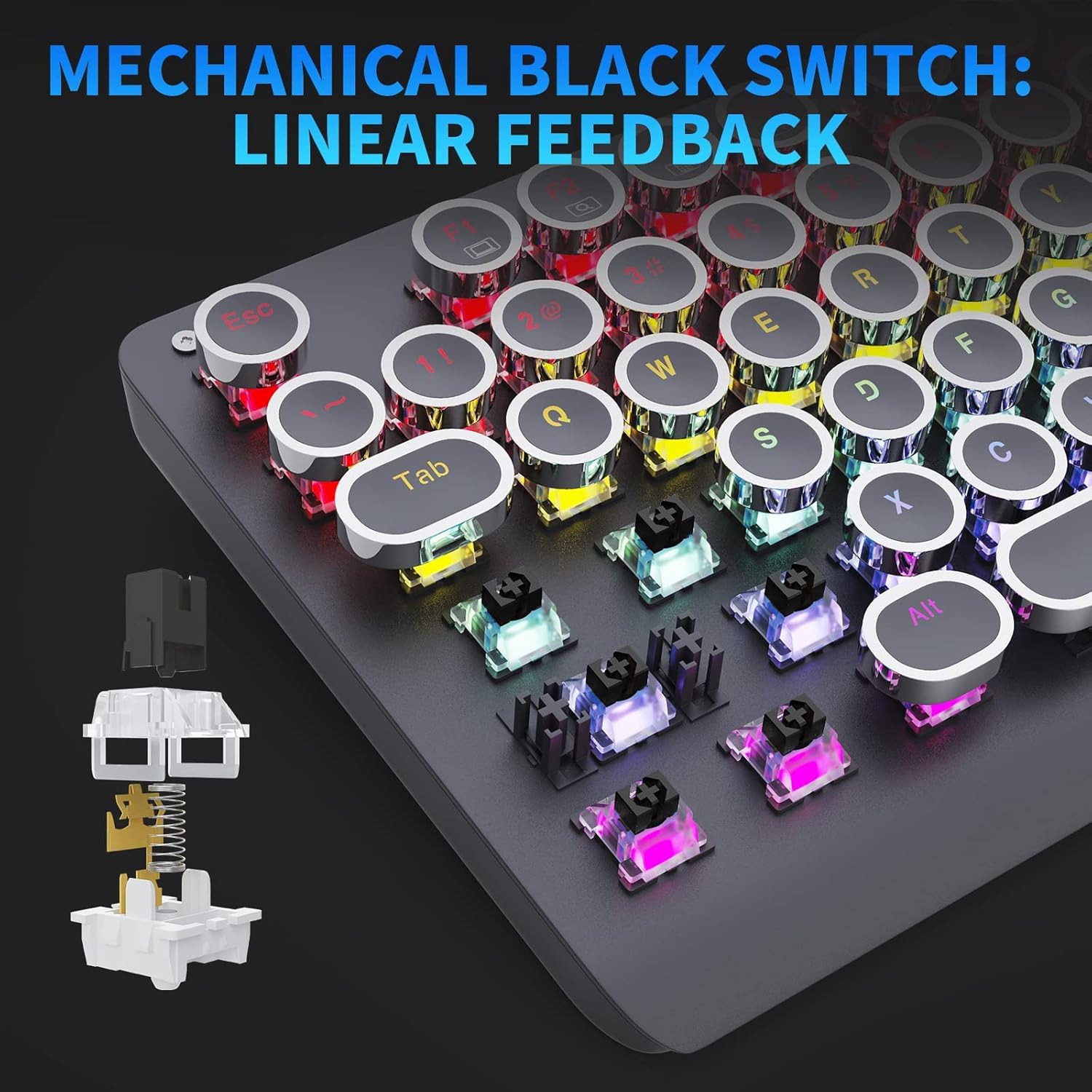
Image: A close-up of a hand holding a removed keycap, revealing the mechanical switch beneath, useful for understanding keycap removal for cleaning.
Storage
When not in use for extended periods, store the keyboard in a dry, dust-free environment. Avoid extreme temperatures.
Troubleshooting
- Keyboard Not Responding:
- Ensure the USB cable is securely plugged into both the keyboard and the computer.
- Try plugging the keyboard into a different USB port.
- Restart your computer.
- Test the keyboard on another computer to rule out system-specific issues.
- Backlight Not Working or Incorrect:
- Ensure the backlight is not turned off or set to the lowest brightness level (use FN + HOME).
- Cycle through backlight modes using FN + INS.
- Check if any software conflicts are present (e.g., other keyboard lighting software).
- Specific Keys Not Working:
- Clean the affected key and surrounding area to remove any debris.
- If a keycap was removed, ensure it is re-seated correctly.
- If the issue persists, contact customer support.
Specifications
| Feature | Description |
|---|---|
| Brand | E-YOOSO |
| Model | K600 |
| Keyboard Type | Mechanical Gaming Keyboard |
| Switch Type | Outemu Black Switches (Linear Feedback) |
| Number of Keys | 104 |
| Connectivity | Wired USB |
| Backlight | Rainbow LED (9 preset modes) |
| Anti-Ghosting | Full 104-Key N-Key Rollover |
| Keycap Style | Round Retro / Typewriter Style |
| Material | ABS (Acrylonitrile Butadiene Styrene) |
| Color | Black |
| Compatible OS | Windows 10, 8, 7, XP, VISTA, Mac OS X |

Image: An exploded view diagram illustrating the components and linear feedback mechanism of the Outemu Black mechanical switch.
Warranty and Support
E-YOOSO products are designed for reliability and performance. This product comes with a standard manufacturer's warranty. Please refer to the warranty card included with your purchase or visit the official E-YOOSO website for detailed warranty terms and conditions.
For technical support, troubleshooting assistance, or warranty claims, please contact E-YOOSO customer service through their official website or the contact information provided with your product.


