Product Overview
The HUAWEI WiFi AX3 is a high-performance wireless router designed to provide fast and reliable internet connectivity for your home or office. Featuring Wi-Fi 6 Plus technology, it offers enhanced speed, coverage, and multi-device connectivity compared to previous Wi-Fi standards.
Key features include:
- Wi-Fi 6 Plus: Supports IEEE 802.11 a/b/g/n/ac/ax for faster speeds and improved efficiency.
- Dual-Band Operation: Operates on both 2.4 GHz and 5 GHz frequencies, with priority given to 5 GHz for better performance.
- Multi-User Technology (OFDMA): Capable of sending data to multiple devices simultaneously, supporting up to 4 devices on 2.4 GHz and 16 devices on 5 GHz, with a total of up to 128 devices.
- Enhanced Signal Coverage: Designed to penetrate walls more effectively, providing stronger Wi-Fi signals throughout your space.
- Mesh Networking: Supports wireless, network cable, and hybrid networking to expand Wi-Fi coverage with multiple routers.
- Gigahome CPU: Equipped with a powerful dual-core Gigahome 1.4GHz CPU for optimal speed and performance.
- Huawei HomeSec™: Provides security features to protect your network.

Figure 1: The HUAWEI WiFi AX3 Router shown with its mobile management application interface.
Setup Guide
1. Unboxing and Physical Connection
Carefully remove the router and its accessories from the packaging. Place the router on a flat, stable surface in a central location within your home for optimal signal distribution.

Figure 2: Rear view of the HUAWEI WiFi AX3 Router, highlighting the power input, WAN port, LAN ports, and reset button.
- Connect Power: Plug the power adapter into the router's power port (labeled 'POWER') and then into a wall outlet. The power indicator light on the router will illuminate.
- Connect to Internet (WAN): Connect one end of the provided Ethernet cable to the WAN port (labeled 'WAN') on the router. Connect the other end to your modem's LAN port or the Ethernet wall jack provided by your Internet Service Provider (ISP).
- Connect Devices (LAN - Optional): For wired connections, connect Ethernet cables from your computers or other network devices to the LAN ports (labeled 'LAN1', 'LAN2', 'LAN3') on the router.
2. Initial Configuration
After physical connections are made, you can configure your router using a web browser or the HUAWEI AI Life app.
Using a Web Browser:
- Connect to Router's Wi-Fi: On your computer or smartphone, connect to the router's default Wi-Fi network. The default Wi-Fi name (SSID) and no initial password are typically printed on the bottom of the router.
- Access Web Interface: Open a web browser (e.g., Chrome, Firefox) and enter
192.168.3.1orrouterlogin.comin the address bar. - Follow Setup Wizard: A setup wizard will appear. Follow the on-screen instructions to set up your new Wi-Fi name (SSID) and password for both 2.4 GHz and 5 GHz bands, and create an administrator password for the router's management interface.
- Reboot: The router may reboot after configuration. Reconnect your devices to the new Wi-Fi network using the password you just set.
Using HUAWEI AI Life App:
Download the HUAWEI AI Life app from your device's app store. Open the app and follow the prompts to discover and set up your HUAWEI WiFi AX3 router. The app provides an intuitive interface for managing your network.
Operating Instructions
Connecting Devices
Once your router is set up, you can connect various devices to your network.
- Wi-Fi Connection: On your wireless devices (smartphones, tablets, laptops), search for available Wi-Fi networks and select the Wi-Fi name (SSID) you configured during setup. Enter your Wi-Fi password to connect.
- Ethernet Connection: For devices with an Ethernet port (e.g., desktop computers, gaming consoles, smart TVs), connect an Ethernet cable from the device to any of the router's LAN ports.
Advanced Features
Huawei Share (NFC)
For compatible Android phones with NFC, you can quickly connect to the Wi-Fi network by tapping your phone on the router's NFC tag.

Figure 3: Demonstrating Huawei Share, where an NFC-enabled smartphone connects to the router's Wi-Fi with a simple tap.
Mesh Networking
The HUAWEI WiFi AX3 supports mesh networking, allowing you to combine multiple HUAWEI routers to create a seamless, expanded Wi-Fi network throughout your home. This eliminates Wi-Fi dead zones and provides consistent coverage.
Wi-Fi 6 Plus Performance
The router leverages Wi-Fi 6 Plus technology to deliver higher speeds and better performance, especially with Wi-Fi 6 compatible devices. This includes features like OFDMA for efficient multi-device communication and improved signal penetration.
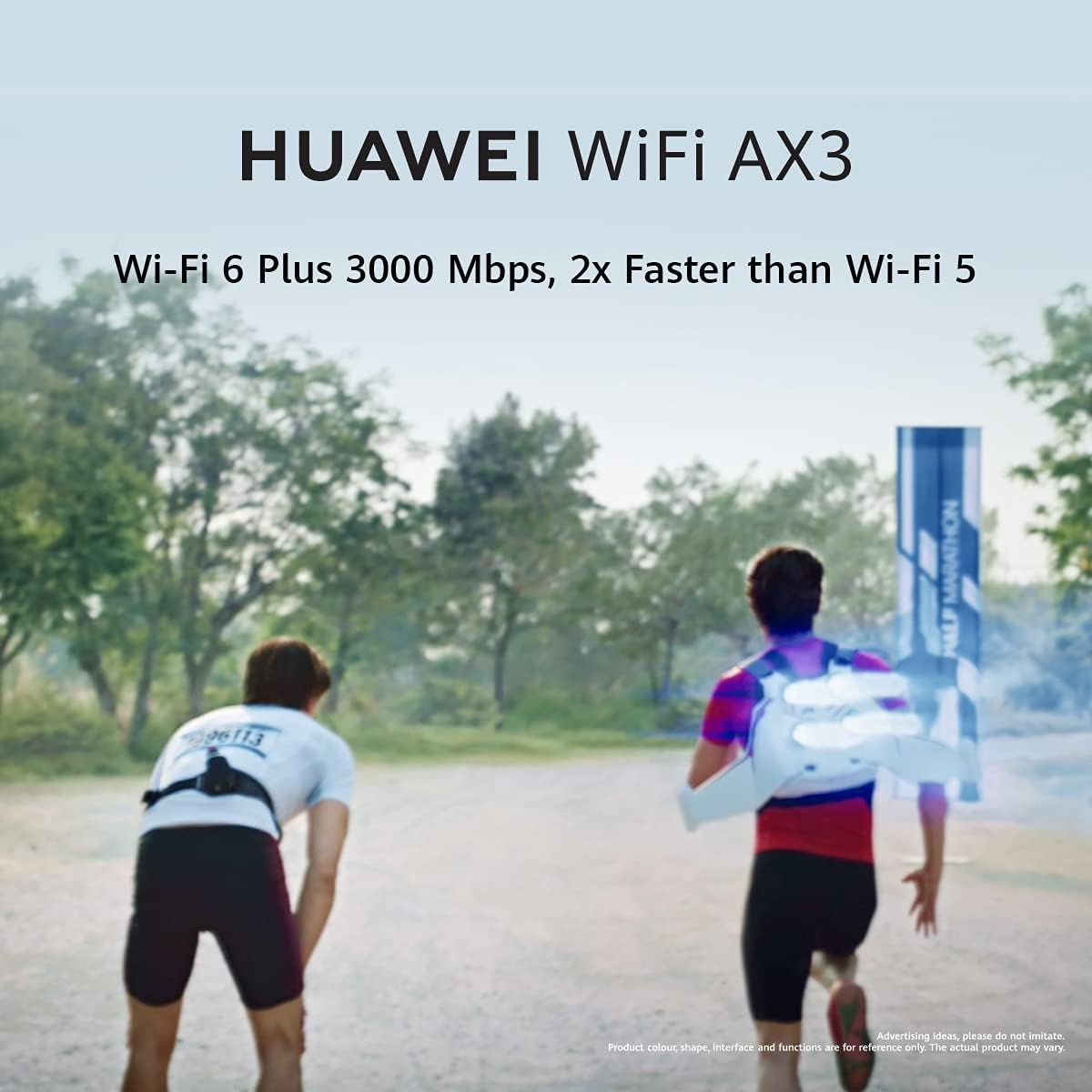
Figure 4: Visual representation of Wi-Fi 6 Plus offering significantly faster speeds compared to Wi-Fi 5.
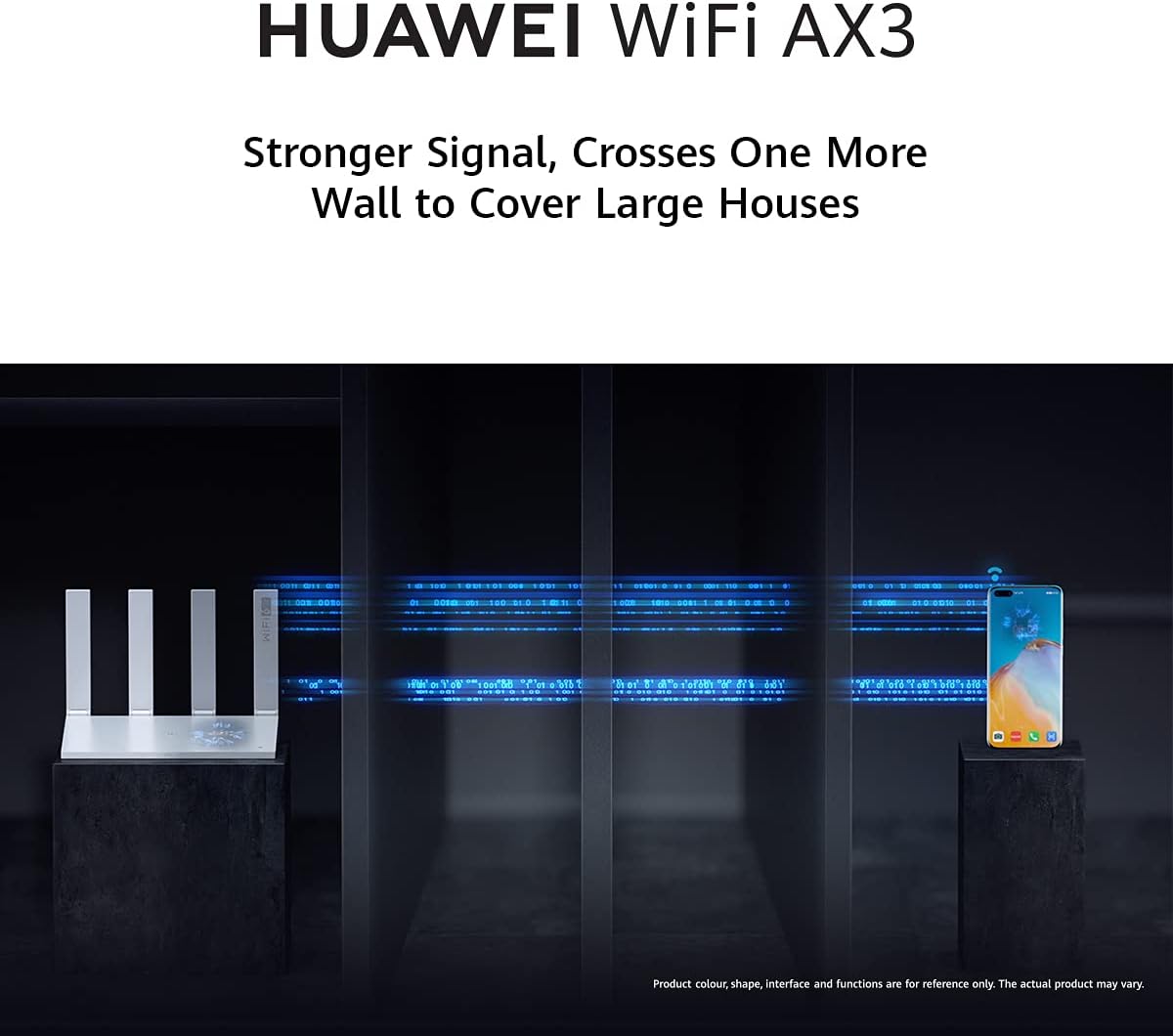
Figure 5: Illustration of the router's ability to provide stronger Wi-Fi signals that can penetrate walls, ensuring wider coverage.

Figure 6: A detailed view of the Gigahome CPU, highlighting the router's powerful processing capabilities for superior performance.
HomeSec™ Security
The router incorporates Huawei HomeSec™ to protect your home network against various cyber threats, including brute-force attacks, ensuring a secure online environment.
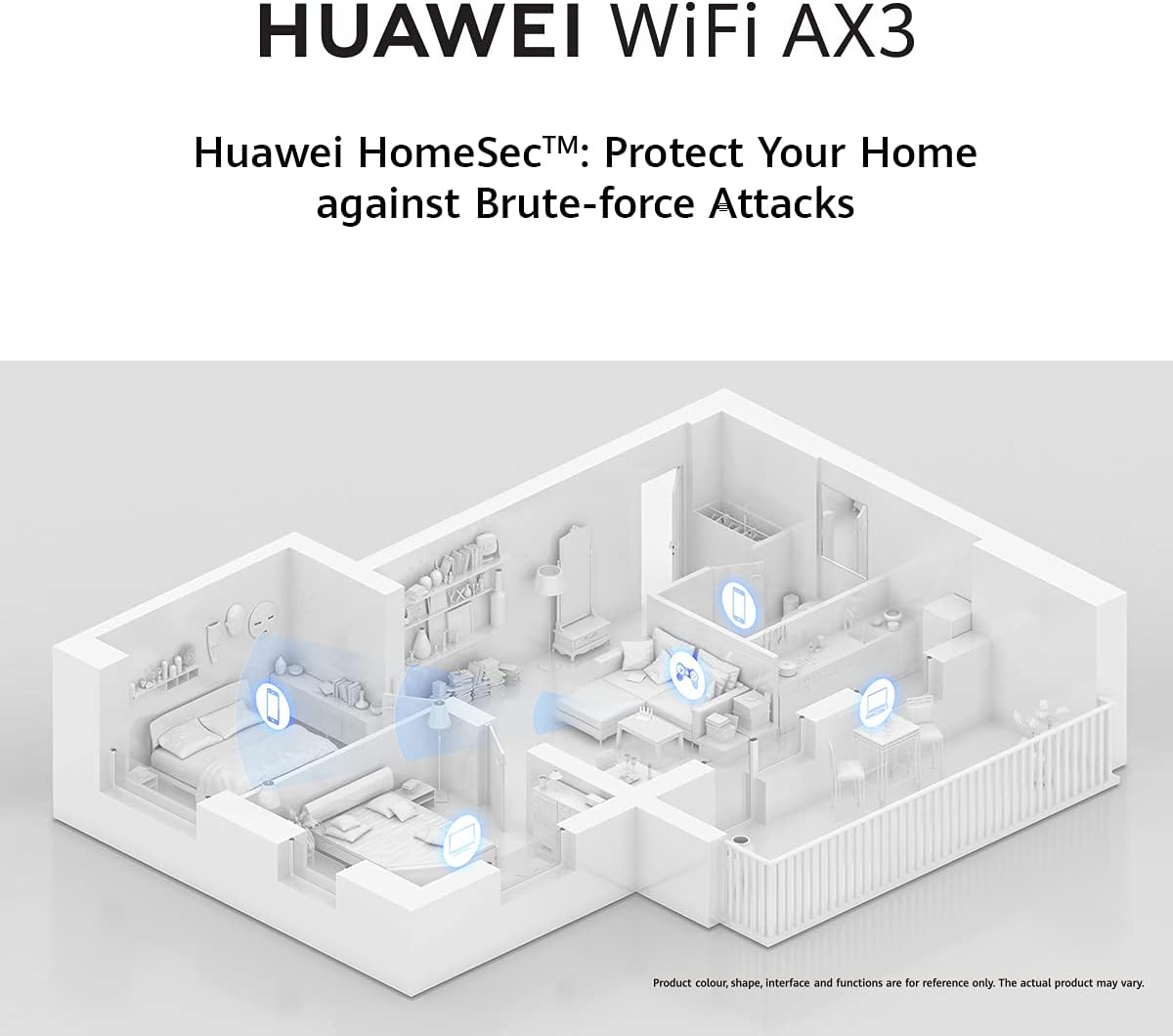
Figure 7: An architectural diagram illustrating how Huawei HomeSec™ provides comprehensive security for all connected devices within a home network.
Maintenance
Firmware Updates
Regularly check for and install firmware updates through the router's web interface or the HUAWEI AI Life app. Firmware updates provide performance improvements, new features, and security patches.
Cleaning
To ensure optimal performance and longevity, keep the router clean. Use a soft, dry cloth to wipe the exterior. Avoid using liquid cleaners or abrasive materials.
Resetting the Router
If you encounter persistent issues or wish to restore factory settings, you can perform a factory reset. Locate the 'RESET' button on the back of the router (refer to Figure 2). With the router powered on, use a paperclip or a similar pointed object to press and hold the reset button for approximately 5-10 seconds until the indicator lights change, then release. The router will reboot with factory default settings.
Troubleshooting
No Internet Connection
- Check all cable connections: Ensure the power adapter is securely plugged in and the Ethernet cable from your modem/ISP is connected to the router's WAN port.
- Restart devices: Power off your modem, router, and connected devices. Wait 30 seconds, then power on the modem first, wait for it to fully boot, then power on the router, and finally your devices.
- Verify ISP status: Contact your Internet Service Provider to confirm there are no service outages in your area.
Weak Wi-Fi Signal or Limited Range
- Router Placement: Move the router to a more central location in your home, away from obstructions like thick walls, large metal objects, or other electronic devices that may cause interference.
- Interference: Other wireless devices (cordless phones, microwaves, Bluetooth devices) can interfere with Wi-Fi signals. Try to minimize their proximity to the router.
- Mesh Networking: Consider adding another HUAWEI Wi-Fi router to create a mesh network for extended coverage in larger homes.
- Firmware: Ensure your router's firmware is up to date.
Cannot Access Router Management Page
- Ensure your device is connected to the router's Wi-Fi network or via an Ethernet cable to a LAN port.
- Verify the IP address: Double-check that you are entering the correct IP address (
192.168.3.1) or domain (routerlogin.com) in your browser. - Clear browser cache or try a different browser.
- Temporarily disable any VPN or proxy settings on your device.
Specifications
| Feature | Detail |
|---|---|
| Model Number | WS7200-20 |
| Product Dimensions | 6.27 x 8.86 x 1.56 inches |
| Item Weight | 13.7 ounces |
| Frequency Band Class | Dual-Band (2.4 GHz & 5 GHz) |
| Wireless Communication Standard | 802.11b, 802.11ax, 802.11a, 802.11g, 802.11ac |
| Compatible Devices | Laptop, Tablet, Smartphone |
| CPU Frequency | 1400 MHz (Dual-core Gigahome) |
| Color | White |
| Special Feature | WPS (Wi-Fi Protected Setup) |
Warranty and Support
Warranty Information
For specific warranty terms and conditions, please refer to the warranty card included with your product or visit the official HUAWEI support website for your region.
Customer Support
If you require further assistance or encounter issues not covered in this manual, please contact HUAWEI customer support. You can find contact information on the official HUAWEI website.
An official User Guide (PDF) is also available for detailed information: Download User Guide (PDF)


