
1. Introduction
The Wiflyer WG3526 4G LTE Router is a high-performance AC1200Mbps dual-band wireless router designed to provide reliable internet connectivity. It features CAT4 LTE capabilities, allowing you to convert a 4G signal into home Wi-Fi and wired internet, especially useful in areas without traditional broadband. With its robust MTK7621A chipset, Gigabit Ethernet ports, and detachable antennas, this router offers a stable and efficient network solution for various applications.

Image 1.1: Wiflyer WG3526 4G LTE Router with antennas.
2. Package Contents
Before you begin, please verify that all items are present in your package:
- Wiflyer WG3526 Router Unit
- 6 x Detachable Antennas (2.4G, 5G, 3G/4G)
- Power Adapter
- Ethernet Cable
- SIM Card Adapter
- Mounting Screws and Wall Plugs
- User Manual (this document)

Image 2.1: All components included in the Wiflyer WG3526 router package.
Unboxing Video
Video 2.1: This video demonstrates the unboxing process and shows all items included in the Wiflyer WG3526 router package.
3. Product Overview
The Wiflyer WG3526 router is designed for robust performance and versatile connectivity. Key features include:
- 4G LTE Connectivity: Insert a SIM card to share 4G network with your devices. Supports US T-Mobile and AT&T (Verizon not supported).
- High-Quality Performance: Equipped with a powerful MTK7621A chipset (up to 880MHz), 512MB DDR3 RAM, and 16MB Nor Flash for stable connections.
- Dual-Band Wi-Fi: Offers 300Mbps on 2.4GHz and 867Mbps on 5GHz for high-speed internet. MU-MIMO technology supports multiple devices simultaneously.
- Detachable Antennas: Six 5dBi high-gain detachable antennas for improved signal reception. These can be replaced with extended antennas for specific needs.
- Multiple Interfaces: Includes 1 Gigabit WAN Port, 4 Gigabit LAN Ports, USB 3.0 port, SIM card slot, and TF card slot.
Router Ports and Indicators

Image 3.1: Detailed view of the Wiflyer WG3526 router's ports and LED indicators.
The router features the following ports and indicators:
- LED Indicators: Power, 2.4G Wi-Fi, 5G Wi-Fi, WAN, LAN1-4, 4G Signal Strength (4 levels).
- SIM Card Slot: For inserting your 4G LTE SIM card.
- USB 3.0 Interface: For connecting external storage devices.
- LAN Ports (LAN1-LAN4): Four Gigabit Ethernet ports for wired connections.
- WAN Port: One Gigabit Ethernet port for connecting to an existing modem or internet source.
- DC Power Input: For connecting the power adapter.
- Reset Button: To restore factory default settings.
- SD Card Slot: For TF (MicroSD) card storage.
4. Setup
Follow these steps to set up your Wiflyer WG3526 4G LTE Router:
4.1. Install Antennas
- Carefully screw the six detachable antennas into their corresponding ports on the router. Ensure they are finger-tight.
- The ports are labeled for 2.4G, 5G, and 3G/4G antennas. Match the antennas to the correct interfaces for optimal performance.
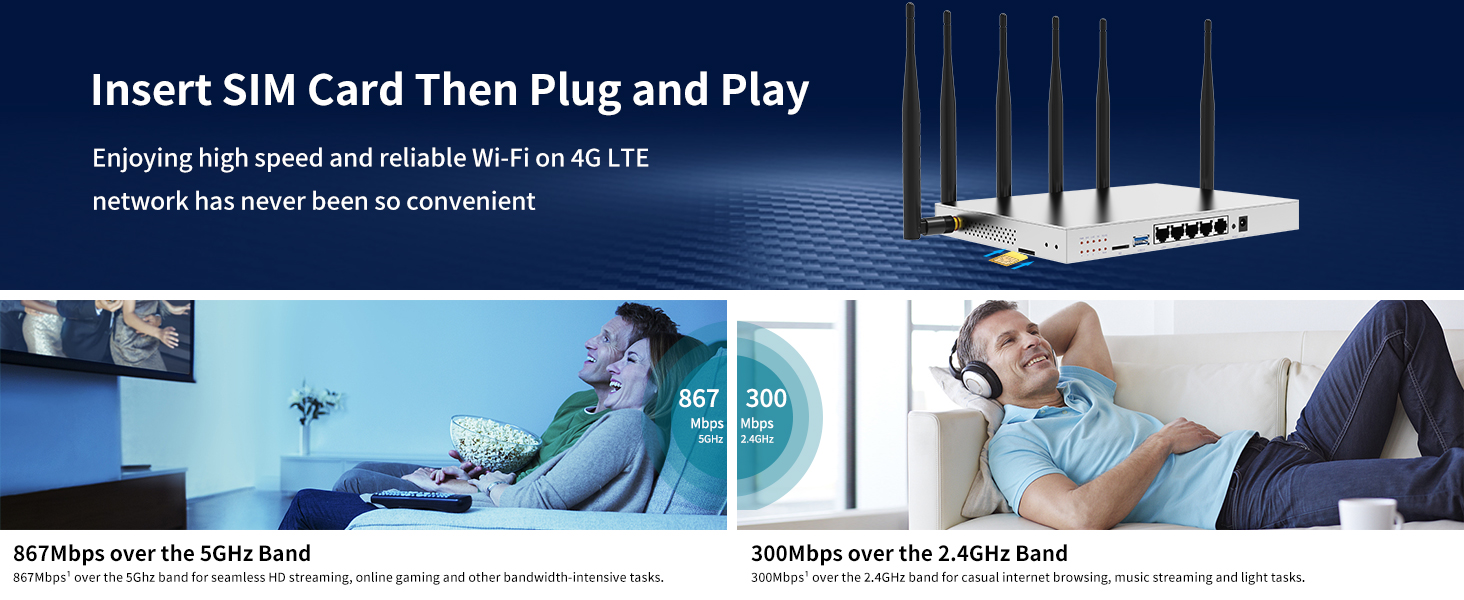
Image 4.1: Attaching the detachable antennas to the router.
4.2. Insert SIM Card
- Locate the SIM card slot on the side of the router.
- Insert your standard-sized 4G LTE SIM card with the chip facing up, until it clicks into place. If using a smaller SIM, use the provided SIM card adapter.
- To remove the SIM card, gently push it in until it springs out.

Image 4.2: Correct method for inserting the SIM card into the router.
4.3. Power On and Connect
- Connect the power adapter to the DC power input on the router and then plug it into a power outlet.
- Wait for the Wi-Fi indicator lights to illuminate, indicating the router is powered on and initializing.
- For initial setup or wired connection, connect one end of the Ethernet cable to a LAN port on the router and the other end to your computer.
Installation Video
Video 4.3: This video provides a step-by-step guide for the physical installation of the Wiflyer WG3526 router, including antenna and SIM card insertion, and power-up.
5. Operating Instructions
Once the router is physically set up, you can configure its settings and connect your devices.
5.1. Connect to Wi-Fi
- On your computer or mobile device, search for available Wi-Fi networks.
- The default Wi-Fi network names (SSIDs) and password can usually be found on a label on the bottom of the router.
- Select the appropriate Wi-Fi network (e.g., for 2.4GHz or 5GHz) and enter the default password to connect.

Image 5.1: Illustration of Wi-Fi coverage provided by the Wiflyer WG3526 router.
5.2. Accessing the Web Management Interface
- Open a web browser (e.g., Chrome, Firefox) on a device connected to the router.
- Enter the default IP address of the router (usually
192.168.1.1or192.168.0.1) into the address bar and press Enter. Refer to the router's label for the exact IP. - Enter the default username and password (commonly
adminfor both). It is highly recommended to change the default password for security reasons. - From the web interface, you can configure advanced settings such as Wi-Fi names, passwords, network modes, and 4G APN settings.

Image 5.2: Screenshot of the router's network management interface, showing network status and settings.
5.3. Using the Mobile App
The Wiflyer WG3526 router can also be managed via a dedicated mobile application.
- Search for "zbtlink" in your device's App Store (iOS) or Google Play Store (Android) and install the application.
- Open the Zbtlink app and connect to the router's Wi-Fi network.
- Enter the router's login password (default is
admin) to access the app's features. - The app allows you to manage Wi-Fi settings, monitor network status, and configure internet access settings, including 4G APN.
App Operating Instructions Video
Video 5.3: This video demonstrates how to use the Zbtlink mobile application to configure and manage your router settings.
6. Maintenance
To ensure optimal performance and longevity of your Wiflyer WG3526 router, follow these maintenance guidelines:
- Placement: Place the router in a central location, away from obstructions, large metal objects, and other electronic devices that may cause interference. Ensure good ventilation to prevent overheating.
- Cleaning: Regularly clean the router's exterior with a soft, dry cloth. Do not use liquid cleaners or aerosols.
- Firmware Updates: Periodically check the manufacturer's website for firmware updates. Keeping your firmware up-to-date can improve performance, add new features, and enhance security.
- Power Cycle: If you experience network issues, try power cycling the router by unplugging it from the power source for 10-15 seconds and then plugging it back in.
- Antenna Care: Ensure antennas are securely attached and not bent or damaged.
7. Troubleshooting
Here are solutions to common issues you might encounter:
7.1. No Internet Connection
- Check SIM Card: Ensure the SIM card is correctly inserted and activated with your mobile carrier.
- Verify APN Settings: Access the router's web management interface or mobile app. Navigate to the 4G/WAN settings and ensure the Access Point Name (APN) is correctly configured for your mobile carrier. This is a common cause of 4G connectivity issues.
- Signal Strength: Check the 4G signal strength indicators on the router. If the signal is weak, try repositioning the router or adjusting the antennas. Consider using external antennas if available.
- Power and Cables: Confirm the router is powered on and all Ethernet cables are securely connected.
- Reboot: Power cycle the router and your connected devices.
7.2. Slow Wi-Fi Speed
- Interference: Move the router away from other electronics (cordless phones, microwaves) that operate on similar frequencies.
- Channel Optimization: In the router's Wi-Fi settings, try changing the Wi-Fi channel for both 2.4GHz and 5GHz bands to avoid congestion with neighboring networks.
- Distance and Obstacles: Ensure your devices are within a reasonable range of the router and that there are minimal physical obstructions (walls, floors).
- Device Compatibility: Ensure your devices support the 5GHz band for faster speeds if you are trying to connect to it.
7.3. Forgot Router Login Password
- If you have changed the default login password and forgotten it, you will need to perform a factory reset.
- Locate the Reset button on the router (often a small pinhole). With the router powered on, use a paperclip or similar pointed object to press and hold the Reset button for about 10-15 seconds until the lights flash.
- The router will reboot with factory default settings, including the default login password (usually
admin). Note that this will erase all your custom configurations.
8. Specifications
Below are the technical specifications for the Wiflyer WG3526 4G LTE Router:
| Feature | Specification |
|---|---|
| Model Name | WG3526 |
| Product Dimensions | 9.29 x 6.54 x 0.91 inches |
| Item Weight | 2.61 pounds |
| Brand | Wiflyer |
| Special Feature | QoS, WPS |
| Frequency Band Class | Dual-Band (2.4GHz & 5GHz) |
| Wireless Communication Standard | 802.11ac, 802.11b, 802.11g |
| Compatible Devices | Gaming Console, Personal Computer, Printer, Smartphone, Tablet |
| Recommended Uses For Product | Home |
| Connectivity Technology | Wi-Fi, 4G, 3G, Ethernet |
| Color | Sliver |
| Antenna Type | Retractable (Detachable) |
9. Warranty and Support
The Wiflyer WG3526 4G LTE Router comes with a standard manufacturer's warranty. Please refer to the warranty card included in your package or visit the official Wiflyer website for detailed warranty terms and conditions.
For technical support, troubleshooting assistance, or any product-related inquiries, please contact Wiflyer customer service through their official channels. Contact information can typically be found on the manufacturer's website or in the product packaging.


