
1. Product Overview
The Wiflyer WE826-T is a versatile 4G LTE wireless Wi-Fi router designed to provide stable and reliable internet connectivity in various environments. It features an industrial-grade metal case, detachable external antennas, a SIM card slot, and a USB port, making it ideal for locations where wired broadband is unavailable or unreliable.
Key features include:
- 4G LTE to Wi-Fi: Directly insert a SIM card for instant 4G LTE network sharing.
- Detachable Antennas: Four 5dBi high-gain antennas ensure strong and stable Wi-Fi and 4G LTE signals.
- Multiple Interfaces: Equipped with 1 WAN port, 4 LAN ports (100Mbps), 1 USB 2.0 port, and 1 TF card slot.
- Enhanced Security: Supports MAC White/Blacklist, Ad Blocking, and high-end encryption (WPA/WPA2, WPA(AES)).
- TTL Functionality: Allows traffic originating from the router to appear as if it were from your phone, preventing throttling.

Figure 1.1: Wiflyer WE826-T 4G LTE Router

Figure 1.2: Router applications in various environments
Video 1.1: An overview of the WE826 4G LTE Router, highlighting its features and capabilities.
2. Package Contents
Please check the box for the following items:
- Wiflyer WE826-T 4G LTE Router
- Power Adapter
- 2x 2.4G Antennas
- 2x 3G/4G Antennas
- Network Cable
- SIM Card Adapter

Figure 2.1: All items included in the product package.
3. Setup Guide
Follow these simple steps to set up your Wiflyer WE826-T router:
- Connect the Antennas: Screw the four detachable antennas into their corresponding ports on the router. Ensure 2.4G antennas are connected to the 2.4G interfaces and 3G/4G antennas to the 3G/4G interfaces.
- Insert SIM Card: Locate the SIM card slot on the side of the router. Insert your standard SIM card with the chip facing up until it clicks into place.
- Connect Power: Plug the power adapter into the DC port on the router and then into a power outlet. Wait for the Wi-Fi indicator light to illuminate, indicating the router is powered on and ready.
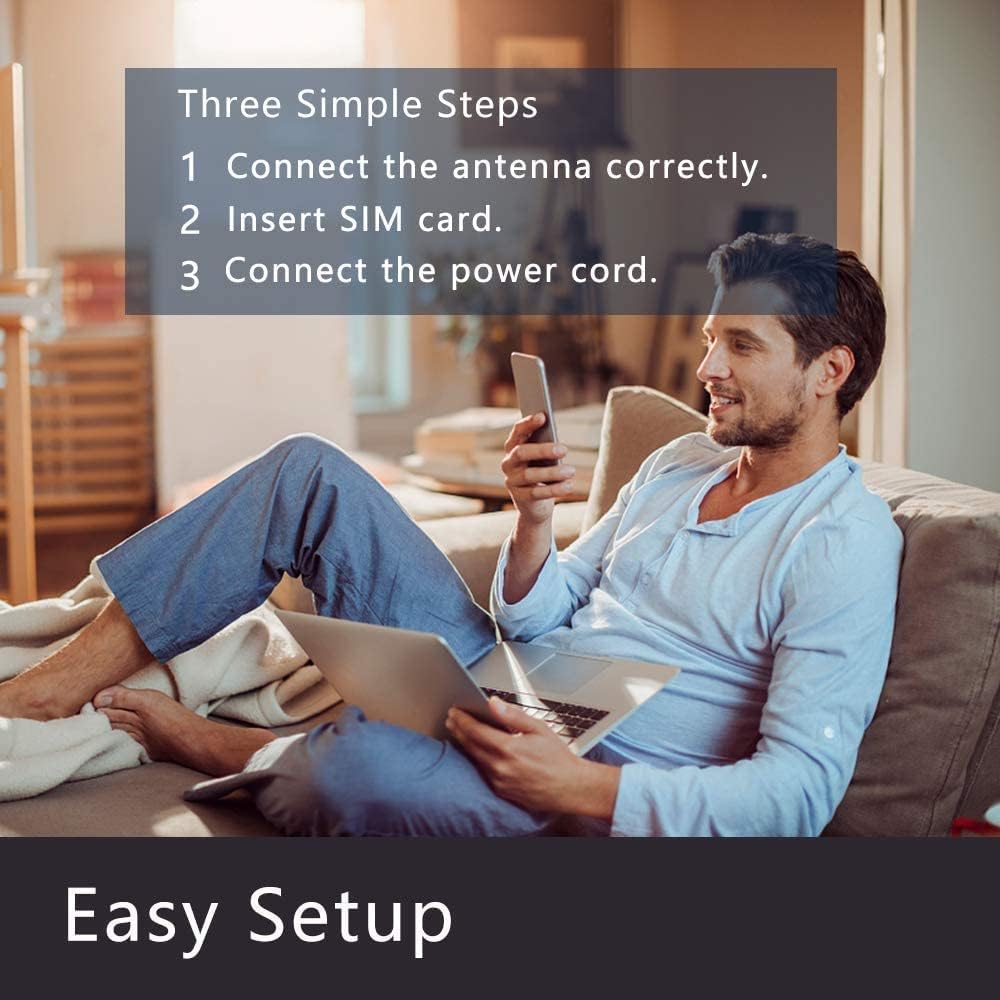
Figure 3.1: Easy Setup Steps
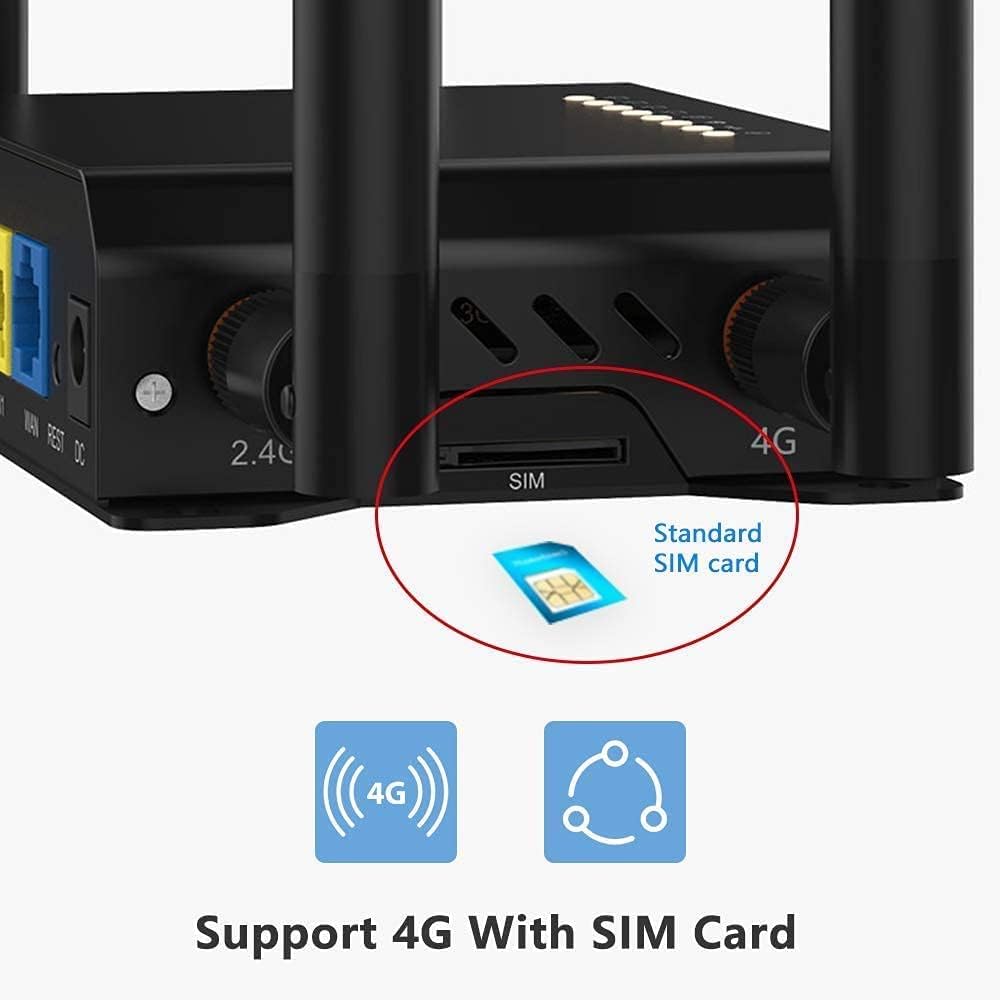
Figure 3.2: SIM Card Insertion
Video 3.1: Detailed operation video demonstrating the unboxing and initial setup of the WE826 router.
4. Operating Instructions
4.1 Connecting to Wi-Fi
Once the router is powered on and the Wi-Fi indicator is lit, you can connect your devices (phones, laptops, smart home devices) to its Wi-Fi network. The default Wi-Fi name (SSID) and password can usually be found on a label on the router or in the included quick start guide.
4.2 Using the Zbtlink APP
For advanced configuration and monitoring, you can use the Zbtlink mobile application. Search for "zbtlink" in your device's App Store to download and install it. After connecting your device to the router's Wi-Fi, open the app and log in using the default password (usually "admin"). The app allows you to manage network settings, monitor traffic, and configure security features.
Video 4.1: Instructions on how to use the Zbtlink APP for router management and configuration.
4.3 Security Features
The router offers various security features to protect your network:
- MAC White/Blacklist: Control which devices can connect to your network based on their MAC addresses.
- Ad Blocking: Built-in functionality to block unwanted advertisements.
- Encryption: Supports WPA/WPA2 and WPA(AES) for secure wireless communication.

Figure 4.2: Network management interface with Ad Blocking option.
5. Specifications
| Feature | Detail |
|---|---|
| Model Number | WE826-T |
| Product Dimensions | 4.29 x 3.27 x 1.14 inches |
| Item Weight | 1.3 pounds |
| Connectivity Technology | Wi-Fi, Ethernet, LTE |
| Wireless Communication Standard | 802.11n, 802.11b, 802.11g |
| Frequency Band Class | Single-Band (2.4 Hz) |
| Special Feature | Metal Case, Cat 4 |
| Compatible Devices | Gaming Console, Security Camera, Tablet |
| Manufacturer | Wiflyer |
| Country of Origin | China |
6. Troubleshooting
If you encounter issues with your Wiflyer WE826-T router, try the following solutions:
- No Internet Connection:
- Ensure your SIM card is correctly inserted and active with a data plan.
- Check the router's indicator lights; ensure the 4G/LTE and Wi-Fi lights are on.
- Verify APN settings through the router's web interface or Zbtlink app. These settings are specific to your cellular provider.
- Restart the router by unplugging and replugging the power adapter.
- Weak Wi-Fi Signal:
- Ensure all four antennas are securely connected and oriented vertically.
- Relocate the router to a central location, away from obstructions and other electronic devices that may cause interference.
- Router Disconnects Frequently:
- Check the power connection to ensure it is stable.
- Ensure the router is well-ventilated to prevent overheating.
- Verify cellular signal strength; frequent disconnections might indicate poor 4G LTE coverage.
- Cannot Access Router Interface/App:
- Ensure your device is connected to the router's Wi-Fi network.
- Confirm you are using the correct default IP address (e.g., 192.168.1.1) and login credentials.
- Clear your browser's cache or try a different browser.
7. Maintenance
To ensure optimal performance and longevity of your Wiflyer WE826-T router, consider the following maintenance tips:
- Keep Clean: Regularly wipe the router with a soft, dry cloth to prevent dust buildup, especially around ventilation areas.
- Proper Ventilation: Ensure the router is placed in an area with good airflow to prevent overheating. Avoid placing it in enclosed spaces or on soft surfaces that can block vents.
- Firmware Updates: Periodically check the Wiflyer official website or the Zbtlink app for available firmware updates. Updating the firmware can improve performance, add new features, and fix bugs.
- Secure Placement: Place the router on a stable, flat surface where it is unlikely to be knocked over or damaged.
8. Warranty and Support
For warranty information, technical support, or further assistance with your Wiflyer WE826-T router, please contact the seller, Zbtlink INC, directly through their official support channels. Refer to your purchase documentation for specific contact details and warranty terms.


