
Apple A2160
Apple iPhone 11 Pro User Manual
Model: A2160
Introduction
This manual provides essential information for setting up, operating, and maintaining your Apple iPhone 11 Pro. The iPhone 11 Pro features advanced camera capabilities, a vibrant Super Retina XDR display, and powerful A13 Bionic chip for exceptional performance. It is designed to deliver a premium mobile experience.
What's in the Box
- iPhone
- USB Data Cable
Note: This renewed premium device includes a brand new, generic Mfi certified charging cable and a UL certified wall plug. Headphones and a SIM card are not included.
Product Overview
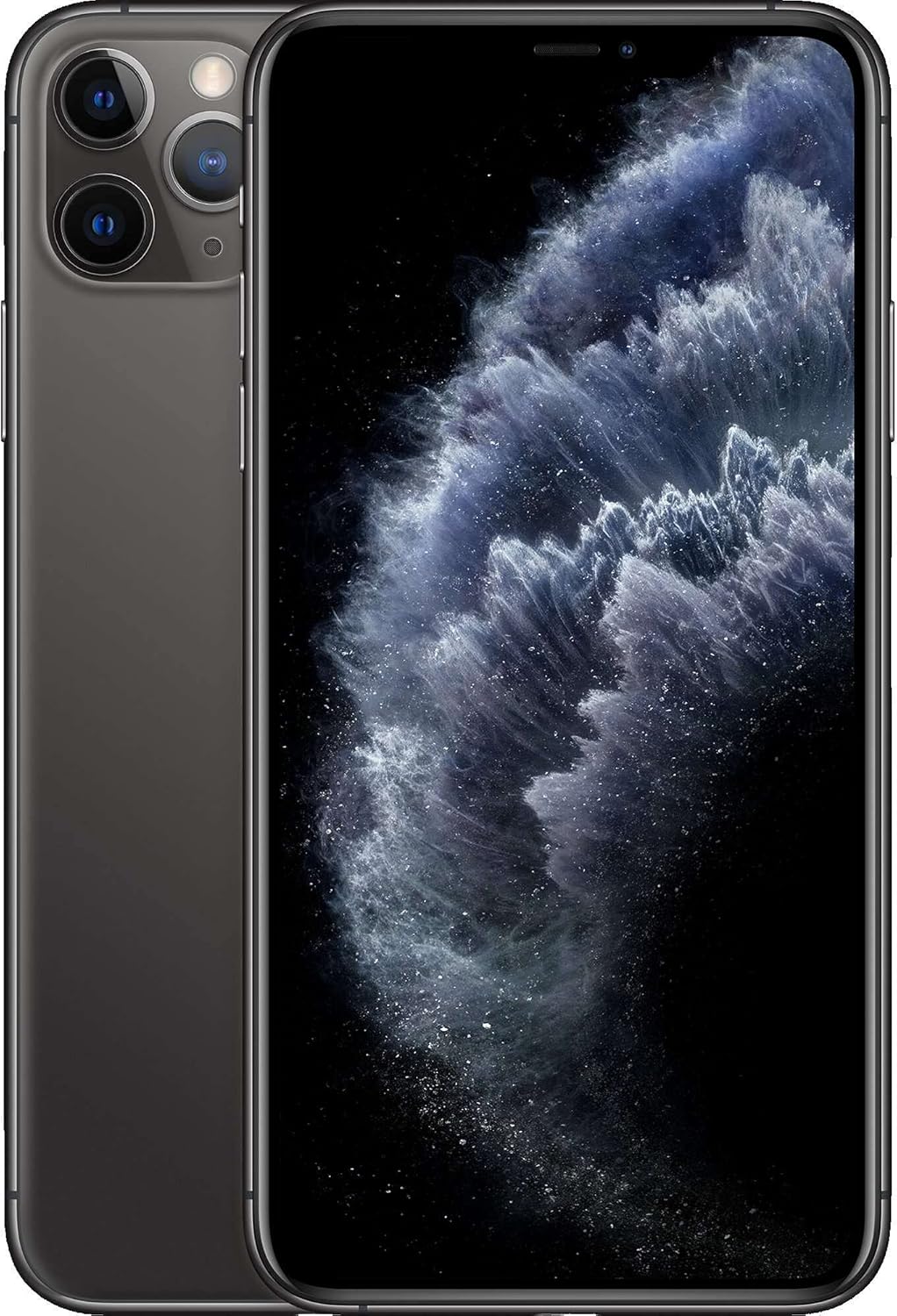
Front view of the iPhone 11 Pro, showcasing its edge-to-edge display and notch for the front camera and sensors.

Rear view of the iPhone 11 Pro, highlighting the distinctive triple-camera array and the iconic Apple logo.

An angled perspective of the iPhone 11 Pro, providing a comprehensive view of its design from both the front and back.

Side profile of the iPhone 11 Pro, illustrating the placement of the volume buttons and the silent/ring switch.

A top-down angled shot emphasizing the sophisticated triple-camera system of the iPhone 11 Pro.

Detailed close-up of the iPhone 11 Pro's advanced triple-lens camera setup, designed for professional-grade photography and videography.
Setup
1. Initial Charge
Before first use, connect your iPhone to the provided USB data cable and wall plug. Charge the device until the battery indicator shows a full charge. This ensures optimal battery calibration.
2. Insert SIM Card
Locate the SIM tray on the side of your iPhone. Use the included SIM tray removal tool to eject the tray. Place your nano-SIM card into the tray with the gold contacts facing down and the notched corner aligned. Carefully reinsert the tray into the iPhone.
3. Power On and Initial Setup
Press and hold the Side button until the Apple logo appears. Follow the on-screen instructions to select your language, region, connect to Wi-Fi, set up Face ID, create a passcode, and transfer data from a previous device or set up as new. Ensure you have your Apple ID ready for sign-in.
Operating Your iPhone
Basic Navigation
- Home Screen: Swipe up from the bottom edge of the screen to return to the Home screen.
- App Switcher: Swipe up from the bottom edge and pause in the middle of the screen to view open apps.
- Control Center: Swipe down from the top-right corner of the screen to access quick settings.
- Notifications: Swipe down from the top-left corner or center of the screen to view notifications.
Making Calls and Sending Messages
- Calls: Tap the Phone app, select Contacts or Keypad, and dial a number or select a contact.
- Messages: Tap the Messages app, then the New Message icon. Enter a contact or phone number and type your message.
Using the Camera
Open the Camera app. Swipe left or right to switch between modes like Photo, Portrait, Pano, Video, and Night mode. Tap the shutter button to capture photos or start/stop video recording. Use the zoom controls to adjust your shot.
App Store and Downloads
Access the App Store to download new applications. You will need an Apple ID to download apps, including free ones. Ensure you are connected to Wi-Fi for large downloads.
Maintenance
Battery Care
- Avoid extreme temperatures.
- Optimize battery settings in iOS (e.g., Low Power Mode).
- For long-term storage, charge the device to about 50% and power it off.
Cleaning Your Device
Use a soft, lint-free cloth to clean your iPhone. Avoid abrasive materials, aerosols, and cleaning sprays. For stubborn marks, slightly dampen the cloth with water. Do not use harsh chemicals.
Software Updates
Regularly check for and install iOS updates to ensure your device has the latest features, security enhancements, and performance improvements. Go to Settings > General > Software Update.
Troubleshooting
| Problem | Solution |
|---|---|
| Device not responding / frozen | Perform a force restart: Press and quickly release the Volume Up button. Press and quickly release the Volume Down button. Then, press and hold the Side button until you see the Apple logo. |
| Battery drains quickly | Check Battery Health in Settings > Battery > Battery Health. Close background apps, reduce screen brightness, and disable unnecessary features like Location Services. |
| Cannot connect to Wi-Fi | Toggle Wi-Fi off and on. Restart your iPhone and Wi-Fi router. Go to Settings > General > Transfer or Reset iPhone > Reset > Reset Network Settings. |
| Apps crashing or not opening | Force close the app and reopen it. Restart your iPhone. Check for app updates in the App Store. Reinstall the app if the issue persists. |
Technical Specifications
| Feature | Specification |
|---|---|
| Model Name | iPhone 11 Pro |
| Operating System | iOS 16 |
| CPU Model | Apple A13 Bionic |
| Memory Storage Capacity | 64 GB |
| Screen Size | 5 Inches |
| Resolution | 2436 x 1125 |
| Display Technology | OLED |
| Color | Space Gray |
| Product Dimensions | 0.31 x 2.8 x 5.67 inches |
| Item Weight | 15.4 ounces |
Warranty and Support
This Apple iPhone 11 Pro (Renewed Premium) is backed by a one-year satisfaction guarantee. This includes free access to Amazon’s Technical Support team throughout the full year. You have the ability to replace or return the product if it does not work as expected within the guarantee period.
The return policy allows for a refund or replacement for 365 days from the date of purchase.
For further assistance, please contact Amazon's Technical Support.
Related Documents - A2160
 |
Apple A3269 iPad Air 13 M3 Product Data Sheet and Repairability Information Detailed product data sheet for the Apple A3269 iPad Air 13 M3, including specifications, energy rating, battery life, repairability index, and warranty information. |
 |
iPad Mini Wi-Fi Teardown Guide by iFixit A detailed step-by-step teardown of the Apple iPad Mini Wi-Fi (model A1432), examining its internal components, assembly, and repairability. Includes identification of key ICs and comparison with other Apple devices. |
 |
iPad Mini (6th Gen, 64GB) Reference Guide by MobileBeacon A comprehensive reference guide for the iPad Mini (6th Generation, 64GB) from MobileBeacon, detailing its features and components. |
 |
Apple TV 4K (דור 3, 2022) - מפרט טכני מפרט טכני מפורט עבור Apple TV 4K (דור 3, 2022), כולל מידות, משקל, קישוריות, דרישות מערכת ותאימות. |
 |
MacBook Air Service Manual and Troubleshooting Guide Comprehensive service manual for the Apple MacBook Air, covering disassembly, component replacement, and detailed troubleshooting for hardware and software issues. Includes technical specifications and repair procedures. |
 |
Apple iOS 13 and iPadOS 13 Mobile Devices Common Criteria Configuration Guide This document provides detailed guidance for administrators on configuring Apple iOS 13 on iPhone and iPadOS 13 on iPad mobile devices for secure enterprise use, focusing on Common Criteria evaluation requirements. It covers security functionalities, network protocols, data protection, and management configurations. |
Ask a question about this manual
Ask about setup, troubleshooting, compatibility, parts, safety, or missing instructions. Manuals+ will review the question and use this page’s manual context to help answer it.