
1. Product Overview
The ASUS PCE-AX3000 is a high-performance WiFi 6 (802.11ax) adapter designed to upgrade your desktop PC's wireless capabilities. It delivers ultrafast wireless speeds, enhanced network efficiency, and robust security features, making it ideal for demanding network environments.

Image 1.1: The ASUS PCE-AX3000 WiFi 6 Adapter, featuring two external antennas for improved signal reception.
Key Features:
- Next-Gen Wi-Fi 6 Standard (802.11ax): Provides better efficiency and throughput compared to previous Wi-Fi generations.
- Ultrafast Wi-Fi Speed: Achieves up to 3000 Mbps, capable of handling busy networks with multiple devices.
- Advanced Technologies: Incorporates OFDMA and MU-MIMO for more efficient, stable, and faster data transmission, even in dense network environments.
- Bluetooth 5.0: Offers faster data transfer speeds (up to twice as fast) and extended range (4X greater) for connecting compatible devices.
- WPA3 Network Security: Enhances protection against external attacks, providing an extra layer of security for your wireless network.
2. What's in the Box
Verify that all components are present in the package:
- ASUS PCE-AX3000 WiFi 6 Adapter card
- Two external antennas
- USB cable for Bluetooth connectivity
- Low-profile bracket (for smaller PC cases)
- Quick Start Guide
- Warranty card
Video 2.1: Product Overview Video. This video provides a visual guide to the contents of the ASUS PCE-AX3000 package and highlights key features of the adapter.
3. Installation Guide
Follow these steps to install the ASUS PCE-AX3000 WiFi 6 Adapter into your desktop PC.
System Requirements:
- Available PCIe x1 slot or larger (e.g., PCIe x4, x8, x16)
- Available USB 2.0 header on your motherboard for Bluetooth functionality
- Windows 10 or later operating system
Installation Steps:
- Power Off Your PC: Completely shut down your computer and unplug the power cord from the wall outlet.
- Open PC Case: Remove the side panel of your PC case to access the motherboard.
- Locate an Available PCIe Slot: Find an empty PCIe x1 slot. The PCE-AX3000 is designed for a PCIe x1 slot but can fit into larger PCIe slots (x4, x8, x16).
- Insert the Adapter: Carefully align the gold contacts of the PCE-AX3000 card with the chosen PCIe slot. Press down firmly and evenly until the card is securely seated.
- Secure the Adapter: Use a screw to fasten the adapter's bracket to the PC case. If your case requires a low-profile bracket, replace the standard bracket on the adapter with the provided low-profile bracket before installation.
- Connect USB Cable for Bluetooth: Locate an available USB 2.0 header on your motherboard. Connect one end of the provided USB cable to the adapter's USB port and the other end to the motherboard's USB 2.0 header. This connection is essential for Bluetooth functionality.
- Attach Antennas: Screw the two external antennas onto the connectors on the adapter's bracket. Ensure they are finger-tight.
- Close PC Case and Power On: Replace the PC case side panel and plug the power cord back into the wall outlet. Power on your computer.
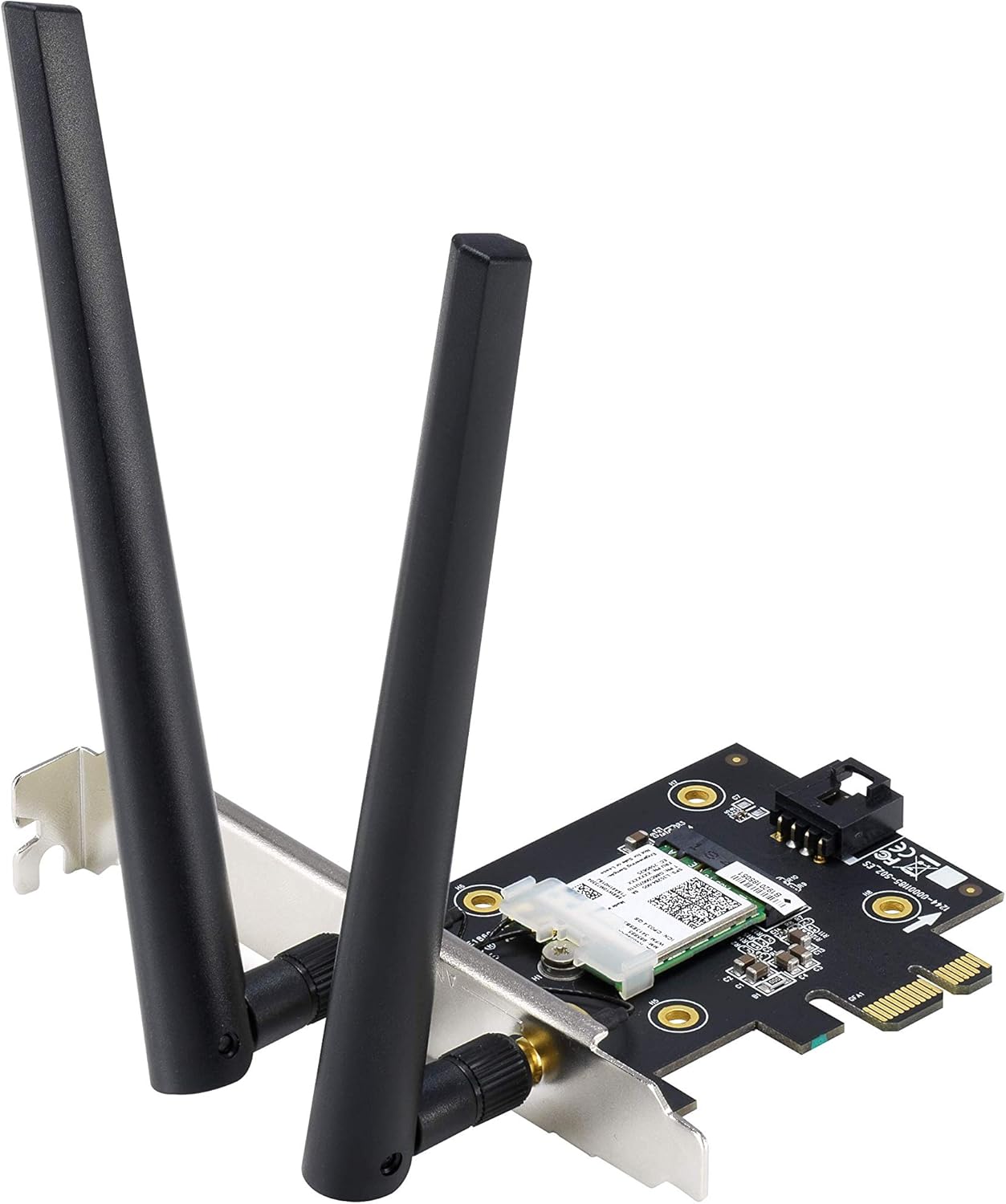
Image 3.1: Side view of the ASUS PCE-AX3000 adapter with antennas connected, ready for installation into a PCIe slot.

Image 3.2: Top-down view of the ASUS PCE-AX3000 adapter, highlighting the PCIe connector and the USB header for Bluetooth functionality.
4. Driver Installation and Operation
After physical installation, you will need to install the necessary drivers for the adapter to function correctly.
Driver Installation:
- Download Drivers: Visit the official ASUS support website for the PCE-AX3000 model. Download the latest Wi-Fi and Bluetooth drivers for your operating system.
- Install Drivers: Run the downloaded driver setup files. Follow the on-screen instructions to complete the installation. You may need to restart your computer after installation.
- Verify Installation: Open Device Manager in Windows. Under 'Network adapters', you should see the ASUS PCE-AX3000. Under 'Bluetooth', you should see the Bluetooth adapter listed.
Connecting to a Wi-Fi Network:
- Once drivers are installed, click on the Wi-Fi icon in your system tray.
- Select your desired Wi-Fi network from the list of available networks.
- Enter the network security key (password) if prompted, then click 'Connect'.
Connecting Bluetooth Devices:
- Ensure Bluetooth is enabled in your Windows settings.
- Put your Bluetooth device into pairing mode.
- In Windows settings, go to 'Devices' > 'Bluetooth & other devices' and click 'Add Bluetooth or other device'.
- Select 'Bluetooth' and choose your device from the list to pair.
5. Maintenance
To ensure optimal performance and longevity of your ASUS PCE-AX3000 adapter, consider the following maintenance tips:
- Keep Drivers Updated: Regularly check the ASUS support website for the latest Wi-Fi and Bluetooth drivers. Updated drivers can improve performance, stability, and security.
- Ensure Proper Airflow: Make sure your PC case has adequate ventilation to prevent overheating of internal components, including the Wi-Fi adapter.
- Antenna Placement: Position the external antennas for the best possible signal reception. Avoid placing them near large metal objects or other electronic devices that might cause interference.
- Cleanliness: Periodically clean the interior of your PC case to remove dust buildup, which can hinder cooling and affect component performance.
6. Troubleshooting
If you encounter issues with your ASUS PCE-AX3000 adapter, try the following troubleshooting steps:
- No Wi-Fi or Bluetooth Connection:
- Verify that the adapter is correctly seated in the PCIe slot.
- Ensure the USB cable for Bluetooth is securely connected to both the adapter and the motherboard header.
- Check Device Manager to confirm that drivers are installed and the device is recognized without errors. Reinstall drivers if necessary.
- Restart your computer.
- Slow Wi-Fi Speeds:
- Ensure your router supports Wi-Fi 6 (802.11ax) and is configured for optimal performance.
- Check antenna placement for best signal strength.
- Update your router's firmware.
- Minimize interference from other devices or physical obstructions.
- Bluetooth Device Not Pairing:
- Confirm the Bluetooth USB cable is connected.
- Ensure the Bluetooth device is in pairing mode and within range.
- Remove and re-add the Bluetooth device in Windows settings.
- Update Bluetooth drivers.
7. Specifications
| Feature | Detail |
|---|---|
| Model Number | PCE-AX3000 |
| Wi-Fi Standard | WiFi 6 (802.11ax) |
| Data Transfer Rate | Up to 3000 Mbps |
| Bluetooth Version | Bluetooth 5.0 |
| Hardware Interface | PCIe x1 |
| Compatible Devices | Desktop PCs |
| Product Dimensions | 4.74 x 3.47 x 0.95 inches |
| Item Weight | 2.88 ounces |
| UPC | 192876516386 |
8. Warranty and Support
Your ASUS PCE-AX3000 adapter comes with a warranty. Please refer to the included Warranty Card for specific terms and conditions, including warranty duration and coverage details.
For technical support, driver downloads, and further product information, please visit the official ASUS support website. Ensure you have your product model number (PCE-AX3000) ready when seeking support.