
1. Introduction
The LAUNCH CRP919X Lite is a professional OBD2 diagnostic scan tool designed for comprehensive vehicle system analysis. This device offers a wide range of functions including active tests, over 32 reset services, OE-level full system diagnostics, and automatic VIN detection. It is equipped with a 7.0-inch IPS capacitive touch screen, runs on Android 7.1, and features a 6000mAh rechargeable lithium battery. This manual provides essential information for setting up, operating, maintaining, and troubleshooting your CRP919X Lite scanner.

Figure 1: Front view of the LAUNCH CRP919X Lite OBD2 Scanner.
2. What's in the Box
Upon unpacking, please verify that all the following components are included:
- Main Unit (LAUNCH CRP919X Lite Scanner)
- OBDII Cable
- DC Charging Cable
- Adapters (US/UK/EU)
- Blow-Molding Carrying Box

Figure 2: The LAUNCH CRP919X Lite scanner and its included accessories within the carrying case.
3. Product Features
The CRP919X Lite offers a robust set of features for comprehensive vehicle diagnostics:
- Active Tests (Bidirectional Control): Send commands to vehicle ECUs to test actuators and components (e.g., modulating windows, mirrors, wipers, horn, throttle). This aids in quickly identifying faulty components without disassembly.
- 32+ Reset Services: Perform various maintenance and reset functions including Oil Reset, SAS Reset, EPB Reset, BMS Reset, ABS Bleeding, Sunroof Reset, Suspension Reset, Gearbox Reset, AFS Headlamp Reset, Injector Coding, Gear Learning, TPMS Reset, and Throttle Adaptation. Note that specific functions may vary by vehicle model and year.
- OE-Level Full System Diagnostics: Read ECU version information, read/clear Diagnostic Trouble Codes (DTCs), and view live data (text & graphic) for all vehicle systems such as ABS, SRS, Engine, Transmission, Brake System, Emission System, Light system, and TPMS System.
- Smart Auto VIN Scan: Automatically obtain vehicle identification number (VIN) information and scan systems once properly connected to the vehicle.
- Wide Vehicle Compatibility: Supports over 160 different vehicle brands and 10,000+ cars worldwide compatible with OBDII, EOBD, and JOBD protocols.
- Diagnostic Report Generation: Automatically generate a vehicle health report that can be stored, graphed, recorded, played back, and printed via email for further analysis.
- Improved Configuration: Features a 7.0-inch IPS capacitive touch screen, Android 7.1 Operating System, 6000mAh rechargeable lithium battery, and 2GB RAM & 32GB ROM for enhanced performance.
- One-Click Wi-Fi Update: Easily update the device for new functions, bug fixes, and wider vehicle coverage via Wi-Fi.
- Multi-language Support: Supports English, French, Spanish, Russian, Japanese, German, Italian, Portuguese, Korean, Polish, and Chinese.
- Smart Kickstand Design: Integrated kickstand allows for hands-free operation.
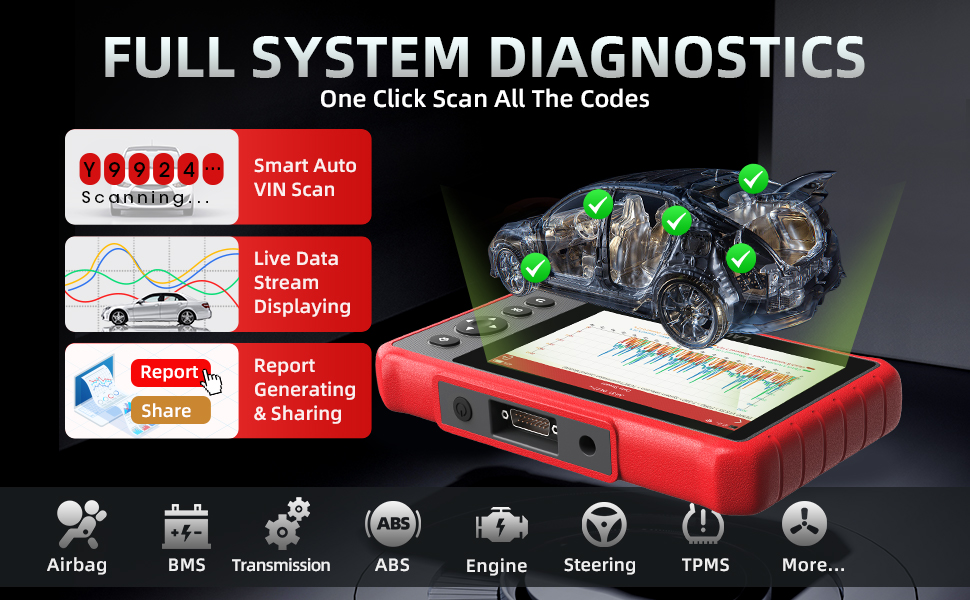
Figure 3: Illustration of bidirectional control functionality, showing the scanner sending commands to vehicle components.

Figure 4: Screen display showing various reset services available on the CRP919X Lite.
4. Setup
- Charge the Device: Before first use, fully charge the CRP919X Lite using the provided DC charging cable and appropriate adapter. The device has a 6000mAh battery.
- Power On: Press and hold the power button to turn on the device.
- Initial Setup: Follow the on-screen prompts to select your preferred language, time zone, and connect to a Wi-Fi network. A stable Wi-Fi connection is essential for updates and online features.
- Connect to Vehicle: Locate the vehicle's OBDII port, typically under the dashboard on the driver's side. Connect the OBDII cable from the CRP919X Lite to the vehicle's OBDII port. Ensure the connection is secure.
- Ignition On: Turn the vehicle's ignition to the 'ON' position (engine off).

Figure 5: The CRP919X Lite connected to a vehicle's OBDII port, ready for diagnostics.
5. Operating Instructions
After successful setup and connection, you can begin using the diagnostic functions:
5.1. Auto VIN Scan
- From the main menu, select 'Diagnose'.
- Choose 'Auto Scan' or 'Auto VIN'. The device will attempt to automatically detect the vehicle's VIN and initiate a full system scan.
- If Auto VIN fails, you may need to manually select the vehicle make, model, and year.

Figure 6: The Auto VIN feature automatically identifies vehicle information.
5.2. Full System Diagnostics
- After vehicle identification, select 'Health Report' or 'System Scan'.
- The scanner will perform a comprehensive scan of all available electronic control units (ECUs).
- Review the scan results, which will display detected DTCs, live data streams, and ECU information.
- To clear DTCs, select the 'Clear DTCs' option after addressing the underlying issues.

Figure 7: The full system diagnostics screen showing a vehicle scan in progress.
5.3. Special Functions (Reset Services & Active Tests)
- From the main menu, select 'Reset' for maintenance services or 'Active Test' for bidirectional control.
- Choose the desired function from the list.
- Follow the on-screen instructions carefully to perform the selected service or test. Ensure all safety precautions are observed.
5.4. Live Data Stream
- During diagnostics, select 'Live Data' to view real-time parameters from various sensors.
- Data can be displayed in text, graph, or merged formats for easier analysis.
- The device also displays real-time battery voltage of 12V vehicles graphically.
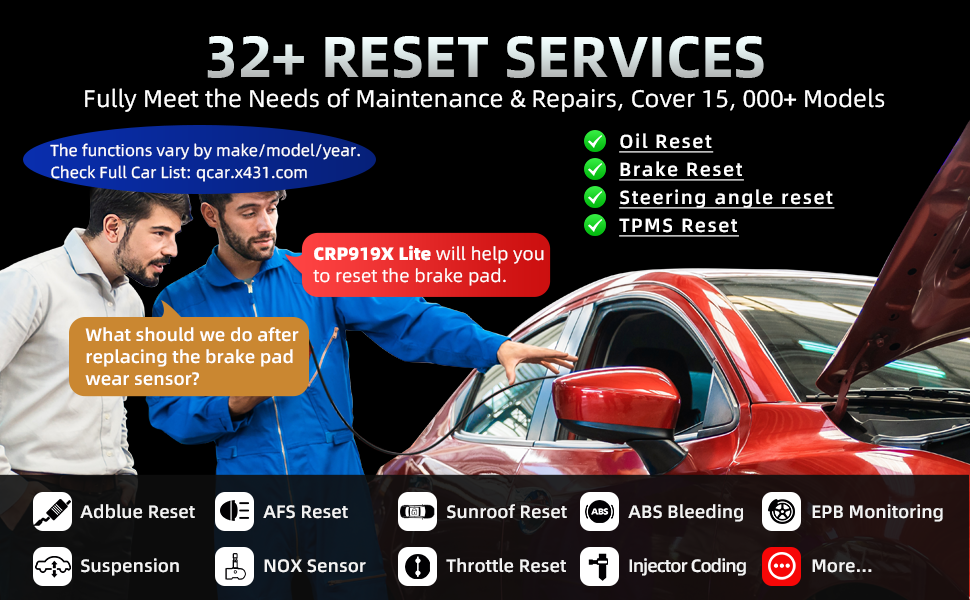
Figure 8: Display of real-time data, including battery voltage and graphical live data streams, for better analysis.
5.5. Software Updates
- Ensure the device is connected to a stable Wi-Fi network.
- From the main menu, select 'Upgrade'.
- Follow the on-screen instructions to download and install available updates. Regular updates ensure access to the latest vehicle models, functions, and bug fixes.

Figure 9: The one-click update interface for convenient software upgrades.
5.6. Video Guide: Bidirectional Scanner LAUNCH CRP919X
Video 1: This video demonstrates the functionality of the LAUNCH CRP919X bidirectional scanner, showcasing its diagnostic capabilities and user interface. (Source: LaunchDirect)
6. Maintenance
- Cleaning: Use a soft, dry cloth to clean the device. Avoid abrasive cleaners or solvents.
- Storage: Store the scanner in its blow-molding carrying box in a cool, dry place when not in use. Avoid extreme temperatures and direct sunlight.
- Battery Care: To prolong battery life, avoid fully discharging the battery frequently. Charge the device regularly, even if not in active use.
- Software Updates: Regularly check for and install software updates to ensure optimal performance and compatibility.
7. Troubleshooting
| Problem | Possible Cause | Solution |
|---|---|---|
| Device does not power on | Low battery; Power button not held long enough | Charge the device fully; Press and hold the power button for 3-5 seconds. |
| No communication with vehicle | Loose OBDII connection; Vehicle ignition off; Faulty OBDII port; Incompatible vehicle | Ensure OBDII cable is securely connected; Turn vehicle ignition to 'ON'; Test on another vehicle; Verify vehicle compatibility. |
| Software update failure | Unstable Wi-Fi connection; Insufficient storage | Ensure strong Wi-Fi signal; Free up storage space if necessary. |
| Screen unresponsive | Software glitch; Device frozen | Restart the device; If persistent, perform a factory reset (data loss may occur). |
If you encounter issues not listed here or require further assistance, please contact customer support.

Figure 10: The online feedback function allows users to report diagnostic failures or other issues.
8. Specifications
- Brand: LAUNCH
- Model Number: LAUNCH CRP919X Lite Scanner
- Power Source: Battery Powered
- Operating System: Android 7.1
- Screen Size: 7 Inches IPS Capacitive Touch Screen
- Native Resolution: 1024x600
- Memory: 2GB RAM & 32GB ROM
- Battery: 6000mAh rechargeable lithium battery
- Product Dimensions (L x W x H): 9.69" x 1.32" x 5.49"
- Automotive Fit Type: Universal Fit
- UPC: 632111316598

Figure 11: The back of the CRP919X Lite unit, displaying product information and regulatory compliance.
9. Warranty and Support
The LAUNCH CRP919X Lite scanner comes with a 1-year manufacturer warranty. Additionally, it includes 2 years of free software updates from the date of purchase.
Customer Support:
For any issues, technical assistance, or warranty claims, please contact LAUNCH after-sales support:
- Email: launch-aftersales@outlook.com
- You can also utilize the 'Feedback' function within the CRP919X Lite device for diagnostic-related inquiries.
Online repair resources, including vehicle service and repair information, handbooks, repair cases, DTC help, and operation skills, are available to assist users.
10. Important Safety Information
- Always perform diagnostic procedures in a well-ventilated area.
- Do not wear loose clothing or jewelry when working on a vehicle.
- Keep the device away from water, oil, and extreme temperatures.
- Ensure the vehicle is in 'PARK' (for automatic transmission) or 'NEUTRAL' (for manual transmission) with the parking brake engaged before performing any tests.
- Never attempt to drive the vehicle while the diagnostic tool is connected and in use.
- Refer to your vehicle's service manual for specific procedures and safety precautions.

