
1. Setup Guide
This section provides instructions for the initial setup of your Lenovo Ideapad 3 Laptop. Please follow these steps carefully to ensure a smooth start.
Unboxing and Initial Power-On
Carefully remove the laptop and all accessories from the packaging. Ensure all components are present: the laptop, power adapter, and any included documentation.
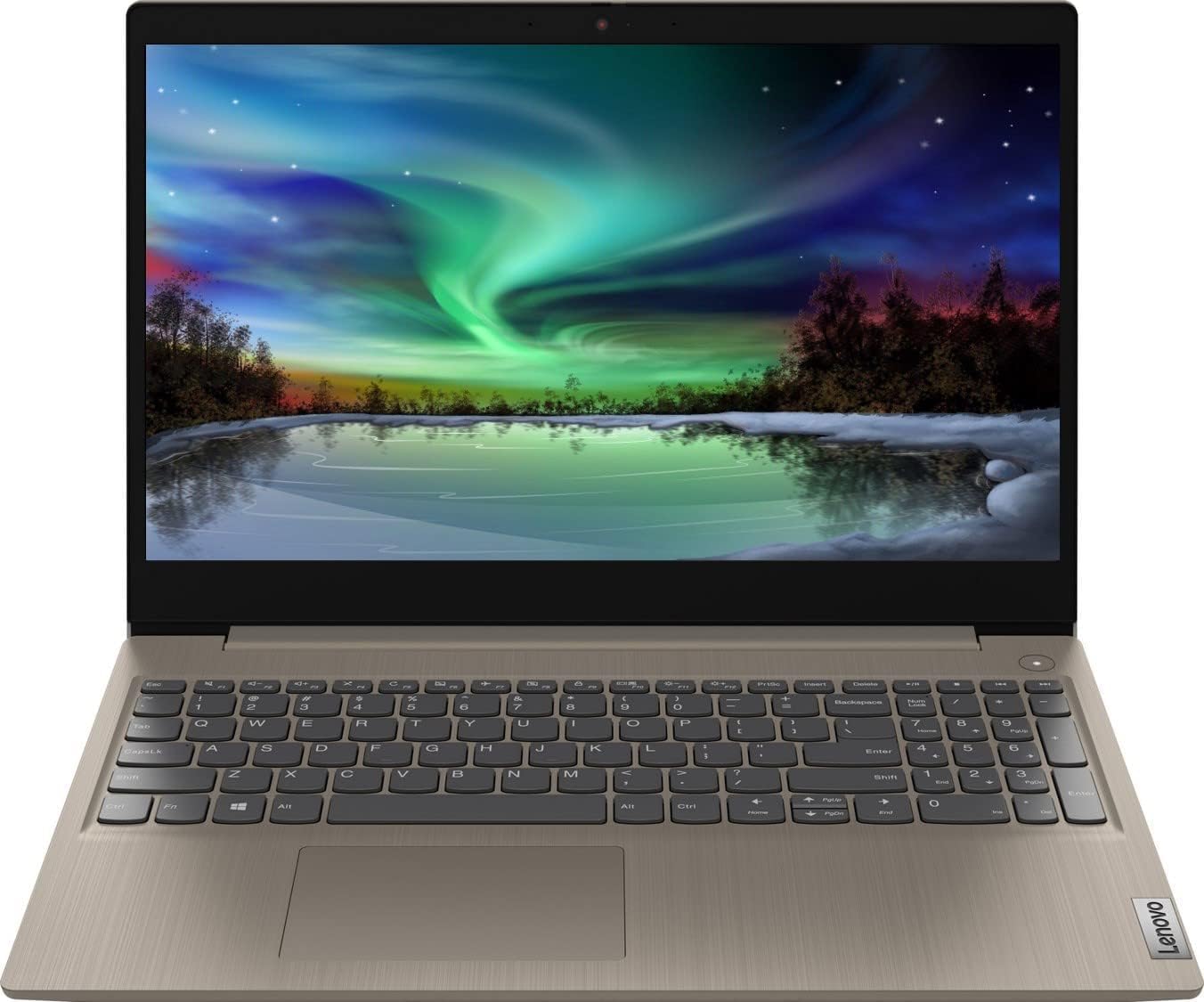
Figure 1: Lenovo Ideapad 3 Laptop and its components upon unboxing.
Connect the power adapter to the laptop's charging port and then to a power outlet. Press the power button, typically located on the top-right side of the keyboard deck, to turn on the laptop.
Windows 11 Home Configuration
Upon first boot, you will be guided through the Windows 11 Home setup process. This includes selecting your region, keyboard layout, connecting to a Wi-Fi network, and creating a user account. Follow the on-screen prompts to complete the setup.
For detailed visual guidance on the initial setup, please refer to the official Lenovo support resources or the quick start guide included in your product packaging.
2. Operating Your Laptop
The Lenovo Ideapad 3 is designed for efficient daily computing. This section covers key operational aspects of your device.
Hardware Overview
Your laptop features an 11th Gen Intel Core i3-1115G4 Dual-Core 3.0GHz Processor, 8GB DDR4 RAM, and a 256GB PCIe NVMe M.2 Solid State Drive for fast performance and ample storage. The 15.6" HD Touchscreen display offers intuitive interaction.

Figure 2: Close-up view of the Lenovo Ideapad 3 keyboard and touchscreen display.
The touchscreen allows for direct interaction with the display, enabling gestures like tapping, swiping, and pinching for navigation and control. The full-size keyboard provides a comfortable typing experience for productivity tasks.
Connectivity Ports
- 2 x USB 3.2 Gen 1 Type-A: For high-speed data transfer with compatible devices.
- 1 x USB 2.0 Type-A: For connecting standard USB devices.
- 1 x HDMI: For connecting to external monitors or projectors.
- 1 x Combination Audio Jack: For headphones or headsets with a microphone.
- 1 x Multi-format SD Media Card Reader: For accessing data from SD cards.

Figure 3: Left side of the laptop showing the power input, HDMI, USB-A ports, and audio jack.
Wireless connectivity includes Wireless-AC Wi-Fi 5 for internet access and Bluetooth for connecting wireless accessories like mice, keyboards, or headphones.
3. Maintenance
Proper maintenance ensures the longevity and optimal performance of your Lenovo Ideapad 3 Laptop.
Cleaning and Care
- Screen: Use a soft, lint-free cloth specifically designed for electronics. Dampen it slightly with water or a screen cleaner. Avoid harsh chemicals.
- Keyboard and Chassis: Use a soft cloth to wipe down surfaces. For dust in crevices, use compressed air.
- Ports: Keep ports free of dust and debris to ensure proper connections.
Software Updates
Regularly check for and install Windows updates to ensure your system has the latest security patches and performance improvements. You can typically find these in the Windows Settings under "Windows Update."
Battery Care
The laptop's Lithium-ion battery provides up to 7 hours of use. To maximize battery lifespan:
- Avoid extreme temperatures.
- Do not consistently drain the battery to 0% or charge to 100% if not necessary.
- Store the laptop with a partial charge (around 50%) if not used for extended periods.
4. Troubleshooting
This section addresses common issues you might encounter with your Lenovo Ideapad 3 Laptop.
System Freezing or Unresponsiveness
If your laptop becomes unresponsive or freezes, try the following steps:
- Force Restart: Press and hold the power button for about 10-15 seconds until the laptop shuts down. Wait a few seconds, then press the power button again to restart.
- Check for Overheating: Ensure the laptop's vents are not blocked. Excessive heat can cause performance issues and freezing.
- Software Conflicts: If the issue started after installing new software, try uninstalling it.
Connectivity Issues (Wi-Fi/Bluetooth)
- Toggle On/Off: Turn Wi-Fi or Bluetooth off and then back on in Windows Settings.
- Restart Router/Modem: For Wi-Fi issues, restart your internet router and modem.
- Update Drivers: Ensure your wireless and Bluetooth drivers are up to date. You can check this in Device Manager.
Display Problems
- Brightness: Adjust screen brightness using the function keys (Fn + F-keys) or Windows Settings.
- External Display: If connecting to an external monitor, ensure the correct input source is selected on the monitor and try pressing Windows key + P to cycle through display modes.
If problems persist, consider contacting Lenovo customer support for further assistance.
5. Specifications
Detailed technical specifications for the Lenovo Ideapad 3 Laptop (Model: Ideapad).
| Feature | Specification |
|---|---|
| Standing screen display size | 15.6 Inches |
| Screen Resolution | 1366 x 768 pixels |
| Processor | 11th Gen Intel Core i3-1115G4 Dual-Core 3.0GHz (up to 4.10GHz) |
| RAM | 8 GB DDR4 |
| Hard Drive | 256 GB PCIe NVMe M.2 SSD |
| Graphics Coprocessor | Intel UHD Graphics |
| Operating System | Windows 11 Home |
| Ports | 2x USB 3.2 Gen 1 Type-A, 1x USB 2.0 Type-A, 1x HDMI, 1x Combination Audio Jack, 1x Multi-format SD Media Card Reader |
| Wireless Connectivity | Wireless-AC Wi-Fi 5, Bluetooth |
| Average Battery Life | Up to 7 Hours |
| Item Weight | 3.64 Pounds |
| Color | Almond |
6. Warranty and Support
Lenovo is committed to providing excellent service and support for your product.
Return Policy
This product is eligible for a 30-day return for refund or replacement. Please refer to your purchase documentation for specific terms and conditions.
Protection Plans
Optional protection plans are available to extend coverage for your device:
- 4-Year Protection Plan: Available for extended coverage.
- 2-Year Protection Plan: Available for additional peace of mind.
- Complete Protect: A monthly plan covering eligible past and future purchases.
Customer Support
For any technical assistance, troubleshooting, or warranty claims, please contact Lenovo's official customer support. CyberGeek, the company behind this product, is committed to providing timely and guaranteed after-sales support.
Visit the official Lenovo website or refer to the contact information provided in your product's original documentation for support details.