
1. Introduction
This manual provides essential information for the installation, operation, and maintenance of your Broadcom HBA 9500-8e Tri-Mode Storage Controller. This high-performance Host Bus Adapter (HBA) is designed to provide maximum connectivity and flexibility for servers and storage systems, supporting SATA, SAS, and NVMe devices over a PCIe 4.0 x7 interface.
What's in the Box
- Broadcom HBA 9500-8e Tri-Mode Storage Controller
- Documentation (this manual, if printed)
2. Setup and Installation
Follow these steps to properly install the Broadcom HBA 9500-8e into your system. Ensure your system is powered off and disconnected from the power source before beginning installation.
- Prepare the System: Power down your computer and unplug all power cables. Open the computer case to access the motherboard's PCIe slots.
- Locate a PCIe Slot: Identify an available PCIe 4.0 x7 (or larger, compatible) slot on your motherboard.
- Install the HBA: Carefully align the HBA with the chosen PCIe slot. Apply even pressure to firmly seat the card into the slot until it clicks into place. Secure the card with the system's retention mechanism or screw.
- Connect Cables: Connect the appropriate SAS/SATA/NVMe cables from the HBA to your storage devices. Ensure all connections are secure.
- Close and Power On: Close the computer case, reconnect all power cables, and power on the system.
- Driver Installation: Once the operating system boots, install the necessary drivers for the Broadcom HBA 9500-8e. Drivers can typically be found on the official Broadcom support website.
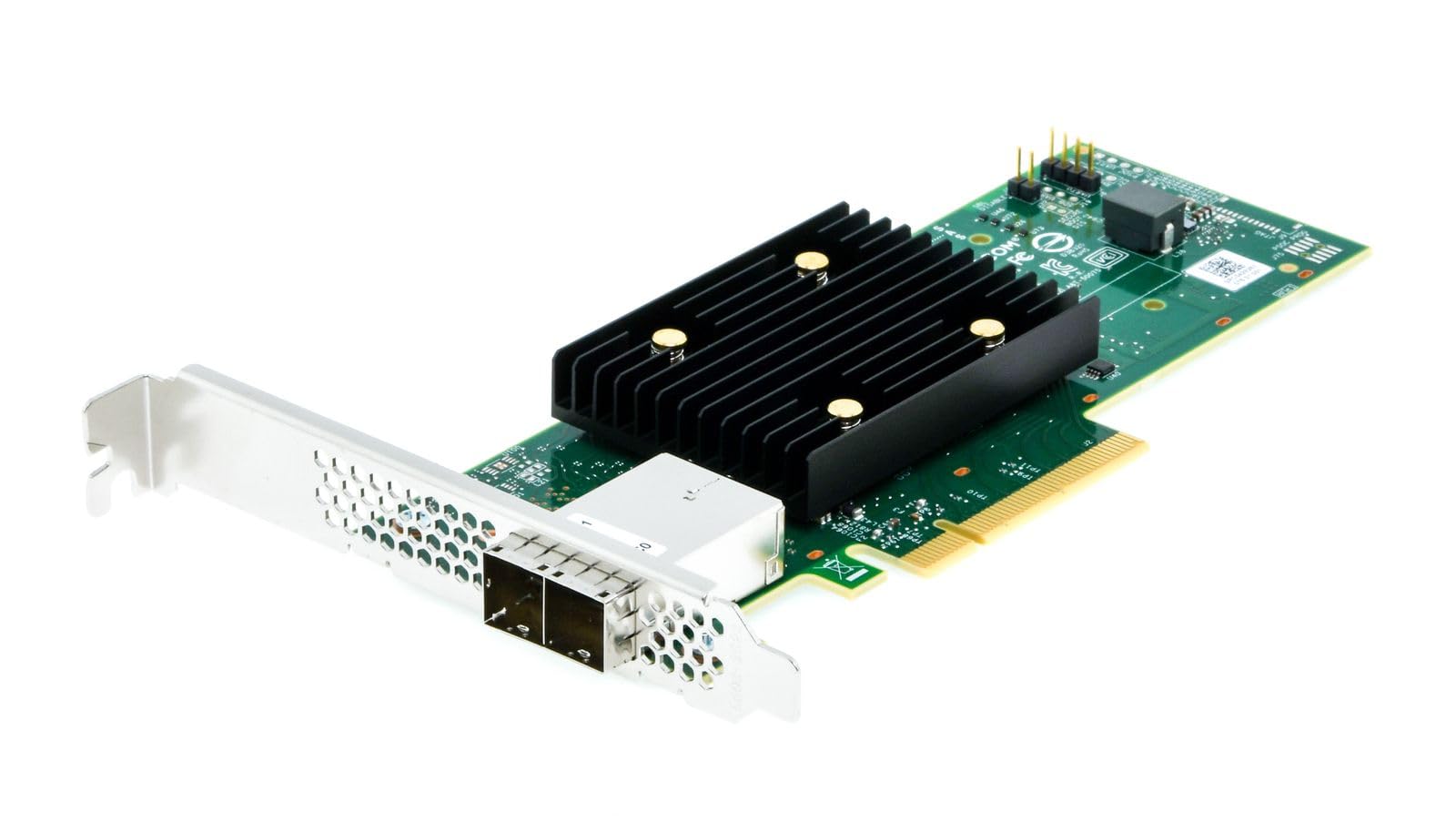
Figure 1: Broadcom HBA 9500-8e Tri-Mode Storage Controller (Top View)

Figure 2: Broadcom HBA 9500-8e Tri-Mode Storage Controller (Angled View)
3. Operating the HBA
The Broadcom HBA 9500-8e is designed for seamless integration into your server environment. Once installed and drivers are loaded, the operating system will detect the connected storage devices. This HBA supports a wide range of storage configurations.
- Device Connectivity: The HBA can connect up to 1024 SAS/SATA devices or 32 NVMe devices, offering extensive storage expansion capabilities.
- Tri-Mode Support: It supports SAS 12Gb/s, SATA 6Gb/s, and PCIe 4.0 (NVMe) interfaces, allowing for flexible use with various storage technologies.
- Universal Bay Management (UBM): The HBA is UBM Ready, enabling integration into U.3 backplanes for enhanced flexibility and configuration options in compatible systems.
- Operating System Compatibility: Compatible with various operating systems including Linux, Ubuntu, and Windows. Ensure you have the correct drivers for your specific OS version.
4. Maintenance
Proper maintenance ensures the longevity and optimal performance of your HBA.
- Keep Clean: Periodically inspect the HBA for dust accumulation, especially on the heatsink. Use compressed air to gently clean the card while the system is powered off.
- Firmware Updates: Check the Broadcom support website regularly for firmware updates. Keeping the firmware current can improve performance, add features, and resolve potential issues. Follow Broadcom's instructions carefully when performing firmware updates.
- Driver Updates: Ensure your operating system drivers for the HBA are up-to-date.
- Environmental Conditions: Operate the HBA within recommended temperature and humidity ranges as specified by Broadcom to prevent overheating or damage.
5. Troubleshooting
If you encounter issues with your Broadcom HBA 9500-8e, refer to the following common troubleshooting steps:
- HBA Not Detected:
- Ensure the HBA is fully seated in the PCIe slot.
- Verify that the PCIe slot is functional by testing with another known good card if possible.
- Check BIOS/UEFI settings to ensure the PCIe slot is enabled.
- Confirm that the necessary drivers are installed for your operating system.
- Storage Devices Not Detected:
- Verify that all SAS/SATA/NVMe cables are securely connected to both the HBA and the storage devices.
- Ensure storage devices are powered on and functional.
- Check the HBA's firmware version and update if necessary.
- Consult your operating system's disk management tools to see if devices are recognized but uninitialized.
- Performance Issues:
- Ensure the HBA is installed in a PCIe 4.0 x7 (or higher) slot to achieve optimal bandwidth.
- Verify that the latest drivers and firmware are installed.
- Check for system resource conflicts or other hardware bottlenecks.
- Ensure storage devices themselves are performing optimally.
For more advanced troubleshooting or persistent issues, refer to the Broadcom support website or contact their technical support.
6. Specifications
Key technical specifications for the Broadcom HBA 9500-8e Tri-Mode Storage Controller:
| Feature | Description |
|---|---|
| Model Number | 05-50075-01 |
| Hardware Interface | PCIe 4.0 x7 |
| Supported Protocols | SATA 6Gb/s, SAS 12Gb/s, NVMe (PCIe 4.0) |
| Channels | 8 Channel |
| Max Devices Supported | Up to 1024 SAS/SATA devices or 32 NVMe devices |
| Compatible Devices | Hard Drives, SSDs |
| Operating Systems | Linux, Ubuntu, Windows |
| Item Weight | 100 Grams |
| Special Features | Universal Bay Management (UBM) Ready |
7. Warranty and Support
Broadcom products are covered by a manufacturer's warranty. For detailed information regarding warranty terms, conditions, and duration, please refer to the official Broadcom website or the warranty documentation included with your purchase.
For technical support, driver downloads, firmware updates, and additional resources, please visit the official Broadcom support portal. Having your product model number (05-50075-01) and serial number ready will assist in a quicker resolution.
Broadcom Support Website: www.broadcom.com/support


