
1. Introduction
The FORTINET FortiWiFi-61F is a compact, all-in-one network security appliance designed to provide comprehensive threat protection and secure Wi-Fi connectivity for small to medium-sized businesses and remote offices. This device integrates multiple security functions, including firewall, VPN, intrusion prevention, and web filtering, along with high-performance wireless capabilities. This manual provides essential information for the proper installation, configuration, and maintenance of your FortiWiFi-61F appliance.
2. Safety Information
- Power Source: Use only the power adapter supplied with the device. Ensure the power outlet meets the device's voltage requirements.
- Ventilation: Do not block any ventilation openings. Ensure adequate airflow around the device to prevent overheating.
- Environment: Operate the device in a dry, well-ventilated area, away from direct sunlight, heat sources, and excessive moisture.
- Placement: Place the device on a stable, flat surface. Avoid placing it near strong electromagnetic fields.
- Servicing: Do not attempt to open or repair the device yourself. Refer all servicing to qualified personnel.
3. Package Contents
Verify that your package contains the following items:
- FORTINET FortiWiFi-61F Network Security Appliance
- Power Adapter
- Ethernet Cable
- Quick Start Guide (if included)
4. Hardware Overview
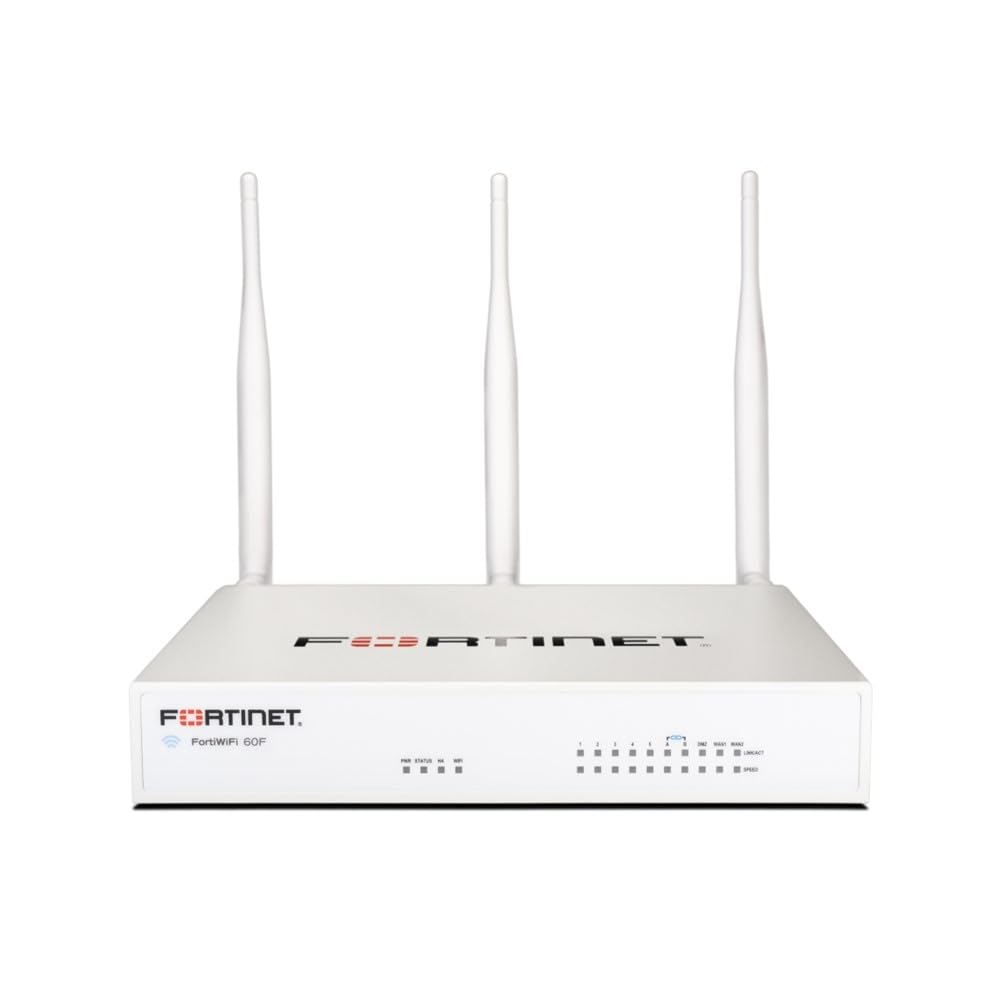
Image: Front view of the FortiWiFi-61F appliance, illustrating its compact design and front panel indicators.
Front Panel Indicators
- Power LED: Indicates power status.
- Status LED: Indicates system operational status.
- WAN/LAN LEDs: Indicate link activity and speed for respective ports.
- Wi-Fi LED: Indicates wireless network activity.
Rear Panel Ports and Buttons
- Power Input: Connects to the provided power adapter.
- WAN Ports: Connect to your Internet service provider's modem.
- LAN Ports: Connect to local network devices (computers, switches).
- USB Ports: For connecting external devices (e.g., 3G/4G modem, storage).
- Console Port: For direct command-line interface access.
- Reset Button: Used to restore factory default settings (requires a paperclip or similar tool).
5. Setup
5.1 Physical Connection
- Connect to Power: Plug the power adapter into the FortiWiFi-61F's power input and then into a power outlet. The Power LED should illuminate.
- Connect to Internet: Connect an Ethernet cable from your ISP's modem to the WAN port on the FortiWiFi-61F.
- Connect to Local Network: Connect an Ethernet cable from one of the LAN ports on the FortiWiFi-61F to your computer or a network switch.
5.2 Initial Configuration Access
To access the web-based management interface:
- Ensure your computer is configured to obtain an IP address automatically (DHCP).
- Open a web browser and enter the default IP address:
192.168.1.99(or as specified in your Quick Start Guide). - Log in using the default username
adminand no password (leave blank). You will be prompted to create a new password immediately.
5.3 Basic Network Configuration
Follow the on-screen wizard for initial setup, which typically includes:
- Changing the default administrator password.
- Configuring WAN interface settings (DHCP, Static IP, PPPoE).
- Setting up basic Wi-Fi network (SSID, security key).
6. Operating the FortiWiFi-61F
Once configured, the FortiWiFi-61F operates as your network's security gateway and wireless access point. You can manage its features through the web-based interface.
6.1 Web-based Management Interface
The FortiWiFi-61F's web interface provides access to all configuration and monitoring options. Key areas include:
- Dashboard: Overview of system status, network activity, and security events.
- Network: Configuration for interfaces, routing, DHCP, and DNS.
- Policy & Objects: Firewall policies, virtual IPs, and security profiles.
- Security Profiles: Antivirus, web filtering, application control, and intrusion prevention.
- WiFi & Switch Controller: Management of wireless networks and switch ports.
- System: Firmware updates, administrators, logging, and system settings.
6.2 Wireless Network (Wi-Fi)
The FortiWiFi-61F supports 802.11ac dual-band wireless connectivity. You can configure multiple SSIDs (Wi-Fi networks) with different security settings and VLANs to segment wireless traffic.
7. Maintenance
- Firmware Updates: Regularly check for and install the latest firmware from the Fortinet support portal to ensure optimal performance and security.
- Configuration Backup: Periodically back up your device configuration. This allows for quick restoration in case of issues or device replacement.
- Physical Cleaning: Keep the device free from dust. Use a soft, dry cloth to clean the exterior. Do not use liquid cleaners.
- Monitoring: Regularly review system logs and security reports within the web interface to identify potential issues or threats.
8. Troubleshooting
8.1 No Power
- Ensure the power adapter is securely connected to both the device and a working power outlet.
- Verify the power outlet is functional by plugging in another device.
- Check the power adapter for any visible damage.
8.2 No Internet Access
- Check if your ISP modem is working correctly.
- Ensure the Ethernet cable from the modem is connected to the correct WAN port on the FortiWiFi-61F.
- Verify WAN interface settings in the web interface (e.g., DHCP client receiving an IP address).
- Restart both the modem and the FortiWiFi-61F.
8.3 Wi-Fi Connectivity Issues
- Ensure the Wi-Fi LED on the device is active.
- Verify the SSID and password on your wireless devices match the configuration on the FortiWiFi-61F.
- Check wireless settings in the web interface, including channel and power levels.
- Try moving closer to the device to rule out signal strength issues.
8.4 Restoring Factory Defaults
If you encounter persistent issues or forget your password, you can restore the device to its factory default settings:
- With the device powered on, use a paperclip or similar pointed object to press and hold the Reset button for approximately 10 seconds.
- Release the button. The device will reboot with factory default settings.
- You will need to reconfigure the device from scratch after a factory reset.
9. Specifications
| Feature | Description |
|---|---|
| Brand | FORTINET |
| Model Name | FWF-61F |
| Series | FWF-61F |
| Wireless Type | 802.11ac |
| Frequency Band Class | Dual-Band |
| Connectivity Technology | Wi-Fi |
| Antenna Type | Internal |
| Operating System | Proprietary Fortinet Operating System |
| Special Feature | WPS |
| Recommended Uses | Security |
| Compatible Devices | Personal Computer |
10. Warranty and Support
For detailed warranty information, please refer to the warranty card included with your product or visit the official FORTINET website. Technical support and additional resources, including updated documentation and firmware, are available through the FORTINET support portal. Please have your product serial number ready when contacting support.
FORTINET Official Website: www.fortinet.com