
1. Introduction
This manual provides detailed instructions for the setup, operation, and maintenance of your Swann Pan & Tilt Indoor 1080p Full HD Wi-Fi Home Security Camera. This camera is designed to provide comprehensive indoor surveillance with features such as remote pan and tilt control, two-way audio, motion detection alerts, and local/cloud recording capabilities. Please read this manual thoroughly before using the product to ensure proper functionality and safety.

Image 1.1: Front view of the Swann Pan & Tilt Indoor Security Camera.
2. Product Overview
The Swann Pan & Tilt Indoor Security Camera offers advanced features for effective home monitoring:
- Remote Camera Movement: Control the camera's pan (0-355 degrees) and tilt (±30 degrees) remotely via the Swann Security app, eliminating blind spots.
- Versatile Two-Way Communication: Utilize the built-in speaker and microphone for two-way talk, allowing you to communicate with people or pets in your home.
- Easy Installation: Connects directly to Wi-Fi without complex wiring, suitable for placement on any flat surface or wall mounting.
- Advanced Mobile App Features: Receive push notifications for heat and motion detection, and activate a loud siren automatically or manually through the app for deterrence.
- 1080p Full HD Video: Captures clear, detailed video footage day and night.
- Free Recording Options: Save video clips to secure cloud storage (rolling 7 days) or the included 32GB MicroSD card, with no subscription fees.
- Night Vision: Provides clear visibility up to 32 feet in low-light conditions using infrared technology.
- Voice Control Compatibility: Works with Amazon Alexa and Google Assistant for hands-free operation.

Image 2.1: Key features of the Swann Pan & Tilt Security Camera.
3. Package Contents
Please check the box for the following items:
- Swann Pan & Tilt Security Camera
- Power Adapter & Cable
- 32GB Micro SD Card (pre-installed or included separately)
- Mounting Stand
- Screws & Wall Plugs
- Operating Instructions (this manual)
- Theft Deterrent Stickers

Image 3.1: All included components in the product package.
4. Initial Setup
Follow these steps to set up your Swann Pan & Tilt Camera:
- Download the Swann Security App: Search for "Swann Security" in your smartphone's app store (iOS or Android) and download the application.
- Create an Account: Open the app and follow the on-screen prompts to create a new Swann Security account or log in if you already have one.
- Power On the Camera: Connect the provided power adapter to the camera and plug it into a power outlet. The camera will power on and its indicator light will show its status.
- Add Device in App: In the Swann Security app, tap on "Add Device" or the '+' icon. Select your camera model from the list.
- Connect to Wi-Fi: Follow the app's instructions to connect the camera to your home's 2.4GHz Wi-Fi network. Note: This camera supports 2.4GHz Wi-Fi only. If you have a dual-band router, ensure your phone is connected to the 2.4GHz network during setup.
- Pairing: The app will guide you through the pairing process, which may involve scanning a QR code on the camera or listening for an audio prompt.
- Name Your Camera: Once connected, give your camera a descriptive name (e.g., "Living Room Camera").

Image 4.1: The Swann Security app provides complete control and live streaming.
5. Installation
Your Swann Pan & Tilt Camera offers flexible installation options:
5.1 Tabletop Placement
For quick and easy setup, simply place the camera on any flat, stable surface such as a shelf, table, or desk. Ensure the camera has a clear line of sight to the area you wish to monitor and is within range of your Wi-Fi signal.

Image 5.1: Camera placed on a tabletop for easy monitoring.
5.2 Wall Mounting
For a more permanent installation or to achieve a wider viewing angle, you can mount the camera to a wall using the included mounting stand, screws, and wall plugs.
- Choose a Location: Select a suitable wall location that provides the desired viewing angle and is within Wi-Fi range.
- Mark Drill Holes: Use the mounting stand as a template to mark the positions for drilling holes on the wall.
- Drill Holes: Drill pilot holes at the marked positions. Insert wall plugs if mounting into drywall or masonry.
- Attach Mounting Stand: Secure the mounting stand to the wall using the provided screws.
- Attach Camera: Screw the camera onto the mounting stand. Adjust the angle as needed.
- Connect Power: Route the power cable neatly and connect it to a power outlet.

Image 5.2: Camera securely mounted to a wall.
6. Operating Your Camera
Once set up, you can control and monitor your camera using the Swann Security app.
6.1 Live View & Pan/Tilt Control
Open the Swann Security app and select your camera to view the live feed. Use the on-screen controls to remotely pan the camera left and right, and tilt it up and down, to adjust your viewing area.
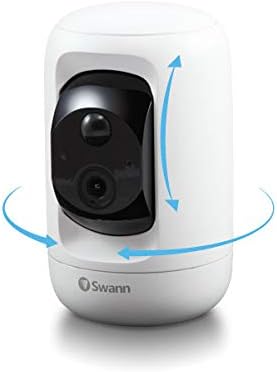
Image 6.1: Visual representation of the camera's pan and tilt capabilities.
6.2 Two-Way Talk
While in live view, tap the microphone icon in the app to enable two-way communication. Speak into your phone's microphone, and your voice will be projected through the camera's speaker. You can also hear audio from the camera's location.

Image 6.2: The camera facilitates communication with family members at home.
6.3 Motion & Heat Detection Alerts
The camera is equipped with heat and motion detection. When activity is detected, you will receive push notifications on your smartphone. You can customize alert settings within the Swann Security app.

Image 6.3: The camera detects motion and heat within its field of view.
6.4 Siren Activation
In response to detected activity or manually, you can activate a loud siren directly from the Swann Security app to deter intruders or alert household members.
6.5 Recording & Storage
Video clips triggered by events are saved to the included 32GB MicroSD card and also uploaded to secure cloud storage for 7 rolling days. You can access recorded footage through the Swann Security app.
6.6 Night Vision
The camera automatically switches to night vision mode in low-light conditions, providing clear black and white video up to 32 feet. This ensures continuous monitoring even in complete darkness.
7. Maintenance
To ensure optimal performance and longevity of your camera:
- Cleaning: Gently wipe the camera lens and body with a soft, dry cloth. Do not use liquid cleaners or abrasive materials.
- Software Updates: Regularly check the Swann Security app for firmware updates for your camera. Keeping the firmware updated ensures you have the latest features and security enhancements.
- Network Stability: Ensure your Wi-Fi network is stable and strong in the camera's location for uninterrupted streaming and recording.
8. Troubleshooting
If you encounter issues with your camera, try the following solutions:
| Problem | Possible Solution |
|---|---|
| Camera won't connect to Wi-Fi. | Ensure your router is broadcasting a 2.4GHz Wi-Fi signal. The camera does not support 5GHz networks. Move the camera closer to the router or use a Wi-Fi extender. Restart your router and the camera. |
| App crashes or freezes frequently. | Ensure your Swann Security app is updated to the latest version. Clear the app's cache or reinstall the app. Check your phone's operating system for updates. |
| Night vision is fuzzy or unclear. | Ensure there are no obstructions directly in front of the camera lens. Avoid placing the camera facing a window at night, as reflections can interfere with night vision. Ensure the area is within the 32-foot night vision range. |
| No motion detection alerts. | Check the motion detection settings in the Swann Security app. Ensure notifications are enabled for the app on your smartphone. Verify the camera's field of view covers the desired area. |
| Camera is loud when panning/tilting. | A slight mechanical sound during movement is normal. If the sound is excessively loud or grinding, contact Swann customer support. |
If these solutions do not resolve your issue, please contact Swann customer support for further assistance.
9. Technical Specifications
| Feature | Detail |
|---|---|
| Model Number | SWIFI-PTCAM232GB-GL |
| Indoor/Outdoor Usage | Indoor |
| Compatible Devices | Smartphone (iOS/Android), Amazon Alexa, Google Assistant |
| Power Source | Corded Electric |
| Connectivity Protocol | Wi-Fi (2.4GHz) |
| Mounting Type | Tabletop, Wall Mount |
| Video Capture Resolution | 1080p Full HD |
| Pan Rotation | 0-355 Degrees |
| Tilt Rotation | ±30 Degrees |
| Viewing Angle | 180 Degrees (diagonal) |
| Night Vision Range | 32 Feet (10 meters) |
| Low Light Technology | Night Color |
| Alert Type | Motion Only (Heat & Motion Triggered) |
| Storage | 32GB Micro SD Card (included), 7-day rolling cloud storage |
| Voltage | 5 Volts |
| Wattage | 10 Watts |
| Dimensions (L x W x H) | 3.46 x 3.07 x 5 inches (8.79 x 7.80 x 12.7 cm) |
| Item Weight | 0.4 Kilograms (14.1 ounces) |
| UPC | 840236129065 |
10. Warranty & Support
10.1 Limited Warranty
Swann provides a 1-Year Limited Warranty against factory defects for this product. This warranty covers defects in materials and workmanship under normal use. For specific terms and conditions, please refer to the warranty information included with your product or visit the official Swann website.
10.2 Customer Support
If you experience any challenges with your Swann Pan & Tilt Security Camera, require technical assistance, or need to make a warranty claim, please contact Swann customer service. You can find contact information (phone numbers, email, or support portal) on the official Swann website:
Please have your product model number (SWIFI-PTCAM232GB-GL) and proof of purchase ready when contacting support.


