
1. Introduction
Thank you for choosing the Philips 27" Frameless Full HD IPS Monitor (Model: 273V7QJAB-B-R). This monitor is designed to provide a superior visual experience with stunning edge-to-edge images, eye-care features, and a compact, slim design. This manual will guide you through the installation, operation, and maintenance of your new display.
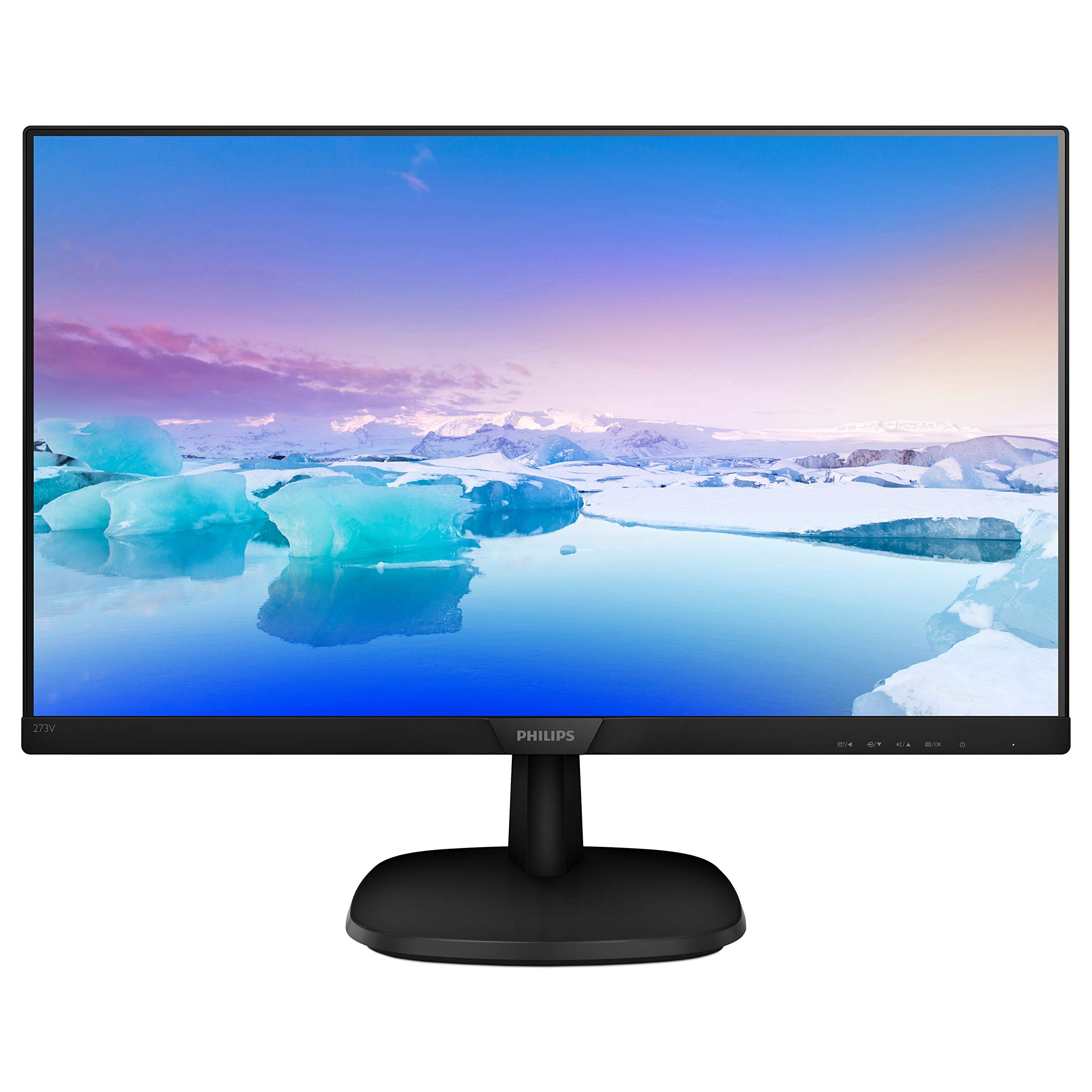
Figure 1: Philips 27" Frameless Full HD IPS Monitor (Model: 273V7QJAB-B-R)
2. Setup
2.1 Unpacking
Carefully remove all components from the packaging. Ensure all items listed in the packing list are present and undamaged. Keep the original packaging for future transport or service needs.
2.2 Stand Assembly
Attach the monitor stand base to the stand column, then secure the assembled stand to the back of the monitor panel. Ensure all screws are tightened appropriately to prevent instability. The stand is designed for easy assembly and provides tilt adjustment for optimal viewing.
2.3 Connecting Cables
Locate the input ports on the back of the monitor. This monitor supports multiple connectivity options:
- HDMI: Connect an HDMI cable from your computer or other device to one of the HDMI ports on the monitor.
- DisplayPort: Connect a DisplayPort cable from your computer to the DisplayPort on the monitor.
- VGA: Connect a VGA cable from your computer to the VGA port on the monitor.
- Audio In/Out: Use the audio input for external audio sources and the audio output for headphones or external speakers, if not using the built-in speakers.
- Power: Connect the power cable to the monitor and then to a power outlet.
Ensure all connections are secure before powering on the monitor.
3. Operating Instructions
3.1 Power On/Off
Press the power button, typically located on the back or bottom right of the monitor, to turn the monitor on or off. A small LED indicator will show the power status.
3.2 On-Screen Display (OSD) Menu Navigation
The monitor features a single joystick-like button, usually located on the back, for navigating the OSD menu. This button allows you to access and adjust various settings:
- Press: Activates the OSD menu or confirms a selection.
- Move Up/Down: Navigates through menu options or adjusts values.
- Move Left/Right: Navigates through sub-menus or adjusts values.
3.3 Input Selection
From the OSD menu, select 'Input' to choose between connected sources such as HDMI, DisplayPort, or VGA. The monitor will automatically detect active inputs, but manual selection may be necessary.
3.4 Picture Settings
Access the 'Picture' menu in the OSD to adjust display characteristics:
- Brightness: Adjust the overall luminance of the screen.
- Contrast: Control the difference between light and dark areas.
- SmartImage: Select from various preset modes (e.g., Office, Photo, Movie, Game, Economy) to optimize display settings for different content types.
- Adaptive Sync: Enable or disable Adaptive Sync for smoother gameplay by synchronizing the monitor's refresh rate with your graphics card.
- Picture Format: Adjust the aspect ratio (e.g., Wide Screen).
- LowBlue Mode: Reduce blue light emission to minimize eye strain during prolonged use.
3.5 Audio Settings
The monitor includes built-in speakers. Adjust the volume through the OSD menu under 'Audio'. You can also mute the sound or select audio input sources.
4. Maintenance
4.1 Cleaning the Screen
To clean the screen, gently wipe it with a soft, lint-free cloth. For stubborn marks, lightly dampen the cloth with water or a mild, non-abrasive screen cleaner. Avoid using harsh chemicals or abrasive materials that could damage the glossy screen finish.
4.2 Cleaning the Casing
Wipe the monitor casing with a soft, dry cloth. Do not use any liquid cleaners directly on the casing to prevent damage to internal components.
4.3 General Care
Avoid placing heavy objects on the monitor or its cables. Keep the monitor away from direct sunlight, excessive heat, and moisture. Ensure adequate ventilation around the monitor to prevent overheating.
5. Troubleshooting
If you encounter issues with your Philips monitor, please refer to the following common troubleshooting steps before contacting support:
| Problem | Possible Cause | Solution |
|---|---|---|
| No power | Power cable not connected or power outlet not working. | Ensure the power cable is securely connected to the monitor and a working power outlet. Check the power indicator light. |
| No image/signal | Video cable not connected or incorrect input selected. | Verify the video cable (HDMI, DisplayPort, VGA) is securely connected to both the monitor and your device. Use the OSD menu to select the correct input source. |
| Poor image quality | Incorrect resolution, brightness/contrast settings, or cable issue. | Adjust resolution to 1920x1080. Check brightness and contrast settings in the OSD. Try a different video cable if possible. |
| No sound from built-in speakers | Volume too low, muted, or incorrect audio source. | Increase volume via OSD or computer settings. Ensure the monitor is not muted. Check audio input settings in the OSD. |
6. Specifications
| Feature | Detail |
|---|---|
| Brand | Philips |
| Model Number | 273V7QJAB-B-R |
| Screen Size | 27 Inches |
| Display Type | IPS WLED |
| Resolution | Full HD (1920x1080) |
| Response Time | 4ms |
| Contrast Ratio | 10,000,000:1 (Image Contrast Ratio) |
| Screen Finish | Glossy |
| Connectivity | VGA (Analog), HDMI (digital, HDCP), DisplayPort 1.2 |
| Audio | Built-In Speakers, Audio In/Out |
| Additional Features | Flicker-Free, Frameless, Tilt Adjustment, Wall Mountable |
7. Warranty and Support
7.1 Limited Warranty
This Philips monitor comes with a 90-day limited warranty. Please retain your proof of purchase for warranty claims. The warranty covers manufacturing defects and malfunctions under normal use. It does not cover damage caused by misuse, accidents, unauthorized modifications, or external factors.
7.2 Customer Support
For technical assistance, troubleshooting beyond this manual, or warranty inquiries, please contact Philips customer support. Refer to the contact information provided with your product packaging or visit the official Philips website for your region's support details.
When contacting support, please have your monitor's model number (273V7QJAB-B-R) and serial number ready.


