
FANGOR F-BR114
Contents
FANGOR 13.3 Inch Portable Blu-ray DVD Player User Manual
Model: F-BR114
Introduction
This manual provides detailed instructions for the setup, operation, maintenance, and troubleshooting of your FANGOR 13.3 Inch Portable Blu-ray DVD Player. Please read this manual thoroughly before using the device to ensure proper functionality and to maximize your viewing experience. Keep this manual for future reference.

Figure 1: FANGOR 13.3 Inch Portable Blu-ray DVD Player and Remote Control
What's in the Box
Verify that all items are present in the package:
- 1 x FANGOR 13.3 Inch Portable Blu-ray DVD Player
- 1 x Remote Control
- 1 x Car Charger
- 1 x AC Adaptor
- 1 x RCA Cable
- 1 x User Manual (this document)

Figure 2: Package Contents and Player Ports
Product Overview
Key Features
- 1080P Full HD Screen: Provides clear and vivid visual experience.
- Powerful Stereo Speakers: Delivers immersive audio.
- Multiple Format Support: Compatible with BD, BD-R, BD-RE, DVD-R/RW, DVD+R/RW, DVD-Video, and various media files (MP4, MOV, AVI/VOB/FLV/TRP/TS/MPG/MPEG/DAT/ASF/WMV) via USB & SD card.
- Last Memory Function: Resumes playback from where you left off.
- Swivel Screen: 270-degree rotation and 180-degree flip for optimal viewing angles.
- HDMI OUT Port: Allows syncing high-definition video to a TV or projector.
- Long Battery Life: Built-in rechargeable Lithium Polymer battery for extended use.
- Unique Handle Design: For easy portability.
Ports and Controls
Refer to Figure 2 for the location of the following ports and controls:
- OFF/ON Switch: Powers the device on or off.
- S/PDIF: Digital audio output.
- Headphone Jack (3.5mm): For connecting headphones or external speakers.
- AV IN: Audio/Video input.
- Micro SD Card Slot: Supports up to 32GB memory for media playback.
- USB Port: For connecting USB drives (up to 32GB) for media playback.
- HDMI OUT: High-Definition Multimedia Interface output for connecting to external displays.
- LAN Port: For network connection (if applicable, typically not used for media playback).
- DC IN 12V: Power input for AC adapter or car charger.
- Control Buttons: Including SETUP, MODE, LEFT, RIGHT, UP, DOWN, OK, MUTE, VOL-, VOL+, PREV, REV, FWD, NEXT, STOP, PLAY/PAUSE.
Setup
1. Charging the Battery
The player is equipped with a built-in Lithium Polymer battery. For optimal performance, fully charge the battery before first use.
- Using the AC Adaptor: Connect the AC adaptor to the DC IN 12V port on the player and plug the other end into a standard wall outlet.
- Using the Car Charger: Connect the car charger to the DC IN 12V port on the player and plug the other end into your vehicle's cigarette lighter socket.
The player charges when connected to a power source. It is recommended to charge the device while it is powered off for faster charging.

Figure 3: Charging Options (Car Charger and AC Adaptor)
2. Powering On/Off
Slide the OFF/ON switch located on the side of the player to the 'ON' position to power on the device. Slide it to 'OFF' to power off.
Operating Instructions
1. Disc Playback
- Ensure the player is powered on.
- Press the 'OPEN' button to open the disc cover.
- Carefully place a Blu-ray or DVD disc onto the spindle with the label side facing up.
- Gently close the disc cover until it clicks into place.
- The player will automatically detect and begin playing the disc. If not, navigate to the disc playback option using the remote or control buttons.

Video 1: Overview of the FANGOR Portable Blu-ray DVD Player, demonstrating disc loading and key features.
Supported Disc Formats: BD, BD-R, BD-RE, DVD-R/RW, DVD+R/RW, DVD-Video. Blu-ray DVDs are Region A/1; DVDs are All Regions.
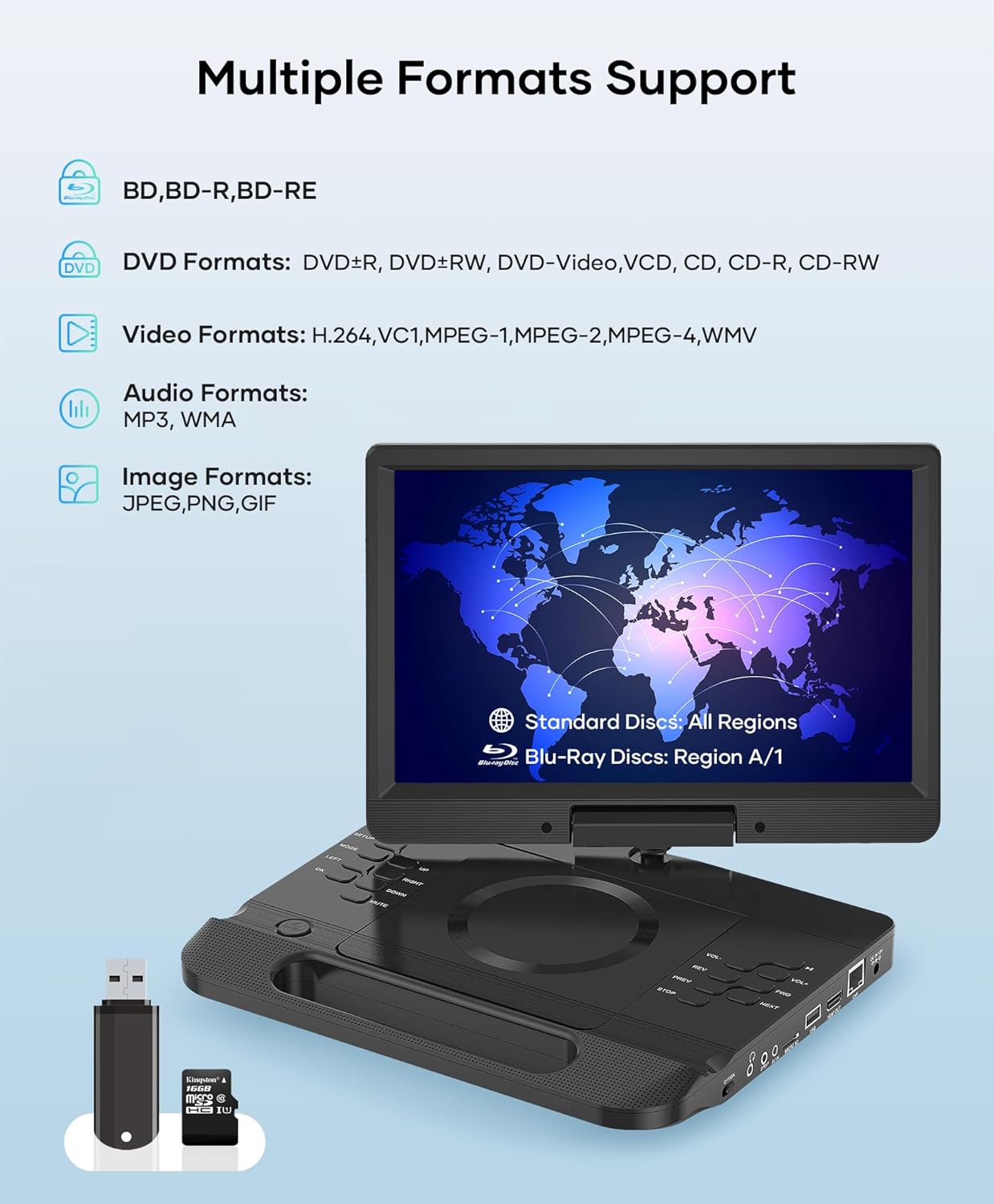
Figure 4: Multiple Media Formats Supported
2. Media Playback via USB/SD Card
The player supports media files (MP4, MOV, AVI/VOB/FLV/TRP/TS/MPG/MPEG/DAT/ASF/WMV) from USB drives and SD cards up to 32GB with 1920*1080 resolution.
- Insert your USB drive into the USB port or your SD card into the Micro SD card slot.
- Use the remote or control buttons to navigate to the USB or SD card input mode.
- Select the desired media file to begin playback.

Figure 5: Detailed Media Format Support
3. Screen Adjustment (Swivel and Flip)
The 12-inch HD screen can be rotated 270 degrees and flipped 180 degrees, allowing for multiple viewing angles and positions, including a tablet-like mode.

Figure 6: Swivel Screen Functionality
4. Connecting to External Displays (HDMI OUT)
You can connect the player to a larger screen such as a TV or projector using an HDMI cable (not included) for an enhanced viewing experience.
- Connect one end of an HDMI cable to the HDMI OUT port on the player.
- Connect the other end of the HDMI cable to an HDMI input port on your TV or projector.
- Select the corresponding HDMI input on your TV or projector.

Figure 7: Syncing Screen to TV

Figure 8: Syncing Screen to Projector
5. Connecting to Another DVD Player (AV IN/OUT)
You can connect two FANGOR portable DVD players to share the same movie. Use the provided RCA cable for this connection.
- Connect the AV OUT port of the primary player to the AV IN port of the secondary player using the RCA cable.
- Ensure both players are powered on and set to the correct input/output modes.

Figure 9: Syncing Screen to Another Player
6. Last Memory Function
The player features a last memory function that allows it to resume playback from where you left off. To enable this, you must press the dedicated "Last Memory" button on the remote control before turning off the power or removing the disc. If this button is not pressed, the player will not resume from the last point.

Figure 10: Last Memory Function in action
Maintenance
- Cleaning: Use a soft, dry cloth to clean the player's exterior. For the screen, use a screen-specific cleaning solution and a microfiber cloth. Avoid abrasive cleaners or solvents.
- Disc Care: Handle discs by their edges. Keep them clean and free of scratches. Store discs in their cases when not in use.
- Storage: When not in use for extended periods, store the player in a cool, dry place away from direct sunlight and extreme temperatures.
- Battery Care: To prolong battery life, avoid fully discharging the battery frequently. If storing for a long time, charge the battery to about 50% every few months.
Troubleshooting
If you encounter issues with your FANGOR Portable Blu-ray DVD Player, refer to the following common problems and their solutions:
| Problem | Possible Cause / Solution |
|---|---|
| Player does not power on. |
|
| Disc does not play or loads slowly. |
|
| Disc access door does not open. |
|
| No video when connected to TV/Projector. |
|
| USB drive or SD card not recognized/playing. |
|
| Last Memory function does not work. |
|
| No sound or low sound. |
|
Specifications
| Feature | Detail |
|---|---|
| Brand | FANGOR |
| Model Number | F-BR114 |
| Screen Size | 12 Inches (13.3 Inch overall product size) |
| Display Type | LCD, 1080P Full HD |
| Supported Disc Formats | BD, BD-R, BD-RE, DVD-R/RW, DVD+R/RW, DVD-Video (Blu-ray: Region A/1; DVDs: All Regions) |
| Supported Media Files (USB/SD) | MP4, MOV, AVI/VOB/FLV/TRP/TS/MPG/MPEG/DAT/ASF/WMV |
| USB/SD Card Capacity | Up to 32GB (1920*1080 resolution) |
| Battery Type | Lithium Polymer (4500mAh High Capacity) |
| Battery Life | Approximately 5 hours |
| Connectivity | HDMI OUT, AV IN, USB, Micro SD, S/PDIF, Headphone Jack, LAN |
| Power Input | DC 12V (AC Adaptor and Car Charger included) |
| Dimensions (Package) | 15.51 x 10.91 x 2.99 inches |
| Item Weight | 4.27 pounds |
Warranty and Support
FANGOR provides a 365-day replacement policy for product reasons and lifetime technical support.
If you have any questions, require technical assistance, or need to report a missing part or broken item, please contact FANGOR customer service directly via Amazon Station Email or the After-sales Email provided with your purchase. We aim to reply within 24 hours.
For more information and support, you may visit the official FANGOR Store on Amazon: FANGOR Store
Documents and downloads
Ask a question about this manual
Ask about setup, troubleshooting, compatibility, parts, safety, or missing instructions. Manuals+ will review the question and use this page’s manual context to help answer it.