
Introduction
This manual provides comprehensive instructions for the setup, operation, and maintenance of your Brydge Vertical Dock. Please read this manual thoroughly before using the product to ensure proper functionality and to maximize your experience.
The Brydge Vertical Dock is designed to seamlessly integrate your 13-inch MacBook Pro with Touch Bar (2016-2021) into a desktop setup, offering instant connectivity and an organized workspace. It is engineered for efficiency and optimal performance in clamshell mode.
Product Overview
The Brydge Vertical Dock provides a stable and efficient solution for using your MacBook Pro in a vertical orientation, saving desk space and simplifying cable management. It features integrated Thunderbolt™ 3 ports for connecting external displays and peripherals.
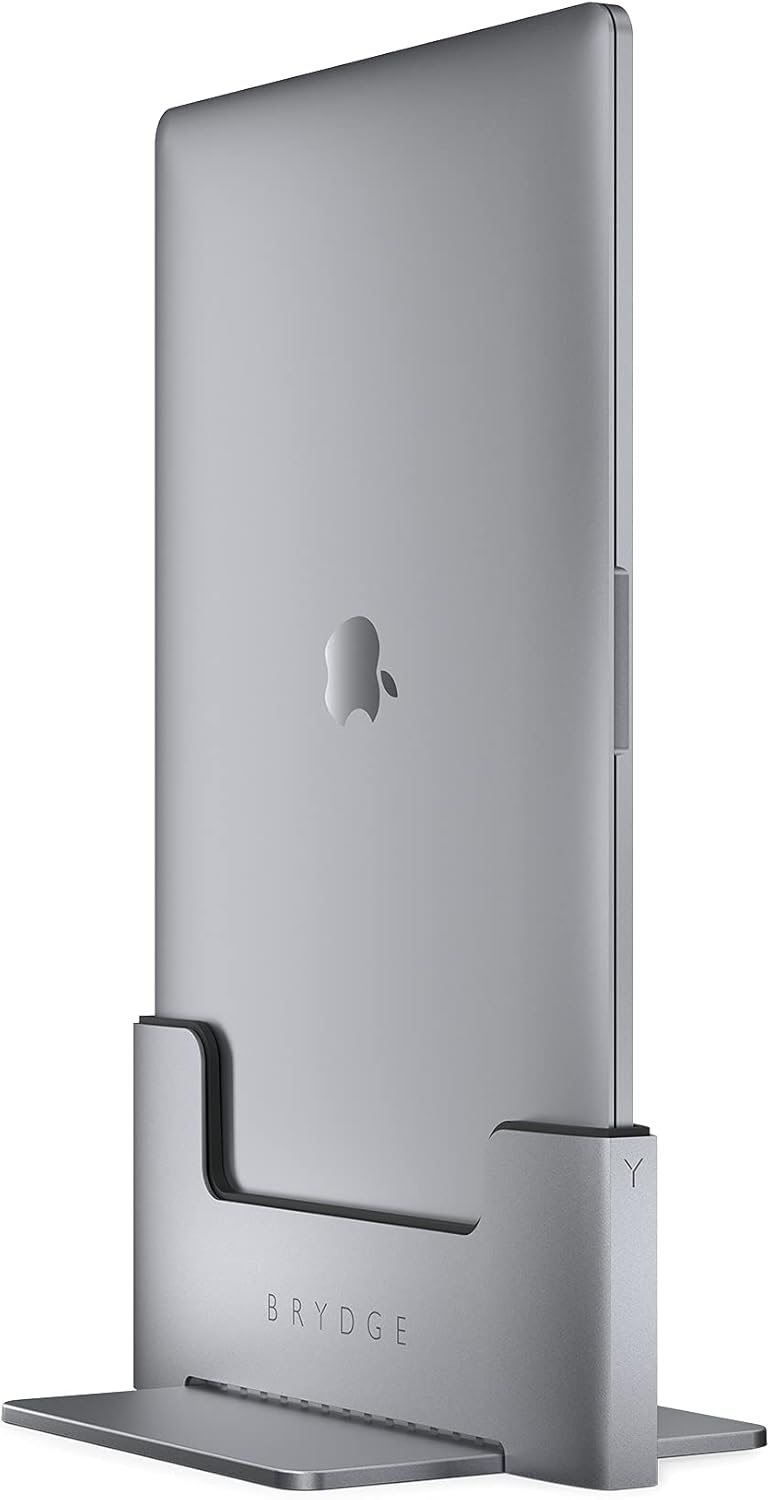


Package Contents
Verify that all items are present in the package:
- Brydge Vertical Dock
- Screwdriver
- User Manual (this document)
- Additional screws (if applicable)
Setup
1. Unboxing and Initial Inspection
Carefully remove the Brydge Vertical Dock from its packaging. Inspect the unit for any signs of damage. If any damage is found, do not proceed with setup and contact customer support.
2. Assembling the Dock
The Brydge Vertical Dock may require minor assembly to secure the base plate. Use the provided screwdriver to attach the base plate to the main dock unit. Ensure all screws are tightened securely but do not overtighten.

3. Inserting Your MacBook Pro
Gently slide your 13-inch MacBook Pro (2016-2021 with Touch Bar) into the Brydge Vertical Dock. Ensure the Thunderbolt ports on your MacBook align with the connectors inside the dock. Apply gentle, even pressure until the MacBook is fully seated. The dock is designed for a snug fit to ensure stable connection.
Important: This dock is specifically designed for 13-inch MacBook Pro models with Touch Bar (2016-2021). It will not work with MacBook models without Touch Bars or other MacBook sizes.
Operating Instructions
1. Connecting Peripherals
Once your MacBook Pro is securely docked, connect your external displays, power adapter, and other peripherals to the Thunderbolt™ 3 ports on the back of the Brydge Vertical Dock. The dock provides pass-through connectivity, allowing your MacBook to function as a desktop workstation in clamshell mode.
The dock features two Thunderbolt™ 3 ports, enabling connection of dual external displays and other high-speed devices.
2. Clamshell Mode Operation
For optimal performance and space-saving, the Brydge Vertical Dock is intended for use with your MacBook Pro in clamshell mode (lid closed). Ensure your MacBook is connected to an external power source and an external display for this mode to activate.
3. Cooling System
The Brydge Vertical Dock incorporates intake and exhaust vents to facilitate airflow to and from your MacBook's cooling system. This design helps maintain optimal operating temperatures even under heavy processing loads, ensuring efficient heat management in clamshell mode.
Maintenance
To ensure the longevity and optimal performance of your Brydge Vertical Dock, follow these maintenance guidelines:
- Cleaning: Use a soft, dry, lint-free cloth to clean the exterior of the dock. Avoid using abrasive cleaners, solvents, or aerosol sprays, as these can damage the finish.
- Dust Removal: Periodically check the vents for dust accumulation. Use compressed air to gently clear any dust from the vents to maintain proper airflow.
- Handling: Always handle the dock and your MacBook Pro with care during insertion and removal to prevent damage to the connectors or the device.
Troubleshooting
| Problem | Possible Cause | Solution |
|---|---|---|
| No display output after docking. |
|
|
| Peripherals not recognized. |
|
|
| Dock feels unstable. |
|
|
If you encounter issues not listed here, or if the suggested solutions do not resolve your problem, please contact Brydge customer support for further assistance.
Specifications
- Product Dimensions: 8.78 x 5.79 x 4.88 inches (22.3 x 14.7 x 12.4 cm)
- Item Weight: 3.52 pounds (1.6 Kilograms)
- Model Number: Macbook Vertical Dock
- Compatible Devices: 13-inch MacBook Pro with Touch Bar (2016-2021)
- Hardware Interface: Thunderbolt™ 3
- Total USB Ports: 2 (Thunderbolt™ 3 pass-through)
- Color: Space Gray
- Manufacturer: Brydge
- Date First Available: June 9, 2020
- UPC: 787790154747
Warranty and Support
For warranty information and customer support, please refer to the official Brydge website or the documentation included with your purchase. You can also find additional support resources and FAQs online.
Official User Manual (PDF): Download PDF


