
1. Introduction
This manual provides detailed instructions for the proper use and maintenance of your CDS SP09 Bluetooth Car Kit. This device is designed to provide a convenient and safe hands-free communication solution while driving, featuring easy installation on your car's sun visor.
2. Product Features
- Automatic power on/off functionality.
- Siri voice control support.
- Ability to connect two mobile phones simultaneously.
- A2DP function for audio streaming.
- Integrated 550 mAh rechargeable lithium-ion battery.
- Approximately 500 hours of standby time.
- Approximately 10 hours of talk time.
- Low power reminder.
- Automatic connection and private answer mode.
- Incoming call number announcement.
- Built-in DSP noise and echo cancellation.
- Supports language switching between English and Chinese.
3. Package Contents
Please check the package for the following items:
- 1 x CDS SP09 Bluetooth Car Kit
- 1 x Micro-USB Charging Cable
- 1 x Visor Clip
- 1 x User Manual
4. Product Overview
Familiarize yourself with the components of your Bluetooth Car Kit:

Figure 4.1: Product Components Diagram. This image displays the various parts of the CDS SP09 Bluetooth Car Kit, including the microphone, indicator light, charging interface, volume controls, on/off switch, call button, loudspeaker, and the back clip for sun visor attachment.
- Microphone: For hands-free calling.
- Indicator Light: Displays device status (e.g., charging, connected, pairing).
- Charging Interface: Micro-USB port for charging the device.
- Volume Control (+/-): Adjusts speaker volume.
- On/Off Switch: Powers the device on or off.
- Call Button: Used to answer, end, or reject calls, and activate voice assistant.
- Loudspeaker: Outputs audio for calls and music.
- Back Clip of Sun Visor: For attaching the device to the car's sun visor.
5. Setup
5.1 Charging the Device
- Connect the provided Micro-USB charging cable to the charging interface on the device.
- Connect the other end of the cable to a USB power source (e.g., car charger, computer USB port).
- The indicator light will show charging status. A full charge typically takes 2 to 3 hours.
5.2 Mounting the Device

Figure 5.1: Device with Visor Clip. This image shows the CDS SP09 Bluetooth Car Kit with its integrated clip, ready for attachment to a car's sun visor.
Attach the device to your car's sun visor using the integrated clip. Ensure it is securely fastened and does not obstruct your view while driving.
5.3 Pairing with Your Mobile Phone
- Ensure the device is charged and powered off.
- Slide the On/Off switch to the 'On' position. The indicator light will flash, indicating it is in pairing mode.
- On your mobile phone, enable Bluetooth and search for available devices.
- Select "SP09" from the list of found devices.
- Once connected, the indicator light will change to a steady blue or flash slowly, and you may hear a confirmation tone.

Figure 5.2: Intelligent One for Two. This image illustrates the CDS SP09's capability to connect and manage two mobile phones simultaneously via Bluetooth multi-point connection technology.
The SP09 supports connecting two mobile phones simultaneously. After pairing the first phone, repeat the pairing process for the second phone. The device will manage calls from both connected phones.
6. Operating Instructions
6.1 Power On/Off
- Manual On/Off: Slide the On/Off switch located on the side of the device.
- Automatic On/Off: The device is equipped with a vibration sensor. When you open the car door, the vibration will automatically turn on the device and connect to your paired mobile phone. When you leave the car and close the door, the device will automatically power off after a period of inactivity.

Figure 6.1: Auto Start Auto Connect. This image demonstrates the device's vibration sensor, which automatically turns on the Bluetooth car kit and connects it to a mobile phone when the car door is opened.
6.2 Answering/Ending Calls

Figure 6.2: One-Click Answering. This image highlights the ease of answering incoming calls with a single click on the device's call button, promoting safe, hands-free driving.
- Answer Call: When an incoming call is announced, press the Call button once.
- End Call: During a call, press the Call button once to end the conversation.
- Reject Call: Press and hold the Call button for approximately 2 seconds to reject an incoming call.
- Redial Last Number: Double-click the Call button to redial the last outgoing number.
- Private Answer: During a call, press and hold the Call button to switch the audio output between the car kit and your mobile phone's handset.
6.3 Volume Control
Press the '+' button to increase the volume and the '-' button to decrease the volume during a call or audio playback.
6.4 Voice Assistant (Siri)
Press and hold the Call button to activate your phone's voice assistant (e.g., Siri, Google Assistant).
6.5 Audio Streaming (A2DP)
The device supports A2DP, allowing you to stream music, podcasts, and navigation audio from your connected mobile phone through the car kit's speaker.
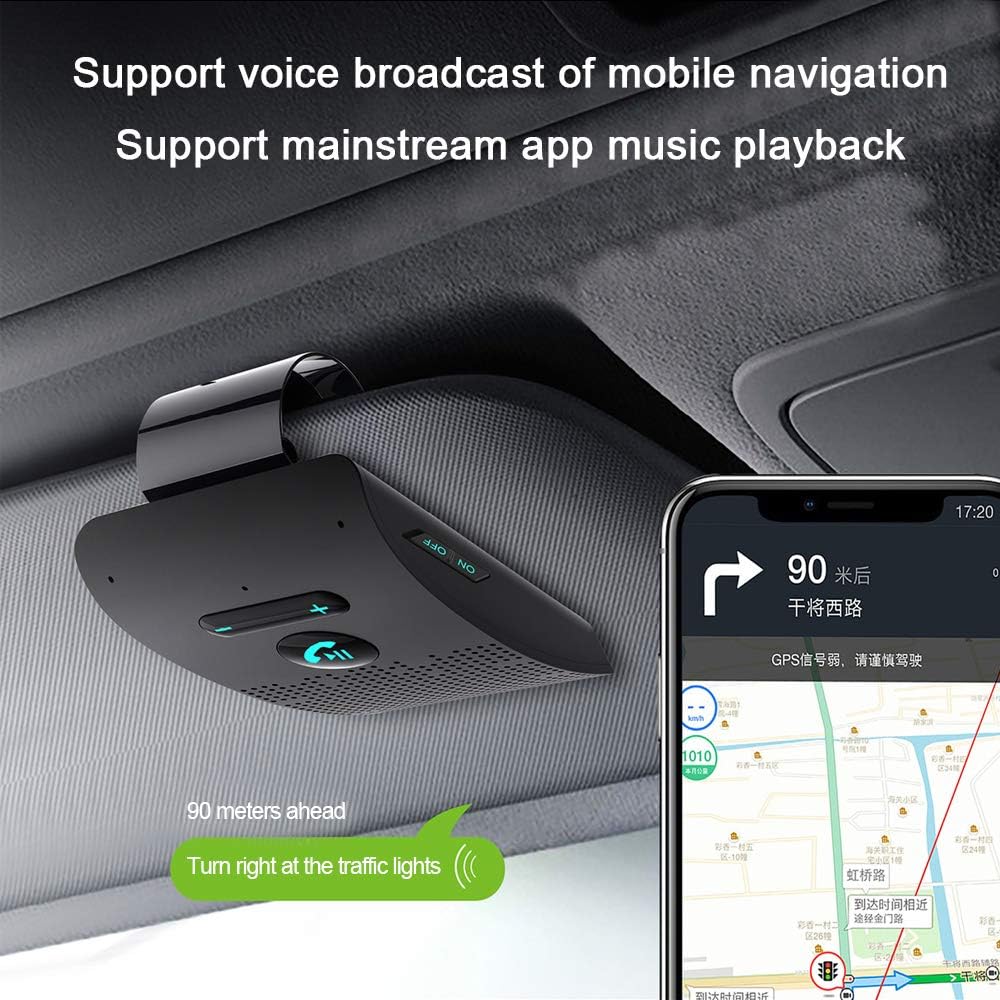
Figure 6.3: Voice Broadcast of Mobile Navigation. This image shows the CDS SP09 mounted on a sun visor, broadcasting navigation instructions from a mobile phone, enhancing driving safety and convenience.
6.6 Incoming Call Number Announcement

Figure 6.4: Voice Broadcast Function. This image illustrates the device's ability to announce incoming call numbers, power shortage alerts, and Bluetooth connection status, providing audible notifications to the user.
When a call comes in, the device will announce the incoming call number, allowing you to identify the caller without looking at your phone.
7. Maintenance
- Keep the device dry. Moisture can damage electronic circuits.
- Do not expose the device to extreme temperatures. High temperatures can shorten the life of electronic devices and warp plastic parts.
- Do not attempt to disassemble the device. Unauthorized modifications can damage the unit and void your warranty.
- Clean the device with a soft, dry cloth. Do not use harsh chemicals or detergents.
8. Troubleshooting
- Device not turning on: Ensure the device is fully charged. Check the On/Off switch position.
- Cannot pair with phone: Ensure Bluetooth is enabled on your phone and the device is in pairing mode (flashing indicator light). Try restarting both the device and your phone.
- No sound during calls/music: Check the volume level on both the device and your phone. Ensure the device is properly connected to your phone.
- Poor audio quality: Ensure the device is within range of your phone (typically up to 10 meters). Reduce interference from other electronic devices.
- Automatic connection not working: Ensure the vibration sensor is not obstructed and the device was previously paired with your phone.
9. Specifications
| Type | Bluetooth Car Kit |
| Brand | CDS |
| Model Number | XSukSMJ-21218 (SP09) |
| Material | Plastic |
| Bluetooth Version | 4.2 + EDR |
| Speaker | 4 ohms 2W |
| Battery | Built-in 550 mAh Lithium-ion |
| Charging Time | 2-3 hours |
| Standby Time | Approx. 500 hours |
| Talk Time | Approx. 10 hours |
| Dimensions | Approx. 10 cm (L) x 6 cm (W) x 3 cm (H) |
| Special Features | Automatic On/Off, Siri Voice Control, A2DP, Dual Phone Connection, DSP Noise Cancellation |
10. Warranty and Support
This product comes with a 12-month product warranty. If you encounter any issues or have questions regarding your CDS SP09 Bluetooth Car Kit, please contact the seller or manufacturer for support. We are committed to providing quality products and customer satisfaction.