
Introduction
Thank you for choosing the Pantone Stereo Bluetooth Headphones. This manual provides essential information for the proper setup, operation, maintenance, and troubleshooting of your new headphones. Please read this guide thoroughly before use to ensure optimal performance and longevity of your device.
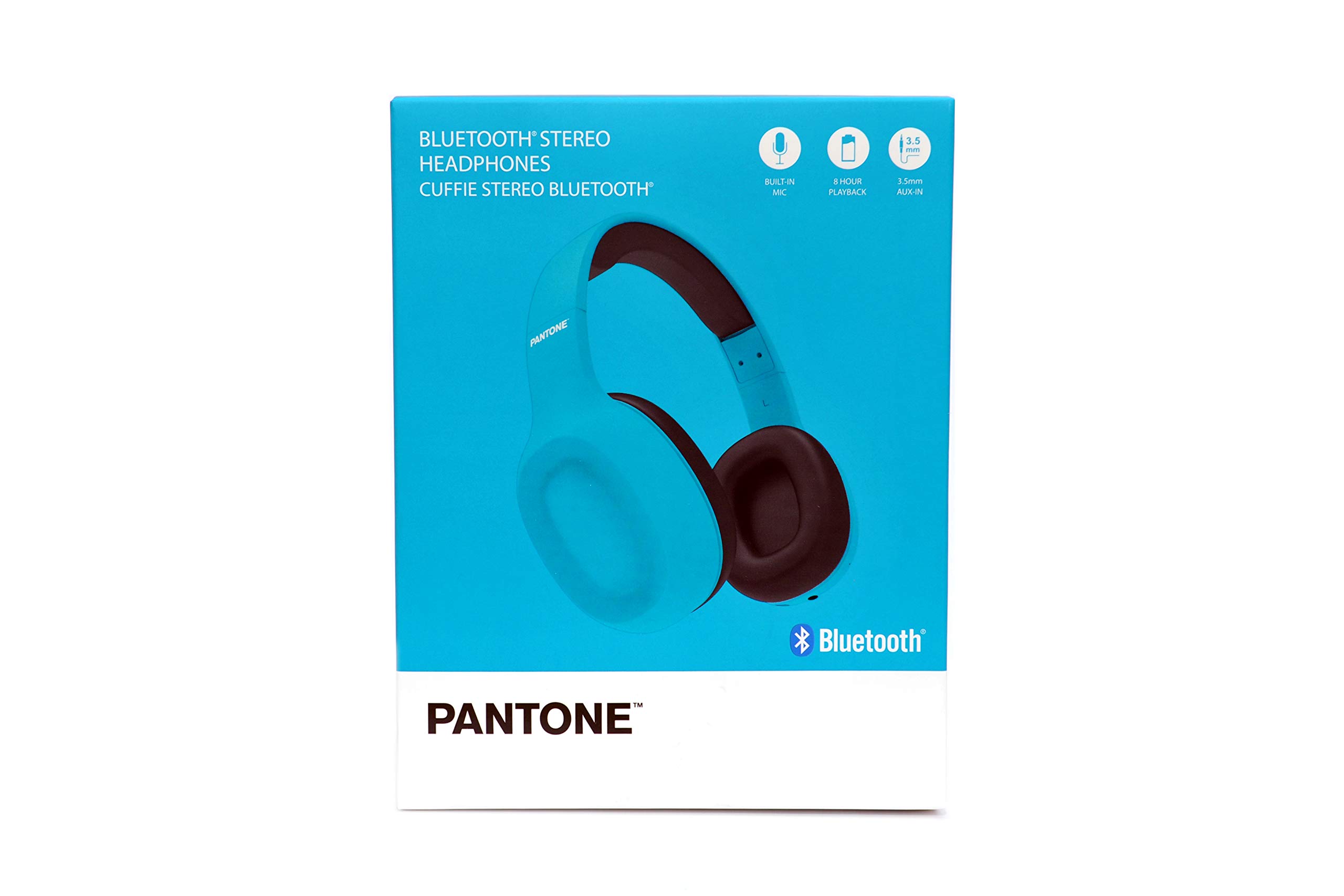
Image: Front view of the Pantone Stereo Bluetooth Headphones, showcasing the over-ear design and earcups.
Setup
1. Unboxing and Initial Charge
Upon opening the package, ensure all components are present:
- Pantone Stereo Bluetooth Headphones
- USB Charging Cable
- 3.5mm Audio Cable (AUX)
- User Manual (this document)
Before first use, fully charge the headphones. Connect the USB charging cable to the charging port on the headphones and the other end to a USB power source (e.g., computer USB port or wall adapter). The charging indicator light will typically turn red during charging and turn off or change color when fully charged.
2. Bluetooth Pairing
- Ensure the headphones are turned off.
- Press and hold the Power button for approximately 5-7 seconds until the indicator light flashes blue and red alternately, indicating pairing mode.
- On your device (smartphone, tablet, computer), enable Bluetooth and search for available devices.
- Select "Pantone Headphones" (or similar name) from the list of found devices.
- Once connected, the indicator light will typically flash blue slowly or remain solid blue.
If a password is required, enter "0000" (four zeros).
3. Wired Connection (AUX)
To use the headphones with a wired connection, simply plug one end of the 3.5mm audio cable into the AUX port on the headphones and the other end into the audio output jack of your device. The Bluetooth function will automatically disable when the AUX cable is connected.
Operating Instructions
Power On/Off
- Power On: Press and hold the Power button for 3 seconds. The indicator light will flash blue.
- Power Off: Press and hold the Power button for 3 seconds. The indicator light will turn off.
Volume Control
- Volume Up: Press the '+' button.
- Volume Down: Press the '-' button.
Music Playback
- Play/Pause: Press the Power/Multi-function button once.
- Next Track: Press and hold the '+' button.
- Previous Track: Press and hold the '-' button.
Call Management
- Answer/End Call: Press the Power/Multi-function button once.
- Reject Call: Press and hold the Power/Multi-function button for 2 seconds.
- Redial Last Number: Double-press the Power/Multi-function button.
Maintenance
Cleaning
Regularly clean your headphones to maintain hygiene and performance:
- Use a soft, dry, lint-free cloth to wipe the exterior surfaces.
- For ear cushions, gently wipe with a slightly damp cloth and mild soap solution, then dry thoroughly.
- Do not use harsh chemicals, solvents, or abrasive cleaners.
- Avoid getting moisture into any openings.
Storage
When not in use, store the headphones in a cool, dry place, away from direct sunlight, extreme temperatures, and humidity. If possible, use a protective case to prevent damage.
Battery Care
To prolong battery life:
- Avoid fully discharging the battery frequently.
- Charge the headphones regularly, even if not used for extended periods.
- Do not expose the headphones to extreme heat or cold, as this can degrade battery performance.
Troubleshooting
| Problem | Possible Solution |
|---|---|
| Headphones do not power on. | Ensure the battery is charged. Connect to a power source using the USB cable. |
| Cannot pair via Bluetooth. |
|
| No sound or low volume. |
|
| Poor sound quality or intermittent connection. |
|
| Microphone not working during calls. |
|
Specifications
- Brand: Pantone
- Model: B089T6FSGP
- Connectivity Technology: Wireless (Bluetooth)
- Wireless Communication Technology: Bluetooth
- Form Factor: Over-Ear
- Power Source: Rechargeable Battery (via USB)
- Audio Input: 3.5mm AUX port
- Color: Green (as per product specifications, actual product may vary)
Warranty Information
Specific warranty details for your Pantone Stereo Bluetooth Headphones may vary by region and retailer. Please refer to the warranty card included in your product packaging or visit the official Pantone website for the most accurate and up-to-date warranty information. Keep your proof of purchase for any warranty claims.
Customer Support
For further assistance, technical support, or inquiries regarding your Pantone Stereo Bluetooth Headphones, please contact Pantone customer service. You can typically find contact information on the official Pantone website or through the retailer where you purchased the product.
Online Resources: Visit the Pantone Store on Amazon for product information and updates.