
1. Introduction
This manual provides detailed instructions for the HXSJ J600 Mechanical Gaming Mouse. Please read this guide thoroughly to ensure proper setup, operation, and maintenance of your device. The HXSJ J600 is designed for gaming enthusiasts, featuring customizable macro programming, adjustable DPI, and dynamic LED lighting.
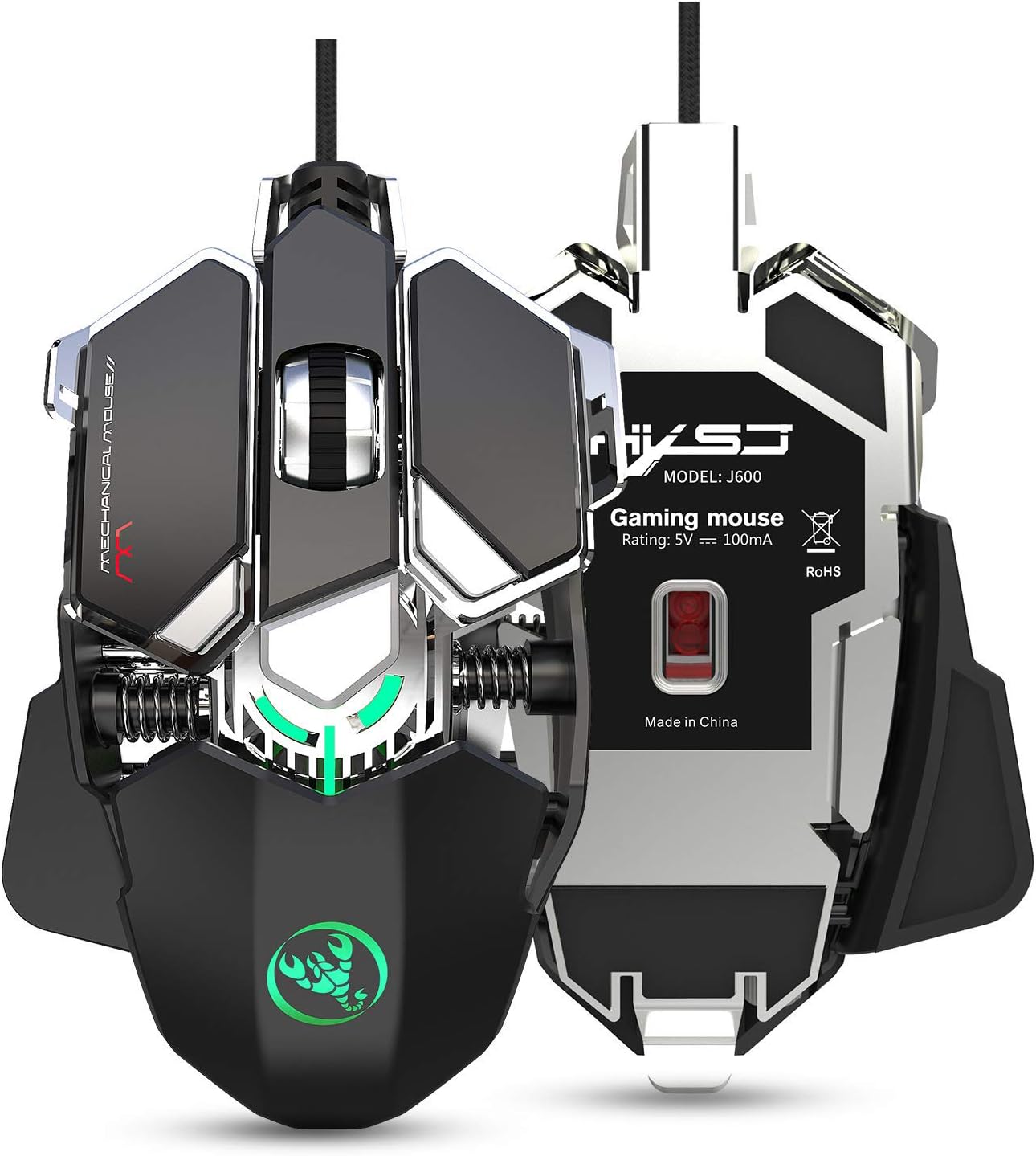
Image 1.1: The HXSJ J600 Mechanical Gaming Mouse, showcasing its ergonomic design and illuminated features. This image provides a general view of the product.
2. Product Overview
2.1 Key Features
- 9 Programmable Keys: Full-key customization for macros and functions.
- Adjustable DPI: Six-level DPI settings (800-1600-2400-3200-4800-6400) for precise control.
- Advanced Gaming Chip: Utilizes a professional A6653 game chip for stable transmission and accurate analysis.
- Dynamic LED Lighting: Cool LED variable light effects with 16 million RGB full-color breathing lights and multiple mode changes.
- Ergonomic Design: Human body engineering design for comfortable use during extended gaming sessions.
- Durable Construction: Integrated aluminum alloy sandblasted metal floor design and electroplated skeleton structure.
2.2 Mouse Components

Image 2.1: Overview of the HXSJ J600 mouse buttons in Office Mode. Key components include Left Button (1), Right Button (2), Middle Button/Scroll Wheel (3), Forward (4), Back button (5), Display Desktop (6), DPI- (7), DPI+ (8), and Fire Key3 (9).

Image 2.2: Exploded view illustrating the modular structure design of the HXSJ J600. Key internal components shown are the braided wire, spraying process, right button (dumb UV process), spray sanding border, million click life micro switch, fixed decorative spring, PCP board, electroplated skeleton structure, sandblasting base, metal screw decoration, and UPE foot stickers.
3. Setup
- Connect the Mouse: Plug the USB connector of the HXSJ J600 mouse into an available USB port on your computer. The mouse is plug-and-play.
- Driver Installation:
- Download the macro programming software from the official HXSJ website.
- Run the "setup.exe" file to install the driver software.
- Once the installation is complete, a "J600" drive icon will appear on your desktop.
- Initial Use: Ensure the mouse is successfully connected and functioning normally before proceeding with customization.
4. Operating Instructions
4.1 Button Settings and Macro Programming
The HXSJ J600 features 9 programmable buttons. The installed driver software allows for custom settings and macro editing to enhance your gaming experience.
- Open the "J600" driver software from your desktop.
- Navigate to the "Button settings" section. Here, you can assign custom functions to buttons 1-9.
- For advanced customization, go to "Custom Settings" to access the macro editing interface. You can create and edit macros to support various game effects.
4.2 DPI Adjustment
The mouse supports 6-level adjustable DPI settings. You can cycle through these settings using the dedicated DPI+ and DPI- buttons on the mouse.
- Default DPI values: 800, 1600, 2400, 3200, 4800, 6400.
- Each DPI level is indicated by a specific LED color, providing visual feedback when switching.

Image 4.1: Visual representation of DPI switching and corresponding LED colors. DPI levels are 800 (Green), 1600 (Purple), 2400 (Blue), 3200 (Red), 4800 (Yellow), and 6400 (Cyan-blue).

Image 4.2: The HXSJ J600 mouse demonstrating its 6400 DPI high precision capability, ensuring stable transmission and accurate analysis for various applications including gaming.
4.3 LED Settings
The HXSJ J600 features customizable LED lighting effects.

Image 4.3: The HXSJ J600 mouse displaying its 16 million RGB full-color breathing lights, offering various lighting modes and adjustable switching speeds.
Within the driver software, you can configure LED settings:
- Always On: LED lights remain constantly illuminated.
- Custom Breath: LED lights pulse with a customizable breathing effect.
- Spectral Cycle: LED lights cycle through a spectrum of colors.
- Off: LED lights are turned off.
4.4 Mouse Parameters
The driver software allows you to fine-tune various mouse parameters:
- Pointer Precision: Adjust the accuracy of the mouse pointer.
- Wheel Speed: Control the scrolling speed of the mouse wheel.
- Double Click Speed: Set the required speed for a double-click to register.
4.5 Saving Settings
After making any adjustments in the driver software, click "Applications" and then "Save Configuration." To ensure all customizations are active, you should restart the driver software the next time you use the mouse.
5. Maintenance
To ensure the longevity and optimal performance of your HXSJ J600 Mechanical Gaming Mouse, follow these simple maintenance guidelines:
- Cleaning: Regularly wipe the mouse surface with a soft, dry cloth. For stubborn dirt, slightly dampen the cloth with water. Avoid using harsh chemicals or abrasive materials.
- Cable Care: Avoid sharp bends or excessive pulling on the USB cable to prevent damage.
- Storage: Store the mouse in a clean, dry environment away from extreme temperatures and direct sunlight when not in use.
6. Troubleshooting
If you encounter any issues with your HXSJ J600 Mechanical Gaming Mouse, please refer to the following common solutions:
- Mouse Not Responding: Ensure the USB cable is securely plugged into a functional USB port on your computer. Try a different USB port.
- Driver Issues: If customization settings are not applying, ensure the driver software is correctly installed and running. Try reinstalling the driver if problems persist.
- DPI or LED Not Changing: Verify that you are using the correct buttons for DPI adjustment and that the driver software settings are saved.
- Unresponsive Buttons: Check the button assignments in the driver software. If a button is physically stuck, gently clean around it.
For further assistance, please contact HXSJ customer support.
7. Specifications
| Feature | Specification |
|---|---|
| Product Model | J600 Mechanical Macros Define the game mouse |
| Keys | 9 programmable keys |
| DPI Levels | 800-1600-2400-3200-4800-6400 (adjustable) |
| LED Effect | Cool LED variable light effect, 16 million RGB full-color breathing lights |
| Voltage / Current | DC 5V / 100mA |
| Interface | USB (Plug and Play) |
| Switch Life | 20 million cycles |
| Cable Length | 150 cm |
| Item Weight | 137.5g |
| Item Size (L*W*H) | 130*80*35mm |
| Supported OS | Windows 2000 / XP / win7 / win8 / win10 / Vista 32bit / IOS or latest |
| Hardware Platform | PC |
| Material Type | Metal |
| Hand Orientation | Right |
8. Warranty and Support
For information regarding warranty coverage and technical support for your HXSJ J600 Mechanical Gaming Mouse, please refer to the warranty card included with your product or visit the official HXSJ website. You can also contact HXSJ customer service for assistance with any product-related inquiries or issues.
