
1. Introduction
Thank you for purchasing the Yanmis HD Digital Video Camera Camcorder. This compact and versatile camcorder is designed for ease of use, making it suitable for capturing your precious moments in high definition. Please read this manual thoroughly before operating the device to ensure proper usage and optimal performance.
2. Package Contents
- Yanmis HD Digital Video Camera Camcorder
- User Manual
- Battery (x2, as per video review)
- USB Charging Cable
- AV Output Cable
- Wall Charger Adapter
- Camera Pouch
- Lens Cleaning Cloth
3. Product Features
- Durable Design: Built to withstand minor impacts, portable, lightweight, and easy to handle for various activities like cycling or hiking.
- Multifunctional: Supports up to 1080P video recording, features a 2-inch TFT LCD screen, 16X digital zoom, USB 2.0 connectivity, and allows for photography, video playback, and deletion.
- Pause Function: Easily pause and resume recording without creating new video files, simplifying post-production editing.
- Memory Support: Compatible with SD cards up to 32GB (Video-AVI / Photo-JPEG file format).
4. Physical Components and Controls
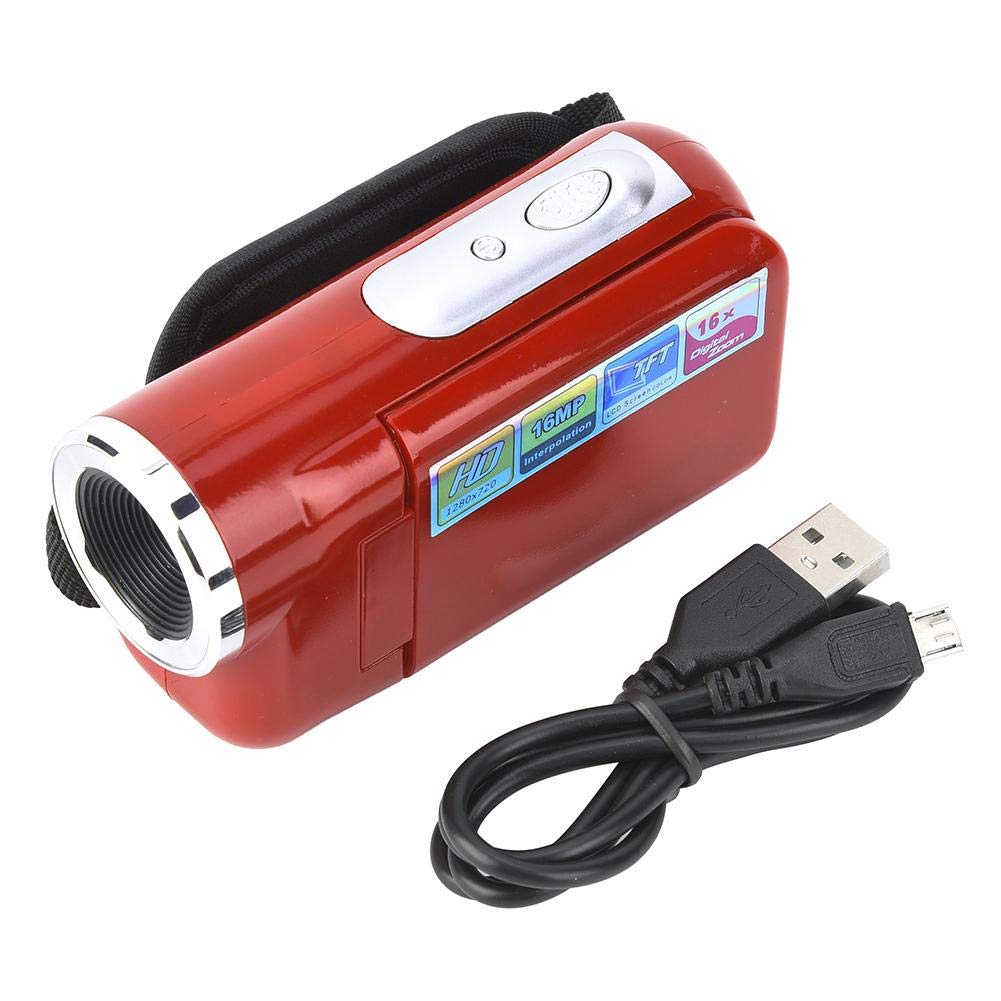
Figure 1: Yanmis Camcorder in an outdoor setting, demonstrating its compact size and ease of use.
- Lens: Front-facing lens for capturing video and photos.
- 2-inch TFT LCD Screen: Rotatable screen for viewing live footage, navigating menus, and reviewing media.
- Power Button: Located near the screen hinge, used to turn the device on/off.
- Record/Shutter Button: Typically located at the back or top, used to start/stop video recording or take photos.
- Zoom Controls: Buttons or a rocker switch for 16X digital zoom.
- Menu/Mode Buttons: For accessing settings and switching between video/photo modes.
- USB Port: Micro USB port for charging and connecting to a computer.
- AV Output Port: For connecting to a television.
- SD Card Slot: Located in the battery compartment, supports up to 32GB SD cards.
- Tripod Mount: Standard thread at the bottom for mounting on a tripod.
5. Setup
5.1 Inserting the Battery
- Open the battery compartment cover, usually located at the bottom of the camcorder.
- Insert the provided battery, ensuring correct polarity.
- Close the battery compartment cover securely.
5.2 Inserting an SD Card
- Locate the SD card slot, typically inside the battery compartment.
- Insert a compatible SD card (up to 32GB) into the slot until it clicks into place.
- To remove, gently push the card until it pops out.
5.3 Charging the Battery
- Connect the USB charging cable to the camcorder's Micro USB port.
- Plug the other end of the USB cable into the wall charger adapter and then into a power outlet.
- The charging indicator light will illuminate. Charging is complete when the light changes color or turns off.
6. Operating Instructions
6.1 Power On/Off
- To power on, open the LCD screen or press and hold the Power button.
- To power off, close the LCD screen or press and hold the Power button.
6.2 Recording Video
- Ensure the camcorder is in video mode (check the screen icon).
- Press the Record button to start recording. A red indicator light will usually show that recording is in progress.
- To pause recording, press the Record button briefly. Press again to resume.
- To stop recording, press the Record button firmly.
6.3 Taking Photos
- Ensure the camcorder is in photo mode.
- Frame your shot using the LCD screen.
- Press the Shutter button (often the same as the Record button) to take a photo.
6.4 Using Digital Zoom
- Use the zoom controls (buttons or rocker switch) to zoom in (T) or zoom out (W).
- Note: This camcorder features 16X digital zoom, which digitally enlarges the image and may affect image quality at higher zoom levels.
6.5 Menu Navigation and Settings
- Press the Menu button to access the main menu.
- Use the Up/Down/Left/Right buttons (or joystick) to navigate through menu options.
- Press the OK button to select an option.
- Common settings include video resolution (up to 1080P), photo resolution, date/time stamp, and various scene modes.
6.6 Playback
- In the main menu, select the Playback option to view your recorded videos and photos.
- Use the navigation buttons to browse through your media.
- Press OK to play a video or view a photo.
6.7 Connecting to a Computer/TV
- To Computer: Use the USB cable to connect the camcorder to your computer. The device should appear as a removable disk, allowing you to transfer files.
- To TV: Use the provided AV output cable to connect the camcorder to your television for viewing media on a larger screen.
7. Media Integration
7.1 Product Images

Image: The Yanmis camcorder held in hand, capturing an outdoor scene with paragliders in the distance. This illustrates its portability and suitability for outdoor activities.

Image: The camcorder with its 2-inch TFT LCD screen open, displaying a child playing with bubbles. This highlights the screen's functionality for easy operation and review.

Image: A child happily holding the Yanmis camcorder, demonstrating its user-friendly design and appeal for younger users.

Image: Icons illustrating key features: HD lens (F3.1, f=6.5mm), 500 million pixels (interpolated 16 million pixels), HD picture quality (4x digital zoom), and night shooting (standby).

Image: A diagram showing the dimensions of the camcorder: 10cm/3.9inch length, 3.5cm/1.4inch width, and 5.5cm/2.2inch height, emphasizing its compact size.

Image: Top-down view of the Yanmis camcorder with the screen folded, showing the lens and top controls.

Image: An angled view of the Yanmis camcorder with the screen folded, highlighting its sleek design.
7.2 Official Product Videos
Video: An official product video from Muitune Direct showcasing the 2.7K Camcorder Video Camera. This video demonstrates the camera's features and capabilities.
8. Maintenance
- Cleaning: Use the provided lens cleaning cloth to gently wipe the lens and screen. Avoid using harsh chemicals.
- Storage: Store the camcorder in its protective pouch in a cool, dry place away from direct sunlight and extreme temperatures.
- Battery Care: Remove the battery if the camcorder will not be used for an extended period.
9. Troubleshooting
- Camcorder not powering on: Ensure the battery is correctly inserted and fully charged.
- SD card not recognized: Check if the SD card is inserted correctly and is not damaged. Ensure it is formatted to a compatible file system (FAT32).
- Poor image/video quality: Ensure adequate lighting. Note that 16X digital zoom may reduce clarity.
- No audio during playback: Check the volume settings on the camcorder or connected TV.
10. Specifications
| Feature | Description |
|---|---|
| Brand | Yanmis |
| Model Number | Yanmis016ucxth5n-02 |
| Item Weight | 4.2 ounces |
| Product Dimensions | 3.94 x 2.17 x 1.38 inches |
| Color | Red |
| Special Feature | Portable |
| Photo Sensor Technology | Other |
| Video Capture Resolution | 480p, 720p |
| Flash Memory Type | SD (up to 32GB) |
| Video Capture Format | AVI |
| Supported Audio Format | AAC, MP3, PCM |
| Screen Size | 2 Inches |
| Connectivity Technology | USB |
11. Warranty and Support
For warranty information or technical support, please refer to the contact details provided with your purchase or visit the official Yanmis website. We are committed to providing quality after-sales service.