Introduction
This manual provides essential information for the proper setup, operation, and maintenance of your Miroddi Wireless Charging Mouse Pad. Please read these instructions carefully before use to ensure optimal performance and longevity of the product.

Image: Overhead view of the Miroddi Wireless Charging Mouse Pad on a desk, showcasing its large surface area and integrated wireless charging zone with a smartphone charging.
Safety Information
To ensure safe operation, observe the following precautions:
- Do not expose the device to water or excessive moisture.
- Avoid extreme temperatures.
- Use only the provided USB cable and a compatible power adapter (recommended 10W or higher, 9V/1.2A output). Do not plug directly into a computer's USB port as it may not provide sufficient power.
- Keep away from children.
- Do not disassemble or attempt to repair the device.
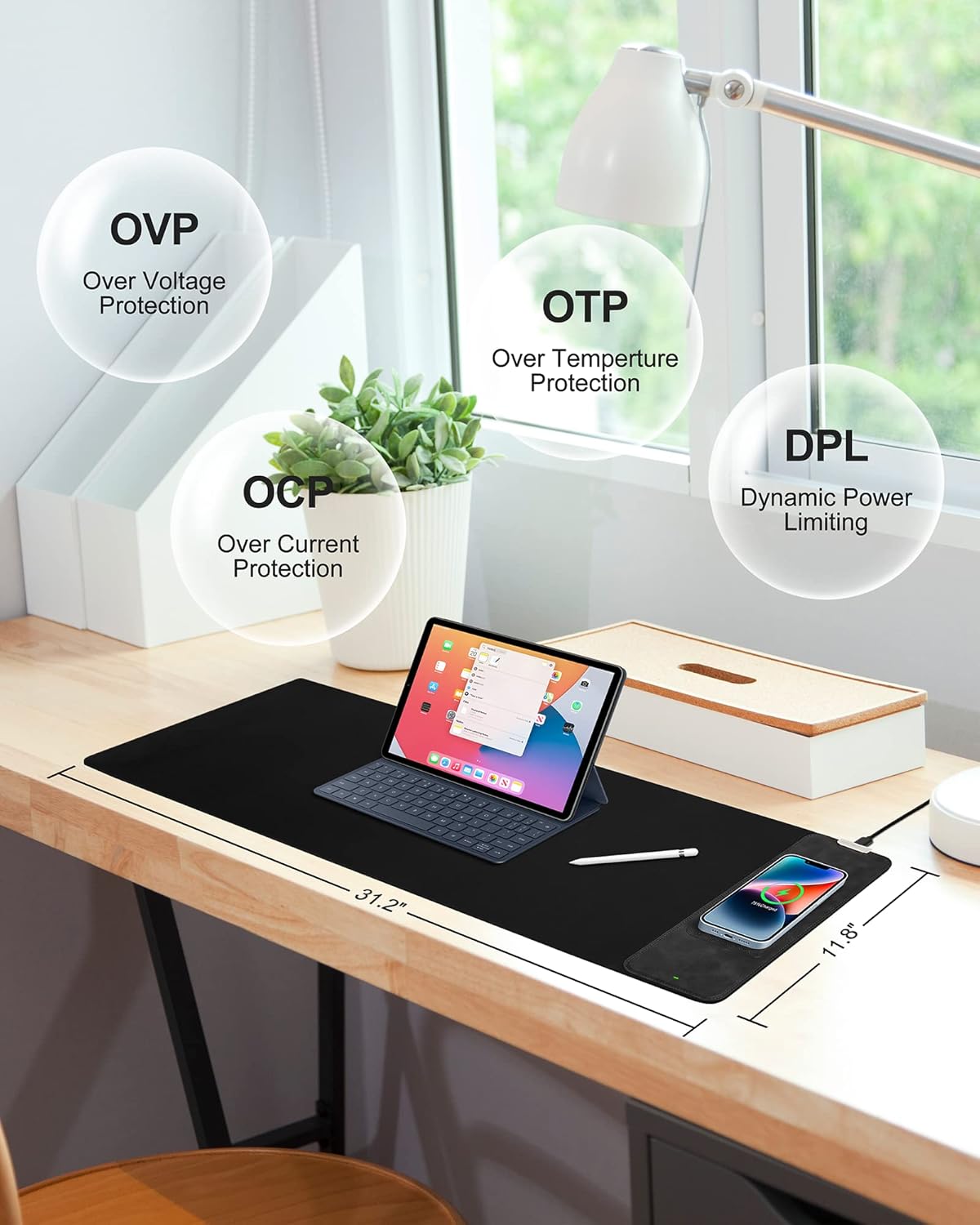
Image: Diagram highlighting built-in safety features: Over Voltage Protection (OVP), Over Temperature Protection (OTP), Over Current Protection (OCP), and Dynamic Power Limiting (DPL).
Setup Instructions
- Unpack the Mouse Pad: Carefully remove the mouse pad from its packaging. Allow it to unroll and flatten on your desk surface.
- Connect Power: Locate the USB-C port on the mouse pad's wireless charging module. Connect the provided USB-C cable to this port.
- Connect to Power Adapter: Plug the other end of the USB-C cable into a compatible power adapter. For optimal wireless charging performance, a power adapter with at least 10W output (e.g., 9V/1.2A) is recommended. Do not connect directly to a computer's USB port, as it may not supply sufficient power for wireless charging.
- Power On: Once connected to a suitable power source, the LED indicator on the charging module will illuminate, indicating it is ready for use.

Image: Detailed view of the wireless charging module, highlighting the charging board and the LED indicator light.

Image: Illustration of a smartphone charging on the wireless pad, with a note emphasizing the use of a 10W or higher power adapter for optimal performance.
Operating Instructions
Wireless Charging Function
The Miroddi Wireless Charging Mouse Pad features a 10W wireless charging zone compatible with Qi-enabled devices.
- Place Your Device: Position your Qi-enabled smartphone or earbuds (e.g., iPhone 8 series and newer, Samsung Galaxy S8 series and newer, AirPods, Galaxy Buds) onto the designated wireless charging area on the mouse pad. Ensure the device's charging coil is aligned with the charging board.
- Charging Indicator: The LED light on the charging module indicates the charging status.
- Blue Light: Indicates the charging pad is idle or not actively charging.
- Green Light: Indicates a device is actively charging.
- Note: The indicator light may occasionally flicker between blue and green or remain blue even when charging, depending on the device and charging status. Always verify charging status on your device's screen.
- Optimal Charging: For best results, ensure your device is centered on the charging area. Thick phone cases may interfere with wireless charging; it may be necessary to remove them for efficient charging.

Image: A smartphone charging on the wireless pad, demonstrating compatibility with various Qi-enabled devices including AirPods.
Mouse Pad Usage
- The ultra-smooth surface is designed for precise mouse tracking, suitable for both optical and laser mice.
- The non-slip rubber base ensures the mat remains stable during use.

Image: Close-up view of the mouse pad's nano-textured surface, designed for smooth and accurate mouse control.

Image: Detail of the anti-slip rubber base, ensuring stability on various desk surfaces.
Maintenance and Care
- Cleaning: The mouse pad's surface is waterproof and stain-resistant. To clean, gently wipe with a damp cloth and mild soap if necessary. Rinse with clean water and allow to air dry completely before reuse. Do not machine wash or tumble dry.
- Storage: When not in use for extended periods, you may roll up the mouse pad for storage. Avoid sharp creases.
- Avoid Damage: Do not place heavy or sharp objects on the mouse pad, especially over the wireless charging area, to prevent damage.
Troubleshooting
| Problem | Possible Cause | Solution |
|---|---|---|
| Device not charging wirelessly. |
|
|
| Charging is slow. |
|
|
| Device or charging area gets warm. |
|
|
| Mouse pad does not lie completely flat. |
|
|
Product Specifications
| Brand | Miroddi |
| Model Number | B089Q579YJ |
| Dimensions (LxWxH) | 31.49 x 11.81 x 0.1 inches |
| Item Weight | 1.46 pounds |
| Color | Black |
| Power Source | Corded Electric (USB-C) |
| Wireless Charging Output | Up to 10W (7.5W for iPhones, 10W for Android, 5W for other Qi devices) |
| Material | Rubber, Textured Micro-Weave Cloth |
| Special Features | Large XXL Size, Non-slip, Smooth, Stain-Resistant, Waterproof, Wireless Charging |
Warranty and Support
Miroddi products are designed for quality and reliability. For warranty information or technical support, please refer to the contact details provided with your purchase or visit the official Miroddi website.
Please retain your proof of purchase for warranty claims.


