
1. Product Overview
The Easyfone Elite 4G is a mobile phone designed for seniors, featuring a 2.8-inch display, large backlit keys, and a range of functionalities to enhance ease of use and safety. It supports 4G networks and includes features like a CareTouch App for remote management, SOS emergency assistance, and health reminders.

Image: Easyfone Elite 4G phone shown with its charging dock.
2. Getting Started
2.1. Package Contents
Verify that all items are present in the box:
- 1U Handset
- 1U Power Adapter
- 1U Dock Charger
- 1U Lithium-ion Battery
- 1U User Manual
2.2. Initial Setup
- Insert SIM Card and Battery: Open the back cover of the phone. Carefully insert your 4G compatible SIM card(s) into the designated slot(s). Insert the Lithium-ion battery, ensuring correct orientation. Replace the back cover.
- Charge the Phone: Connect the power adapter to the charging dock. Place the phone into the charging dock. The phone will indicate that it is charging. For first-time use, charge the phone completely.
- Power On: Press and hold the Power/End Call button until the screen lights up.

Image: Easyfone Elite 4G phone placed in its charging dock.
3. Key Features and Operation
3.1. Display and Keypad
The phone features a 2.8-inch color display for clear visibility. The large, separated, and backlit keys are designed for easy dialing and navigation. A talking keypad feature announces the numbers as they are pressed.

Image: Close-up of the phone's screen displaying large, easy-to-read numbers.
3.2. Photo Speed Dial
The Photo Speed Dial feature allows users to assign up to 8 favorite contacts with their photos. To call, simply press the assigned number key.

Image: Phone screen displaying four photo contacts for quick dialing.
3.3. Audio and Ringtones
The phone provides loud and clear audio for comfortable conversations. Distinctive ringtones ensure that incoming calls are easily heard, even in noisy environments.

Image: Phone displaying sound icons, emphasizing loud and clear audio.
3.4. Customizable Menu
The menu can be customized to hide unused options, simplifying the interface for users.
4. Safety Features
4.1. SOS Emergency Help Button
A dedicated SOS button is located on the back of the phone. In an emergency, pressing this button triggers calls and SMS alerts with location information to up to 5 pre-set contacts. A loud siren also activates to draw attention.

Image: Rear view of the phone with the SOS button and a map indicating emergency contact locations.
4.2. Safelist Feature (Call Blocking)
The Safelist feature allows the phone to receive calls only from trusted contacts (up to 50 numbers). This helps block spam, fraud, telemarketing, and unwanted calls.
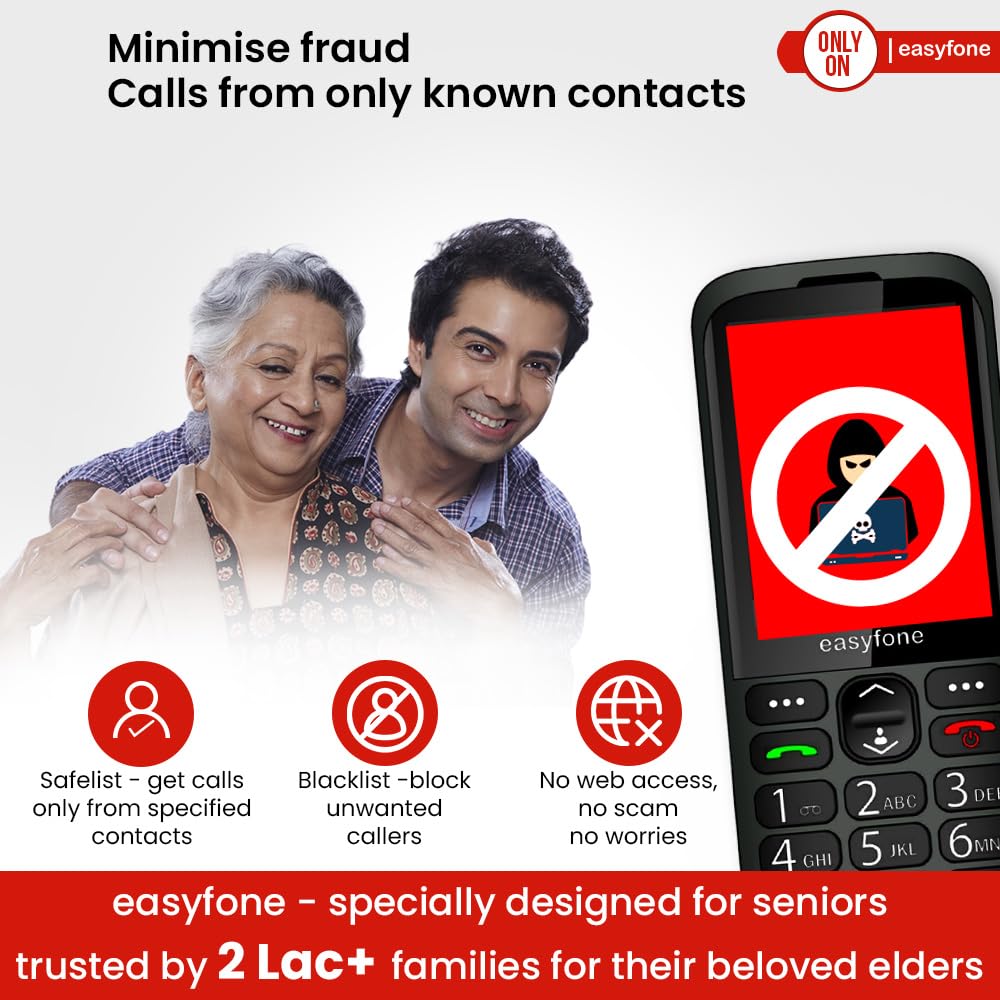
Image: Phone screen with a 'Blocked' stamp, demonstrating the Safelist feature to prevent unwanted calls.
4.3. Ambulance Co-ordination Service
The phone includes a 24*7 Ambulance Co-ordination service, available in over 850 Indian cities, for critical medical emergencies.
5. Health and Wellness Features
The Easyfone Elite 4G supports health and wellness management through various features:
- Medicine Reminders: Set alerts to ensure medication is taken on time.
- Health Diary: Record and update health readings, which can be shared with caregivers.
- Daily Motivational Content: Features 'Thought of the Day' and fun quizzes to keep users mentally active and engaged.

Image: Phone screen displaying a medicine reminder icon.

Image: Phone screen showing the 'Health' menu with options like Health Diary and Medicine Reminder.
6. CareTouch App (Remote Management)
The CareTouch App allows family members and caregivers to remotely manage phone settings, set reminders, track medicine compliance, and update contacts from their own smartphones. This ensures continuous support and peace of mind.

Image: Smartphone screen showing the CareTouch App interface, demonstrating remote management capabilities for the Easyfone Elite 4G.
7. Specifications
| Feature | Detail |
|---|---|
| OS | Nucleus OS |
| RAM | 32 MB |
| Product Dimensions | 10 x 5 x 1 cm |
| Item Weight | 120 g |
| Item Model Number | Elite |
| Connectivity Technologies | Bluetooth, USB |
| Special Features | LED Flash, Primary Camera, Radio, USB |
| Device Interface - Primary | Keypad |
| Resolution | 240 x 320 |
| Audio Jack | 3.5 mm |
| Form Factor | Bar |
| Battery Power Rating | 1700 Milliamp Hours |
| Phone Talk Time | 10 Hours |
| Manufacturer | Enovus Enterprises Pvt. Ltd (India) |
| Country of Origin | China |
8. Troubleshooting
If you encounter issues with your Easyfone Elite 4G, consider the following common solutions:
- Phone Not Powering On: Ensure the battery is correctly inserted and fully charged. Connect to the charger and wait a few minutes before attempting to power on again.
- No Network Signal: Check if the SIM card is properly inserted. Ensure you are in an area with network coverage.
- Cannot Hear Calls / Low Volume: Adjust the volume settings using the side buttons. Ensure the speaker is not obstructed.
- Phone Not Ringing: Check the ringtone volume settings. Ensure 'Do Not Disturb' (DND) mode is not activated.
- CareTouch App Sync Issues: Ensure both the smartphone with the CareTouch App and the Easyfone Elite 4G have a stable internet connection. Verify that the app is updated to the latest version.
- Unresponsive Keys: Restart the phone. If the issue persists, contact customer support.
9. Warranty and Support
9.1. Warranty Information
The Easyfone Elite 4G comes with a 2-year warranty. Please retain your purchase receipt for warranty claims.
9.2. Customer Support
For any assistance, queries, or service requests, please contact Easyfone customer support:
- Contact Number: 8800688007
- Email: support@easyfone.in
9.3. Home Pick Up Service
Easyfone offers a convenient home pick-up and drop service across India for product servicing.

Image: Illustration depicting the Easyfone Home Pick Up Service process.
10. Product Video Overview
Watch this video for a visual guide to the Easyfone Elite 4G's features and benefits.
Video: An overview of the Easyfone Elite 4G, showcasing its user-friendly design, safety features, and remote management capabilities.


