
Important Safety Information
Please read these safety instructions carefully before using your GIGABYTE G27QC monitor. Keep this manual for future reference.
- Do not expose the monitor to rain or moisture to prevent fire or shock hazards.
- Do not open the monitor casing. There are no user-serviceable parts inside. Refer all servicing to qualified service personnel.
- Ensure proper ventilation. Do not block ventilation openings.
- Use only the power adapter and cables provided by GIGABYTE.
- Place the monitor on a stable, flat surface to prevent it from falling.
- Unplug the monitor from the power outlet during lightning storms or when unused for long periods.
- Clean the screen with a soft, lint-free cloth. Avoid using liquid cleaners directly on the screen.
Setup Guide
Package Contents
Verify that all items are present in the package:
- GIGABYTE G27QC Monitor
- Power cable
- HDMI cable
- DisplayPort (DP) cable
- USB cable (Type-B to Type-A)
- Quick Start Guide (QSG)
- Warranty card
Assembly Instructions
Follow these steps to assemble the monitor stand and base:
- Carefully remove the monitor from its packaging, keeping it protected.
- Attach the stand neck to the monitor panel. Ensure it clicks securely into place.
- Attach the base to the stand neck and tighten the screws to secure it.
- Place the assembled monitor on a stable, flat surface.

Image: Rear view of the GIGABYTE G27QC monitor showing the stand attachment.

Image: Side profile of the GIGABYTE G27QC monitor, illustrating its slim design and stand.
Connecting the Monitor
Connect the monitor to your computer and power source:
- Connect the power cable to the monitor's power input and then to a power outlet.
- For video input, connect either the DisplayPort cable (for 165Hz at 1440p) or an HDMI cable (for up to 144Hz at 1440p) from your computer's graphics card to the corresponding port on the monitor.
- Connect the USB cable (Type-B end to the monitor, Type-A end to your computer) to enable the monitor's USB 3.0 hub and OSD Sidekick software functionality.

Image: Rear view of the GIGABYTE G27QC monitor, highlighting the various input ports for connectivity.
Operating the Monitor
Powering On/Off
Press the power button located on the monitor to turn it on or off. The power indicator light will illuminate when the monitor is active.
On-Screen Display (OSD) Navigation
The monitor features an intuitive OSD menu for adjusting settings. Use the joystick/buttons on the back or bottom of the monitor to navigate the menu. Alternatively, install the GIGABYTE OSD Sidekick software on your PC for convenient adjustments via your mouse and keyboard.

Image: Screenshot of the GIGABYTE OSD Sidekick software interface, allowing PC-based control of monitor settings.
Adjusting Display Settings
Key settings to adjust for optimal performance:
- Resolution: Set to 2560x1440 for native QHD display.
- Refresh Rate: Ensure your graphics card output is set to 165Hz for the smoothest experience.
- AMD FreeSync Premium Pro: Enable this feature in both the monitor OSD and your graphics card control panel for tear-free gaming.
- Color Settings: Adjust brightness, contrast, gamma, and color temperature to your preference. The monitor supports 92% DCI-P3 (120% sRGB) color gamut.
- HDR: Enable HDR in your operating system and monitor settings for compatible content.
- Tactical Features: Explore features like Aim Stabilizer, Black Equalizer, and Dashboard through the OSD or OSD Sidekick for enhanced gaming.

Image: Illustration of the Aim Stabilizer feature, designed to reduce motion blur in fast-paced games.

Image: Visual representation of the Black Equalizer feature, enhancing visibility in dark areas without overexposing bright ones.

Image: Display of the Dashboard feature, showing real-time hardware information on screen.
Ergonomic Adjustments
The monitor stand allows for ergonomic adjustments:
- Tilt: Adjust the screen's vertical angle for comfortable viewing.
- Height: Raise or lower the monitor to eye level to reduce neck strain.
- VESA Mount: The monitor is compatible with 100x100mm VESA mounts for alternative mounting solutions.
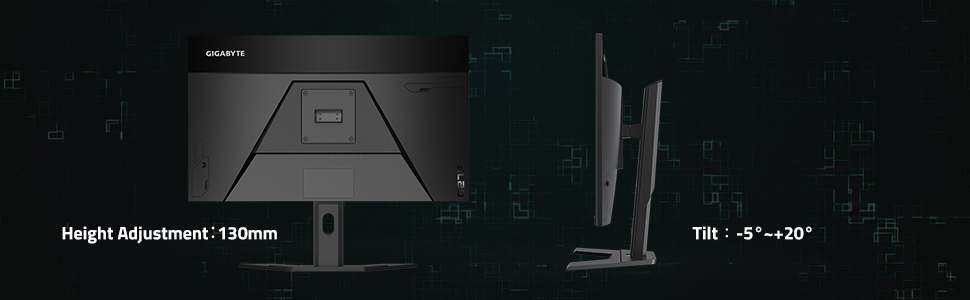
Image: Diagram illustrating the ergonomic tilt and height adjustment capabilities of the monitor stand.
Maintenance
Cleaning the Monitor
To clean the monitor screen and casing:
- Always unplug the monitor before cleaning.
- Use a soft, lint-free cloth slightly dampened with water or a non-abrasive screen cleaner.
- Do not spray liquid directly onto the screen or into any openings.
- Avoid using benzene, thinner, ammonia-based cleaners, or abrasive pads.
Storage
When storing the monitor for an extended period, ensure it is powered off, unplugged, and stored in a cool, dry place away from direct sunlight and extreme temperatures. Use original packaging if available for best protection.
Troubleshooting
If you encounter issues with your monitor, refer to the following common problems and solutions:
No Power
- Check if the power cable is securely connected to both the monitor and the power outlet.
- Verify that the power outlet is functioning correctly.
- Ensure the monitor's power button is pressed.
No Signal / Blank Screen
- Confirm that the video cable (DisplayPort or HDMI) is securely connected to both the monitor and your computer's graphics card.
- Ensure your computer is powered on and not in sleep mode.
- Try a different video input port on the monitor and select it via the OSD menu.
- Test with a different video cable if possible.
Flickering or Distorted Image
- Check the video cable for damage or loose connections.
- Ensure your graphics card drivers are up to date.
- Adjust the refresh rate in your operating system display settings.
- Disable AMD FreeSync Premium Pro temporarily to see if it resolves the issue.
Ghosting or Motion Blur
- Adjust the "Overdrive" or "Response Time" setting in the monitor's OSD menu. Experiment with different levels (e.g., "Balanced") to find the optimal setting for your usage.
- Ensure the refresh rate is set correctly.
Technical Specifications
| Feature | Specification |
|---|---|
| Model | G27QC |
| Screen Size | 27 Inches |
| Panel Type | VA Display |
| Resolution | 2560 x 1440 (QHD) |
| Refresh Rate | 165Hz |
| Response Time | 1ms (MPRT) |
| Curvature | Native 1500R |
| Color Gamut | 92% DCI-P3 / 120% sRGB |
| HDR Support | HDR Ready |
| Adaptive Sync | AMD FreeSync Premium Pro |
| Video Inputs | 1x DisplayPort 1.4, 2x HDMI 2.0 |
| USB Ports | 2x USB 3.0 |
| Speakers | 2 x 2W |
| VESA Mount | 100x100mm |
| Dimensions (LxWxH) | 14.54 x 24.17 x 2.89 inches (without stand) |
| Weight | 20.9 pounds |

Image: Diagram showing the physical dimensions of the GIGABYTE G27QC monitor.
Warranty and Support
Warranty Information
The GIGABYTE G27QC monitor typically comes with a 3-year warranty covering both labor and parts. Please refer to the included warranty card for specific terms, conditions, and registration details applicable to your region.
Customer Support
For further assistance, technical support, or to download the latest drivers and OSD Sidekick software, please visit the official GIGABYTE website:
You may also find helpful resources and FAQs on the product support page for your specific model.


