
1. Introduction
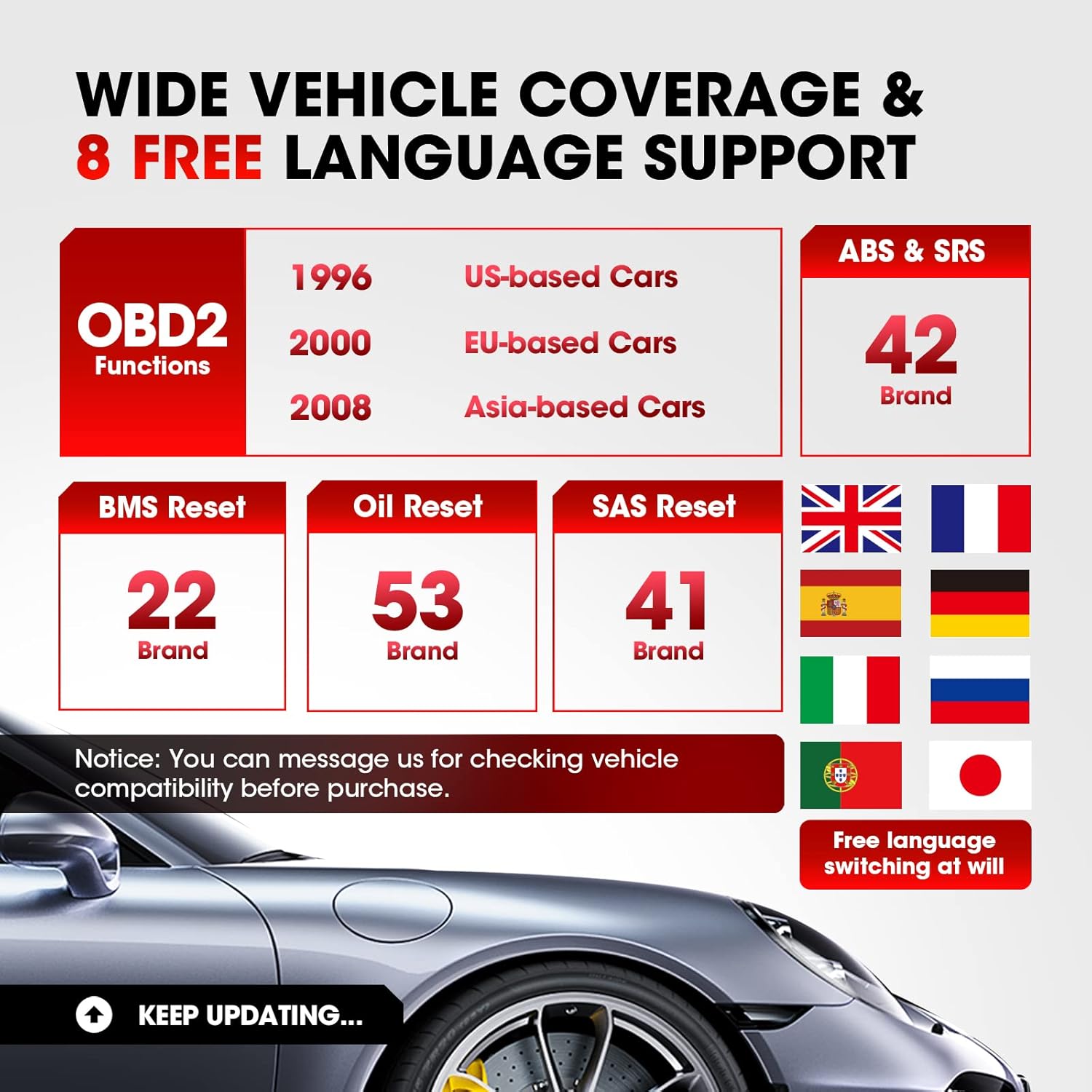
The LAUNCH CR629 is an advanced automotive diagnostic tool designed to assist in vehicle maintenance and troubleshooting. It provides comprehensive diagnostic functions for ABS (Anti-lock Braking System) and SRS (Supplemental Restraint System), including active tests, along with full OBD2 functions and three essential reset services: Oil Reset, Steering Angle Sensor (SAS) Reset, and Battery Management System (BMS) Reset. This manual provides detailed instructions for setting up, operating, and maintaining your CR629 device.
2. Safety Information
- Always perform automotive testing in a well-ventilated area.
- Wear safety eye protection and clothing that meets safety standards.
- Keep the device dry and clean. Do not expose it to extreme temperatures or humidity.
- Avoid contact with hot engine parts or moving components.
- Do not connect or disconnect the device while the vehicle's ignition is on, unless instructed otherwise.
- Refer to the vehicle's service manual for specific service procedures and precautions.
3. Setup
3.1 Connecting to the Vehicle
- Locate the vehicle's 16-pin Data Link Connector (DLC). This is usually located under the dashboard on the driver's side.
- Ensure the vehicle's ignition is OFF.
- Plug the CR629's diagnostic cable into the vehicle's DLC. Ensure a secure connection.
- Turn the vehicle's ignition to the ON position (engine off). The CR629 will power on automatically.
3.2 Initial Power-On and Language Selection
Upon first use, the device may prompt you to select your preferred language. Use the navigation buttons to select your language and press the 'OK' button to confirm.
3.3 Software Update Process
It is recommended to update the device software regularly to ensure compatibility with the latest vehicle models and diagnostic functions. The CR629 offers lifetime free updates.
- Download and install the update tool on your PC from the official LAUNCH website.
- Connect the CR629 scanner to your PC using the provided USB cable.
- Follow the on-screen instructions on the update tool to register your scanner and download the latest software package.
- Copy the update package to the memory card (if applicable) or directly to the device as prompted.
- Disconnect the device safely from the PC and restart it to complete the update.
4. Operating Instructions
4.1 ABS & SRS Diagnostics with Active Test
The CR629 can diagnose issues within the Anti-lock Braking System (ABS) and Supplemental Restraint System (SRS), including performing active tests to pinpoint problems.
- Read/Clear DTCs: Access the 'Scan' menu, select 'ABS/SRS', then choose 'Read Codes' to view diagnostic trouble codes or 'Erase Codes' to clear them.
- View Live Data Stream: From the 'Scan' menu, select 'ABS/SRS', then 'Data Stream' to view real-time sensor data in graphical or text format.
- Perform Active Test: Within the 'ABS/SRS' menu, select 'Active Test' to command specific components on and off, verifying their functionality. Note: Active tests are supported for 20 car brands.

4.2 3 Reset Services
The CR629 offers three common reset functions to assist with routine maintenance tasks.
- Oil Reset: Resets the oil life monitoring system after an oil change. Navigate to 'Service' > 'Oil Reset' and follow the prompts.
- SAS Reset (Steering Angle Sensor): Calibrates the steering angle sensor after suspension or steering component replacement. Access 'Service' > 'SAS Reset' and follow the instructions.
- BMS Reset (Battery Management System): Re-matches the battery control module and monitoring sensor after battery replacement. Select 'Service' > 'BMS Reset' and proceed as guided.

4.3 Full OBD2 Functions
The device supports all 10 modes of OBD2 tests for most post-1996 OBD2/CAN compliant vehicles.
- Read Codes: Retrieves generic (P0, P2, P3, and U0) and manufacturer specific (P1, P3, and U1) codes.
- Erase Codes: Clears Diagnostic Trouble Codes (DTCs) and resets monitors.
- I/M Readiness: Checks the readiness of the emission monitoring system.
- Data Stream: Displays live data from the vehicle's sensors.
- Freeze Frame: Shows a snapshot of operating conditions at the time of an emission-related fault.
- O2 Sensor Test: Retrieves O2 sensor monitor test results.
- On-Board Monitoring: Retrieves test results for emission-related powertrain components and systems.
- Component Test: Allows testing of specific components or systems.
- Vehicle Information: Retrieves vehicle identification number (VIN), calibration ID (CALID), and calibration verification number (CVN).
4.4 User-Friendly Features
- 3.5-inch LCD Color Display: Provides clear and easy-to-read diagnostic information.
- Hotkeys (F1/F2/F3): Quick access to frequently used functions directly from the main menu.
- DTC Lookup: Built-in library to quickly identify the meaning of diagnostic trouble codes without needing external resources.
- PC Printing: Allows printing of diagnostic reports by connecting the device to a PC.
- Review Data: Access historical DTCs, data streams, and freeze frame data for later analysis.


5. Maintenance
5.1 Cleaning the Device
To maintain the device's performance and appearance, clean it regularly with a soft, damp cloth. Do not use abrasive cleaners or solvents.
5.2 Software Updates
Regular software updates ensure your CR629 remains compatible with the latest vehicle models and diagnostic protocols. Refer to section 3.3 for detailed update instructions. Updates are free for the lifetime of the product.
6. Troubleshooting
If you encounter issues with your LAUNCH CR629, refer to the following common problems and solutions:
- Device does not power on: Ensure the diagnostic cable is securely connected to the vehicle's DLC and the vehicle's ignition is ON. Check the vehicle's battery voltage.
- Communication error: Verify the vehicle is OBD2 compliant. Check for loose connections. Turn the ignition off and then on again. Try the device on another vehicle to rule out a vehicle-specific issue.
- No fault codes found: If the Check Engine Light (MIL) is not illuminated, there may be no current fault codes. Check I/M Readiness status for pending codes.
- Update issues: Ensure a stable internet connection and follow the update instructions precisely. Contact customer support if problems persist.
7. Specifications
| Feature | Detail |
|---|---|
| Brand | LAUNCH |
| Model Number | CR629 |
| Power Source | Battery Powered (via OBD2 port) |
| Product Dimensions | 4.49"L x 1.36"W x 8.46"H |
| Screen Size | 3.5 Inches |
| Native Resolution | 320 x 480 |
| Operating System | Windows 7 (for PC connection/updates) |
| Supported Languages | English, French, German, Spanish, Portuguese, Russian, Japanese, Italian |
8. Warranty and Support
The LAUNCH CR629 comes with a 5-year warranty from the manufacturer. For any technical assistance, warranty claims, or product inquiries, please contact LAUNCH customer service.
- Customer Service Phone: 1-888-756-2936 (Mon-Fri 9:00 AM–6:00 PM EST)
- Customer Service Email: launch-aftersales@outlook.com
- Return & Replacement Policy: Available within 60 days of purchase.