
1. Introduction
Thank you for choosing the havit Mechanical Gaming Keyboard. This manual provides detailed instructions for setting up, operating, and maintaining your new keyboard. Designed for gaming and productivity, this keyboard features vibrant RGB lighting, durable PBT pudding keycaps, and responsive blue switches.
2. Package Contents
- havit Mechanical Gaming Keyboard
- USB Cable
- User Manual
3. Setup
Follow these steps to set up your havit Mechanical Gaming Keyboard:
- Connect the Keyboard: Plug the USB cable from the keyboard into an available USB port on your computer (PC or Mac).
- Driver Installation: The keyboard is plug-and-play and typically does not require additional drivers. Your operating system will automatically detect and install the necessary drivers.
- Placement: Place the keyboard on a stable, flat surface. You can adjust the typing angle using the foldable feet on the underside of the keyboard.

Image: The havit Mechanical Gaming Keyboard ready for use in a typical computer setup.
4. Operating Instructions
4.1 Basic Functions
- The keyboard functions as a standard QWERTY keyboard for typing and input.
- The integrated numeric keypad provides convenient number entry.
4.2 RGB Lighting Control
The keyboard features multiple RGB lighting effects and customization options:
- Adjust Backlight Modes: Press FN + F9 to cycle through 14 different backlight modes for the keys.
- Adjust Side Lighting Modes: Press FN + [{ or ]} to cycle through 11 different side lighting modes.
- Adjust Backlight Brightness: Press FN + ↑ (Up Arrow) or ↓ (Down Arrow) to increase or decrease backlight brightness.
- Adjust Backlight Movement Speed: Press FN + ↠(Left Arrow) or → (Right Arrow) to adjust the speed of dynamic lighting effects.
- Change Colors: For certain modes, use FN + = or - to change the colors.
- Custom Profiles: Create up to five different lighting profiles. Use FN + ESC to record custom key lighting combinations.
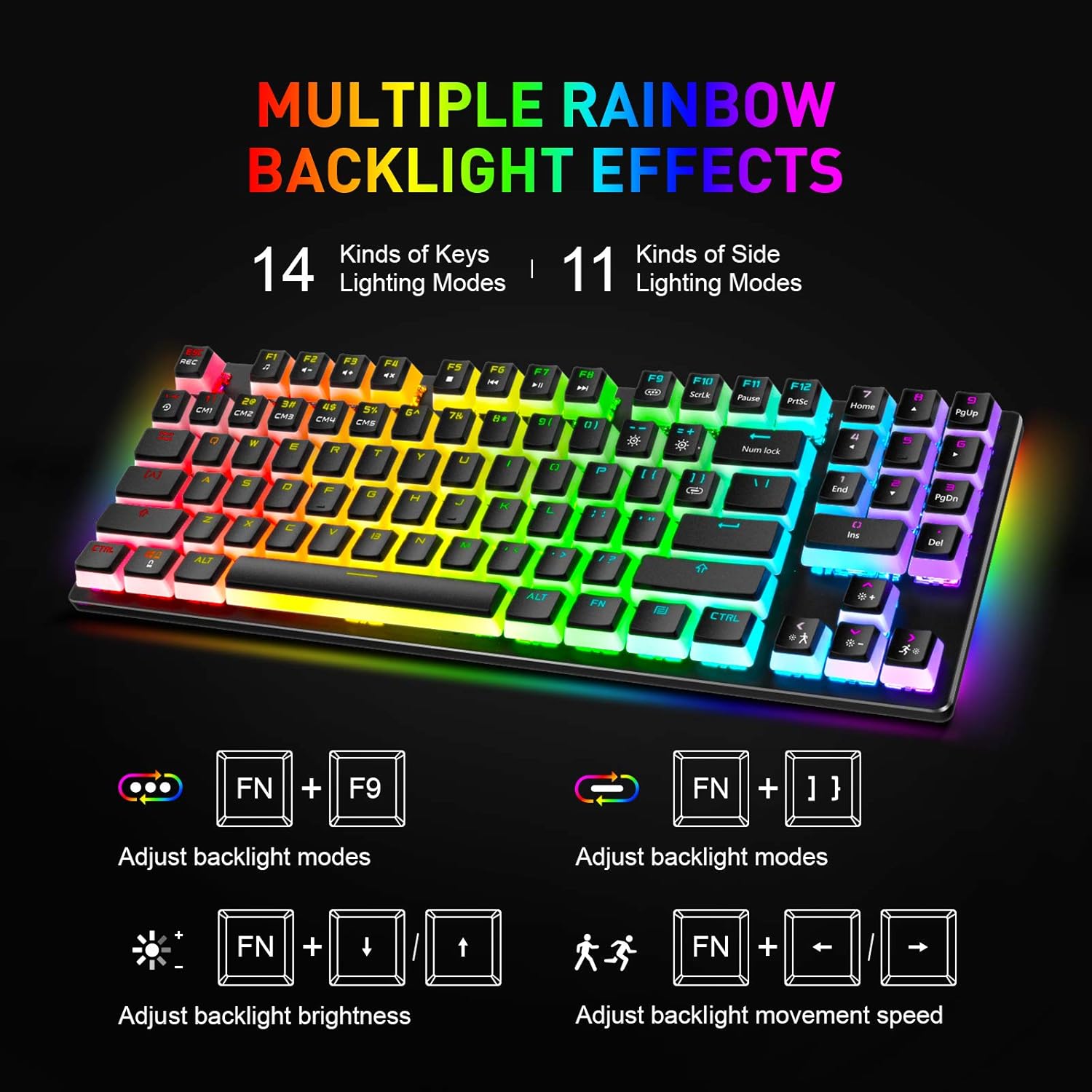
Image: Visual representation of the keyboard's multiple rainbow backlight effects and control key combinations.
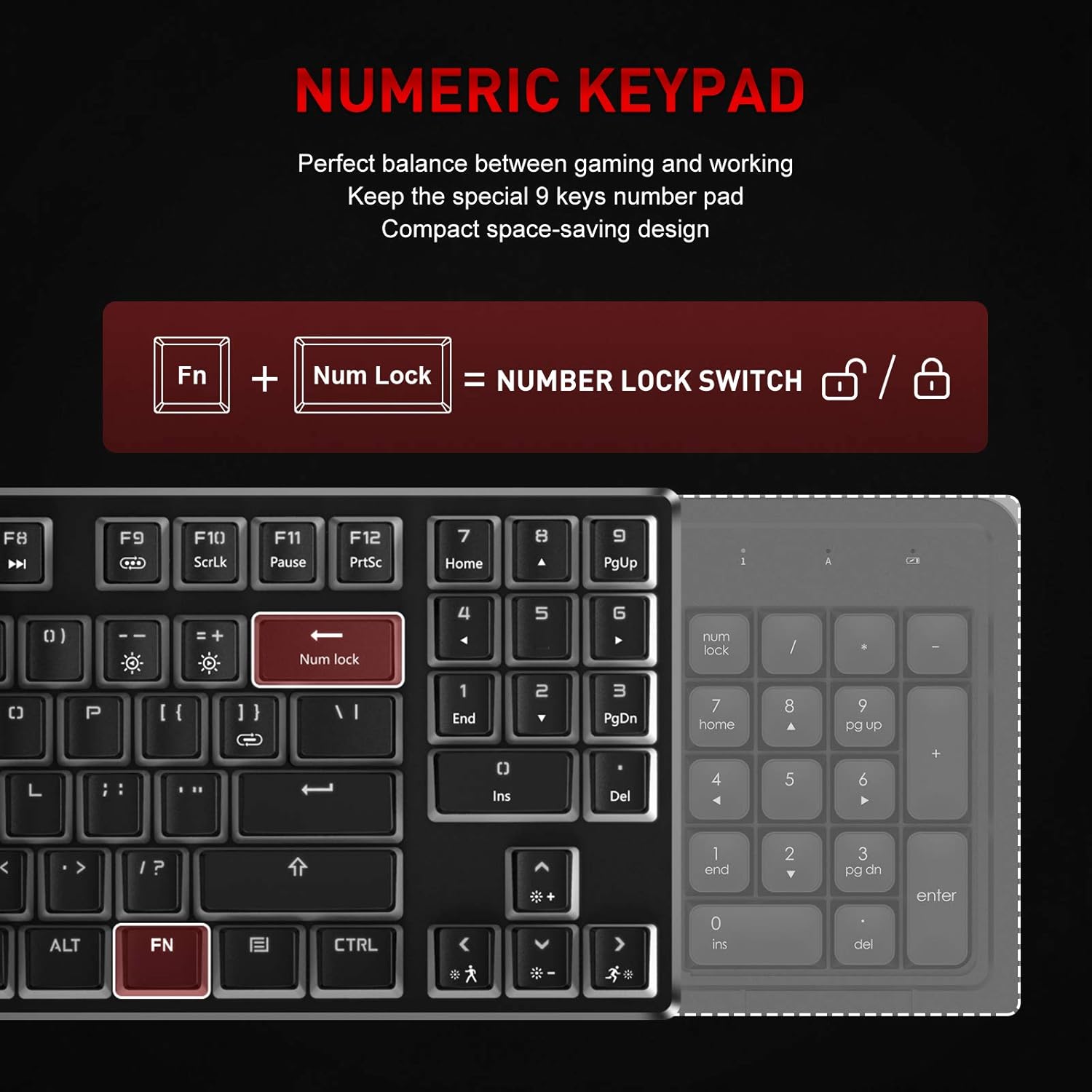
Image: Detailed view of the function (FN) key and arrow keys used for adjusting backlight brightness and movement speed.
4.3 Numeric Keypad Functionality
The keyboard features a compact numeric keypad. To activate or deactivate the numeric keypad, press FN + Num Lock. The Backspace key will illuminate white to indicate when Num Lock is active.
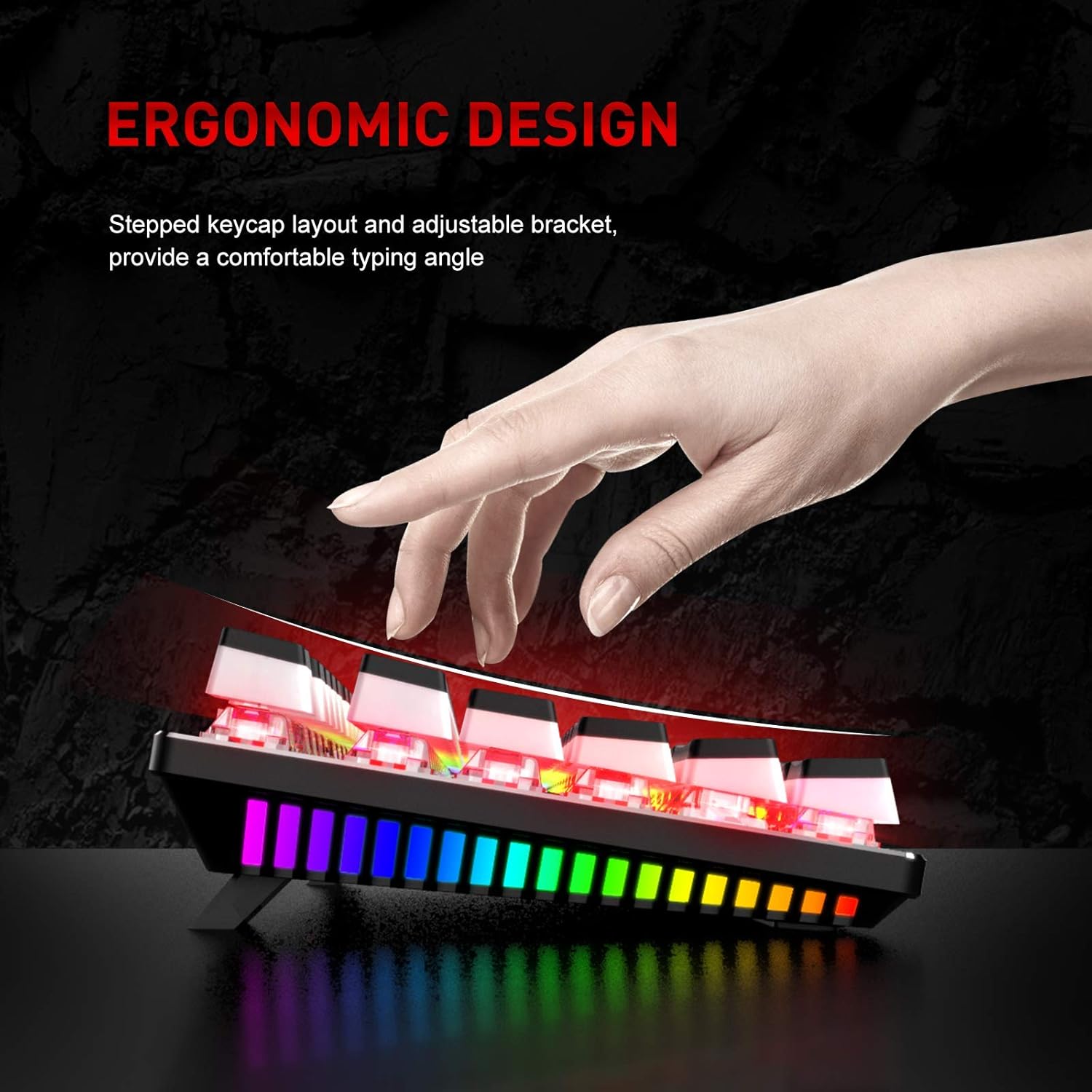
Image: Explanation of the numeric keypad and how to toggle Num Lock using the FN + Num Lock combination.
5. Key Features
- Double Shot PBT Pudding Keycaps: These keycaps are designed for durability and enhanced RGB lighting visibility, providing a unique aesthetic and comfortable typing experience. They allow light to shine through the sides, creating a vibrant glow.

Image: The keyboard showcasing its double-shot PBT pudding keycaps, with some keycaps detached to highlight their translucent design.
- Blue Switches: Equipped with clicky blue mechanical switches, offering a tactile bump and an audible click for satisfying feedback during typing and gaming.
- Solid Metal Panel: The keyboard features a robust metal panel construction, ensuring stability and durability during intense use.

Image: A detailed view of the blue mechanical switches and the solid metal panel that forms the keyboard's base.
- Ergonomic Design: The stepped keycap layout and adjustable brackets provide a comfortable typing angle, reducing strain during prolonged use.

Image: A hand positioned on the keyboard, illustrating the comfortable typing angle provided by its ergonomic design and adjustable feet.
6. Maintenance
To ensure the longevity and optimal performance of your keyboard, follow these maintenance tips:
- Cleaning: Regularly clean the keyboard with a soft, dry cloth. For deeper cleaning, use compressed air to remove dust and debris from between the keycaps.
- Avoid Liquids: Do not spill liquids on the keyboard. If a spill occurs, immediately unplug the keyboard and allow it to dry completely before reconnecting.
- Storage: Store the keyboard in a cool, dry place away from direct sunlight and extreme temperatures.
7. Troubleshooting
If you encounter issues with your havit Mechanical Gaming Keyboard, refer to the following common problems and solutions:
- Keyboard Not Responding:
- Ensure the USB cable is securely plugged into both the keyboard and the computer.
- Try plugging the keyboard into a different USB port on your computer.
- Restart your computer.
- RGB Lighting Not Working:
- Check if the lighting is turned off. Press FN + F9 to cycle through modes and ensure a mode is selected.
- Adjust brightness using FN + ↑ (Up Arrow).
- Keys Not Registering:
- Clean the affected key to ensure no debris is obstructing the switch.
- If multiple keys are not working, try reconnecting the keyboard or restarting your computer.
If the issue persists after trying these steps, please contact havit customer support for further assistance.
8. Specifications
| Feature | Detail |
|---|---|
| Brand | havit |
| Model Number | KB851L-US |
| Connectivity Technology | Wired |
| Keyboard Description | Gaming |
| Special Feature | Lighting |
| Color | Blue |
| Number of Keys | 89 |
| Keyboard Backlighting | RGB |
| Style | Modern |
| Material | Polybutylene Terephthalate (PBT) |
| Item Weight | 1.94 pounds |
| Package Dimensions | 15.79 x 6.97 x 1.93 inches |
| Operating System | Mac, Windows |
| Hardware Platform | Laptop, PC |
9. Warranty and Support
havit products are designed and manufactured to the highest quality standards. This product is covered by a limited warranty from the date of purchase. Please refer to the warranty card included in your package for specific terms and conditions.
For technical support, warranty claims, or general inquiries, please visit the official havit website or contact their customer service department. Keep your purchase receipt as proof of purchase may be required for warranty service.