
1. Important Safety Information
Please read all instructions before operating your TV. Keep this manual for future reference. Follow all warnings and instructions marked on the product.
- Do not use this apparatus near water.
- Clean only with a dry cloth.
- Do not block any ventilation openings. Install in accordance with the manufacturer's instructions.
- Do not install near any heat sources such as radiators, heat registers, stoves, or other apparatus (including amplifiers) that produce heat.
- Protect the power cord from being walked on or pinched, particularly at plugs, convenience receptacles, and the point where they exit from the apparatus.
- Only use attachments/accessories specified by the manufacturer.
- Refer all servicing to qualified service personnel. Servicing is required when the apparatus has been damaged in any way.
2. What's in the Box
Verify that all components are present before proceeding with setup.
- VIZIO D-Series 32-inch Full HD Smart TV
- Remote Control (with 2 AAA batteries)
- Power Cable
- TV Stand (2 pieces)
- Quick Start Guide (not included in this digital manual)

Image: The VIZIO D-Series TV packaging, showing the TV box and a separate box with the VIZIO logo.
3. Setup
3.1 Attaching the TV Stand
- Carefully place the TV screen-down on a soft, clean surface to prevent scratches.
- Align each stand piece with the corresponding slots on the bottom of the TV.
- Secure the stands using the provided screws. Ensure they are firmly attached.
3.2 Connecting Devices
Your VIZIO D-Series TV offers various connectivity options. Refer to the image below for port locations.

Image: Rear view of the VIZIO D-Series TV, showing the power input, HDMI ports, USB port, optical audio out, composite video/audio inputs, and Ethernet port.

Image: Close-up view of the VIZIO D-Series TV's input/output ports, including USB, HDMI, Cable/Antenna, Audio Out (Optical), Composite, and Ethernet.
- HDMI: Connect Blu-ray players, game consoles, cable/satellite boxes.
- USB: For media playback from USB drives.
- Ethernet: For a wired internet connection.
- Composite: For older devices using RCA cables.
- Audio Out (Optical): For connecting to soundbars or home theater systems.
3.3 Powering On and Initial Setup
- Connect the power cable to the TV and then to a power outlet.
- Insert the included AAA batteries into the remote control.
- Press the Power button on the remote or on the TV.
- Follow the on-screen instructions to complete the initial setup, including language selection, network connection (Wi-Fi or Ethernet), and channel scanning.
3.4 Connecting to Wi-Fi
- During initial setup, select your Wi-Fi network from the list.
- Enter your Wi-Fi password using the on-screen keyboard.
- If you skip this step, you can access network settings later via the TV's menu.
4. Operating Your VIZIO Smart TV
4.1 SmartCast Overview
VIZIO SmartCast provides instant access to streaming services and content. Navigate using the included remote or the SmartCast Mobile app on your smartphone.
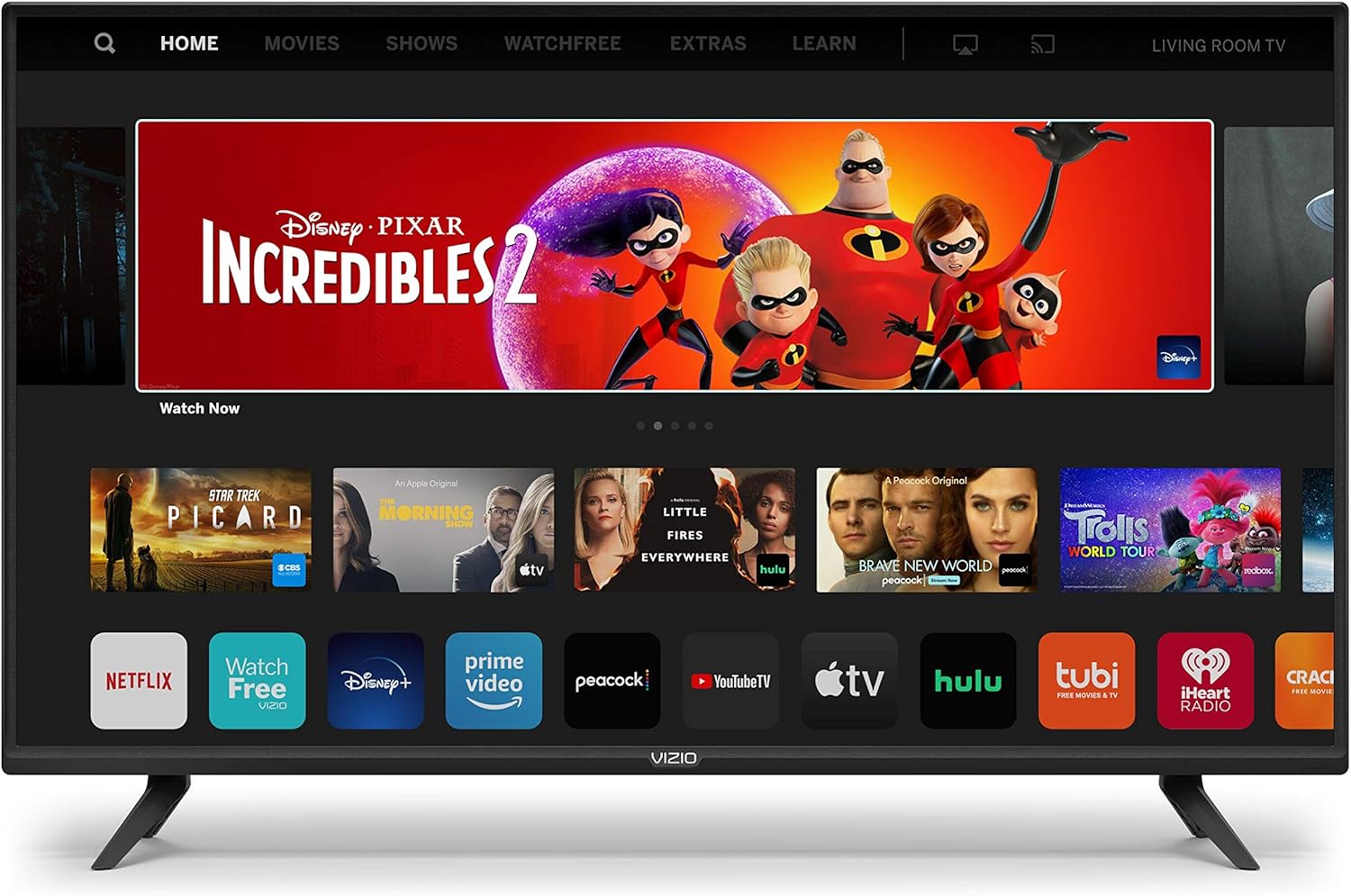
Image: The VIZIO Smart TV home screen displaying various streaming applications like Netflix, Disney+, Hulu, and Prime Video, with a featured movie banner at the top.
4.2 Accessing Streaming Apps
From the SmartCast home screen, select your desired app (e.g., Netflix, Hulu, Prime Video, YouTube). You may need to log in to your existing accounts.

Image: A graphic displaying "Endless Entertainment with Built-in Apps" surrounded by logos of popular streaming services such as Netflix, Disney+, Hulu, YouTube TV, and Apple TV.
4.3 VIZIO WatchFree+
Enjoy over 150 free streaming channels with VIZIO WatchFree+. Access it directly from the SmartCast home screen.

Image: A graphic promoting "VIZIO 150+ Free Streaming Channels" with logos of various free content providers like USA Today, Estrella TV, and PeopleTV.
4.4 Apple AirPlay 2 & Chromecast Built-in
Stream content directly from your Apple or Android devices to the TV. This allows for screen mirroring and sharing of movies, music, photos, and more.
- Apple AirPlay 2: From your iOS device, select the AirPlay icon and choose your VIZIO TV.
- Chromecast Built-in: From a compatible app on your device, tap the Cast icon and select your VIZIO TV.
Image: A VIZIO TV displaying the show "Billions," with icons for Apple AirPlay and Chromecast Built-in below, indicating compatibility for streaming from mobile devices.
4.5 Voice Control
Your VIZIO Smart TV supports voice control through Siri, Google Assistant, and Alexa-enabled devices. Link your TV to your preferred voice assistant for hands-free control.
- Siri: Use your Apple device to control the TV.
- Google Assistant: Use a Google Home device or the Google Assistant app.
- Amazon Alexa: Use an Amazon Echo device or the Alexa app.
5. Maintenance
5.1 Cleaning Your TV
- Always unplug the TV before cleaning.
- Use a soft, lint-free cloth to gently wipe the screen and cabinet.
- For stubborn marks, lightly dampen the cloth with water or a mild, non-abrasive screen cleaner. Never spray cleaner directly onto the screen.
- Avoid using harsh chemicals, abrasives, or solvents.
5.2 Software Updates
Your VIZIO Smart TV receives automatic software updates to enhance performance and add new features. Ensure your TV is connected to the internet for these updates to occur.
6. Troubleshooting
If you encounter issues with your VIZIO TV, refer to the common solutions below. For more detailed troubleshooting, visit the VIZIO support website.
| Problem | Solution |
|---|---|
| No Power | Ensure the power cable is securely connected to both the TV and a working electrical outlet. Try a different outlet. |
| No Picture / Black Screen | Check that the correct input source is selected. Verify all video cables are securely connected. Try restarting the TV. |
| No Sound | Check the volume level and ensure the TV is not muted. Verify audio cable connections if using external speakers. Check TV audio settings. |
| Remote Not Working | Replace the batteries in the remote control. Ensure there are no obstructions between the remote and the TV's IR sensor. |
| Network Connection Issues | Check your Wi-Fi router and modem. Restart them if necessary. Re-enter your Wi-Fi password in the TV's network settings. For wired connections, ensure the Ethernet cable is properly connected. |
| Apps Freezing or Not Loading | Restart the TV by unplugging it from the power outlet for 30 seconds, then plugging it back in. Ensure your internet connection is stable. |
7. Specifications
| Feature | Detail |
|---|---|
| Brand | VIZIO |
| Model Number | D32f-G61 |
| Screen Size (Diagonal) | 31.5 Inches (32-inch Class) |
| Display Technology | Full Array LED |
| Resolution | 1080p Full HD |
| Refresh Rate | 60 Hz |
| Aspect Ratio | 16:9 |
| Smart TV Platform | VIZIO SmartCast with Apple AirPlay 2 & Chromecast Built-in |
| Voice Control Support | Siri, Google Assistant, Amazon Alexa |
| Connectivity Technology | Ethernet, HDMI, USB, Wireless (Wi-Fi) |
| Product Dimensions (W x D x H) | 28.64 x 7.04 x 18.99 inches (with stand) |
| Item Weight | 13.57 pounds |
| Voltage | 120 Volts |
| Wattage | 10 watts |
| Included Components | Power Cable, Remote Control, Stand |
8. Warranty Information
VIZIO products are covered by a limited warranty. For specific details regarding your VIZIO D-Series TV's warranty period and terms, please refer to the warranty card included with your product or visit the official VIZIO support website.
Online Warranty Information: www.vizio.com/en/support/warranty
9. Customer Support
For further assistance, technical support, or service inquiries, please contact VIZIO Customer Support.
- VIZIO Support Website: www.vizio.com/en/support
- Phone Support: Refer to the VIZIO support website for current contact numbers and operating hours.