
1. Introduction
This manual provides comprehensive instructions for the IFYOO X208 2.4G Wireless and Wired Gaming Controller. It covers product features, setup procedures, operating modes, and important compatibility information to ensure optimal use of your device.

Figure 1: IFYOO X208 Gaming Controller. This image displays the front view of the black and silver controller, highlighting its ergonomic design and button layout.
2. Package Contents
Verify that all items listed below are included in your package:
- 1x IFYOO X208 Gaming Controller
- 1x 1M USB Charging Cable (Micro-USB)
- 1x 2.4GHz USB Dongle
- 1x User Manual (this document)
- 1x Warranty Card

Figure 2: Package Contents. This image shows the IFYOO X208 controller alongside its USB charging cable, 2.4GHz USB dongle, user manual, and warranty card.
3. Product Overview
3.1 Key Features
- Dual Connectivity: Supports 2.4GHz wireless and wired connections.
- Multi-mode Support: Xinput, Dinput, Android, and PS3 modes.
- Dual Vibration Feedback: Provides immersive haptic feedback in supported games.
- JD-SWITCH Function: Allows switching between D-pad and Left Stick functions.
- TURBO Function: Enables rapid, continuous button presses.
- Ergonomic Design: Features a comfortable grip, high-precision D-pad, wear-resistant anti-slip joysticks, and linear Hall magnetic induction triggers.
3.2 Controller Layout

Figure 3: Front Features. This image highlights the high-precision D-pad, engraved ABXY buttons, excellent non-slip grip, and wear-resistant anti-slip joysticks.

Figure 4: Top Features. This image illustrates the revolutionary designed shoulder buttons (L1/R1) and the 255-level magnetic induction triggers (L2/R2).
4. Setup and Compatibility
4.1 System Compatibility
- PC / Laptop: Windows 10/8/7/XP, Steam. (Windows XP may require driver installation).
- Android Devices: Mobile Phones, Tablets, TVs, TV Boxes (version 4.0 or above, device must support OTG function). An OTG adapter or cable is required for Android devices with Type-C or Micro-USB ports.
- PlayStation 3 (PS3): Compatible with most PS3 games.
Important Note: This device is NOT compatible with Xbox 360, Xbox One, Mac OS, or PS4.
4.2 Connection Methods
The IFYOO X208 controller supports both 2.4GHz wireless and wired connections.
4.2.1 2.4GHz Wireless Connection
- Insert the 2.4GHz USB dongle into an available USB port on your PC, Android device (via OTG adapter), or PS3 console.
- Turn on the controller. It will automatically attempt to connect to the dongle.
- Once connected, the indicator light on the controller will stabilize, indicating a successful wireless connection.
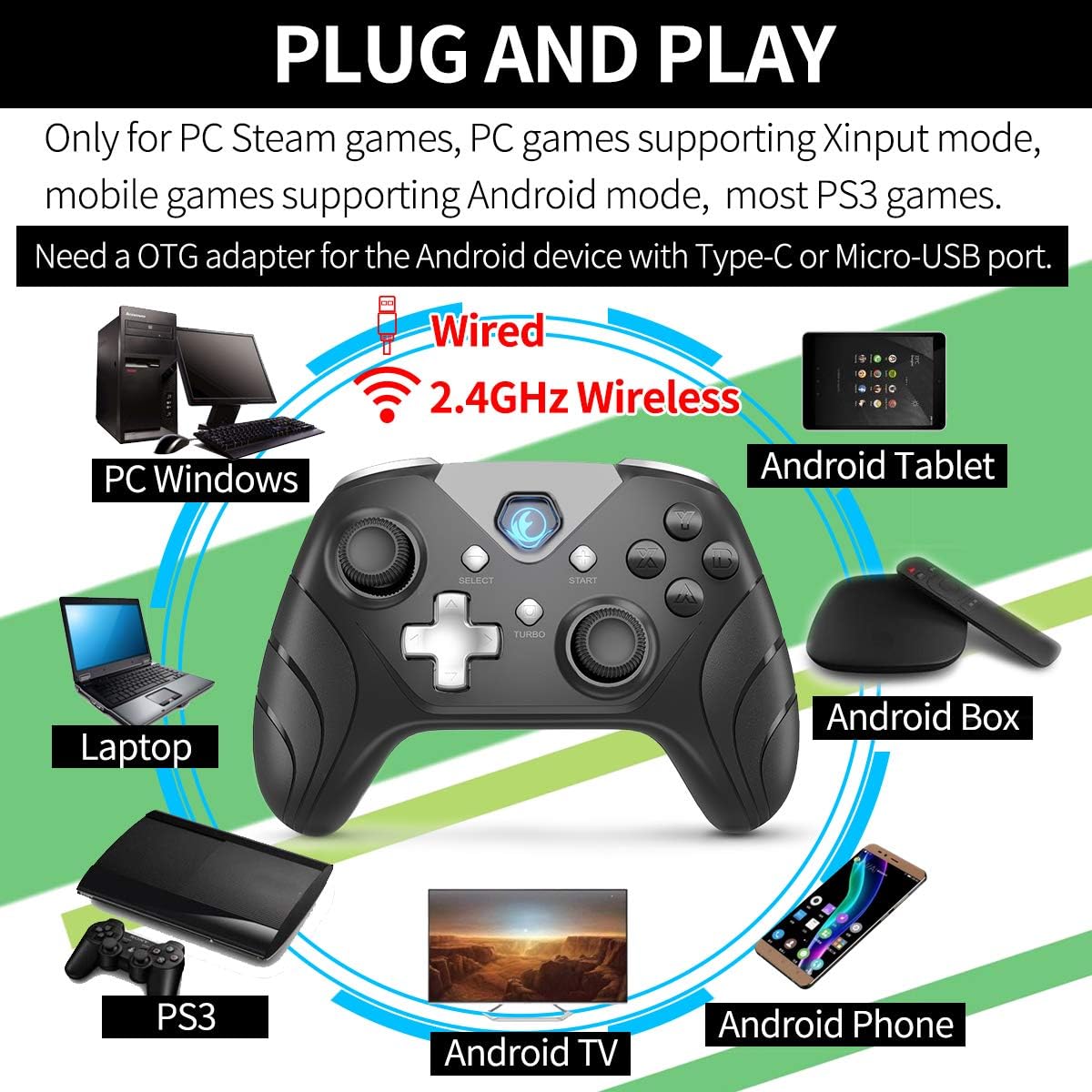
Figure 5: Connectivity Overview. This image illustrates the controller's compatibility with various devices (PC, Laptop, Android Tablet, Android Box, Android TV, Android Phone, PS3) via both wired and 2.4GHz wireless connections. It also notes the requirement for an OTG adapter for Android devices.

Figure 6: Android Device Connection. This image shows the IFYOO X208 controller connected wirelessly to an Android phone via an OTG adapter, demonstrating gameplay.

Figure 7: PC Connection. This image depicts the IFYOO X208 controller being used with a laptop for PC gaming.
4.2.2 Wired Connection
- Connect the Micro-USB end of the charging cable to the controller.
- Connect the USB-A end of the charging cable to an available USB port on your PC or PS3 console.
- The controller will automatically be recognized as a wired device.
The wired connection also charges the controller's internal battery.
5. Operating Instructions
5.1 Multi-Mode Functionality
The controller supports multiple modes for different platforms:
- Xinput Mode: Primarily for PC games that support Xinput. This mode often enables dual vibration feedback.
- Dinput Mode: For older PC games or specific applications that require DirectInput.
- Android Mode: For compatible Android mobile games.
- PS3 Mode: For PlayStation 3 consoles.
The controller typically switches modes automatically based on the connected device. Some games may require manual button mapping or third-party software for optimal performance.
5.2 JD-SWITCH Function
The JD-SWITCH function allows you to swap the input functionality between the D-pad and the Left Analog Stick. This can be useful for games where one input method is preferred for movement or specific actions.
- To activate/deactivate JD-SWITCH, press and hold the "TURBO" button and then press the "SELECT" button.
- The indicator light may change to confirm the switch.
5.3 TURBO Function
The TURBO function enables rapid, continuous input for a selected button, reducing the need for repeated presses. This can be beneficial in games requiring fast button mashing.
- Press and hold the button you wish to assign TURBO functionality to (e.g., A, B, X, Y).
- While holding that button, press the "TURBO" button once.
- Release both buttons. The assigned button will now activate continuously when held down.
- To clear the TURBO function for a specific button, repeat the process: hold the button, then press the "TURBO" button.

Figure 8: Practical Functions. This image visually explains the JD-SWITCH function (swapping D-pad and Left Stick) and the TURBO function (creating continuous button presses).
5.4 Dual Vibration Feedback
The controller features dual vibration motors for enhanced gaming immersion. This function is primarily available in PC games that support Xinput mode and may need to be enabled within the game's settings.
6. Important Notes and Troubleshooting
- Driver Installation: For Windows 10 or above, DirectX 9.0c or higher may be required. If the controller is not recognized in Windows, try installing the latest version of the Microsoft Xbox 360 Controller gamepad driver. Windows XP systems specifically require driver installation.
- Android OTG: Ensure your Android device supports OTG (On-The-Go) functionality for wireless connection via the USB dongle. An OTG adapter or cable is necessary for devices with Type-C or Micro-USB ports.
- Game Settings: Some games may require manual configuration of buttons or the use of third-party software to function correctly with the controller.
- Vibration Feedback: Dual vibration feedback is only active in PC games that support Xinput mode and where the feature is enabled in the game's settings.
6.1 Common Issues and Solutions
- Controller Not Connecting:
- Ensure the 2.4GHz USB dongle is securely inserted into a working USB port.
- Verify the controller is powered on.
- For wired connection, ensure the USB cable is fully connected to both the controller and the device.
- Try a different USB port.
- Buttons Not Responding / Incorrect Input:
- Check game settings for controller configuration.
- Ensure the correct mode (Xinput/Dinput/Android/PS3) is active for your platform.
- If on PC, ensure necessary drivers are installed (e.g., Xbox 360 Controller driver for Windows).
- No Vibration Feedback:
- Confirm the game supports Xinput mode.
- Check the game's settings to ensure vibration is enabled.
7. Specifications
| Product Dimensions | 160 x 113 x 63 mm |
| Product Weight | 205 ± 10g |
| Charging Interface | Micro-USB |
| Connection Method | 2.4GHz Wireless and Wired |
| Charging Time | 2-3 Hours |
| Wireless Distance | Approx. 7 Meters |
| Battery Capacity | 600 mAh Lithium Polymer |
| Battery Duration | More than 10 hours |
8. Maintenance
- Cleaning: Use a soft, dry cloth to clean the controller. Avoid using harsh chemicals or abrasive materials.
- Storage: Store the controller in a cool, dry place away from direct sunlight and extreme temperatures.
- Battery Care: To prolong battery life, avoid fully discharging the controller frequently. Charge it regularly, even if not in constant use.
- Avoid Drops: Protect the controller from drops and impacts, which can damage internal components.
9. Warranty and Support
IFYOO offers a warranty for the X208 Gaming Controller. You may return or request a refund for any reason, or exchange/replace the product for any quality issue within 3 months of purchase.
For any questions, concerns, or support needs, please contact IFYOO customer service. Refer to the included Warranty Card for specific contact details and warranty terms.

