
PowerLocus P6
PowerLocus P6 Wireless Bluetooth Headphones User Manual
Model: P6
Introduction
Welcome to your new PowerLocus P6 Wireless Bluetooth Headphones. These over-ear headphones are engineered to deliver a superior audio experience, combining high-fidelity sound with exceptional comfort and versatile connectivity. Designed for both daily use and travel, the P6 headphones feature advanced Bluetooth 5.3 technology, ensuring stable and low-latency connections across a wide range of devices. With their long-lasting battery and intuitive controls, they are the perfect companion for music, calls, and entertainment.
What's in the Box

Image: The PowerLocus P6 headphone package contents, showing the headphones, a 3.5mm audio cable, a USB charging cable, and a premium carry case.
The PowerLocus P6 headphones come with the following items:
- 1x PowerLocus P6 Headphones
- 1x 3.5mm Audio Cable
- 1x USB Charging Cable
- 1x User Manual (this document)
- 1x Premium Carry Case (soft velvet bag)
Product Features
- Bluetooth 5.3 Connectivity: Experience instant pairing and a stable, low-latency connection with any Bluetooth-enabled device. Enjoy seamless audio and clear calls up to 12 meters (39 feet) away. Universally compatible with iOS, Android, Windows, and Mac devices.
- Hi-Fi Audio with Deep Bass: Equipped with upgraded dynamic audio speakers and 40mm audio drivers, these headphones deliver powerful, crisp sound with deep bass. The technology adapts to various music genres for an immersive listening experience.
- Premium Lightweight & Foldable Design: Crafted with high-quality materials, the P6 headphones are durable yet lightweight. They feature super soft over-ear foam eco-leather earmuffs and a padded headband for extended comfort. The foldable design allows for easy portability and storage in the included carry pouch.
- Hands-Free Calls & Voice Assistant: A built-in HD microphone ensures clear communication for calls in both wireless and wired modes. Easily activate Siri or Google Assistant with a single button press.
- Extended Battery Life: Enjoy up to 50 hours of continuous playtime on a single charge, supported by super quick charging technology. For uninterrupted listening, use the included audio cable, which is also compatible with airplane entertainment systems.
- Multi-Point Connection: Connect your headphones to two devices simultaneously, allowing for seamless switching between them.

Image: The PowerLocus P6 headphones emphasizing premium comfort features like flexible earpads, soft memory foam earmuffs, and adjustable headband for a universal fit.

Image: PowerLocus P6 headphones being worn by a user, illustrating their comfortable fit and suitability for extended use.
Setup Guide
Charging Your Headphones
Before initial use, ensure your PowerLocus P6 headphones are fully charged to maximize battery life and performance.
- Connect the small end of the provided USB charging cable to the charging port on the headphones.
- Connect the standard USB end of the cable to a compatible USB power source (e.g., computer USB port, USB wall adapter).
- The LED indicator light on the headphones will illuminate to show charging status. Refer to the 'LED Indicator Status' section for specific light patterns (if available in a full manual, otherwise assume standard red for charging, blue for charged).
- A full charge typically takes approximately 2.5 hours.
Bluetooth Pairing
Follow these steps to connect your PowerLocus P6 headphones to your device via Bluetooth:
- Ensure the headphones are turned off.
- Press and hold the Power button on the headphones until the LED indicator begins to flash blue and red alternately. This indicates the headphones are in pairing mode.
- On your smartphone, tablet, or computer, navigate to the Bluetooth settings and enable Bluetooth.
- Search for available devices. You should see "PowerLocus P6" appear in the list.
- Select "PowerLocus P6" to initiate the connection.
- Once successfully paired, the LED indicator on the headphones will turn solid blue or flash blue slowly, and you will hear an audible confirmation.
Video: An official PowerLocus video showcasing the design, comfort features, and universal compatibility of the P6 headphones, including their foldable nature and intuitive controls.
Operating Instructions
Basic Controls
The PowerLocus P6 headphones feature intuitive buttons for easy control of your audio and calls:
| Button/Function | Action | Description |
|---|---|---|
| Power Button | Press and Hold | Power On/Off |
| Power Button | Short Press | Play/Pause music, Answer/End calls |
| Volume Up (+) | Short Press | Increase Volume |
| Volume Up (+) | Long Press | Next Track |
| Volume Down (-) | Short Press | Decrease Volume |
| Volume Down (-) | Long Press | Previous Track |
| M Button (Multi-function) | Short Press | Activate Voice Assistant (Siri/Google Assistant) |
| M Button (Multi-function) | Long Press | Reject Incoming Call |

Image: A user enjoying wireless calls with the PowerLocus P6 headphones, highlighting the built-in microphone for clear communication.
Wired Mode (Endless Cable Mode)
The PowerLocus P6 headphones can also be used in wired mode, which is ideal for conserving battery or connecting to devices without Bluetooth capabilities, such as airplane entertainment systems.
- Ensure the headphones are either turned off or disconnected from any active Bluetooth connection.
- Plug one end of the provided 3.5mm audio cable into the audio jack located on the headphones.
- Plug the other end of the audio cable into the 3.5mm audio output port of your desired device (e.g., smartphone, laptop, MP3 player).
- The headphones will automatically function as wired headphones, and no battery power is required in this mode.
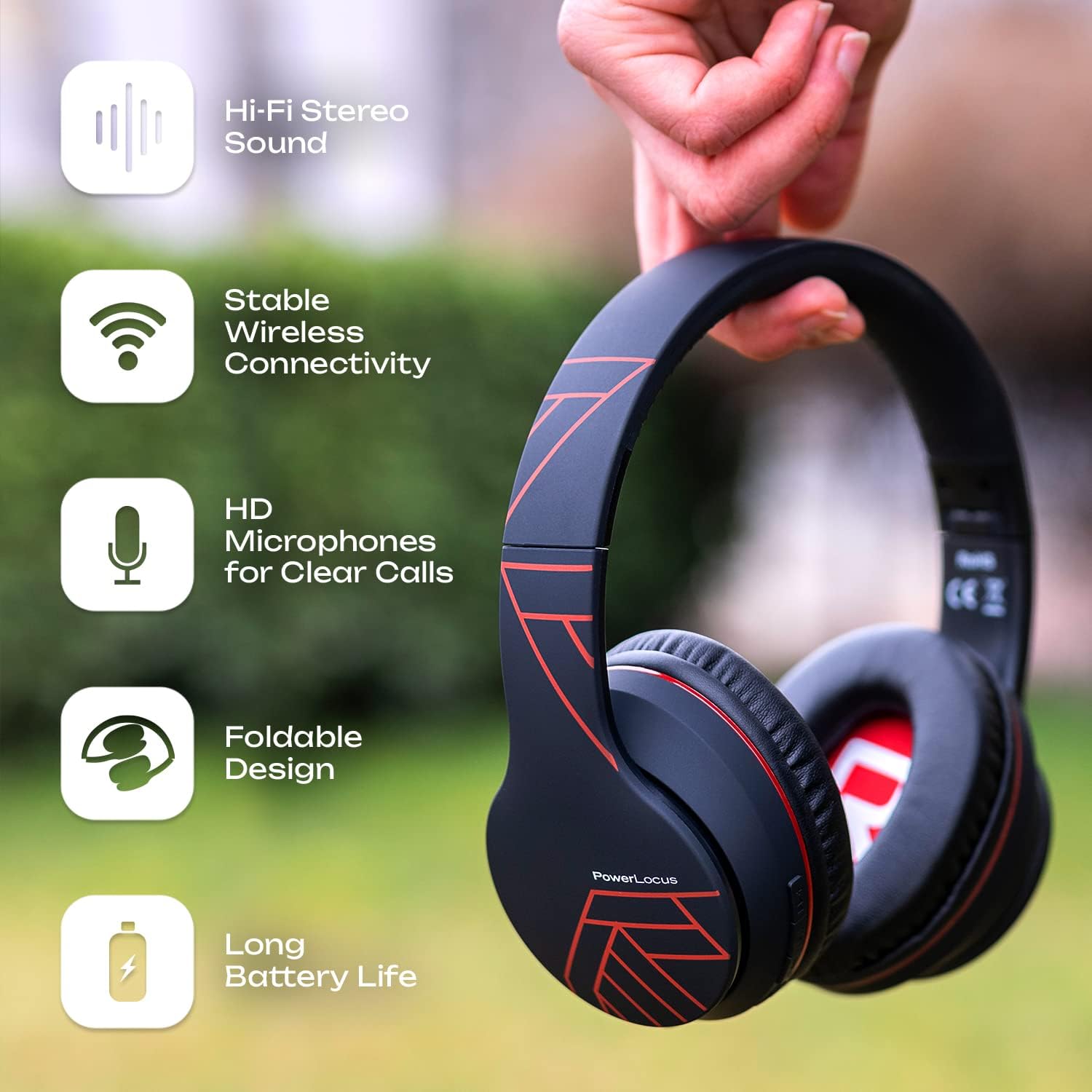
Image: The PowerLocus P6 headphones demonstrating universal compatibility with devices like phones, tablets, PCs, and TVs.
Maintenance and Care
Proper care will extend the life and performance of your PowerLocus P6 headphones:
- Cleaning: Regularly wipe the headphones with a soft, dry, lint-free cloth. Do not use abrasive cleaners, alcohol, or chemical solvents.
- Storage: When not in use, store the headphones in the provided premium carry case to protect them from dust, scratches, and accidental damage.
- Temperature & Humidity: Avoid exposing the headphones to extreme temperatures (hot or cold), high humidity, or direct sunlight.
- Liquids: Keep the headphones away from water and other liquids. They are not water-resistant.
- Handling: Do not drop, crush, or bend the headphones excessively. Avoid pulling on the cables forcefully.
- Service: Do not attempt to disassemble, modify, or repair the headphones yourself. This will void the warranty and may cause damage. Contact customer support for assistance.
Troubleshooting
If you encounter any issues with your PowerLocus P6 headphones, please refer to the following common problems and solutions:
- Headphones won't turn on.
- Ensure the headphones are fully charged. Connect them to a power source using the USB charging cable and allow them to charge for at least 15-30 minutes before attempting to turn them on again.
- Cannot pair with a device.
- Make sure the headphones are in pairing mode (LED flashing blue and red). Ensure Bluetooth is enabled on your device and it's within the effective range (up to 12m/39ft). Try turning off Bluetooth on your device, then turning it back on. If previously paired, try 'forgetting' or 'unpairing' the headphones from your device's Bluetooth list and then re-pairing.
- No sound or low volume.
- Check the volume levels on both the headphones and your connected device. Ensure the headphones are properly paired and connected. If using wired mode, ensure the 3.5mm audio cable is securely connected to both the headphones and the audio source.
- Sound quality is poor or distorted.
- Ensure there are no physical obstructions between the headphones and the Bluetooth device. Move closer to the device to improve signal strength. If using wired mode, ensure the cable is fully inserted and not damaged. Try playing audio from a different source to rule out source issues.
- Calls are unclear or microphone is not working.
- Ensure the built-in microphone is not obstructed. Check your device's audio settings to confirm that the headphone microphone is selected as the input device for calls. Ensure you are within Bluetooth range.
Specifications
| Feature | Detail |
|---|---|
| Model Name | P6 |
| Connectivity Technology | Wireless (Bluetooth) |
| Bluetooth Version | 5.3 |
| Bluetooth Range | Up to 12m / 39ft |
| Audio Driver Size | 40mm Dynamic Drivers |
| Battery Life | Up to 50 Hours Playtime |
| Charging Time | Approx. 2.5 Hours |
| Headphones Jack | 3.5 mm Audio Jack |
| Noise Control | Sound Isolation (Passive Noise Cancelling) |
| Material | Eco-leather (earmuffs), Durable Aluminum Frame (headband) |
| Item Weight | 211 Grams / 7.4 ounces |
| Control Type | Voice Control, Touch (Buttons) |
| Compatible Devices | iPhone, iPad, Macbook, Android, Samsung Galaxy, Laptop, TV, PS4, iOS, Nintendo Switch, Xbox S |
Note: Specifications are subject to change without prior notice.
Warranty and Support
PowerLocus stands behind the quality of its products. The P6 Wireless Bluetooth Headphones come with a comprehensive 24-month warranty covering manufacturing defects.
For any questions, technical assistance, or to initiate a warranty claim, please contact PowerLocus USA-based customer service. Details for contacting support are typically found on the product packaging or the official PowerLocus website.
For more information and to explore other PowerLocus products, please visit the official PowerLocus Store on Amazon: PowerLocus Store on Amazon.
Related documentsP6


Ask a question about this manual
Ask about setup, troubleshooting, compatibility, parts, safety, or missing instructions. Manuals+ will review the question and use this page’s manual context to help answer it.