Introduction
The Daewoo Security Pack Initial SA601 is a comprehensive wireless alarm system designed to provide reliable home security. This system integrates WiFi and GSM connectivity, allowing for flexible communication and alerts. It includes an indoor camera for visual monitoring and is compatible with popular voice assistants like Amazon Alexa and Google Assistant for convenient control. This manual provides detailed instructions for the installation, operation, and maintenance of your security system.

Image: Overview of the Daewoo Security Pack Initial SA601, showing the central alarm unit, an indoor camera, a motion detector, two door/window contact sensors, two RFID badges, and two remote controls.
Package Contents
The Daewoo Security Pack Initial SA601 includes the following components:
- 1 x DAEWOO IP501 Full HD Motorized Indoor Camera
- 1 x Alarm Control Panel (Wifi / GSM with integrated battery and siren)
- 1 x Daewoo WMS501 Wireless Motion Detector
- 2 x Daewoo RFID Badges
- 2 x Daewoo WDS501 Wireless Door Contacts
- 2 x Daewoo WRC501 Remote Controls
- Power adapter and necessary mounting hardware
Setup Guide
1. Initial Power-Up and App Installation
- Unpack Components: Carefully remove all items from the packaging.
- Power the Control Panel: Connect the alarm control panel to a power outlet using the provided adapter. The integrated battery will provide backup power in case of an outage.
- Download the App: Download the "Daewoo Home Connect" application from your smartphone's app store (available for iOS and Android).
- Create Account: Open the app and follow the on-screen instructions to create a new user account.
2. Connecting to WiFi and GSM
The alarm system connects via 2.4 GHz WiFi. Ensure your router is configured for 2.4 GHz for optimal compatibility.
- WiFi Connection:
- In the Daewoo Home Connect app, select "Add Device" and follow the prompts to connect your control panel to your home WiFi network.
- Enter your WiFi network name (SSID) and password when requested.
- Important Note: Some users have reported issues with WiFi passwords exceeding 20 characters. If you encounter connection problems, consider temporarily shortening your WiFi password or using a different network if possible for initial setup.
- GSM Connection (Optional):
- To receive SMS and phone call alerts during WiFi outages, insert a compatible SIM card into the designated slot on the control panel.
- Ensure the SIM card is activated and has sufficient credit for calls and SMS.
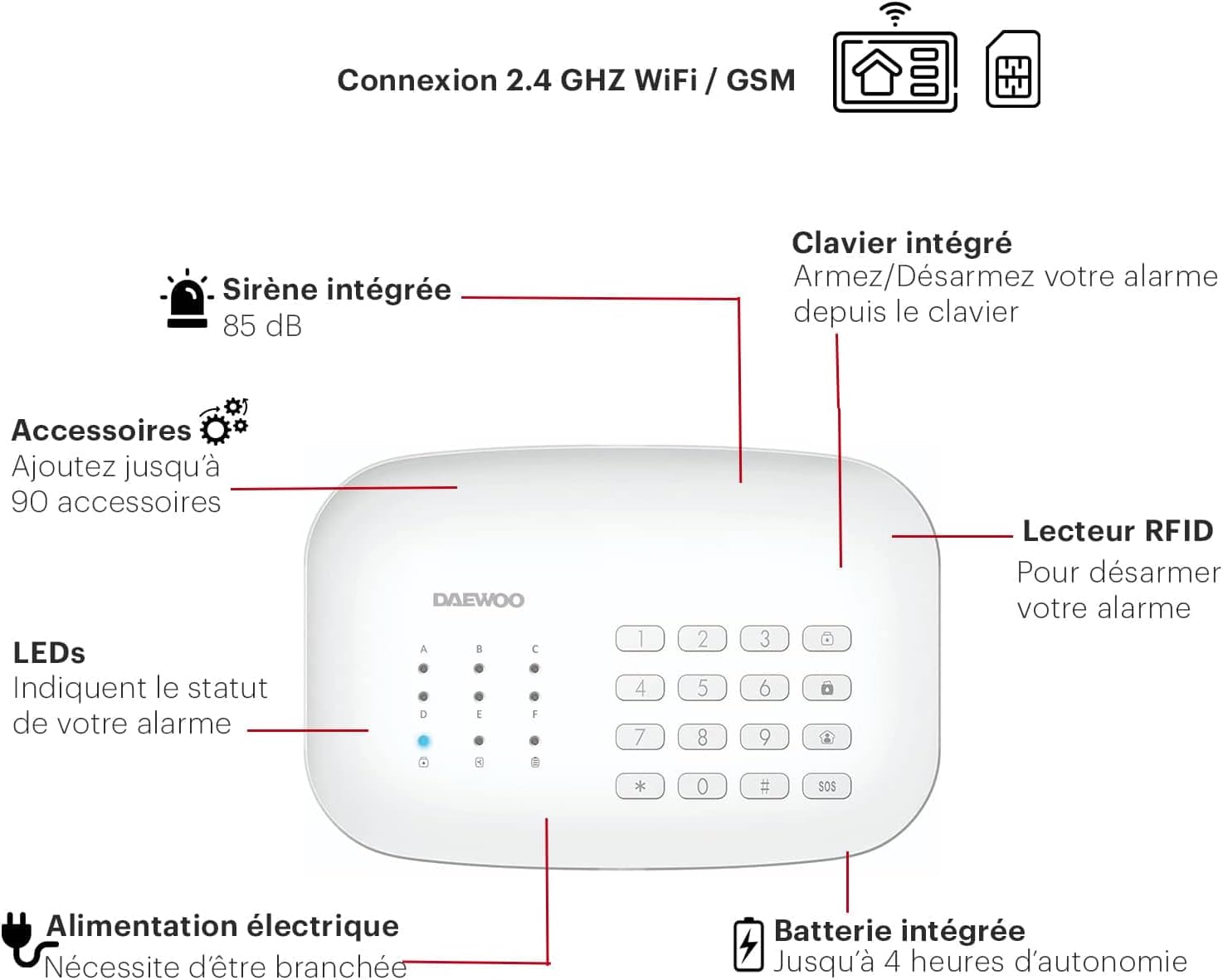
Image: Detailed diagram of the alarm control panel, highlighting its features such as 2.4 GHz WiFi/GSM connectivity, 85 dB integrated siren, keypad for arming/disarming, RFID reader, status LEDs, electrical power input, and integrated battery for backup.
3. Pairing Accessories
All included accessories (motion detector, door contacts, remote controls, RFID badges, and camera) are wireless and designed for easy pairing.
- General Pairing: In the Daewoo Home Connect app, navigate to the device management section. Follow the app's instructions to add each accessory. This typically involves activating a pairing mode on the accessory and confirming it in the app.
- Camera Setup: The DAEWOO IP501 camera can be added through the app. Ensure it is powered on and within WiFi range. The app will guide you through connecting the camera to your network and linking it to your alarm system.
- Placement:
- Door Contacts: Mount on doors and windows using the self-adhesive backing, ensuring the two parts are aligned and close together when the door/window is closed.
- Motion Detector: Place in a corner or on a wall where it can cover the desired area without obstructions. Avoid direct sunlight or heat sources.
- Control Panel: Install in a central location, easily accessible but discreet.
Operating Instructions
1. Arming and Disarming the System
Your Daewoo alarm system offers multiple methods for arming and disarming:
- Keypad: Enter your security code on the control panel's keypad.
- Remote Controls: Use the provided remote controls (WRC501) to arm or disarm the system with a single button press.
- RFID Badges: Tap an RFID badge against the designated reader on the control panel to disarm the system.
- Smartphone App: Use the "Daewoo Home Connect" app to remotely arm or disarm your system from anywhere.
- Voice Control: Integrate your system with Amazon Alexa or Google Assistant. You can then use voice commands such as "Alexa, arm the alarm in away mode" to control your system.

Image: The Daewoo alarm control panel positioned near an Amazon Echo Dot and an Echo Show, demonstrating its compatibility with Amazon Alexa and Google Home for voice-activated control.
2. Intrusion Alerts and Notifications
In the event of an intrusion, the system will trigger the integrated siren (85 dB) and send immediate alerts:
- Push Notifications: Receive instant push notifications on your smartphone via the Daewoo Home Connect app.
- SMS/Calls (GSM): If a SIM card is installed, the system will send SMS messages and make phone calls to pre-configured numbers.
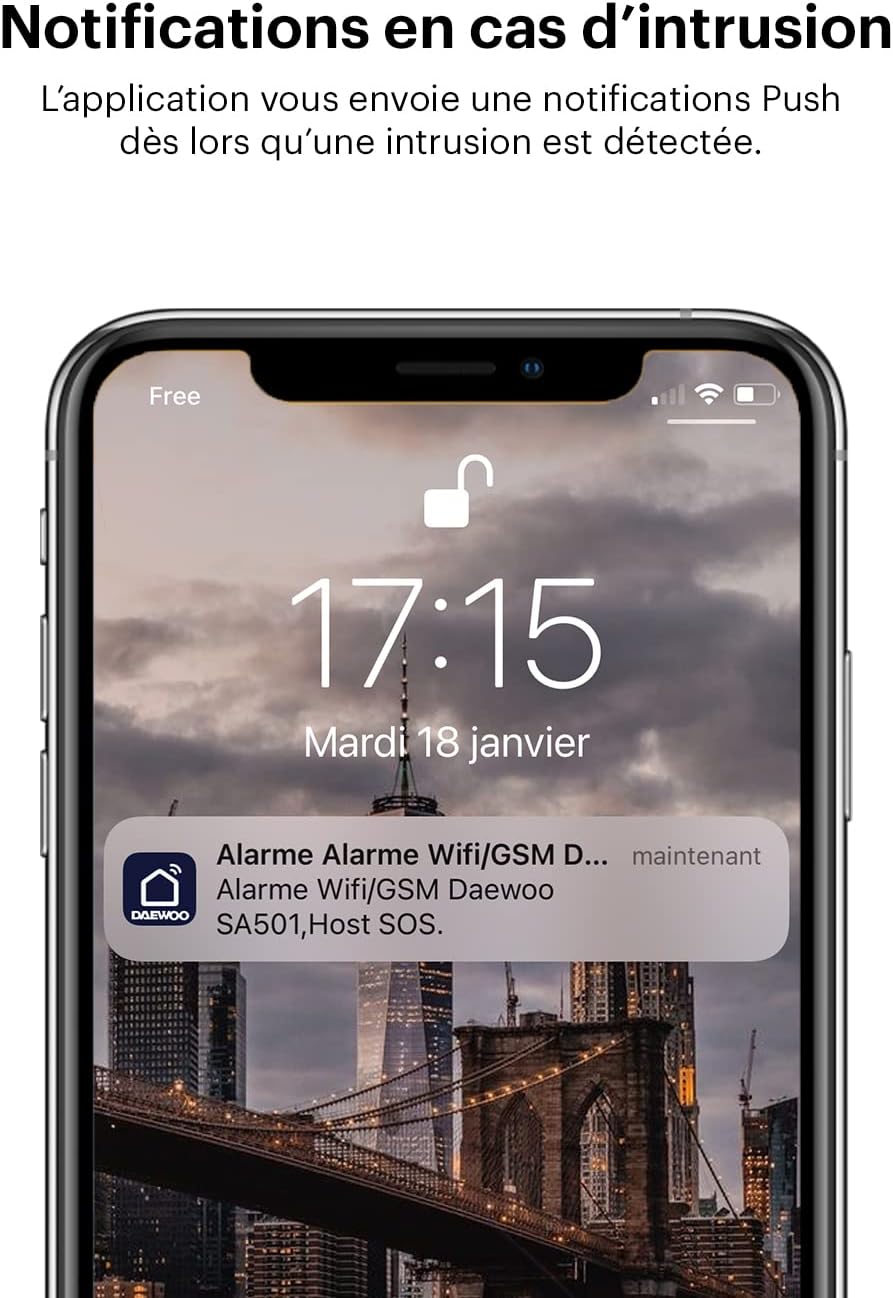
Image: A smartphone screen showing a push notification from the Daewoo Home Connect app, indicating an alarm event with the text "Alarme Wifi/GSM Daewoo SA501, Host SOS."
3. Camera Monitoring
The included DAEWOO IP501 indoor camera allows for continuous visual monitoring:
- Live View: Access a live Full HD video feed from your camera at any time via the Daewoo Home Connect app.
- Motion Detection: Receive notifications with a photo when motion is detected by the camera.
- Video Recording: Insert an SD card into the camera to enable video recording of motion detection events.

Image: A hand holding a smartphone, which displays a live video feed from the indoor camera showing two children happily entering a home, illustrating the remote monitoring feature.
4. Smart Home Integration
The Daewoo Home Connect app allows you to manage all your Daewoo smart products from a single interface and create automated interactions:
- Unified Control: Add other Daewoo smart devices (e.g., smart plugs, video doorbells, roller shutter switches) to the same app for centralized control.
- Automated Scenarios: Configure rules for your devices, such as automatically closing roller shutters when the alarm system is armed, or opening them when disarmed.

Image: A smartphone displaying the "Daewoo Home Connect" application, showing a list of various Daewoo smart home products that can be added and managed, such as different camera models, the alarm system, and other connected devices.

Image: A split image showing the Daewoo alarm control panel on a console table in one part, and a window with closed roller shutters in another, visually representing the ability to create interactions between the alarm system and other smart home products like roller shutters.
Maintenance
- Battery Backup: The control panel has an integrated backup battery providing up to 4 hours of autonomy during power outages. Ensure the control panel is always connected to power for continuous charging.
- Accessory Batteries: The system includes 4 CR2 batteries (likely for the control panel or specific sensors). Regularly check the battery status of all wireless accessories via the Daewoo Home Connect app and replace them as needed.
- Software Updates: Keep the Daewoo Home Connect app updated to the latest version to ensure optimal performance and access to new features. Firmware updates for devices may also be available through the app.
- Cleaning: Gently clean the surfaces of the control panel, camera, and sensors with a soft, dry cloth. Avoid using abrasive cleaners or solvents.
- Sensor Checks: Periodically test your door contacts and motion detector to ensure they are functioning correctly.
Troubleshooting
- Alarm Not Arming/Disarming:
- Check if the control panel is powered on and connected to WiFi.
- Ensure remote controls and RFID badges have working batteries and are correctly paired.
- Verify your security code if using the keypad.
- No Notifications on Intrusion:
- Confirm your smartphone has an active internet connection and push notifications are enabled for the Daewoo Home Connect app.
- If using GSM, ensure the SIM card is properly inserted, activated, and has credit.
- Camera Connection Issues:
- Ensure the camera is powered on and within range of your 2.4 GHz WiFi network.
- Verify your WiFi password. Some users have reported issues if the WiFi password exceeds 20 characters.
- If possible, try connecting the camera via an RJ45 Ethernet cable for initial setup or if WiFi issues persist.
- Sensor Not Responding:
- Check the battery of the specific sensor and replace if necessary.
- Ensure the sensor is within range of the control panel.
- Attempt to re-pair the sensor with the control panel via the app.
- Voice Control Not Working:
- Verify that your Daewoo system is correctly linked to your Amazon Alexa or Google Home account.
- Ensure your voice assistant device is powered on and connected to the internet.
- Use the exact voice commands specified in the app or voice assistant settings.
Specifications
| Manufacturer | DAEWOO |
| Model Number | SA601 |
| Product Dimensions (L x W x H) | 20 x 12 x 3 cm |
| Weight | 1.34 kilograms |
| Color | White, Black |
| Power Source | Electric cable with backup battery |
| Battery Type (Control Panel) | 4 CR2 (included), Lithium-polymer composition |
| Installation Method | Self-adhesive |
| Connectivity Technology | WiFi (2.4 GHz), GSM |
| Camera Video Resolution | 1080p (Full HD) |
| Siren Alert Type | Audio only (85 dB integrated siren) |
| Control Method | Smartphone Application, Keypad, Remote Control, RFID, Voice Control (Alexa, Google Assistant) |
| Compatible Devices | Smartphone, Amazon Alexa, Google Assistant |
Warranty Information
The Daewoo Security Pack Initial SA601 comes with a manufacturer's warranty of 2 years for parts and labor. Please retain your proof of purchase for warranty claims.
Support
For technical assistance or inquiries regarding your Daewoo Security Pack Initial SA601, please refer to the Daewoo Home Connect application for in-app support options or visit the official Daewoo website for contact information.
Spare parts availability: Information unavailable.


