
FeiyuTech US-VLOGPOCKET2
FeiyuTech VLOG Pocket 2 Gimbal Instruction Manual
Model: US-VLOGPOCKET2 | Brand: FeiyuTech
Introduction
The FeiyuTech VLOG Pocket 2 is a compact and foldable 3-axis gimbal stabilizer designed for smartphones. It provides smooth and stable footage, enhancing your mobile videography experience for vlogging, YouTube videos, and more. This manual provides essential information for setting up, operating, and maintaining your device.
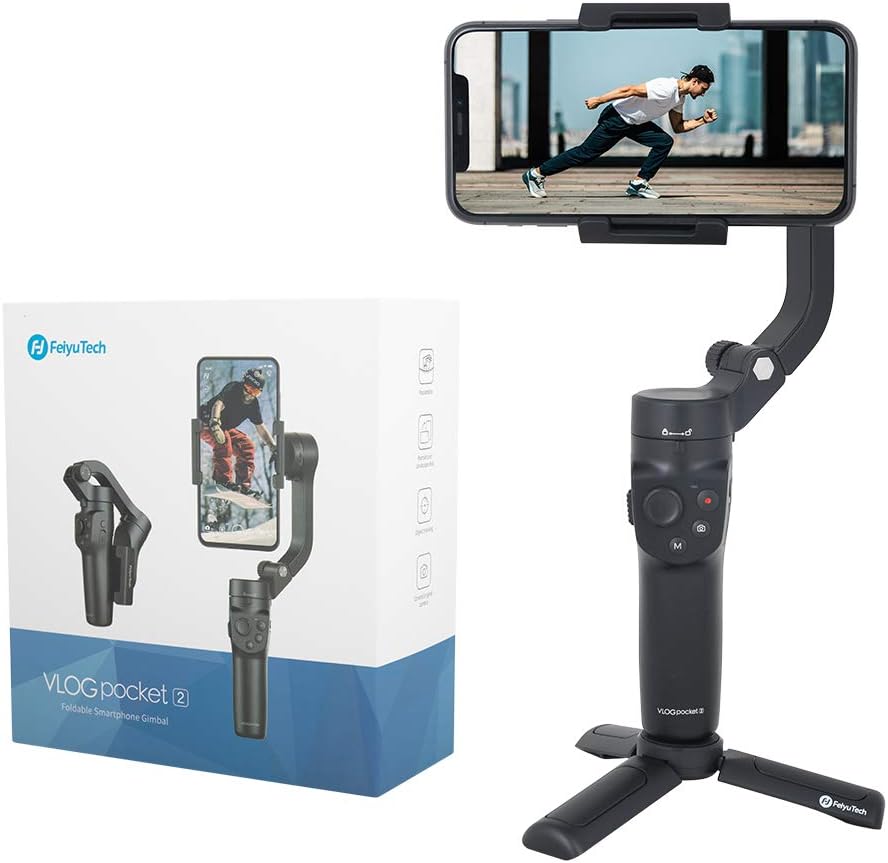
Figure 1: FeiyuTech VLOG Pocket 2 Gimbal and its retail packaging.
Package Contents
Verify that all items are present in your package:
- FeiyuTech VLOG Pocket 2 Gimbal
- Mini Tripod
- USB-C Charging Cable
- Portable Storage Bag
- Quick Start Guide
- Warranty Card
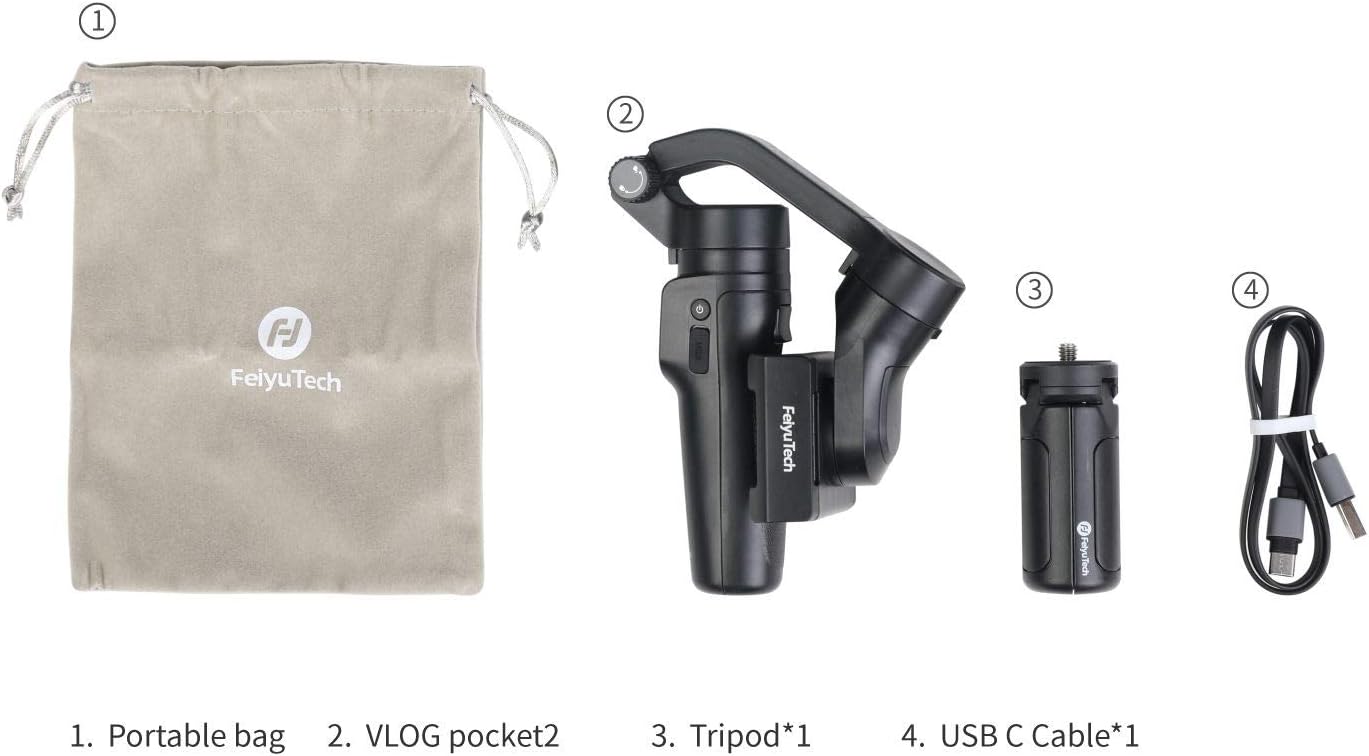
Figure 2: Included accessories with the FeiyuTech VLOG Pocket 2.
Setup
1. Unfolding the Gimbal
The VLOG Pocket 2 features a foldable design for portability. To unfold, release the locking mechanisms on the gimbal arms. Ensure all three axes are unlocked before powering on.


Figure 3: Folded (left) and unfolded (right) states of the gimbal.
2. Mounting Your Smartphone
Carefully place your smartphone into the phone clamp, ensuring it is centered for optimal balance. The gimbal supports both horizontal (landscape) and vertical (portrait) orientations.

Figure 4: Smartphone mounted on the gimbal, ready for use with original camera apps.
3. Connecting via Bluetooth and App
Power on the gimbal. Enable Bluetooth on your smartphone and connect to the "FeiyuTech" device. For full functionality and advanced features, download and install the Feiyu ON app from your device's app store. The gimbal can control your phone's original camera app directly via Bluetooth, eliminating the need to shoot exclusively through the Feiyu ON app.
Operating Modes and Controls
The VLOG Pocket 2 offers various modes and intuitive controls for diverse shooting scenarios.

Figure 5: Front panel controls including joystick, video, photo, function, and focus buttons.
Key Controls:
- Joystick: Controls pan and tilt movements.
- Video Button: Starts/stops video recording.
- Photo Button: Takes a photo.
- Function Button (M-Key): Cycles through different gimbal modes (Pan Tilt Follow, Pan Follow, All Follow, Inception Mode). Can be customized.
- Focus Button (W/T): Controls zoom in/out.
Advanced Features:
- 3-Axis Stabilization: Provides smooth, shake-free footage.
- Landscape & Portrait Mode: Easily switch between orientations with a button press.
- Face & Object Tracking: The gimbal can automatically follow a selected face or object, keeping it in frame.
- Dolly Zoom: A cinematic effect where the background appears to zoom while the foreground remains static.
- Gesture Control: Initiate certain functions (e.g., start recording) with hand gestures.
- Time-lapse: Create dynamic time-lapse videos.

Figure 6: Mobile face and object tracking in action.
Video 1: Official FeiyuTech VLOG Pocket 2 smartphone gimbal features demonstration. This video highlights the portable and foldable design, 3-axis stabilization, landscape and portrait modes, zoom control, and various shooting functions like All Follow mode, Lock mode, Dolly Zoom, Gesture Control, and Time-lapse.
Maintenance
Charging:
Charge the gimbal using the provided USB-C cable. The battery indicator lights will show charging status. A full charge ensures extended usage time.
Cleaning:
Wipe the gimbal with a soft, dry cloth. Avoid using harsh chemicals or abrasive materials that could damage the surface or internal components.
Firmware Updates:
Regularly check for firmware updates via the Feiyu ON app to ensure optimal performance and access to new features. Follow the in-app instructions for updating.
Troubleshooting
- "Gimbal Overload" Error: This often occurs if the gimbal arms are not fully unlocked or the smartphone is not properly balanced before powering on. Ensure all clamps are released and the phone is centered.
- Failure to Connect to Feiyu ON App:
- Forget the device or cancel pairing in your smartphone's Bluetooth settings. Turn Bluetooth off and on again.
- Reboot the gimbal.
- Run the Feiyu ON app again to reconnect.
- Firmware Update Failed (Green Light): If the app shows "upgrade failed" and the gimbal indicator keeps a green light, preventing power-on, reboot the gimbal. Connect with the app again and select to upgrade the "Keyboard firmware" in gimbal settings.
- Firmware Update Failed (White/Blue Light): If the app shows "upgrade failed" and the gimbal indicator keeps a white light, flashing with blue light, and the gimbal's axis motors are not running, reboot the gimbal. Connect with the app again and select to upgrade the "Gimbal firmware" in settings.
- Gimbal Not Functioning / Turning Off: Ensure the gimbal is fully charged. If issues persist, it may indicate a battery problem or internal malfunction.
Specifications
| Feature | Detail |
|---|---|
| Product Dimensions | 3.7 x 2.51 x 9.74 inches |
| Item Weight | 9.5 ounces (0.27 Kilograms) |
| Model Number | US-VLOGPOCKET2 |
| Batteries | 1 Lithium Ion battery required |
| Compatible Devices | Camera, Cellphone |
| Folded Size | 15.5 cm (l) x 8 cm (w) x 4 cm (h) |
| Maximum Weight Recommendation | 2 Kilograms |
Warranty and Support
FeiyuTech offers the following support for your VLOG Pocket 2:
- 30 Days Return Policy: For eligible returns.
- 1 Year Official Warranty: Applies to all FeiyuTech items.
- 24H Email Service: One-stop technical support.
For technical assistance or warranty claims, please contact FeiyuTech support at: support@feiyu-tech.com

FeiyuTech: Helping people smoothly capture life's moments since 2007.
Related documentsUS-VLOGPOCKET2

Ask a question about this manual
Ask about setup, troubleshooting, compatibility, parts, safety, or missing instructions. Manuals+ will review the question and use this page’s manual context to help answer it.