1. Product Overview
The Alxum USB Fast Charging Station is designed to efficiently charge multiple devices simultaneously. Featuring 10 USB ports, including one Quick Charge 3.0 port, it provides a centralized charging solution for various electronic devices such as smartphones and tablets. This station helps organize your charging area by consolidating multiple chargers into one unit.
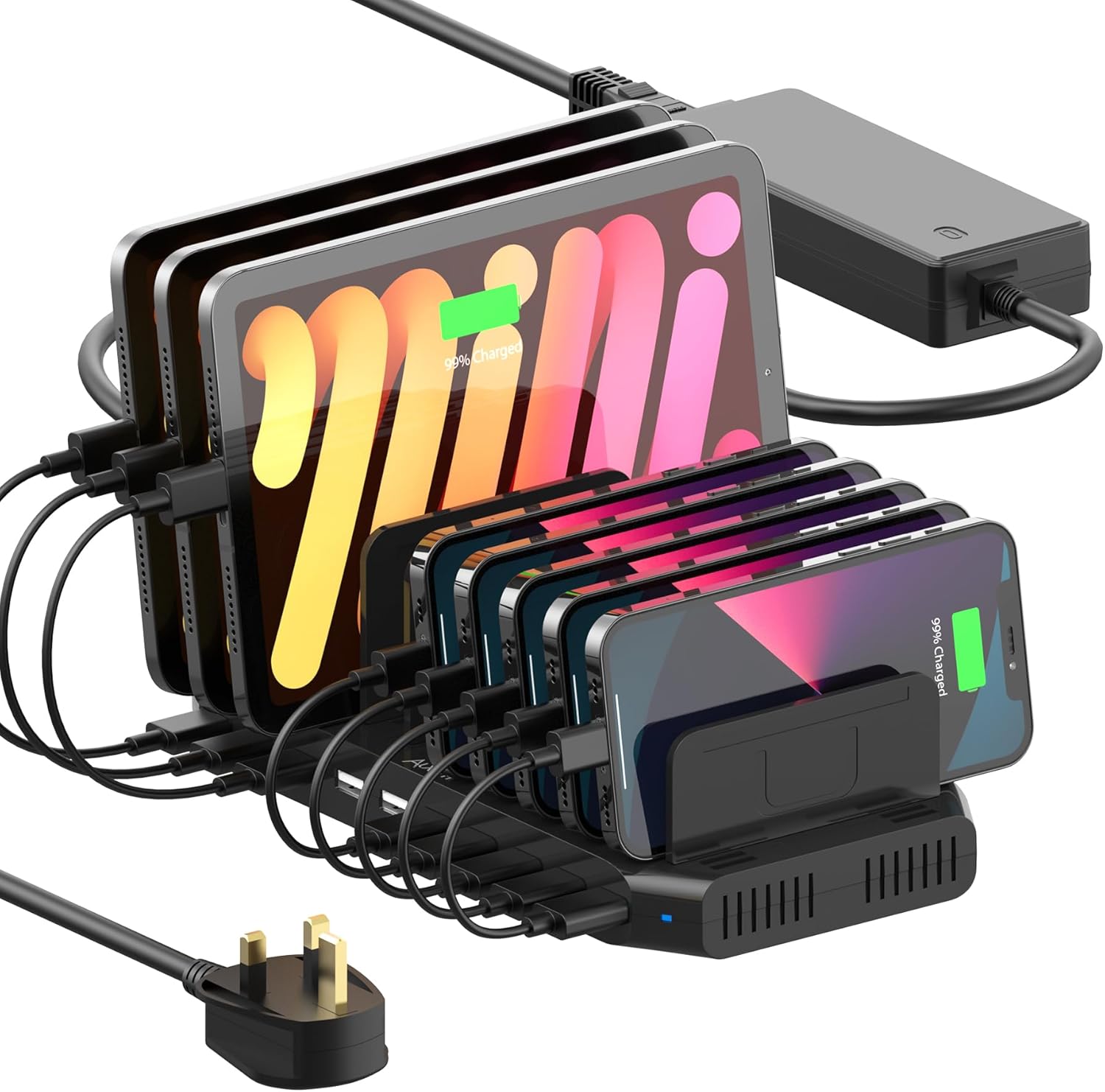
Image 1.1: The Alxum 10-Port USB Fast Charging Station in use, charging several tablets and smartphones.

Image 1.2: Overview of the Alxum 60W 10-Port Charging Station highlighting its Quick Charge 3.0 capability.
2. Package Contents
Please verify that all items listed below are included in your package:
- 1 x Alxum USB Fast Charging Station
- 1 x 15V/4A DC Power Adapter
- 11 x Dividers (5 tall, 6 short)
- 1 x User Manual (this document)
Note: Charging cables are not included and must be purchased separately.

Image 2.1: Contents of the package including the charging station, power adapter, and various sized dividers.

Image 2.2: The charging station in a home setting, emphasizing that charging cables are not supplied.
3. Safety Information
To ensure safe operation and prevent damage, please adhere to the following safety guidelines:
- Use only certified charging cables for optimal performance and safety.
- Ensure the device slots are slightly wider than your devices to prevent dividers from dislodging.
- Avoid using devices with excessively heavy cases while charging, as this may affect divider stability.
- The power adapter is UL certified and incorporates Alxum's Multi-Protect safety system, including over-charge, over-voltage, overheating, short circuit, and overcurrent protection.
- Operate the device within the specified AC 100-240V input voltage range.
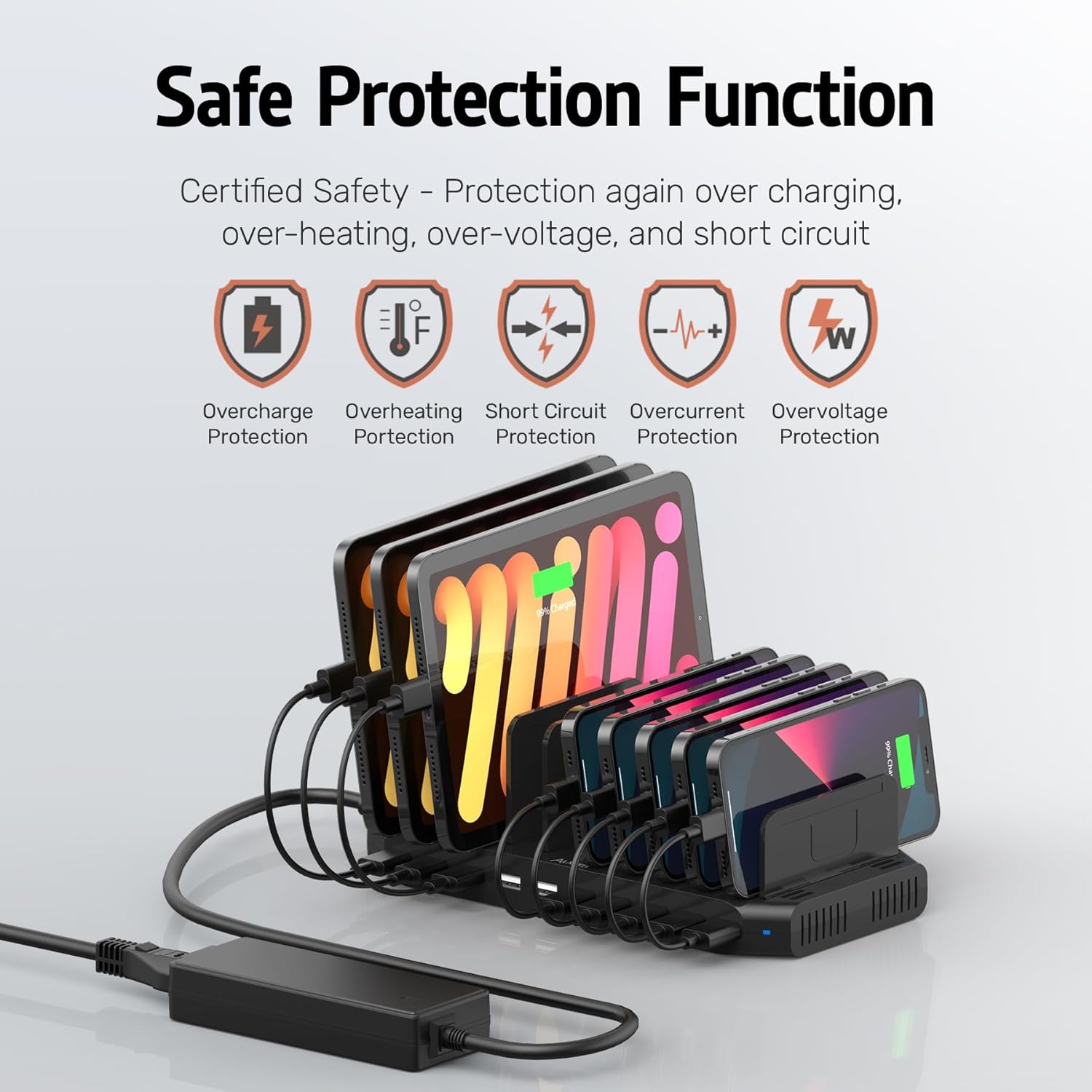
Image 3.1: Visual representation of the charging station's built-in safety protection features.
4. Setup Instructions
- Unpack: Carefully remove all components from the packaging.
- Connect Power: Connect the 15V/4A DC Power Adapter to the charging station's power input port, then plug the adapter into a standard AC 100-240V wall outlet.
- Install Dividers: Insert the provided dividers into the slots on the charging station. There are 5 tall and 6 short dividers. For optimal stability, tilt the dividers at a 45-degree angle and press firmly into the slots. Arrange them according to the size of your devices.

Image 4.1: Illustration of how to install the adjustable dividers into the charging station.

Image 4.2: Example of how the charging station can organize multiple devices and cables.
5. Operating Instructions
The Alxum charging station offers efficient charging for a variety of devices.
- Standard Charging Ports: Nine ports provide up to 5V/2.4A (BC 1.2 technology) per port, suitable for most smartphones, tablets, and other USB-powered devices.
- Quick Charge 3.0 Port: One dedicated port supports Qualcomm Quick Charge 3.0, offering faster charging for compatible devices. This port can charge devices from 0% to 50% in approximately 35 minutes.
- Charging Devices: Connect your devices to the appropriate USB ports using their respective charging cables. Place devices between the dividers for organized charging.

Image 5.1: Details of the charging ports, including standard 2.4A ports and the Quick Charge 3.0 port.

Image 5.2: A guide illustrating the different charging technologies and their respective outputs.
Compatible Devices:
The charging station is compatible with a wide range of devices, including but not limited to:
- Smartphones: iPhone (XS/XS Max/XR/X/8/7/7 Plus/6/6s/6s Plus/5/5S/SE/5C), Samsung Galaxy (S10/S9 Plus/S9/Note 9/A9/Note 8/S8 Plus/S8+/S7/S7/Note 4/Note 5Edge/S6/S6 Edge/S5/S4/C5), Google Pixel, HTC One, One Plus, Nexus 5/5X/6P/7, LG G3/G4/G5, SONY z5/x Performance/Z5 Premium/Z1 L39H, Motorola Moto Z/Z2 Play/Moto X/Moto M, Huawei Nova 2/P10, Mate 9/P10 Plus, Blackberry.
- Tablets: iPad (mini/Air/Pro/Touch), other USB-A compatible tablets.
- Other Devices: Power Banks, wireless earphones (e.g., AirPods), smartwatches (e.g., Apple Watch), cameras, PSP, GPS devices, headsets, Nintendo Switch.

Image 5.3: The charging station demonstrating compatibility with a wide array of electronic devices.

Image 5.4: A visual list of compatible phones, tablets, and other devices.

Image 5.5: The charging station's capacity for charging multiple tablets or smartphones simultaneously.
6. Maintenance
To ensure the longevity and optimal performance of your charging station, follow these maintenance guidelines:
- Cleaning: Disconnect the power adapter before cleaning. Use a soft, dry cloth to wipe the surface of the charging station. Avoid using liquid cleaners or abrasive materials.
- Storage: When not in use for extended periods, store the charging station in a cool, dry place away from direct sunlight and extreme temperatures.
- Cable Management: Regularly check charging cables for any signs of wear or damage. Replace damaged cables immediately to prevent electrical hazards.
7. Troubleshooting
If you encounter issues with your Alxum charging station, refer to the following common problems and solutions:
| Problem | Possible Cause | Solution |
|---|---|---|
| Device not charging |
|
|
| Slow charging speed |
|
|
| Dividers fall out easily |
|
|
| LED indicator not lit |
|
|
8. Specifications
| Feature | Detail |
|---|---|
| Product Dimensions | 9.37 x 4.64 x 1.02 inches |
| Item Weight | 1.69 pounds |
| Model Number | PS65B150Y4000S |
| Brand | Alxum |
| Connector Type | USB Type-A (10 ports) |
| Special Feature | Fast Charging (Quick Charge 3.0) |
| Color | Black |
| Input Voltage | AC 100-240V |
| Amperage | 4 Amps (total output from power adapter) |
| Output (Standard Ports) | Up to 5V/2.4A per port (BC 1.2 Technology) |
| Output (QC 3.0 Port) | Maximum 5V/3A for QC 3.0 supported devices |
| Power Adapter | 15V/4A DC Power Adapter (UL Certificated) |
9. Warranty and Customer Support
Alxum is committed to providing excellent customer service. If you have any questions, require assistance, or need to address product-related concerns, please contact our support team.
For support, please refer to the contact information provided with your purchase or visit the official Alxum website. Our customer service team is available to assist you.

Image 9.1: Alxum's commitment to 24-hour customer service and support.

