
Alecto BC-100 MONKEY
Alecto BC-100 Monkey Educational Alarm Clock User Manual
Model: BC-100 MONKEY
1. Introduction
The Alecto BC-100 Monkey Educational Alarm Clock is designed to assist children in developing a healthy sleep routine and understanding time. This device functions as both a sleep trainer and a conventional alarm clock, utilizing visual cues to indicate wake-up and sleep times. It aims to provide a more restful night for both children and parents.
2. Product Overview
The BC-100 Monkey Alarm Clock features a friendly monkey design with an integrated digital display. Its primary function is to visually communicate sleep and wake times through color-changing lights.
- Sleep Trainer Function: Uses blue light to indicate sleep time and orange light for wake-up time.
- Adjustable Night Light: The intensity of the night light can be adjusted through 7 settings, with an option to turn it off completely.
- Standard Alarm Clock: Can be used as a regular digital alarm clock with an audible alarm.
- Wireless and Rechargeable: Equipped with an internal battery for portability, rechargeable via the included micro USB cable.
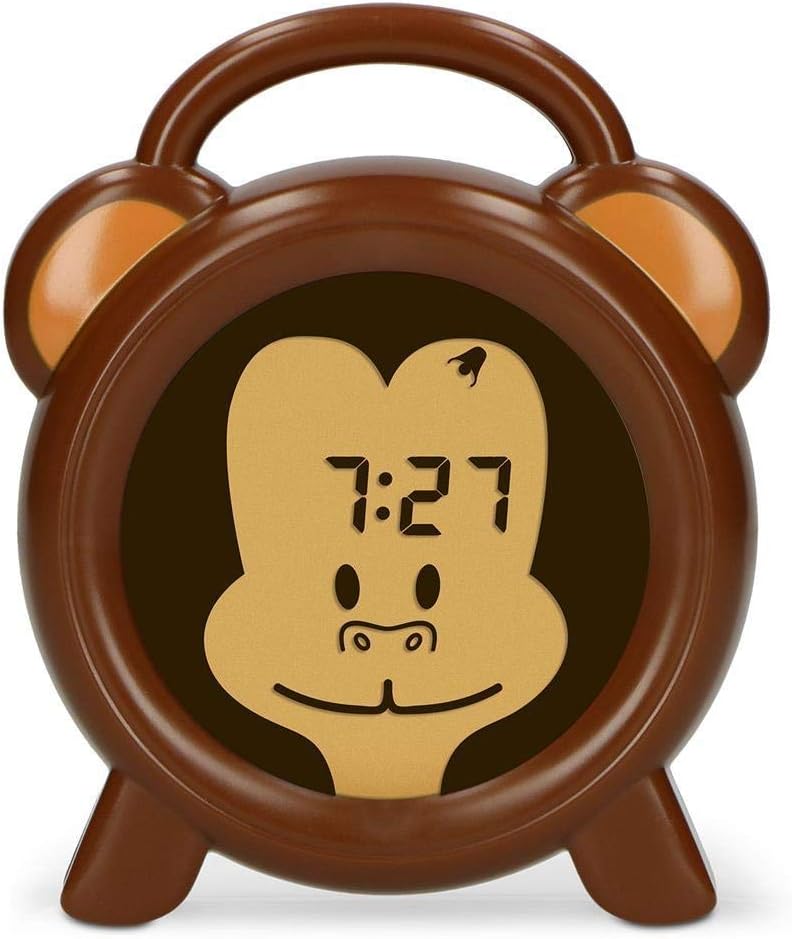
Figure 2.1: Front view of the Alecto BC-100 Monkey Educational Alarm Clock, showing the digital display within the monkey face.

Figure 2.2: Rear view of the Alecto BC-100, displaying the control buttons (MODE, SET, +, -, ON/OFF) and the charging port.
3. Setup and Initial Use
3.1 Charging the Device
Before first use, fully charge the Alecto BC-100. Connect the included micro USB cable to the charging port on the back of the device and plug the other end into a compatible USB power adapter (not included) or a computer USB port. The charging indicator will show the charging status.
3.2 Setting the Current Time
- Press the MODE button to enter time setting mode.
- Use the + and - buttons to adjust the hours.
- Press SET to confirm the hours and move to minutes.
- Use the + and - buttons to adjust the minutes.
- Press SET again to save the time and exit setting mode.
4. Operating the Sleep Trainer and Alarm Functions
4.1 Setting Sleep and Wake-Up Times (Sleep Trainer)
The sleep trainer function uses light cues to signal when it's time to sleep and when it's time to wake up.
- Press the MODE button repeatedly until the sleep trainer setting appears (often indicated by a moon icon or specific time display).
- Use + and - to set the desired sleep time (when the blue light will activate).
- Press SET to confirm.
- Use + and - to set the desired wake-up time (when the orange light will activate).
- Press SET to save the settings.

Figure 4.1: The clock displaying a blue light, indicating it is time for sleep.

Figure 4.2: The clock displaying an orange light, indicating it is time to wake up.
4.2 Adjusting Night Light Intensity
To adjust the brightness of the night light (both blue and orange), press the ON/OFF button repeatedly while the light is active. There are 7 intensity settings, plus an option to turn the light off.
4.3 Using as a Standard Alarm Clock
The BC-100 can also function as a traditional alarm clock with an audible alarm.
- Press the MODE button until the alarm setting appears (often indicated by an alarm icon).
- Use the + and - buttons to set the desired alarm hour.
- Press SET to confirm and move to minutes.
- Use the + and - buttons to adjust the alarm minutes.
- Press SET to save the alarm time.
- To activate or deactivate the alarm, press the ON/OFF button while in alarm setting mode. An indicator on the display will show if the alarm is active.
5. Maintenance and Care
To ensure the longevity and proper functioning of your Alecto BC-100, follow these maintenance guidelines:
- Cleaning: Wipe the device with a soft, dry cloth. Do not use abrasive cleaners or solvents, as these may damage the surface.
- Charging: Recharge the device when the battery indicator shows low power. While it is rechargeable, prolonged periods without charging may affect battery life.
- Storage: If storing the device for an extended period, ensure it is fully charged and then turn it off. Store in a cool, dry place away from direct sunlight.
- Water Exposure: This device is not waterproof. Avoid exposure to water or high humidity.
6. Troubleshooting
If you encounter issues with your Alecto BC-100, please refer to the following common problems and solutions:
| Problem | Possible Cause | Solution |
|---|---|---|
| Device does not turn on. | Battery is depleted. | Connect the device to a power source using the micro USB cable and allow it to charge for at least 30 minutes before attempting to turn it on. |
| Display is dim or flickering. | Low battery or incorrect brightness setting. | Recharge the device. Press the ON/OFF button to cycle through brightness settings. |
| Sleep trainer light is not changing color. | Incorrect sleep/wake-up time settings or function is not activated. | Verify that the sleep and wake-up times are correctly set. Ensure the sleep trainer function is enabled. |
| Alarm does not sound. | Alarm is not activated or volume is too low. | Check if the alarm icon is displayed, indicating it is active. Ensure the volume is set to an audible level (if adjustable, though not specified for this model). |
| Buttons are unresponsive. | Temporary software glitch. | Perform a soft reset by pressing and holding the ON/OFF button for 10 seconds, or if available, use the reset pinhole (refer to Figure 2.2 for location). |
7. Specifications
| Feature | Detail |
|---|---|
| Model Number | BC-100 MONKEY |
| Brand | Alecto |
| Product Dimensions (H x W x D) | 14 cm x 11.8 cm x 3.6 cm |
| Item Weight | 232 Grams |
| Power Supply | Rechargeable (1 Lithium Polymer battery required) |
| Display Type | Digital |
| Colour | Braun |
| Special Feature | Colour changing (sleep trainer) |

Figure 7.1: Dimensions of the Alecto BC-100 Monkey Educational Alarm Clock.
Related documentsBC-100 MONKEY


Ask a question about this manual
Ask about setup, troubleshooting, compatibility, parts, safety, or missing instructions. Manuals+ will review the question and use this page’s manual context to help answer it.