
1. Introduction
This manual provides detailed instructions for the j5create JVCU100 USB Streaming Webcam. It covers setup, operation, maintenance, and troubleshooting to ensure optimal performance and a seamless user experience for video conferencing, streaming, and recording.

Figure 1.1: Front view of the j5create JVCU100 USB Streaming Webcam.
2. Package Contents
The j5create JVCU100 USB Streaming Webcam package includes the following items:
- j5create JVCU100 USB Streaming Webcam
- UVC/UAC protocol, driver (Note: Drivers are typically plug-and-play and automatically installed by the operating system.)

Figure 2.1: Product packaging detailing features and contents.
3. Product Overview
The j5create JVCU100 is a 1080p HD webcam designed for various communication needs. It features a 360° rotatable head and an integrated mounting clip for versatile placement on monitors, laptops, or flat surfaces.

Figure 3.1: Overview of the JVCU100 webcam's key features and compatibility.
4. Setup
4.1 Connecting the Webcam
The JVCU100 is a plug-and-play device. Connect the USB cable from the webcam directly to an available USB port on your computer (PC, Mac, or Chromebook).

Figure 4.1: Connecting the webcam via USB to a laptop.
4.2 Placement
The webcam features an adjustable clip that allows it to be securely mounted on top of a monitor, laptop screen, or placed on a flat surface. It is also tripod-ready for alternative mounting options.

Figure 4.2: Webcam mounted on a desktop monitor during a video call.

Figure 4.3: Webcam mounted on a tripod for flexible positioning.
4.3 Driver Installation and Software Recognition
The webcam utilizes UVC (USB Video Class) and UAC (USB Audio Class) protocols, meaning drivers are typically installed automatically by your operating system upon connection. No manual driver installation is usually required.
After connecting, open your preferred video conferencing or streaming application (e.g., Zoom, Skype, Microsoft Teams, Facebook Messenger). You may need to select the 'j5create JVCU100' as your video and audio input device within the application's settings. Ensure necessary app permissions are granted for camera and microphone access in your operating system's privacy settings.
5. Operating Instructions
5.1 Video Quality
The JVCU100 captures video in Full HD 1080p resolution at 30 frames per second, supporting H.264 and MJPEG formats for clear and smooth video.
5.2 Low Light Enhancement
Equipped with an F/2.4 aperture lens and a high-sensitivity image sensor, the webcam provides enhanced light sensitivity, producing brighter and more vivid images even in low-light conditions.
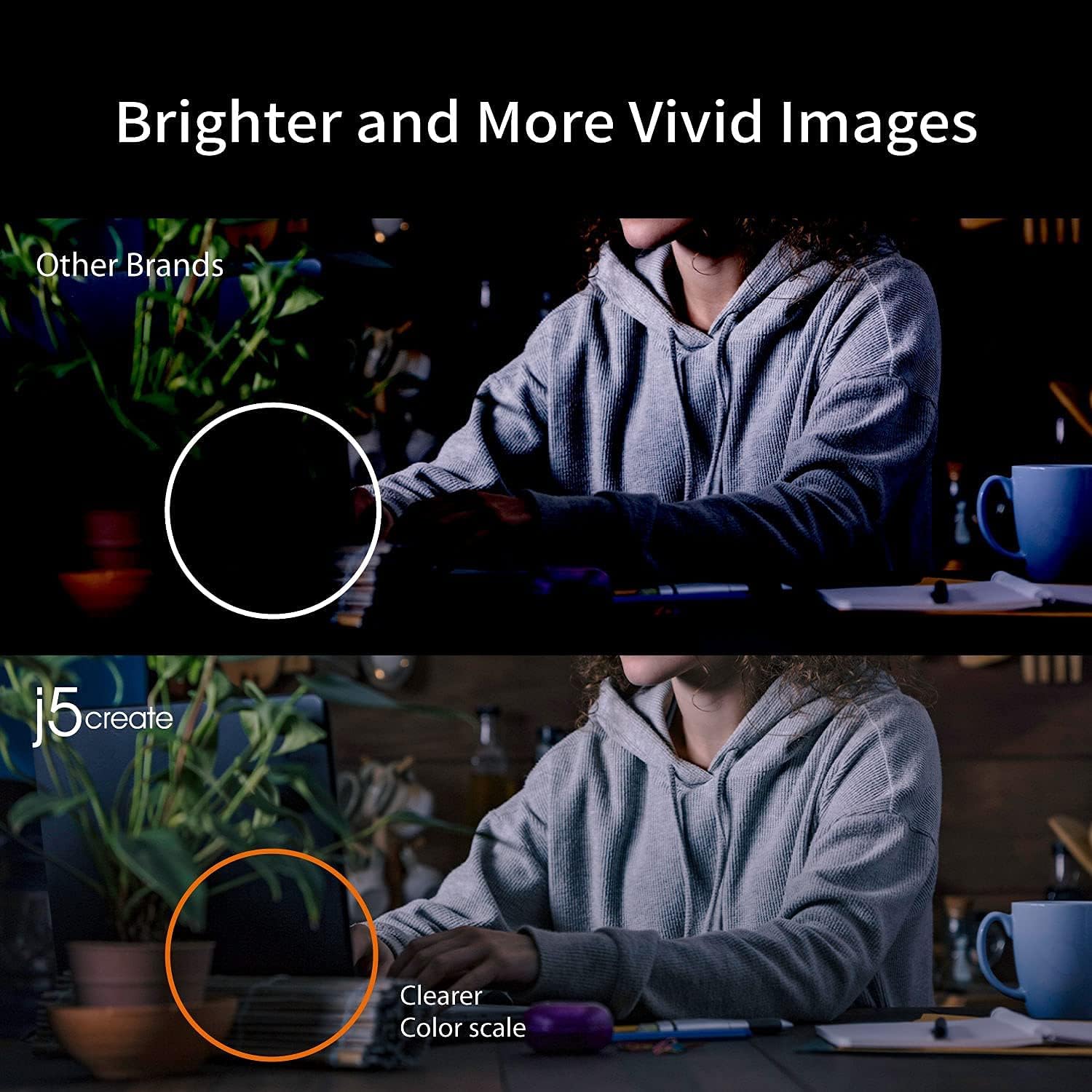
Figure 5.1: Low light enhancement comparison.
5.3 Field of View
The webcam offers an 80° field of view, allowing for a wider perspective suitable for individual use or small group meetings.

Figure 5.2: Field of view comparison.
5.4 360° Rotation
The camera head can be rotated 360 degrees horizontally, providing flexibility to adjust the viewing angle without repositioning the entire device.
5.5 Built-in Microphone
A high-fidelity microphone is integrated into the webcam for clear audio capture. Note: The microphone functionality may not be available for Discord on Chromebook devices.

Figure 5.3: Illustration of the built-in high-fidelity microphone.
6. Maintenance
To ensure the longevity and optimal performance of your j5create JVCU100 webcam:
- Cleaning: Gently wipe the lens with a soft, lint-free cloth. Avoid using harsh chemicals or abrasive materials.
- Storage: Store the webcam in a cool, dry place when not in use. Protect it from dust and extreme temperatures.
- Cable Care: Avoid bending or twisting the USB cable excessively to prevent internal damage.
7. Troubleshooting
- Webcam Not Detected: Ensure the USB cable is securely connected to a functioning USB port. Try a different USB port or a different computer to rule out port issues. Restart your computer.
- No Video/Black Screen: Check your video conferencing application's settings to ensure the j5create JVCU100 is selected as the active camera. Verify that application permissions for camera access are enabled in your operating system's privacy settings.
- No Audio/Poor Audio Quality: Confirm the j5create JVCU100 microphone is selected as the audio input device in your application and operating system sound settings. Check microphone volume levels. If using a Chromebook with Discord, note that the microphone may not be supported.
- Image Quality Issues: Ensure adequate lighting in your environment. The webcam has low light enhancement, but sufficient ambient light will yield the best results. Check for smudges on the lens.
- Compatibility: The webcam is compatible with Windows, macOS, and Chrome OS systems. It is not suitable for use with the PlayStation 5 (PS5).
8. Specifications
| Feature | Detail |
|---|---|
| Model Number | JVCU100 |
| Video Capture Resolution | 1080p (1920 x 1080), 720p (1280 x 720) |
| Frame Rate | 30 FPS (Maximum) |
| Image Sensor | CMOS |
| Aperture | F/2.4 Millimeters |
| Field of View | 80° |
| Microphone | Built-in High-Fidelity Microphone |
| Connectivity | USB |
| Supported Operating Systems | Windows, macOS, Chrome OS |
| Video Capture Format | H.264, MJPEG, YUV2 |
| Supported Audio Format | MP3, WAV, AAC, FLAC, OPUS |
| Color | Black |
| Item Weight | 4.2 ounces |
| Product Dimensions (LxWxH) | 2.11 x 4.02 x 2.09 inches |
9. Warranty and Support
For warranty information, technical support, and additional resources, please visit the official j5create website or contact their customer service directly.
- Manufacturer: j5create
- Website: j5create.com
- Phone Number (US): 1-888-988-0488
- Phone Number (Netherlands): +31 (0)10-2880 2882
- Email: service@j5create.com
Note: No official product videos from the seller were available in the provided data to embed in this manual.


