
Epson SC-T2100
Epson Surecolor SC-T2100 Large Format Printer User Manual
Model: SC-T2100 (C11CJ77301A0)
1. Introduction
This manual provides essential information for the safe and efficient operation of your Epson Surecolor SC-T2100 Large Format Printer. The SC-T2100 is a versatile Wi-Fi Inkjet printer designed for high-quality large format printing, capable of producing prints up to A1 size (594 x 841 mm) with a resolution of 2400 x 1200 DPI. It supports both Wi-Fi and Ethernet LAN connectivity.
Please read this manual thoroughly before using the printer to ensure proper setup, operation, and maintenance, and to prevent damage or injury.
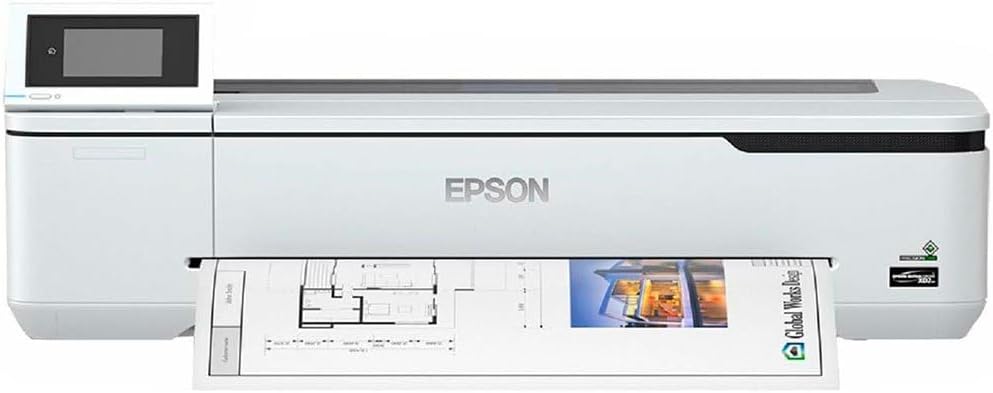
Figure 1: Epson Surecolor SC-T2100 Large Format Printer. This image shows the printer from the front, highlighting its compact design and the output tray where a large format print, featuring an architectural blueprint and a vibrant photo, is emerging. The control panel with an LCD screen is visible on the left side.
2. Setup
2.1 Unpacking and Component Verification
Carefully remove the printer from its packaging. Ensure all components listed below are present and undamaged.
- Epson Surecolor SC-T2100 Printer Unit
- Printer Stand
- Roller Feed Shaft
- Staple Unit (if applicable to your region/bundle)
- Power Cord
- Initial Ink Cartridges
- Setup Guide and Documentation
2.2 Printer Placement
Place the printer on a stable, level surface with adequate space around it for ventilation and paper loading/output. Avoid direct sunlight, excessive heat, or humidity.
2.3 Power Connection
Connect the power cord to the printer's power input and then to a grounded electrical outlet. Do not power on the printer until all initial setup steps are complete.
2.4 Ink Cartridge Installation
Follow the on-screen instructions on the printer's LCD display to install the ink cartridges. Ensure each cartridge is securely seated in its designated slot.
2.5 Software and Driver Installation
Insert the provided software CD/DVD into your computer's drive, or download the latest drivers and software from the official Epson support website. Follow the on-screen prompts to complete the installation.
2.6 Network Configuration (Wi-Fi / Ethernet)
After driver installation, configure the printer's network settings. You can connect via Wi-Fi or Ethernet LAN.
- Wi-Fi Setup: Use the printer's LCD panel to navigate to network settings, select your Wi-Fi network, and enter the password.
- Ethernet Setup: Connect an Ethernet cable from the printer to your network router or switch. The printer will typically obtain an IP address automatically.
3. Operating the Printer
3.1 Loading Paper
The SC-T2100 supports various media types and sizes, including roll paper and cut sheets (A4, A3, etc.). It has two trays and can handle media up to 24 inches (61 cm) wide.
- Roll Paper: Load the roll onto the roller feed shaft. Ensure the paper is aligned correctly and the leading edge is fed into the printer's input slot.
- Cut Sheets: Place individual sheets into the designated sheet feeder. The maximum input sheet capacity is 150 sheets.
Always select the correct paper type and size in your printer driver settings to ensure optimal print quality and prevent paper jams.
3.2 Printing from a Computer
To print a document or image:
- Open the document or image on your computer.
- Select "Print" from the application's File menu.
- Choose the Epson SC-T2100 from the list of available printers.
- Adjust print settings such as paper size, media type, print quality (e.g., 2400 x 1200 DPI for color), and orientation.
- Click "Print."
3.3 Using the LCD Display
The printer's LCD display provides access to various functions, including network settings, maintenance options, and status information. Use the navigation buttons to browse menus and confirm selections.
4. Maintenance
4.1 Ink Cartridge Replacement
When an ink cartridge is low or empty, a message will appear on the LCD display. Follow these steps to replace it:
- Open the ink cartridge cover.
- Press the tab on the empty cartridge to release it, then pull it out.
- Unpack a new genuine Epson ink cartridge.
- Insert the new cartridge firmly into the slot until it clicks into place.
- Close the ink cartridge cover.
4.2 Print Head Cleaning
If print quality declines (e.g., missing lines, streaks), perform a print head cleaning. This can be initiated from the printer's LCD display or through the printer driver software on your computer.
4.3 Firmware Updates
Periodically check the Epson support website for firmware updates. Keeping your printer's firmware up-to-date ensures optimal performance and compatibility.
5. Troubleshooting
This section addresses common issues you might encounter with your Epson Surecolor SC-T2100 printer.
5.1 Printer Not Responding
- Ensure the printer is powered on and connected to a power outlet.
- Check network connectivity (Wi-Fi signal strength or Ethernet cable connection).
- Restart both the printer and your computer.
- Verify that the correct printer driver is installed and selected on your computer.
5.2 Poor Print Quality
- Perform a print head cleaning (refer to Section 4.2).
- Check ink levels and replace any low or empty cartridges.
- Ensure you are using genuine Epson ink cartridges.
- Verify that the correct paper type and print quality settings are selected in the printer driver.
5.3 Paper Jams
- Turn off the printer and unplug it from the power source.
- Carefully open all covers and remove any jammed paper, pulling it gently in the direction of the paper path.
- Ensure no small pieces of paper remain inside the printer.
- Close all covers, plug in the printer, and turn it back on.
For more detailed troubleshooting, refer to the comprehensive troubleshooting guide available on the Epson support website.
6. Specifications
| Feature | Detail |
|---|---|
| Brand | Epson |
| Model Name | SC T2100 |
| Item Model Number | C11CJ77301A0 |
| Printing Technology | Inkjet |
| Printer Output | Color |
| Max Copy Resolution Color | 2400 x 1200 DPI |
| Max Copy Resolution Black-White | 2400 DPI |
| Maximum Media Size | 24 inches or 61 cm (A1) |
| Sheet Size | 210 millimeters (A4 minimum) |
| Max Input Sheet Capacity | 150 sheets |
| Number of Trays | 2 |
| Hardware Interface | USB, Ethernet, Wi-Fi |
| Display Type | LCD |
| Item Weight | 59.4 pounds (27 Kilograms) |
| Product Dimensions | 9.45 x 27.17 x 0.98 inches |
| Included Components | Printer Stand, Roller Feed Shaft, Staple Unit, Warranty Extensions |
7. Warranty and Support
Your Epson Surecolor SC-T2100 printer comes with a standard manufacturer's warranty. Please refer to the warranty documentation included with your product for specific terms and conditions. Warranty extensions may be available and are sometimes included with the product bundle.
For technical support, driver downloads, FAQs, and additional resources, please visit the official Epson support website. When contacting support, have your printer's model name (SC-T2100) and serial number ready.
Epson Support Website: www.epson.com/support
Related documentsSC-T2100


Ask a question about this manual
Ask about setup, troubleshooting, compatibility, parts, safety, or missing instructions. Manuals+ will review the question and use this page’s manual context to help answer it.