
1. Product Overview
The BENFEI 4K HDMI Switch is a compact, bidirectional device designed to manage HDMI signals between multiple sources and displays. It allows you to connect two HDMI sources to one HDMI display, or one HDMI source to two HDMI displays (not simultaneously). This switch supports high-resolution video up to 4K@60Hz, including 3D and 1080p Full HD, ensuring a stable and high-quality audio-visual experience.
- Bidirectional Functionality: Use as a 2 In 1 Out switch or a 1 In 2 Out splitter.
- High Resolution Support: Up to 3840 x 2160 @ 60Hz, 1080p, 3D, and HDCP.
- No External Power Required: Plug and play operation.
- Wide Compatibility: Compatible with devices like Firestick, Xbox, PS4, Roku, HDTVs, monitors, and projectors.
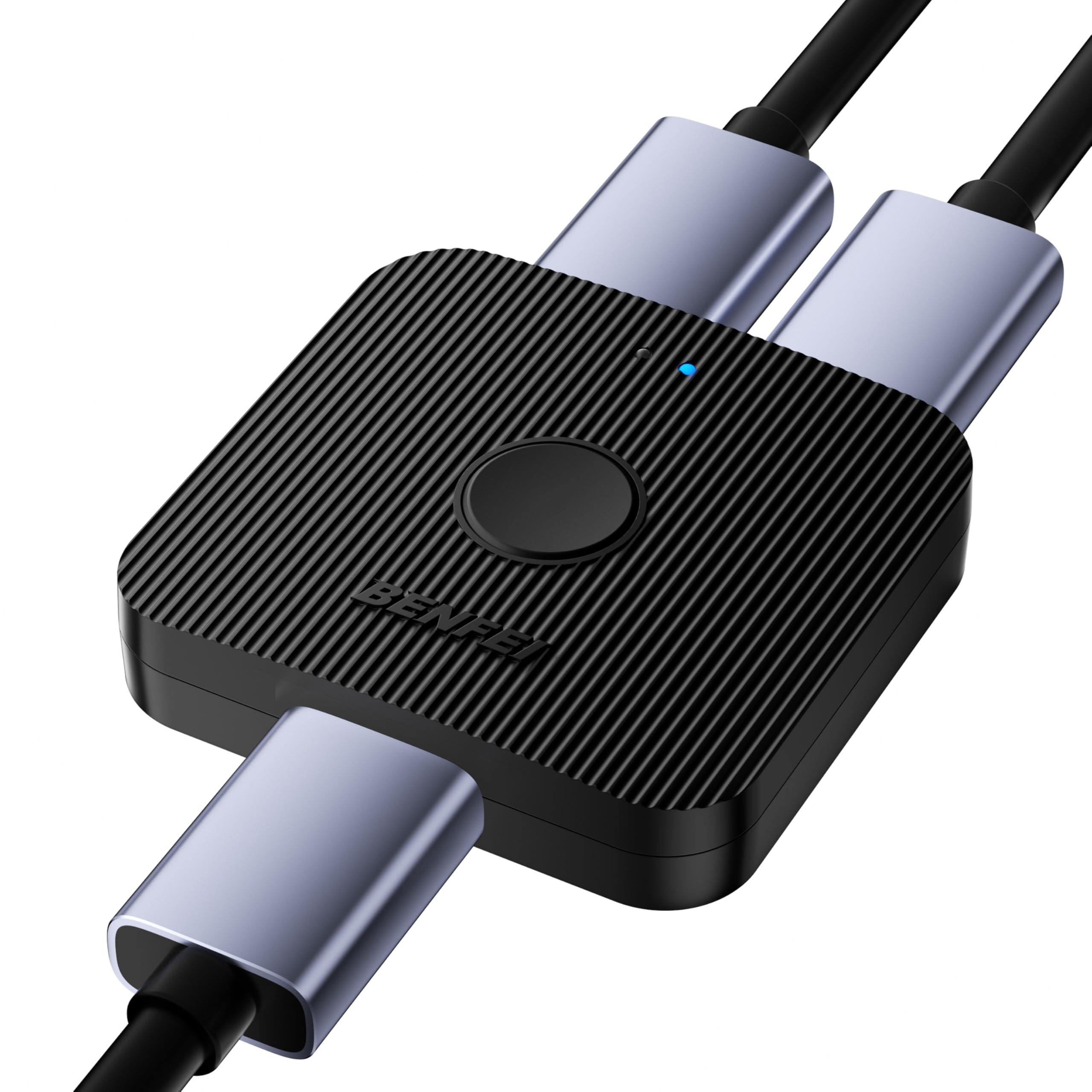
Image 1.1: The BENFEI 4K HDMI Switch with its compact ABS casing.

Image 1.2: Key features of the BENFEI 4K HDMI Switch, including 4K@60Hz, HDCP, HDR, 3D, and Dolby support.
2. Setup Instructions
The BENFEI HDMI Switch is designed for easy plug-and-play setup without the need for external power. Ensure all devices are powered off before making connections.
2.1. 2 In 1 Out Mode (HDMI Switch)
This mode allows you to connect two HDMI source devices (e.g., game console, TV box) to a single HDMI display (e.g., TV, monitor).
- Connect your first HDMI source device to one of the Input ports on the BENFEI HDMI Switch using an HDMI cable.
- Connect your second HDMI source device to the other Input port on the BENFEI HDMI Switch using an HDMI cable.
- Connect your HDMI display to the Output port on the BENFEI HDMI Switch using an HDMI cable.
- Power on all connected devices.

Image 2.1: Connection diagram for 2 In 1 Out (Switch) mode.
2.2. 1 In 2 Out Mode (HDMI Splitter)
This mode allows you to connect one HDMI source device (e.g., laptop) to two HDMI displays (e.g., two monitors). Note: Only one display can be active at a time. Simultaneous display on both monitors is not supported.
- Connect your HDMI source device to the Input port on the BENFEI HDMI Switch using an HDMI cable.
- Connect your first HDMI display to one of the Output ports on the BENFEI HDMI Switch using an HDMI cable.
- Connect your second HDMI display to the other Output port on the BENFEI HDMI Switch using an HDMI cable.
- Power on all connected devices.

Image 2.2: Connection diagram for 1 In 2 Out (Splitter) mode. Note the single active display limitation.
The switch does not require an external power adapter. It draws power directly from the HDMI source device.
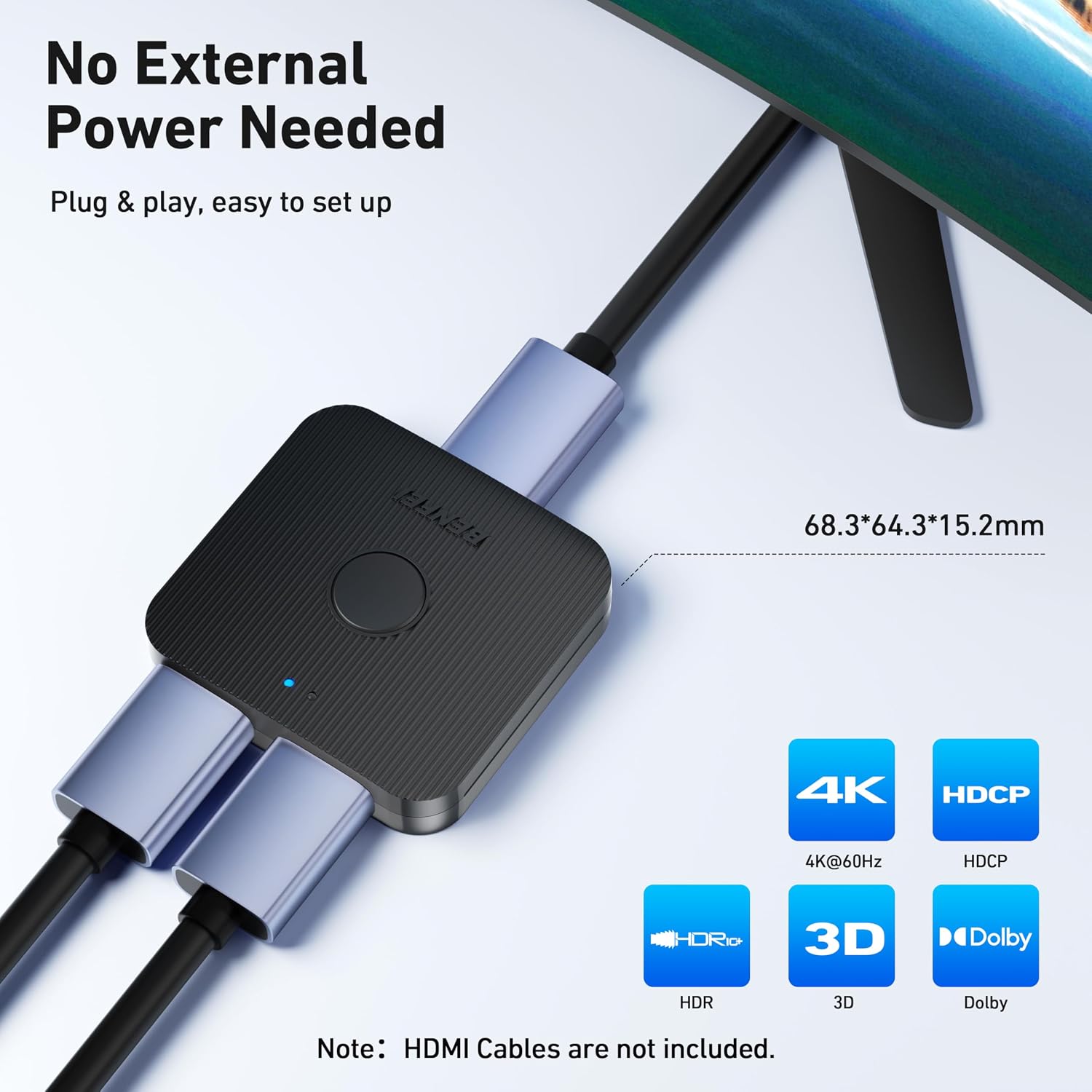
Image 2.3: The BENFEI HDMI Switch operates without external power.
3. Operating Instructions
Once your devices are connected and powered on, operating the BENFEI HDMI Switch is straightforward.
- Locate the button on the top of the HDMI switch.
- Press the button to toggle between the connected HDMI sources (in 2 In 1 Out mode) or between the connected HDMI displays (in 1 In 2 Out mode).
- An LED indicator on the switch will illuminate to show which input/output port is currently active.
The advanced intelligent chip ensures stable signal transmission and prevents loss of picture or sound quality during switching.

Image 3.1: The switch features an advanced intelligent chip for stable signal transmission.
4. Maintenance
To ensure the longevity and optimal performance of your BENFEI HDMI Switch, follow these simple maintenance guidelines:
- Keep the device in a dry environment, away from moisture and extreme temperatures.
- Clean the exterior of the switch with a soft, dry cloth. Avoid using liquid cleaners or abrasive materials.
- Do not attempt to open or repair the device yourself. Refer to professional service if needed.
- Avoid placing heavy objects on the switch or subjecting it to physical impact.
5. Troubleshooting
If you encounter issues with your BENFEI HDMI Switch, please refer to the following common troubleshooting steps:
- No Signal or Flickering Image:
- Ensure all HDMI cables are securely connected to both the switch and your devices.
- Try using different HDMI cables. Faulty cables are a common cause of signal issues.
- Verify that your display is set to the correct HDMI input.
- Check the resolution compatibility between your source and display.
- Refer to the cable length guidelines in the Specifications section (Table 6.1). Using excessively long or low-quality HDMI cables can degrade signal quality, especially at higher resolutions like 4K.
- Switching Issues:
- Press the switch button firmly to ensure proper activation.
- If in 1 In 2 Out mode, remember that only one display can be active at a time.
- Audio Problems:
- Ensure your display's audio settings are correctly configured.
- Check the HDMI cable for damage.
6. Specifications
- Model Number: 000298black
- Connector Type: HDMI
- Number of Ports: 2 (bidirectional)
- Supported Resolutions: Up to 3840 x 2160 @ 60Hz, 1920 x 1080 @ 60Hz (1080p Full HD), 720p, 1600 x 1200, 1280 x 1024
- Data Transmission Bandwidth: 10.2 Gbit/s
- Features: 4K, 3D, HDCP, Dolby
- Dimensions (L x W x H): 6.8 cm x 6.4 cm x 1.5 cm
- Housing Material: ABS
- Power: No external power needed (powered via HDMI)
6.1. Optimal Cable Length Guidelines
For optimal performance, especially at higher resolutions, the quality and length of your HDMI cables are crucial. Use AWG26 or AWG24 standard HDMI cables.

Image 6.1: Recommended HDMI cable specifications for optimal resolution.
| Resolution | Input Length (Max) | Output Length (Max) | AWG |
|---|---|---|---|
| 4K@60Hz | ≤1m / 3.3ft | ≤1m / 3.3ft | 26AWG |
| 4K@30Hz | ≤12m / 39.4ft | ≤12m / 39.4ft | 26AWG |
| 1080p@60Hz | ≤20m / 65.6ft | ≤20m / 65.6ft | 24AWG |
Note: HDMI cables are not included with the switch.
7. Warranty and Support
BENFEI provides an exclusive 18-month unconditional warranty for this product, ensuring long-term satisfaction with your purchase. If you encounter any issues or have questions, please contact BENFEI customer service for friendly and timely assistance.
For support, please visit the official BENFEI website or contact your retailer.
