
1. Introduction
Thank you for purchasing the MEIZE Android 11 Tablet. This manual provides essential information for setting up, operating, and maintaining your device. Please read it carefully to ensure proper use and to maximize your tablet's performance. Keep this manual for future reference.
2. Product Overview
The MEIZE Android 11 Tablet is a versatile device designed for various tasks, from entertainment to productivity. It features a vibrant 10.1-inch IPS display, a powerful 8-core processor, and a long-lasting battery.
Key Features
- High-Performance 8-Core Processor: Equipped with a 1.6GHz 8-core CPU and a built-in gravity sensor, ensuring stable and fast operation for a smooth user experience.
- Android 11 Operating System: Runs on a stable and enhanced Android 11 system, offering a convenient user interface and excellent app performance.
- Wi-Fi Connectivity: Supports 2.4GHz Wi-Fi for stable and high-speed wireless communication, enabling efficient power saving for wireless devices. Compatible with popular apps like Facebook, Twitter, YouTube, Line, and Instagram.
- High-Definition IPS Display: Features a vivid 10.1-inch Full HD 1280x800 IPS display, providing clear and bright images with a 178-degree viewing angle. The wear-resistant touch panel enhances usability.
- Dual Cameras: Includes a 13MP rear camera and a 5MP front camera for capturing photos and engaging in video calls.
- Dual Speakers: Delivers immersive audio for an enhanced multimedia experience.
- Large Storage Capacity: Comes with 32GB of internal storage, expandable up to 128GB via a microSD card (sold separately), allowing ample space for photos, files, e-books, videos, music, and games.
- 6000mAh Battery: A large-capacity battery provides up to 10 hours of continuous use on a single charge, ideal for commuting, travel, and extended entertainment.
- Multi-functional: Integrated GPS allows for offline navigation with downloaded maps. An FM radio function is included for radio enthusiasts. Bluetooth connectivity enables easy pairing with speakers and other compatible devices.

Figure 2.1: Front and back view of the MEIZE Android 11 Tablet.

Figure 2.2: The tablet running Android 10.0 OS, showcasing its interface and app compatibility.
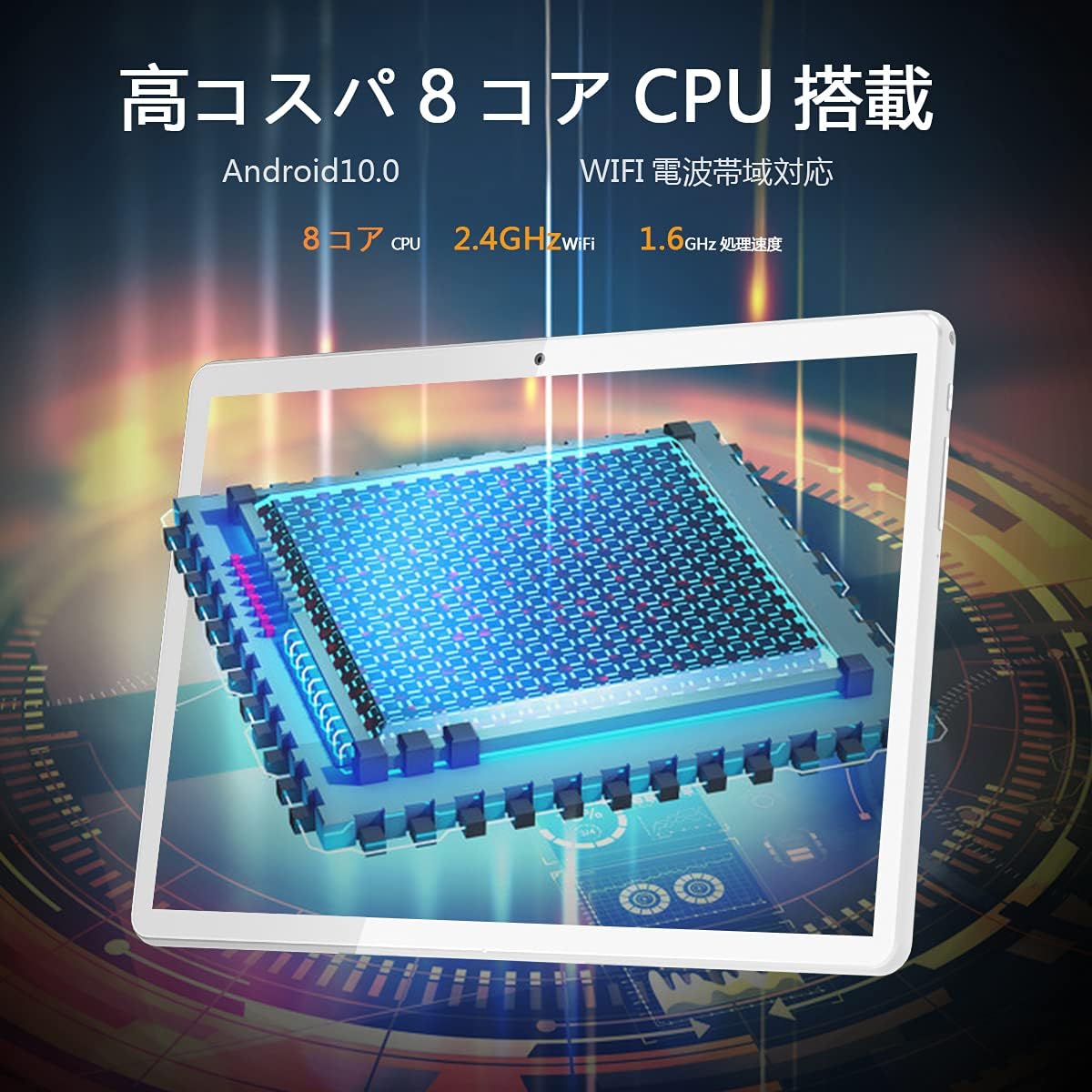
Figure 2.3: Illustration of the tablet's high-performance 8-core CPU.

Figure 2.4: The 10.1-inch Full HD IPS display showcasing vivid colors and wide viewing angles.

Figure 2.5: The tablet's large storage capacity (32GB ROM, 2GB RAM) and microSD expansion capability.

Figure 2.6: The tablet's dual camera system, featuring a 5MP front camera and a 13MP rear camera.
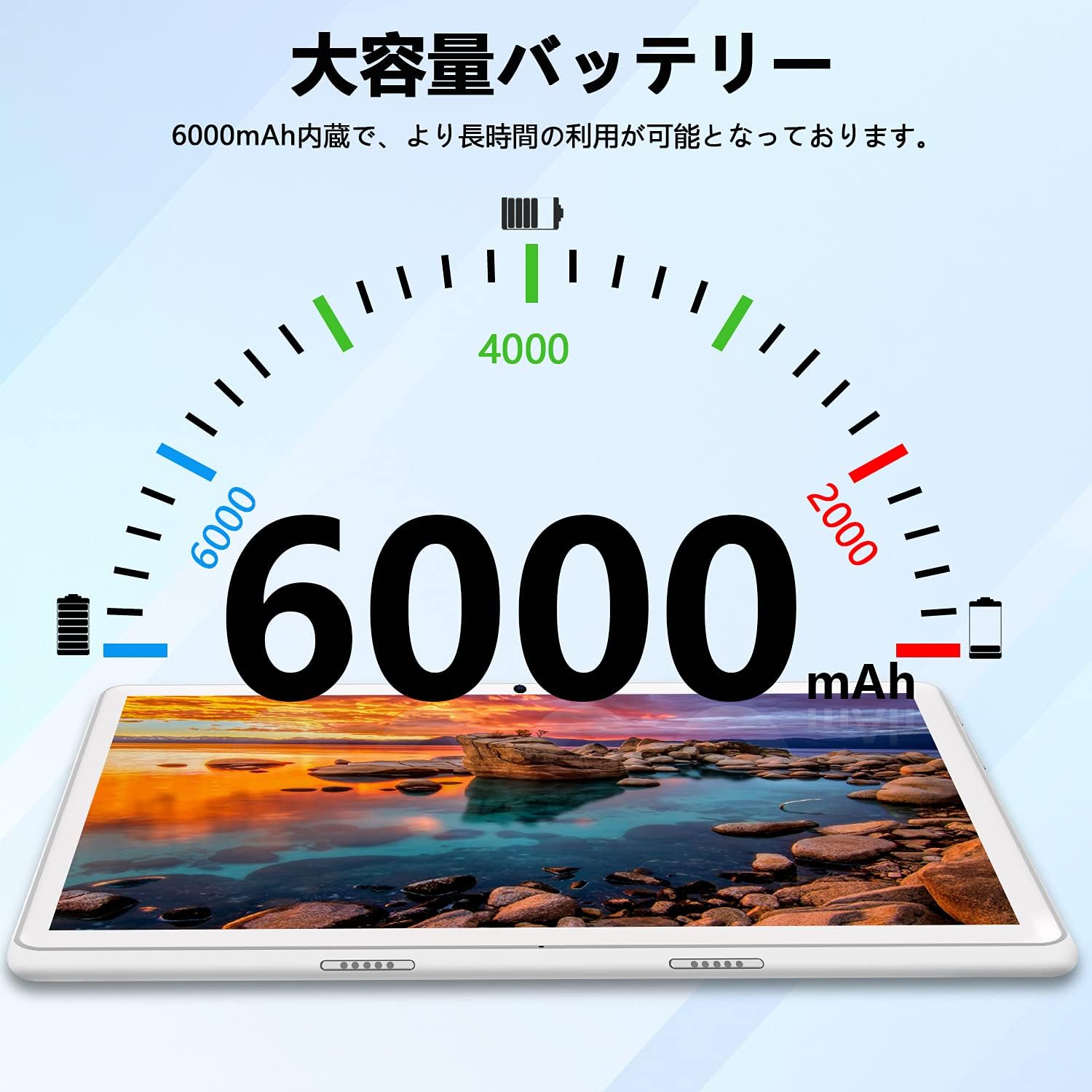
Figure 2.7: The tablet's 6000mAh large-capacity battery, providing extended usage time.
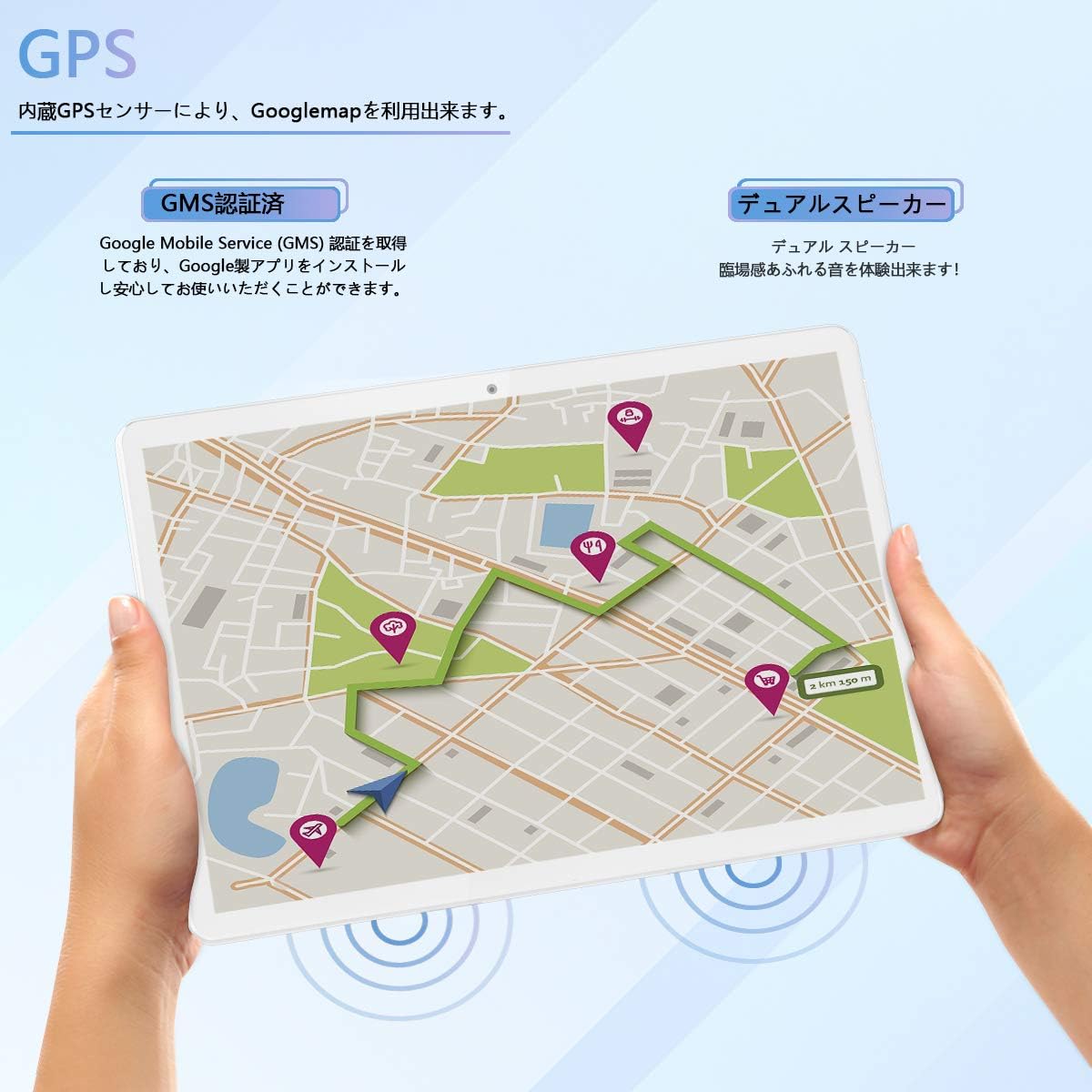
Figure 2.8: The tablet's GPS navigation capabilities and dual speaker system.
3. Setup
3.1 Initial Charging
Before first use, fully charge the tablet using the provided USB cable and power adapter. The battery indicator on the screen will show the charging status. A full charge typically takes several hours.
3.2 Power On/Off
- To Power On: Press and hold the Power button until the MEIZE logo appears on the screen.
- To Power Off: Press and hold the Power button until the power options appear. Select "Power off" and confirm.
- To Restart: Press and hold the Power button until the power options appear. Select "Restart" and confirm.
3.3 Wi-Fi Connection
- Go to "Settings" > "Network & internet" > "Wi-Fi".
- Toggle the Wi-Fi switch to the "On" position.
- The tablet will scan for available Wi-Fi networks. Select your desired network from the list.
- If prompted, enter the network password and tap "Connect".
- Once connected, the Wi-Fi icon will appear in the status bar.
3.4 Initial Android Setup
Follow the on-screen prompts to complete the initial Android setup, which includes selecting your language, connecting to Wi-Fi, setting up a Google account, and configuring security options.
4. Operating Instructions
4.1 Basic Navigation
- Touch: Tap an icon or option to select it.
- Touch and Hold: Press and hold an item to access additional options or move it.
- Swipe: Drag your finger across the screen to scroll through lists or switch between home screens.
- Pinch: Use two fingers to zoom in or out on images and web pages.
4.2 Installing and Managing Apps
- Open the Google Play Store app.
- Search for the desired app.
- Tap "Install" to download and install the app.
- To uninstall an app, go to "Settings" > "Apps & notifications", select the app, and tap "Uninstall".
4.3 Using the Camera
- Open the "Camera" app.
- Tap the camera icon to switch between front and rear cameras.
- Tap the shutter button to take a photo or start/stop video recording.
- Access photos and videos in the "Gallery" app.
4.4 GPS Navigation
The tablet has a built-in GPS sensor. You can use navigation apps like Google Maps. For offline navigation, download maps in advance through the app settings.
4.5 Bluetooth Connectivity
- Go to "Settings" > "Connected devices" > "Bluetooth".
- Toggle Bluetooth to "On".
- The tablet will scan for nearby Bluetooth devices. Select the device you wish to pair with.
- Follow any on-screen prompts to complete the pairing process.
4.6 FM Radio
To use the FM radio, connect wired headphones (not included) to the 3.5mm audio jack. The headphones act as an antenna. Open the FM Radio app and scan for available stations.
5. Maintenance
5.1 Cleaning the Tablet
Use a soft, lint-free cloth to clean the screen and body of the tablet. Avoid using harsh chemicals, abrasive cleaners, or aerosol sprays, as these can damage the device.
5.2 Battery Care
- Avoid exposing the tablet to extreme temperatures (hot or cold).
- Do not let the battery completely drain frequently. Charge it before it reaches 0%.
- Use only the original or certified compatible charger.
5.3 Software Updates
Periodically check for system updates to ensure your tablet has the latest features and security patches. Go to "Settings" > "System" > "System update" to check for updates.
5.4 Storage Management
Regularly clear unnecessary files and apps to maintain optimal performance. You can check storage usage in "Settings" > "Storage". Consider using a microSD card for additional storage.
6. Troubleshooting
| Problem | Possible Solution |
|---|---|
| Tablet does not power on. | Ensure the tablet is charged. Connect it to the charger for at least 30 minutes, then try powering it on again. |
| Wi-Fi connection issues. | Check if Wi-Fi is enabled in settings. Restart your router and the tablet. Ensure you have entered the correct password. |
| Tablet is running slow. | Close unused apps. Clear cache for frequently used apps. Free up storage space. Restart the tablet. |
| Apps are crashing. | Ensure apps are updated to their latest versions. Clear the app's cache and data in "Settings" > "Apps & notifications". Reinstall the app if necessary. |
| Screen is unresponsive. | Restart the tablet by holding the power button for about 10-15 seconds until it forces a restart. |
If you encounter issues not listed here or if the suggested solutions do not resolve the problem, please contact customer support.
7. Specifications
| Feature | Specification |
|---|---|
| Brand | MEIZE |
| Model Number | Meize k106 |
| Operating System | Android 11 |
| CPU | Spreadtrum SC9863A 1.6GHz 8-core |
| Screen Size | 10.1 inches |
| Maximum Display Resolution | 1280x800 pixels (Full HD IPS) |
| RAM | 2 GB |
| Internal Storage | 32 GB |
| Expandable Storage | Up to 128GB via microSD card (sold separately) |
| Rear Camera | 13 MP |
| Front Camera | 5 MP |
| Battery Capacity | 6000 mAh |
| Wireless Type | Wi-Fi (2.4GHz, 802.11bgn) |
| Connectivity | Bluetooth, GPS, FM Radio, 3.5mm Headphone Jack |
| Color | White |
| Item Weight | 835 grams |
| GTIN/UPC | 779139339939 |
8. Warranty and Support
This product comes with a manufacturer's warranty. Please refer to the warranty card included in the packaging for specific terms and conditions. For any questions or technical assistance, our Japanese support team is available to respond within 24 hours via email. Please contact us through the email address provided in your purchase documentation.