
NexiGo A229AF/N930AF
Contents
NexiGo N930AF Webcam User Manual
Model: A229AF/N930AF | Brand: NexiGo
Introduction
This manual provides comprehensive instructions for setting up, operating, and maintaining your NexiGo N930AF Webcam. Designed for desktop and laptop use, this 1080p HD USB web camera features autofocus, a built-in microphone, and wide compatibility, making it ideal for video conferencing, streaming, and online communication.
Key Features
- FHD 1080P Autofocus Webcam: Features a two MP CMOS sensor with up to 1080p resolution at 30fps. The autofocus function ensures sharp and clear videos from a 7 cm starting point with excellent range. Manual focus is also an option.
- Webcam with Privacy Cover: An integrated privacy cover shields the lens when not in use, enhancing security and protecting the lens from dust and debris.
- Built-in Microphone & Noise Cancellation: The integrated noise-canceling microphone reduces ambient noise, improving audio quality for calls and recordings.
- USB Webcam Plug and Play: Requires no additional drivers for quick setup. Ready for use in under a minute with compatible devices. Its folding design and 6.5 ft (2 Meter) USB cord offer portability and flexible placement.
- Widely Compatible and Software Support: Compatible with popular video/meeting software and operating systems including Windows XP/7/8/10/11, Mac OS 10.6, Linux 2.6.24, Chrome OS 29.0.1547, Ubuntu Version 10.04 or above. Optional NexiGo Webcam Software allows for customized settings.
Setup
The NexiGo N930AF Webcam is designed for simple plug-and-play installation. No drivers are typically required for basic functionality.
- Unpack the Webcam: Carefully remove the webcam and its privacy cover from the packaging.
- Mount the Webcam: The flexible mounting clip allows for versatile placement.
- On a Monitor/Laptop: Open the clip and place the webcam securely on top of your monitor or laptop screen. Adjust the angle as needed.
- On a Tripod: The webcam features a tripod-ready universal clip. Attach it to any standard tripod for stable positioning.
- On a Flat Surface: The clip can also be folded to create a stable base for placement on a desk or shelf.
- Connect to Computer: Plug the USB 2.0 cable from the webcam into an available USB port on your desktop or laptop.
- System Recognition: Your computer should automatically detect and install the necessary drivers. This process usually takes less than a minute.
- Verify Installation: Open your preferred video conferencing software (e.g., Zoom, Skype, Teams) or camera application. Select the "NexiGo N930AF Webcam" as your video and audio input device.
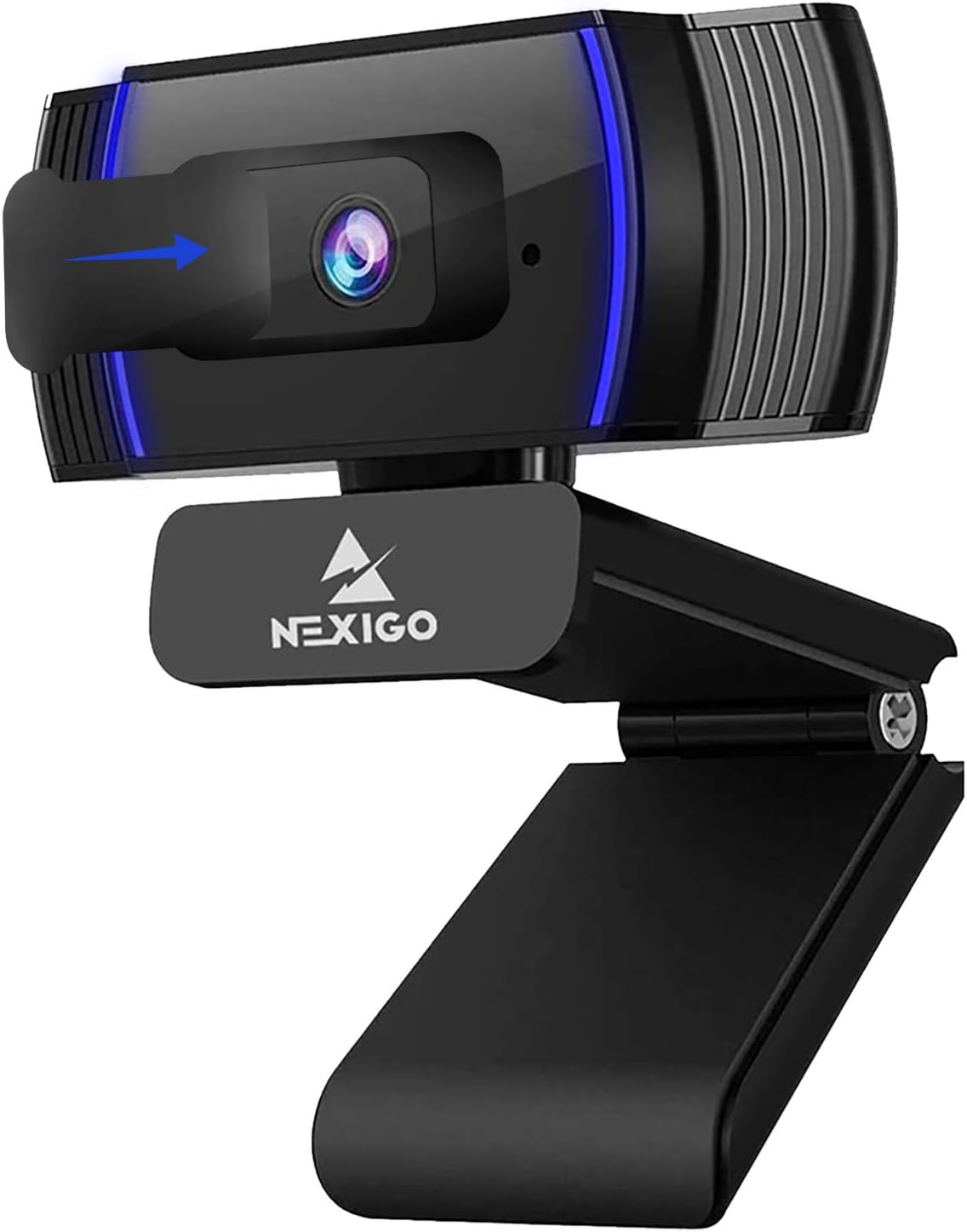
Figure 1: NexiGo N930AF Webcam with its integrated privacy cover.

Figure 2: The NexiGo N930AF Webcam is highly compatible with various operating systems and popular video conferencing applications.
Video 1: Official NexiGo N930AF AutoFocus 1080P Webcam with Privacy Cover overview, demonstrating its features and ease of use.
Video 2: NexiGo AutoFocus Webcam with Privacy Cover demonstration, highlighting its privacy features and versatile mounting options.
Operating Instructions
Autofocus Functionality
The N930AF features intelligent autofocus that automatically adjusts to keep you sharp and clear. It has a focal range starting from 7 cm. For specific scenarios, the autofocus can be manually overridden via the optional NexiGo Webcam Software.

Figure 3: Autofocus and automatic light correction ensure optimal image quality in various lighting conditions.
Built-in Microphone and Noise Cancellation
The integrated microphone is designed to capture clear audio while reducing ambient noise. This is particularly beneficial for online meetings and streaming where background sounds can be distracting. The microphone can detect sound up to 9.5 feet (3 meters) away.

Figure 4: Microphone sound detection range in meeting and living room environments.
Privacy Cover Usage
To ensure your privacy and protect the lens, slide the physical privacy cover over the webcam lens when it is not in use. This provides a physical barrier against unauthorized access and keeps the lens clean.

Figure 5: The privacy cover can be easily opened or shut to protect your privacy.
NexiGo Webcam Software (Optional)
For advanced customization of your webcam settings, download the optional NexiGo Webcam Software. This software allows you to adjust various parameters such as white balance, brightness, contrast, hue, saturation, sharpness, gamma, and backlight compensation. It supports Windows 7/8/10/11 and MacOS 10.13 or later.

Figure 6: Customize your webcam settings using the NexiGo Webcam Software.
Usage Scenarios
The NexiGo N930AF Webcam is versatile and suitable for a variety of applications:
- Remote Business Meetings (Zoom, Teams, Webex)
- Game Streaming (Twitch, YouTube)
- Family Video Calls (FaceTime, Skype)
- Live Streaming and Content Creation
- Online School and Education

Figure 7: The webcam supports various communication and entertainment needs.
Maintenance
To ensure the longevity and optimal performance of your NexiGo N930AF Webcam, follow these maintenance guidelines:
- Cleaning the Lens: Use a soft, lint-free cloth (e.g., microfiber cloth) to gently wipe the lens. Avoid abrasive materials or harsh chemicals that could scratch the lens.
- Cleaning the Body: Wipe the webcam body with a dry, soft cloth. Do not use liquid cleaners directly on the device.
- Storage: When not in use, especially for extended periods, close the privacy cover and store the webcam in a cool, dry place away from direct sunlight and extreme temperatures.
- Cable Care: Avoid bending or kinking the USB cable excessively. Do not pull the cable to disconnect the webcam; always grasp the plug.
Troubleshooting
If you encounter issues with your NexiGo N930AF Webcam, try the following troubleshooting steps:
- Webcam Not Detected:
- Ensure the USB cable is securely plugged into both the webcam and your computer.
- Try plugging the webcam into a different USB port.
- Restart your computer.
- Check your computer's Device Manager (Windows) or System Information (Mac) to see if the webcam is listed.
- No Video/Black Screen:
- Make sure the privacy cover is open.
- Verify that the correct webcam is selected in your video conferencing software's settings.
- Ensure no other application is currently using the webcam.
- Poor Image Quality:
- Ensure adequate lighting in your environment. The webcam has low-light correction, but sufficient light is always best.
- Clean the webcam lens.
- If using the optional NexiGo Webcam Software, adjust brightness, contrast, and other settings.
- No Audio/Poor Audio Quality:
- Confirm that the "NexiGo N930AF Webcam" microphone is selected as the audio input device in your software settings.
- Check your computer's sound settings to ensure the microphone is not muted and volume levels are appropriate.
- Ensure you are within the microphone's effective range (up to 9.5 feet).
Specifications
| Product Dimensions | 10.01 x 5.69 x 5.11 inches |
| Item Weight | 6.7 ounces |
| Item Model Number | A229AF/N930AF |
| Brand | NexiGo |
| Photo Sensor Technology | CMOS |
| Video Capture Resolution | 1080p |
| Maximum Focal Length | 7 Centimeters |
| Maximum Aperture | 2 f |
| Video Capture Format | MP4 |
| Supported Audio Format | MP3, WAV, AAC |
| Connectivity Technology | USB |
What's in the Box
- NexiGo N930AF Webcam
- Privacy Cover
- User Manual (Digital version available via provided link)
Warranty and Support
NexiGo is committed to providing excellent customer support. For any inquiries or assistance, please refer to the following:
- Customer Support: Expect a quick response within 24 hours.
- Returns: 30-day return policy for an exchange or refund.
- Technical Support: Lifetime technical support is provided for your product.
- User Guide (PDF): For a detailed PDF version of the user manual, please visit: https://manuals.plus/m/ebec2bbb9c14c4a5096a27fe886867f729470d64b8aa5d62e6b3fa84613bc739
Documents and downloads
Ask a question about this manual
Ask about setup, troubleshooting, compatibility, parts, safety, or missing instructions. Manuals+ will review the question and use this page’s manual context to help answer it.