1. Introduction
This manual provides essential instructions for the installation, operation, and maintenance of your CyberPower VP700ELCD Uninterruptible Power Supply (UPS). The VP700ELCD is designed to provide reliable power protection for your electronic devices, safeguarding them against power outages, surges, and sags. Please read this manual thoroughly before installation and operation to ensure proper use and maximum performance.
2. Important Safety Instructions
Please follow these safety guidelines to prevent injury and ensure the safe operation of your UPS:
- Do not expose the UPS to rain or moisture.
- Do not block ventilation openings.
- Ensure the UPS is connected to a grounded AC power outlet.
- Do not open the UPS casing; there are no user-serviceable parts inside. Refer servicing to qualified personnel.
- The UPS contains internal batteries that may present a risk of electrical shock.
- Disconnect the UPS from the AC power source before performing any maintenance or cleaning.
3. Product Overview
The CyberPower VP700ELCD UPS features a compact design with an intuitive LCD display for real-time status monitoring. Below is an illustration of the unit's front panel and its key components.
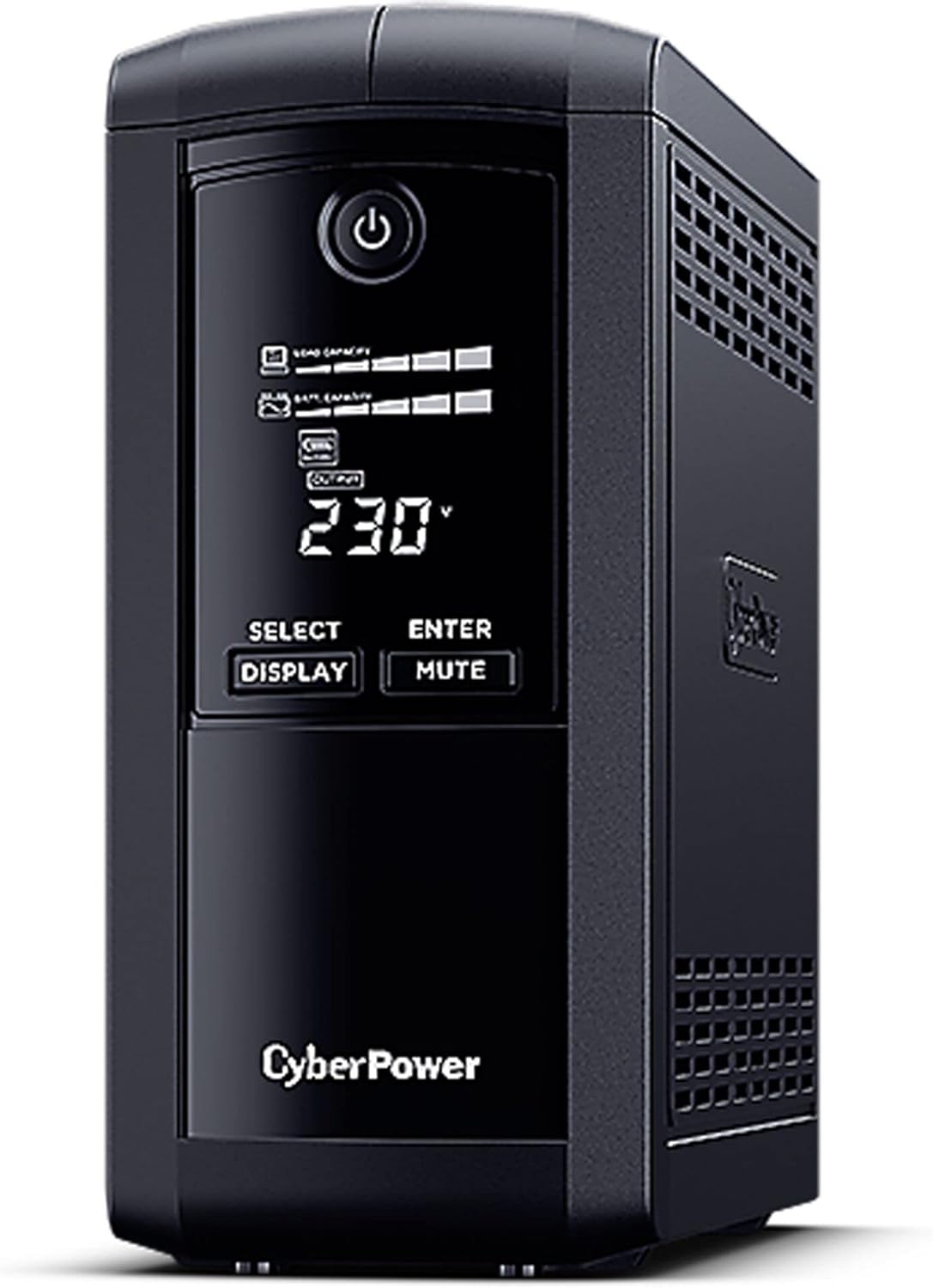
Figure 1: Front view of the CyberPower VP700ELCD Uninterruptible Power Supply. The image displays the black tower unit with a central control panel. The panel includes an LCD screen showing "230V" and battery/load indicators, a power button at the top, and "SELECT DISPLAY" and "ENTER MUTE" buttons below the screen. The CyberPower logo is visible at the bottom of the panel. Ventilation grilles are present on the sides of the unit.
Front Panel Features:
- Power Button: Controls the UPS power on/off.
- LCD Display: Shows real-time UPS status, including input/output voltage, battery capacity, load level, and various operational modes.
- DISPLAY Button: Cycles through different display information on the LCD.
- MUTE Button: Silences the alarm sound.
Rear Panel Features (General):
- AC Input: Power cord connection.
- Battery Backup Outlets: Provide power during outages and surge protection.
- Surge-Only Outlets: Provide surge protection only.
- USB Port: For communication with a computer for power management software.
- RJ11/RJ45 Ports: For surge protection of phone/network lines (if applicable).
4. Setup Guide
- Unpacking: Carefully unpack the UPS and inspect it for any shipping damage.
- Placement: Place the UPS in a protected area, away from excessive moisture, heat, or direct sunlight. Ensure adequate ventilation around the unit.
- Initial Charging: Connect the UPS to a standard grounded AC outlet. For optimal performance, charge the battery for at least 8 hours before initial use.
- Connecting Equipment:
- Connect critical equipment (e.g., computer, monitor, external hard drives) to the Battery Backup Outlets. These outlets provide power during outages.
- Connect non-critical equipment (e.g., printer, scanner) to the Surge-Only Outlets. These outlets provide surge protection but no battery backup.
- Power On: Press the Power button on the front panel to turn on the UPS. The LCD display will illuminate.
- Software Installation (Optional): For advanced power management features, download and install the CyberPower PowerPanel Personal Edition software from the official CyberPower website. Connect the UPS to your computer via the USB port.
5. Operating Instructions
Power On/Off:
- To turn on the UPS, press and hold the Power button for approximately 2 seconds.
- To turn off the UPS, press and hold the Power button for approximately 2 seconds until the unit powers down.
LCD Display Operation:
Press the DISPLAY button to cycle through various operational parameters shown on the LCD screen. These may include:
- Input Voltage
- Output Voltage
- Battery Capacity
- Load Level
- Estimated Runtime
- Operating Mode (e.g., Line Mode, Battery Mode)
Alarm Mute:
During a power event, the UPS may emit an audible alarm. Press the MUTE button to silence the alarm temporarily.
6. Maintenance
Battery Replacement:
The UPS contains a user-replaceable battery. The typical battery life is 3-5 years, depending on usage and environmental conditions. When the battery needs replacement, the UPS may indicate a "Replace Battery" warning on the LCD or through an audible alarm. Refer to the CyberPower website or contact customer support for information on purchasing replacement batteries and detailed replacement instructions.
Warning: Battery replacement should only be performed by qualified service personnel. Disconnect the UPS from all power sources before attempting battery replacement.
Cleaning:
Periodically clean the exterior of the UPS with a soft, dry cloth. Do not use liquid or aerosol cleaners. Ensure ventilation openings are free from dust and debris.
7. Troubleshooting
| Problem | Possible Cause | Solution |
|---|---|---|
| UPS will not turn on. | Battery is low or discharged. UPS is not connected to AC power. | Ensure the UPS is plugged into a live AC outlet. Allow the battery to charge for at least 8 hours. |
| UPS is on battery mode frequently. | Input voltage is too high or too low, or frequent power fluctuations. | Check the AC power source. The UPS is performing its function to protect connected equipment. |
| UPS emits a continuous alarm. | Overload condition or battery fault. | Reduce the load by unplugging non-essential equipment. If the alarm persists, contact support. |
| "Replace Battery" indicator is on. | Battery has reached the end of its service life. | Replace the battery. Refer to the Maintenance section. |
8. Specifications
- Model: CyberPower VP700ELCD
- Capacity: 700 VA / 390 Watts
- Input Voltage: 295 Volts (Nominal)
- Output Voltage: 120 Volts (Nominal)
- Amperage: 16 Amps
- Total Power Outlets: 6
- Connector Type: ATX/EPS, IEC 320
- Batteries: 1 Lithium Ion battery required
- Dimensions (L x W x H): 27 x 4.3 x 4.3 cm
- Item Weight: 5.14 kg (5140 Grams)
- Form Factor: Rack
- Color: Black
9. Warranty and Support
For warranty information, technical support, or to register your product, please visit the official CyberPower website or contact their customer service department. Keep your purchase receipt as proof of purchase for warranty claims.
Website: www.cyberpower.com


