
Introduction
Thank you for choosing the WisFox 2.4G Wireless Mouse. This manual provides detailed instructions for setting up, operating, and maintaining your new wireless mouse. Please read this manual thoroughly before use to ensure optimal performance and longevity of your device.
Package Contents
- 1 x WisFox 2.4G Wireless Mouse
- 1 x USB Receiver (stored in the battery compartment)
- 1 x Type-C Adapter
- 1 x User Manual
Key Features
- Comfortable Ergonomic Design: Well-built, lightweight, contoured shape with sweat-resistant coating for enhanced comfort.
- Adjustable DPI Levels: Three adjustable DPI settings (800, 1200, 1600) for precise tracking on various surfaces.
- Six-Button Design: Includes standard left/right click, scroll wheel, DPI button, and two side buttons for improved functionality in work and gaming.
- High Durability & Stable Signal: Tested for 5 million keystrokes, utilizing advanced 2.4GHz wireless technology for strong, accurate connection up to 33 feet.
- Auto Sleep Mode: Energy-efficient design with auto power-saving mode after 1 minute of idling and sleep mode after 8 minutes of idling. Double-click to wake.
- Symmetric Design: Suitable for both right-handed and left-handed users.
- Wide Compatibility: Compatible with Windows 7/8/10/XP, Vista 7/8, Linux, Mac OS (V10.4 or higher), and works with laptops, desktops, PCs, and MacBooks.
Setup Guide
1. Install Battery
Open the battery compartment cover located on the underside of the mouse. Insert one AA battery (not included) ensuring correct polarity. The USB receiver is also stored in this compartment.

Image: Underside of the mouse with the battery compartment open, showing the slot for the USB receiver.
2. Connect USB Receiver
Remove the USB receiver from the battery compartment. Plug the USB receiver into an available USB port on your computer. If your computer only has Type-C ports, use the included Type-C adapter by plugging the USB receiver into it, then plugging the adapter into your computer's Type-C port.
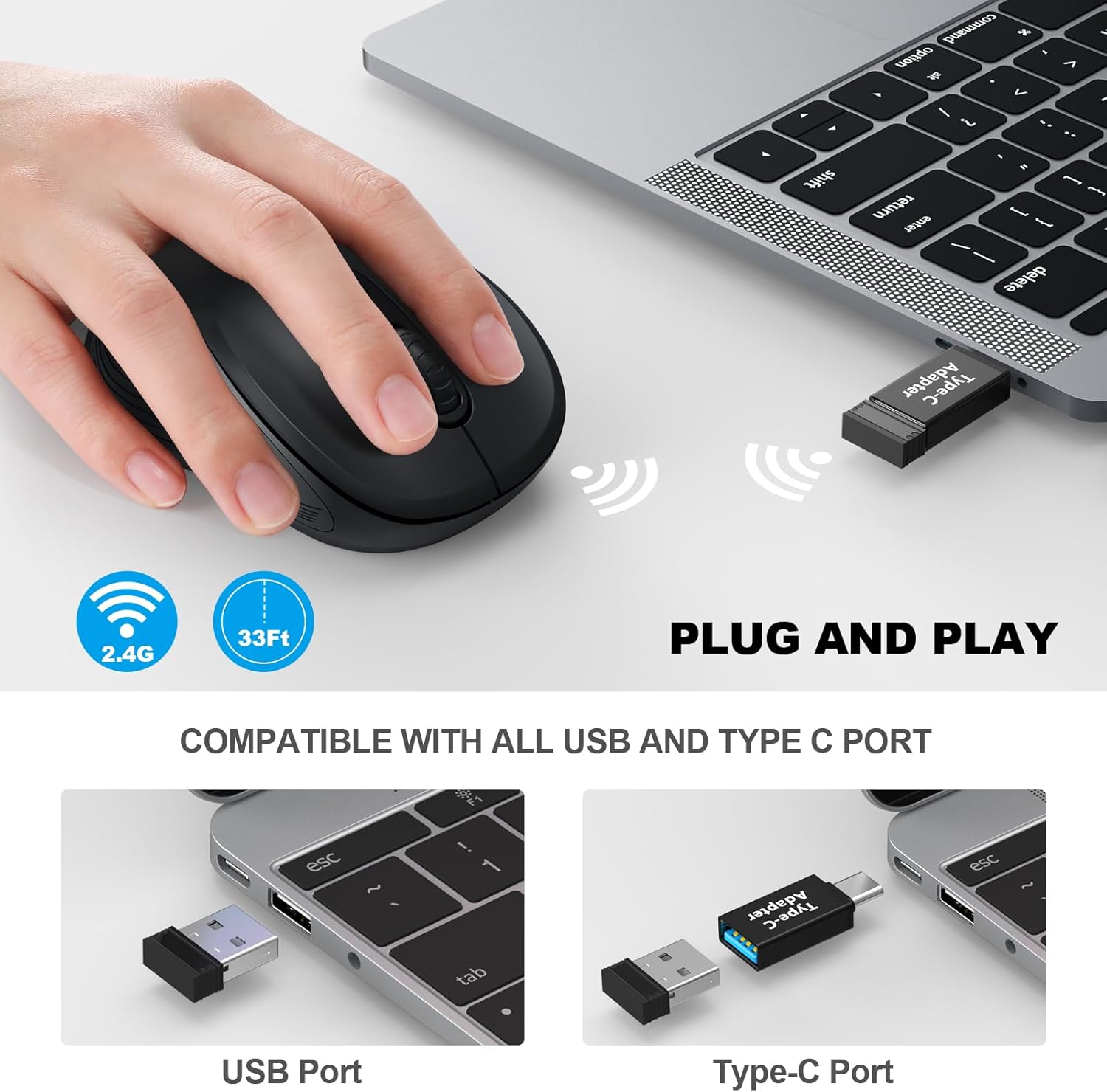
Image: Illustration demonstrating connection of the USB receiver to both standard USB and Type-C ports using the adapter.
3. Power On Mouse
Locate the On/Off switch on the underside of the mouse and slide it to the "On" position. The mouse is plug-and-play, so no additional drivers are required. Your computer should automatically detect the mouse.
Operating Instructions
Button Functions
The WisFox Wireless Mouse features six functional buttons:
- Left Click Button: Standard selection and activation.
- Right Click Button: Opens contextual menus.
- Scroll Wheel: Scrolls content vertically. Can also be pressed for middle-click functionality.
- DPI Switch Button: Adjusts cursor sensitivity.
- Side Buttons (Page Up/Page Down): Typically used for navigating forward and backward in web browsers or file explorers.
Image: A detailed view of the mouse highlighting the DPI switch button, Page Up, Page Down, Turn On/Off switch, Battery Slot, and USB Receiver.
Adjusting DPI Sensitivity
Press the DPI switch button located behind the scroll wheel to cycle through the three available sensitivity levels: 800 DPI, 1200 DPI, and 1600 DPI. Select the DPI setting that best suits your preference and task.

Image: The mouse shown with indicators for noiseless click and adjustable DPI settings (800-1200-1600).
Power Saving Mode
To conserve battery life, the mouse will automatically enter power-saving mode after 1 minute of inactivity. After 8 minutes of idling, it will enter a deeper sleep mode. To wake the mouse, simply double-click any button.

Image: Visual representation of the mouse's smart power management, showing 1 minute for power saving mode and 8 minutes for auto sleep mode.
Maintenance
- Cleaning: Use a soft, dry cloth to clean the surface of the mouse. For stubborn dirt, a slightly damp cloth can be used, but ensure no moisture enters the device.
- Battery Replacement: When the mouse performance degrades or it stops responding, replace the AA battery. Always dispose of used batteries responsibly.
- Storage: When not in use for extended periods, turn off the mouse to conserve battery life. Store the USB receiver in its dedicated slot within the battery compartment to prevent loss.
Troubleshooting
| Problem | Solution |
|---|---|
| Mouse not responding. |
|
| Cursor movement is erratic or laggy. |
|
| Side buttons (Page Up/Page Down) do not work. |
|
Specifications
| Feature | Detail |
|---|---|
| Model Number | 4545WM |
| Connectivity | 2.4GHz Wireless (USB Receiver) |
| DPI Levels | 800 / 1200 / 1600 |
| Buttons | 6 (Left, Right, Scroll Wheel, DPI, Page Up, Page Down) |
| Power Source | 1 x AA Battery (not included) |
| Operating Distance | Up to 33 feet (10 meters) |
| Dimensions | 4.09 x 2.4 x 1.57 inches (105 x 60 x 40 mm) |
| Weight | 2.4 ounces (68 grams) |
| Compatibility | Windows 7/8/10/XP, Vista 7/8, Linux, Mac OS (V10.4 or higher) |

Image: Side and top views of the mouse with its dimensions indicated.
Warranty and Support
WisFox provides a 24-month guarantee for this product. Additionally, a 90-day no-questions-asked return policy is offered. For any questions or assistance, please contact our 24/7 customer service. Refer to the product packaging or the official WisFox website for specific contact details.


