
1. Product Overview
The LIBO F30-S+10 is an advanced access control keypad and time attendance device designed for efficient employee check-in and access management. It integrates biometric fingerprint recognition, RFID card reading, and password authentication for versatile security and attendance tracking. This device is suitable for various environments including offices, factories, hotels, and schools.
Key Features:
- 1.8-inch TFT color screen for intuitive operation.
- Supports Fingerprint, Password, and RFID card identification methods.
- High-precision anti-dry and wet back optical fingerprint collector.
- Large capacity: 1000 fingerprints, 1000 RFID cards, 1000 passwords, and 100,000 record articles.
- Fast identification speed (≤ 1 second) with 360-degree comprehensive fingerprint recognition.
- Offline working mode with U-Disk support for data upload/download.
- Humanized language indication reminders and T9 input method.
- Wiegand 26/34 input/output signal, relay output, and door bell button.
- Support for tamper alarm.
2. Package Contents
Please verify that all items listed below are included in your package:
- 1 x F30-S Fingerprint Machine
- 1 x Bag of Screws & Wires
- 1 x User Manual
- 10 x RFID Keyfobs
Note: A 12V DC power supply is required for operation and is not included in the package.

Image: Contents of the product package, including the F30-S fingerprint machine, user manual, mounting hardware, and RFID keyfobs.
3. Important Safety Information
To ensure safe and proper operation of your device, please read and follow these safety guidelines:
- Ensure the device is powered by a stable DC 12V power supply. Using an incorrect voltage may damage the device.
- Do not expose the device to water, moisture, or extreme temperatures.
- Avoid placing the device in direct sunlight or near heat sources.
- Do not attempt to disassemble or repair the device yourself. Refer to qualified personnel for service.
- Keep the device out of reach of children.
- Ensure proper ventilation around the device to prevent overheating.
4. Installation and Setup
4.1 Physical Installation
Mount the F30-S+10 device securely on a wall or suitable surface using the provided screws. Ensure it is placed at a convenient height for users to access the fingerprint scanner and keypad.

Image: Labeled components of the F30-S+10 device, including the LED screen, fingerprint collector, keypad, ID card area, U-disk interface, and speaker.
4.2 Wiring Diagram
The device requires a 12V DC power supply (not included). It can be integrated with electric locks, exit buttons, and door bells. Refer to the diagram below for proper wiring connections.

Image: Detailed wiring diagram illustrating how to connect the F30-S+10 fingerprint machine to a power supply, electric locks, an exit button, and a door bell.
Wiring Notes:
- Connect the 12V and GND terminals to your DC 12V power supply.
- For access control, connect the NO (Normally Open) or NC (Normally Closed) terminals to your electric lock, depending on your lock type.
- Connect the Door Bell terminals to an external door bell if desired.
- The Wiegand 26/34 input/output terminals are for integration with other access control systems.
5. Operating Instructions
5.1 User Identification Methods
The F30-S+10 supports three primary methods for user identification and attendance recording:
- Fingerprint: Place your registered finger on the optical fingerprint collector. The device will verify your identity.
- RFID Card: Present a registered 125KHz RFID card to the ID Card Area.
- Password: Enter your registered password using the keypad.

Image: Visual representation of the three supported identification methods: fingerprint, RFID card, and password, highlighting their respective user capacities.
5.2 Menu Navigation
The device features a 1.8-inch TFT screen and a keypad for easy menu navigation and programming. The screen displays the current time and date in standby mode. To access the menu, press the 'M' key on the keypad.
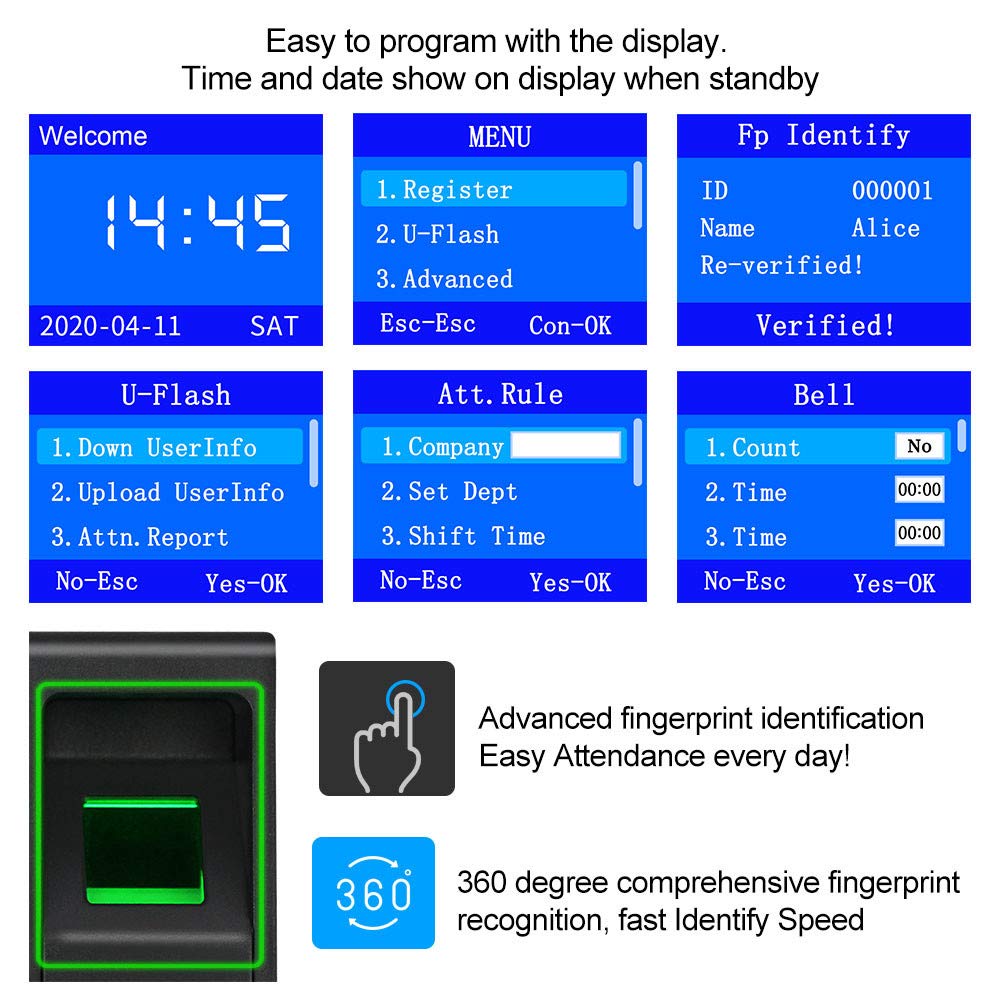
Image: Examples of the device's menu screens, demonstrating options for user registration, U-disk operations, advanced settings, attendance rules, and bell configurations.
Common Menu Options:
- Register: Used to enroll new users (fingerprints, RFID cards, passwords).
- U-Flash: For uploading and downloading data via a USB flash drive.
- Advanced: Contains advanced system settings.
- Att. Rule: Configure attendance rules, company information, and shift times.
- Bell: Set up bell schedules.
5.3 Data Management (U-Disk)
The device supports offline data management using a standard USB flash drive (not included). This allows for easy transfer of attendance records and user information without needing a network connection.

Image: Illustration of the U-disk interface for uploading and downloading attendance data, enabling automatic report generation on a computer.
Steps for U-Disk Data Transfer:
- Insert a formatted USB flash drive into the U Disk Interface on the side of the device.
- Navigate to the 'U-Flash' menu option.
- Select 'Down UserInfo' to download user data or 'Attn. Report' to download attendance records.
- To upload user information, select 'Upload UserInfo'.
- Once the transfer is complete, safely remove the USB flash drive.
6. Maintenance
To ensure the longevity and optimal performance of your LIBO F30-S+10, follow these maintenance guidelines:
- Cleaning: Use a soft, dry cloth to clean the device's exterior. For the fingerprint sensor, use a lint-free cloth lightly dampened with a non-abrasive cleaner. Avoid harsh chemicals or abrasive materials.
- Environment: Keep the device in a clean, dry environment, away from dust, direct sunlight, and extreme temperatures.
- Firmware Updates: Check the manufacturer's website periodically for any available firmware updates to improve performance and add new features.
7. Troubleshooting
If you encounter issues with your device, refer to the following common problems and solutions:
- Device not powering on:
- Ensure the 12V DC power supply is correctly connected and functioning.
- Check all wiring connections for looseness or damage.
- Fingerprint not recognized:
- Ensure your finger is clean and dry.
- Place your finger flat on the sensor, covering the entire area.
- Try re-registering your fingerprint if the issue persists.
- Clean the fingerprint sensor surface.
- RFID card not detected:
- Ensure the RFID card is registered with the device.
- Present the card directly to the ID Card Area.
- Cannot download/upload data via U-Disk:
- Ensure the USB flash drive is properly inserted and formatted correctly (FAT32 is usually recommended).
- Check if the U-Disk has sufficient free space.
- Try a different USB flash drive.
- Screen is blank or frozen:
- Try restarting the device by disconnecting and reconnecting the power.
- If the issue persists, contact customer support.
8. Product Specifications
| Specification | Value |
|---|---|
| Model | F30-S |
| Display Screen | Color screen, 1.8inch TFT LCD screen |
| Fingerprint Collector | High-precision anti-dry and wet back optical collector |
| Fingerprint Capacity | 1000 |
| Password Capacity | 1000 |
| 125KHz RFID Card Capacity | 1000 |
| Record Capacity | 100,000 articles |
| Communication Method | U-Disk |
| Verification Method | Fingerprint, password, RFID card |
| Identify Speed | ≤ 1 second |
| Rejection Rate (FRR) | ≤0.1% |
| Recognition Rate (FAR) | ≤0.0001% |
| Way of Working | Offline |
| Language Display | Chinese, English |
| Voice Prompts | High-definition human voice |
| Dimensions | 90 × 90 × 28 mm (3.54 x 3.54 x 1.1 inches) |
| Product Weight | 0.27 Kilograms (9.59 ounces) |
| Voltage | 12 Volts DC |
| Material | Plastic |
9. Warranty and Support
For warranty information, technical support, or service inquiries, please refer to the official LIBO Smart Home website or contact their customer service directly. Keep your purchase receipt as proof of purchase for any warranty claims.
For the most up-to-date information, visit the manufacturer's official support channels.