
Maxcom MM471
Maxcom MM471 Senior Portable Phone User Manual
1. Introduction
This manual provides detailed instructions for the safe and efficient use of your Maxcom MM471 Senior Portable Phone. Designed with ease of use in mind, this device features large characters, big buttons, and an ergonomic design, making it ideal for seniors. Please read this manual thoroughly before operating your phone.

Figure 1: Front view of the Maxcom MM471 Senior Portable Phone.
2. Setup
2.1 Package Contents
Ensure all items are present in the package:
- Maxcom MM471 Senior Portable Phone
- Battery
- Charging Adapter
- User Manual
2.2 Inserting the SIM Card and Battery
The Maxcom MM471 supports dual SIM cards. Follow these steps to install your SIM card(s) and battery:
- Turn off the phone and disconnect it from any power source.
- Carefully remove the back cover of the phone.
- Insert your SIM card(s) into the designated slot(s) with the gold contacts facing down.
- Insert the battery, ensuring the contacts align correctly.
- Replace the back cover until it clicks securely into place.

Figure 2: Back view with battery and SIM card area.
2.3 Charging the Battery
Before first use, fully charge the phone's battery:
- Connect the charging adapter to the phone's charging port or place the phone in its charging dock.
- Plug the adapter into a power outlet.
- The battery indicator on the screen will show charging status.
- Once fully charged, disconnect the charger.
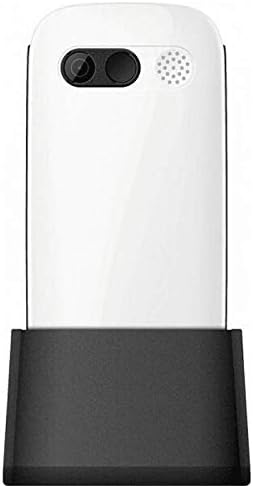
Figure 3: Phone in charging dock.
3. Operating Instructions
3.1 Powering On/Off
- To Power On: Press and hold the Power/End Call button until the screen lights up.
- To Power Off: Press and hold the Power/End Call button until the power-off options appear, then select 'Power Off'.
3.2 Making Calls
- From the home screen, enter the phone number using the keypad.
- Press the Call button (green button) to initiate the call.
- To end the call, press the Power/End Call button (red button).
3.3 Receiving Calls
- When a call comes in, the phone will ring and display the caller's number or name.
- Press the Call button (green button) to answer.
- To reject the call, press the Power/End Call button (red button).
3.4 Sending and Receiving Messages
- Navigate to the 'Messages' menu from the main screen.
- Select 'New Message' to compose a text message.
- Enter the recipient's number and your message.
- Press 'Send'.
- Received messages will appear in your 'Inbox'.
3.5 Managing Contacts
The phonebook can store up to 300 names.
- Go to the 'Contacts' or 'Phonebook' menu.
- Select 'Add New Contact' to save a new number.
- Enter the name and phone number, then save.
- To call a contact, select their name from the list and press the Call button.
3.6 Using Bluetooth
To connect to Bluetooth devices:
- Go to 'Settings' > 'Bluetooth'.
- Turn Bluetooth 'On'.
- Select 'Search for devices' to find available Bluetooth accessories.
- Select the desired device and pair them.
3.7 Using the Flashlight
The phone includes a built-in flashlight for convenience.
- To turn on the flashlight, locate the dedicated flashlight button (if available) or access it through the 'Tools' menu.
- Press the button or select the option again to turn it off.
4. Maintenance and Care
To ensure the longevity and optimal performance of your Maxcom MM471 phone, follow these maintenance guidelines:
- Cleaning: Use a soft, dry cloth to clean the phone's surface. Avoid liquid cleaners or abrasive materials.
- Temperature: Do not expose the phone to extreme temperatures (hot or cold) or direct sunlight for extended periods.
- Moisture: Keep the phone dry. Do not immerse it in water or expose it to high humidity.
- Storage: When not in use for a long time, store the phone in a cool, dry place with the battery partially charged.
- Impact: Avoid dropping the phone or subjecting it to strong impacts.
5. Troubleshooting
If you encounter issues with your phone, refer to the table below for common problems and solutions:
| Problem | Possible Cause | Solution |
|---|---|---|
| Phone does not turn on | Battery is depleted or not inserted correctly. | Charge the battery. Ensure the battery is correctly inserted. |
| Cannot make or receive calls | No network signal, SIM card not inserted, or SIM card faulty. | Check network coverage. Reinsert SIM card(s). Contact your service provider. |
| Poor call quality | Weak network signal, interference. | Move to an area with better signal. Avoid obstructions. |
| Battery drains quickly | Excessive usage, background applications, old battery. | Reduce screen brightness. Close unused applications. Consider replacing the battery if it's old. |
| Keypad unresponsive | Software glitch, physical damage. | Restart the phone. If the problem persists, contact support. |
6. Technical Specifications
Key technical details of the Maxcom MM471 Senior Portable Phone:
- Model: MM471
- Brand: Maxcom
- Color: White
- Connectivity: Bluetooth
- SIM Support: Dual SIM
- Phonebook Capacity: 300 names
- Talk Time: Up to 14 hours
- Interface: Physical Buttons
- Special Features: Large characters, Big buttons, Ergonomic design, Speaker, Flashlight
7. Warranty and Support Information
For detailed warranty information, please refer to the warranty card included with your product or visit the official Maxcom website. For technical support or service inquiries, please contact your retailer or the manufacturer's customer service department.
Related documentsMM471


Ask a question about this manual
Ask about setup, troubleshooting, compatibility, parts, safety, or missing instructions. Manuals+ will review the question and use this page’s manual context to help answer it.